• Home
  • News
  • Software
  • Knowledge
  • MMO
  • Tips
  • Security
  • Network
  • Office
AnonyViet - English Version
  • Home
  • News
  • Software
  • Knowledge
  • MMO
  • Tips
  • Security
  • Network
  • Office
No Result
View All Result
  • Home
  • News
  • Software
  • Knowledge
  • MMO
  • Tips
  • Security
  • Network
  • Office
No Result
View All Result
AnonyViet - English Version
No Result
View All Result

Cover 44: How to Customize Number Formats in Excel

AnonyViet by AnonyViet
January 26, 2023
in Office
0

Excel There are many preset formats that you can use like Currency, Accounting, Date, Time, Percentage,.. If you can’t find the right format, you can customize the format as shown in the article below. .

Join the channel Telegram of the AnonyViet 👉 Link 👈

How to Customize Number Formats in Excel

Automatically add leading zeros

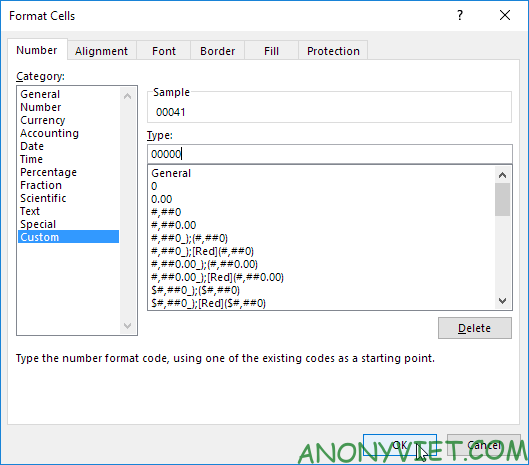
Eg: you want to enter 5 digits. Instead of entering 00041, simply enter 41 and Excel will automatically add leading zeros.

first. Enter the value 41 in cell A1.

2. Select cell A1, right-click and select Format Cells.

3. Select Custom.

4. Enter the following number format code: 00000

5. Click OK.
Cover 44: How to Customize Number Formats in Excel

Note: Excel gives you a preview of the format in Sample.

Result:

Cover 44: How to Customize Number Format in Excel 14

Note: cell A1 still contains the number 41. We only change the display of this number, not the value of cell A1.

Decimal place

You can also control the number of decimal places. Use 0 to display the nearest integer value. Use 0.0 for one decimal place. Use 0.00 for two decimal places,..

first. Enter the value 839.1274 in cell A1.

2. Use the following number format code: 0.00

Cover 44: How to Customize Number Format in Excel 15

Insert text

You can also add text to your number. For example, add “ft”.

first. Enter the value 839.1274 in cell A1.

2. Use the following number format code: 0.0 “ft”

Cover 44: How to Customize Number Format in Excel 16

Note: I only changed the display of this number, not its value. You can still use this number for calculations.

Big number

You can also control large numbers. Use one comma (,) to display thousands and use two commas (,,) to display millions.

first. Enter the following values ​​in cells A1, B1, C1 and D1: 1000000, 2500000, 81000000, and 700000.

2. Use the following number format code: 0.0 ,, “M”

Cover 44: How to Customize Number Format in Excel 17

Note: we used 0.0 for one decimal place and “M” to add the letter M.

Repeat character

Use asterisks

include a character to tell Excel how many times you want the character to be repeated. first.

Enter Hi in cell A1. 2. Use the following number format code:

@ * –

Cover 44: How to Customize Number Format in Excel 20

Note: the @ symbol is used to enter text.

Color

You can control positive numbers, negative numbers, zeros and text at the same time! Each part is separated by a semicolon (;) in the number format code. first.

Enter the following values ​​in cells A1, B1, C1 and A2: 5000000, 0, Hi, and -5.89. 2. [Green] Use the following number format code: [Red] $ #, ## 0 _); [Blue] $ (#, ## 0); “zero”;
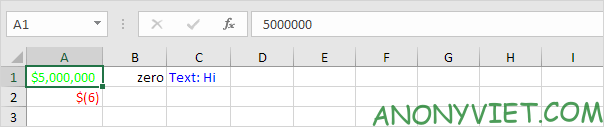
“Text:” @

Cover 44: How to Customize Number Format in Excel 21 Note:

#, ## are used to add commas to large numbers. To add a space, use an underscore “_” followed by a character. The length of the space will be the length of this character. In my example, I added a single quote “)”.

Date and time

You can also control the date and time. Use one of the existing Date and Time formats to get started. first.

Enter the value 42855 in cell A1. 2.

Select cell A1, right-click, and then select Format Cells. 3.
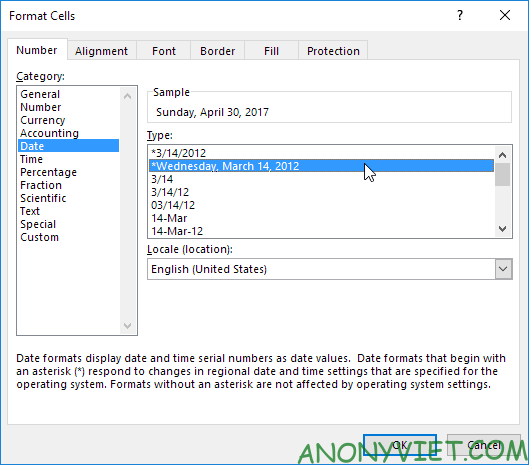
Click Date.

Cover 44: How to Customize Number Format in Excel 22

Note: Excel gives you a preview of the date in Sample. 4.

Select Custom. 5.

Slightly change the format code to: mm / dd / yyyy, dddd 6.
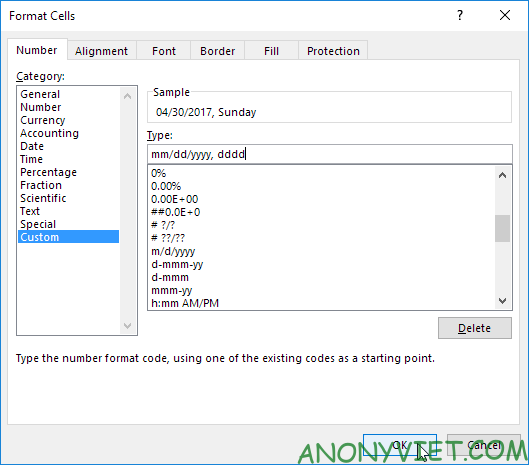
Click OK.

Cover 44: How to Customize Number Format in Excel 23

Result:

Cover 44: How to Customize Number Format in Excel 24 In addition, you can also view many other excel articles

here.

The article achieved: 5/5 – (100 votes)

Tags: CovercustomizeExcelFormatsnumber
Previous Post

How to crack Password WinRAR: Unlock password protected files

Next Post

How to add a link to an Instagram Story

AnonyViet

AnonyViet

Related Posts

Instructions on how to convert text into QR codes in Word
Office

Instructions on how to convert text into QR codes in Word

October 5, 2026
Tool to adjust the format of administrative documents according to Decree 30
Office

Tool to adjust the format of administrative documents according to Decree 30

October 1, 2026
How to add Watermark to Google Docs to protect copyright
Office

How to add Watermark to Google Docs to protect copyright

April 19, 2026
Instructions on how to hide formulas in Excel to secure data
Office

Instructions on how to hide formulas in Excel to secure data

February 6, 2026
Top who creates the most beautiful presentation slide today
Office

Top who creates the most beautiful presentation slide today

September 23, 2025
Automatically check and correct spelling errors on Google Docs
Office

Automatically check and correct spelling errors on Google Docs

February 23, 2025
Next Post
How to add a link to an Instagram Story

How to add a link to an Instagram Story

0 0 votes
Article Rating
Subscribe
Login
Notify of
guest

guest

0 Comments
Oldest
Newest Most Voted

Recent News

Receive copyright for 3 Halloween software worth 0

Receive copyright for 3 Halloween software worth $150

October 23, 2026
How to use Messenger without a Facebook account

How to use Messenger without a Facebook account

October 22, 2026
Instructions on how to exit iOS 27 Beta and update to the official version

Instructions on how to exit iOS 27 Beta and update to the official version

October 22, 2026
Instructions for updating PHP to avoid PHP2Shell

Instructions for updating PHP to avoid PHP2Shell

October 22, 2026
Receive copyright for 3 Halloween software worth 0

Receive copyright for 3 Halloween software worth $150

October 23, 2026
How to use Messenger without a Facebook account

How to use Messenger without a Facebook account

October 22, 2026
Instructions on how to exit iOS 27 Beta and update to the official version

Instructions on how to exit iOS 27 Beta and update to the official version

October 22, 2026
AnonyViet - English Version

AnonyViet

AnonyViet is a website share knowledge that you have never learned in school!

We are ready to welcome your comments, as well as your articles sent to AnonyViet.

Follow Us

Contact:

Email: anonyviet.com[@]gmail.com

Main Website: https://anonyviet.com

Recent News

Receive copyright for 3 Halloween software worth 0

Receive copyright for 3 Halloween software worth $150

October 23, 2026
How to use Messenger without a Facebook account

How to use Messenger without a Facebook account

October 22, 2026
  • Home
  • Home 2
  • Home 3
  • Home 4
  • Home 5
  • Home 6
  • Next Dest Page
  • Sample Page

say88 tỷ lệ kèo nhà cái kèo nhà cái 5 febet

No Result
View All Result
  • Home
  • News
  • Software
  • Knowledge
  • MMO
  • Tips
  • Security
  • Network
  • Office

say88 tỷ lệ kèo nhà cái kèo nhà cái 5 febet

wpDiscuz
0
0
Would love your thoughts, please comment.x
()
x
| Reply