Copying ChatGPT to Word has font errors is a common problem that many teachers encounter when preparing lessons. Math and physics formulas turning into strange characters takes a lot of time to edit manually. To completely solve this problem, an intermediate conversion tool will be the perfect savior. Let’s explore with AnonyViet how to do it in detail below!
📢 Join the channel Telegram belong to AnonyViet
Update new articles, cool tools and IT tips fastest
Why does copying ChatGPT to Word have font errors?
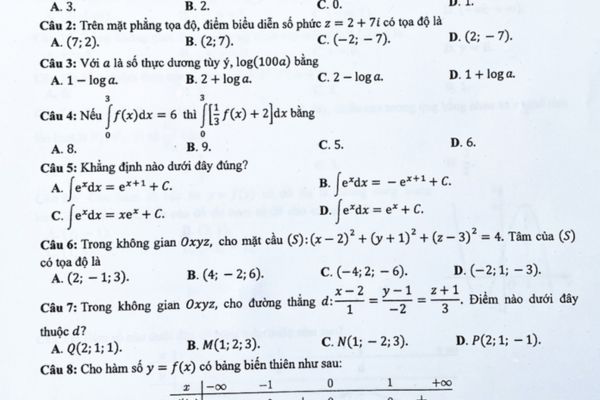
Today, teachers can take full advantage of AI tools such as Gemini or ChatGPT to support teaching, from designing lessons to creating tests. However, a common problem is that with formulas that use special symbols, they are easily deformed. Copy status ChatGPT to Word, font errors occur when we paste content from AI directly into the editing software.
If you use the manual method to convert each piece of code into a formula in Word, teachers will waste a huge amount of time. Below is a much faster and more optimal method to keep the formula format intact.
Compare manual methods and using support tools
To clearly see the convenience, let’s look at the comparison table below:
| Criteria | Manual conversion in Word | Use the MassiveMark tool (Bibcit) |
| Time | Very slow, takes hours | Extremely fast, only takes a few seconds |
| Accuracy | It’s easy to make mistakes if you enter the wrong code | 100% accurate according to AI content |
| Operation | Complicated, must highlight each line | Simple, just copy and paste |
Instructions on how to keep the formula intact from AI
To no longer encounter the problem of copying ChatGPT to Word with font errors, teachers should follow these steps sequentially:
Step 1: Convert content to markdown format
After receiving content containing formulas from an AI tool, we should not copy it immediately. Instead, you need to enter an additional command as follows:
Convert this entire content to markdown format.
Once the AI has exported the complete markdown content, copy the entire content by clicking the copy icon available on the screen to quickly get the exam question.
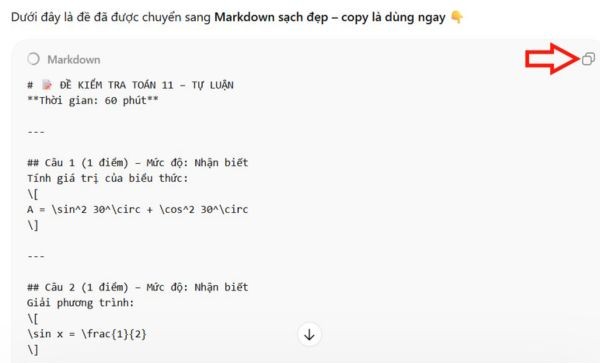
Step 2: Register an account on the Bibcit platform
Next, visit the Bibcit website via the link below:
https://www.bibcit.com/en
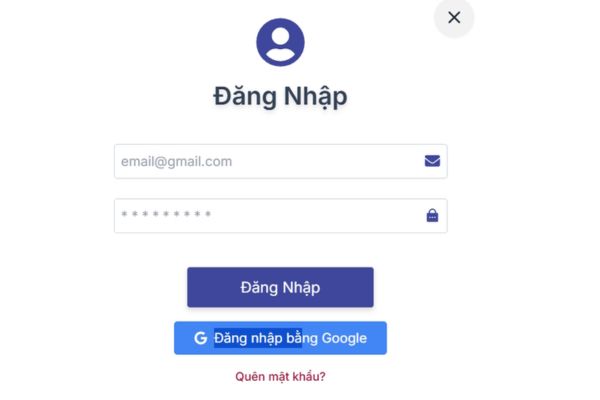
At the home page interface, register a new account using your own Google account. For easier operation, you can change the language of the website to Vietnamese. After creating your account, access the main interface to start using.
Step 3: Use the MassiveMark tool
In the main interface of the system, click on the tool called MassiveMark. This is a specialized feature for creating documents from AI-generated content, helping to completely overcome copying ChatGPT to Word with font errors.

At this point, we will paste all the markdown content just created from AI into the Bibcit interface frame, then click the “Insert” below.
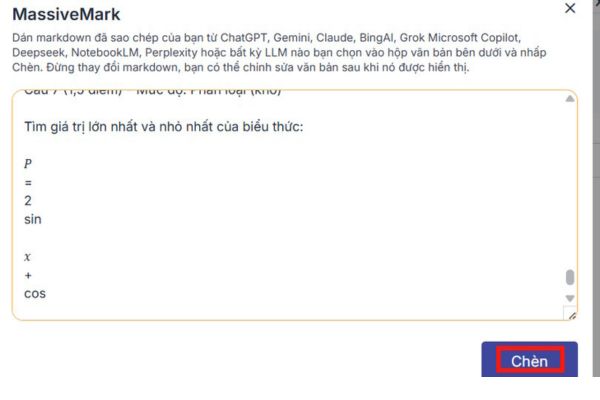
Step 4: Download the complete document to your computer
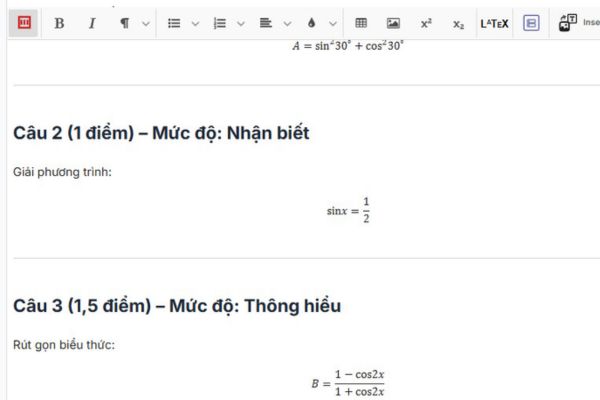
Immediately, we have a content with the formulas preserved in the exact format as shown. At the top of the interface, Bibcit also provides a number of tools so teachers can edit content if desired.
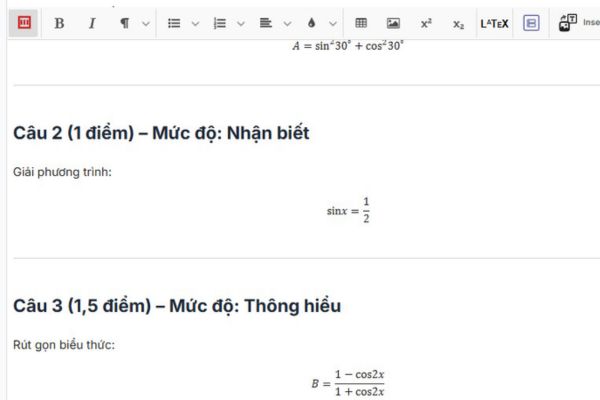
Finally, we click on the button “Download” then select format docx to download the file as a Word document. In addition, the system also allows you to choose other document types if needed. Thanks to that, the worry of copying ChatGPT to Word with font errors has been completely resolved.
Conclusion
With just a few simple steps, error Copying ChatGPT to Word has font errors has been neatly handled. Mathematical and chemical formulas will now display extremely professionally on your documents. Don’t forget to share this useful tip with your colleagues!
Frequently Asked Questions (Q&A)
1. Does the Bibcit platform charge user fees?
No, you can completely register and use Bibcit’s basic conversion features for free through your personal Google account.
2. Is this method applicable to AI Gemini?
Yes, this approach applies to all AI tools. You just need to tell Gemini to export the content as markdown and follow the same steps.
3. After downloading the Word file, can I edit the formula?
Absolutely. The downloaded file is in standard .docx format, so the formulas will be compatible with Word’s Equation feature, allowing you to edit easily.