• Home
  • News
  • Software
  • Knowledge
  • MMO
  • Tips
  • Security
  • Network
  • Office
AnonyViet - English Version
  • Home
  • News
  • Software
  • Knowledge
  • MMO
  • Tips
  • Security
  • Network
  • Office
No Result
View All Result
  • Home
  • News
  • Software
  • Knowledge
  • MMO
  • Tips
  • Security
  • Network
  • Office
No Result
View All Result
AnonyViet - English Version
No Result
View All Result

Automatically convert text to Table in Word

AnonyViet by AnonyViet
January 1, 2023
in Office
0

There are many reasons why you might need to convert text to a table in Word. Sometimes you have a document with a messy layout and want to convert it to a table to make it easier to see. Then you can insert a table and copy/paste that data in half an hour, or do this little trick.
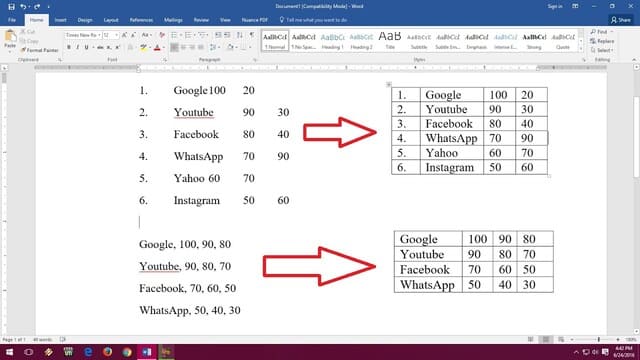
Automatically convert text to Table in Word

Comma (or tab) delimited value

In my case, the starting values ​​are separated by commas. This is quite common for many types of text exported from different sources. But you may also encounter documents with other delimiters, like tabs, semicolons, etc. All can be resolved so don’t worry.
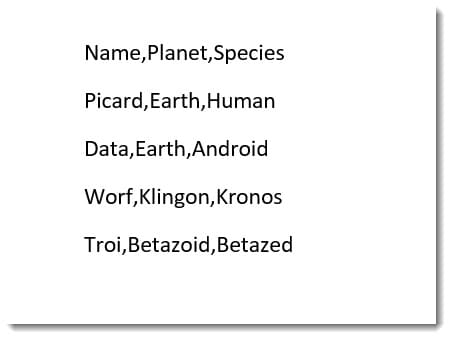
Automatically convert text to Table in Word 10

Convert text to table

I’ll use the comma separated values ​​example above.

1. Highlight the block of text.

2. Go to tab Insert and select the drop-down table. Choose Convert Text to Table…
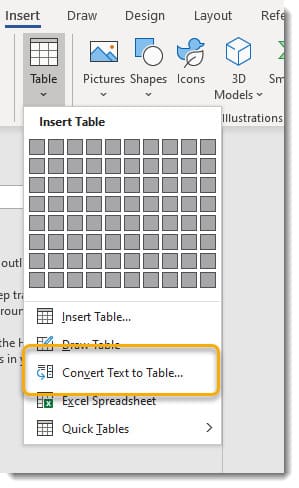
Automatically convert text to Table in Word 11

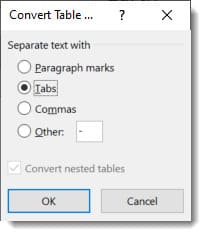
3. Word will guess the delimiter. In its case, Word will understand that the values ​​are separated by commas. Note that you can change the delimiter in the Separate text atif Word doesn’t recognize the delimiter automatically.
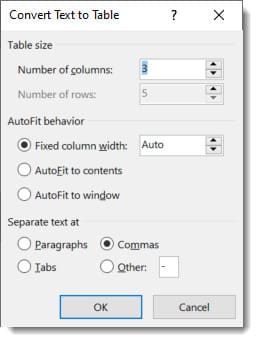
Automatically convert text to Table in Word 12

4. Click OK and a simple table will be created with the data you have highlighted.
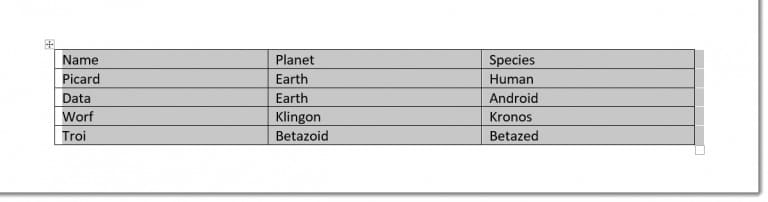
Automatically convert text to Table in Word 13

Don’t forget… you also have a lot of table style and formatting options in the tabs Thiết kế and Layout

Make sure you click on your table for these tabs to appear, as they are contextual tabs.
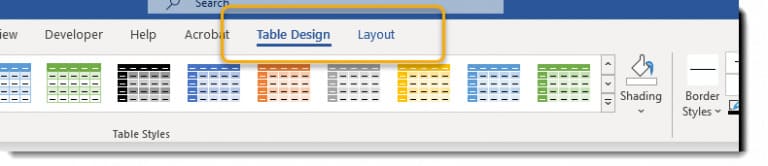
Automatically convert text to Table in Word 14

And here’s my table with a little decoration.

Automatically convert text to Table in Word 15

Convert table to text

Of course, you can do the opposite. I guess there are a few reasons why you would want to do that.

1. Click on your board to activate contextual tabs Thiết kế and Layout.

2. Select tab Layout.

3. In the group Datachoose Convert to Text.
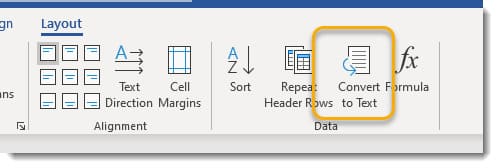
Automatically convert text to Table in Word 16

4. You will have the option to choose how to split the text in existing cells. I choose Tab, but sometimes I can choose Commas(Comma) when I want to export the data as a comma-separated values ​​(CSV) file.

Automatically convert text to Table in Word 17

5. The table is now a tab-separated list of values.
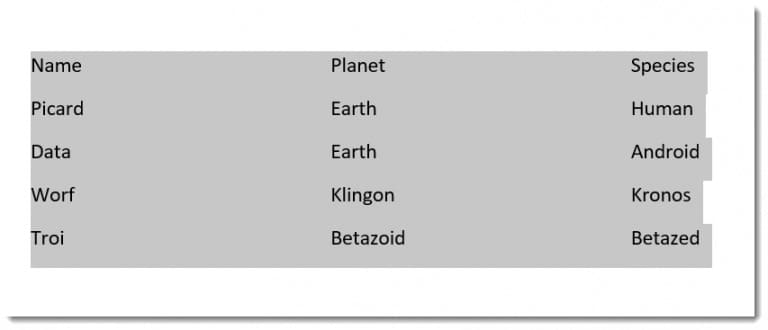
Automatically convert text to Table in Word 18

So that’s it then. In addition, you can read 15 more tips for using Word that every office worker must know here.


The article achieved: 5/5 – (100 votes)

Tags: AutomaticallyconvertTabletextword
Previous Post

What is act fool? What is the meaning of the word act fool?

Next Post

Word experienced an error trying to open the file error – Word experienced an error trying to open the file

AnonyViet

AnonyViet

Related Posts

How to add Watermark to Google Docs to protect copyright
Office

How to add Watermark to Google Docs to protect copyright

April 19, 2026
Instructions on how to hide formulas in Excel to secure data
Office

Instructions on how to hide formulas in Excel to secure data

February 6, 2026
Top who creates the most beautiful presentation slide today
Office

Top who creates the most beautiful presentation slide today

September 23, 2025
Automatically check and correct spelling errors on Google Docs
Office

Automatically check and correct spelling errors on Google Docs

February 23, 2025
Instructions for downloading Google Docs files easily on any device
Office

Instructions for downloading Google Docs files easily on any device

December 18, 2024
Launching AI image creation feature on Google Docs
Office

Launching AI image creation feature on Google Docs

November 20, 2024
Next Post
Word experienced an error trying to open the file error – Word experienced an error trying to open the file

Word experienced an error trying to open the file error - Word experienced an error trying to open the file

0 0 votes
Article Rating
Subscribe
Login
Notify of
guest

guest

0 Comments
Oldest
Newest Most Voted
Inline Feedbacks
View all comments

Recent News

Tips to completely turn off CAPTCHA codes on iPhone and Mac are super simple

Tips to completely turn off CAPTCHA codes on iPhone and Mac are super simple

April 25, 2026
Compare Poco X8 Pro and Poco X7 Pro: A new step for the “king” of mid-range performance

Compare Poco X8 Pro and Poco X7 Pro: A new step for the “king” of mid-range performance

April 24, 2026
How to compress online videos for free without losing quality

How to compress online videos for free without losing quality

April 24, 2026
Top 5 apps to view good days 2026 for free on iOS and Android

Top 5 apps to view good days 2026 for free on iOS and Android

April 23, 2026
Tips to completely turn off CAPTCHA codes on iPhone and Mac are super simple

Tips to completely turn off CAPTCHA codes on iPhone and Mac are super simple

April 25, 2026
Compare Poco X8 Pro and Poco X7 Pro: A new step for the “king” of mid-range performance

Compare Poco X8 Pro and Poco X7 Pro: A new step for the “king” of mid-range performance

April 24, 2026
How to compress online videos for free without losing quality

How to compress online videos for free without losing quality

April 24, 2026
AnonyViet - English Version

AnonyViet

AnonyViet is a website share knowledge that you have never learned in school!

We are ready to welcome your comments, as well as your articles sent to AnonyViet.

Follow Us

Contact:

Email: anonyviet.com[@]gmail.com

Main Website: https://anonyviet.com

Recent News

Tips to completely turn off CAPTCHA codes on iPhone and Mac are super simple

Tips to completely turn off CAPTCHA codes on iPhone and Mac are super simple

April 25, 2026
Compare Poco X8 Pro and Poco X7 Pro: A new step for the “king” of mid-range performance

Compare Poco X8 Pro and Poco X7 Pro: A new step for the “king” of mid-range performance

April 24, 2026
No Result
View All Result
  • Home
  • News
  • Software
  • Knowledge
  • MMO
  • Tips
  • Security
  • Network
  • Office

wpDiscuz
0
0
Would love your thoughts, please comment.x
()
x
| Reply