• Home
  • News
  • Software
  • Knowledge
  • MMO
  • Tips
  • Security
  • Network
  • Office
AnonyViet - English Version
  • Home
  • News
  • Software
  • Knowledge
  • MMO
  • Tips
  • Security
  • Network
  • Office
No Result
View All Result
  • Home
  • News
  • Software
  • Knowledge
  • MMO
  • Tips
  • Security
  • Network
  • Office
No Result
View All Result
AnonyViet - English Version
No Result
View All Result

3 coolest ways to turn off your computer

AnonyViet by AnonyViet
January 29, 2023
in Tips
0

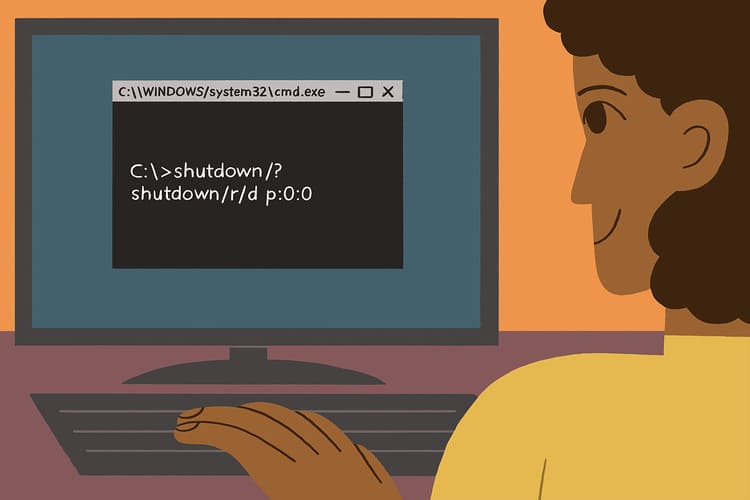
Are you tired of the normal shutdown of the computer and want to innovate a bit? Don’t worry, in this article, I will introduce you to 3 cool ways to turn off your computer that you can try.

Join the channel Telegram of the AnonyViet 👉 Link 👈

3 coolest ways to turn off your computer

3 coolest ways to turn off your computer

1. Hacker-style shutdown

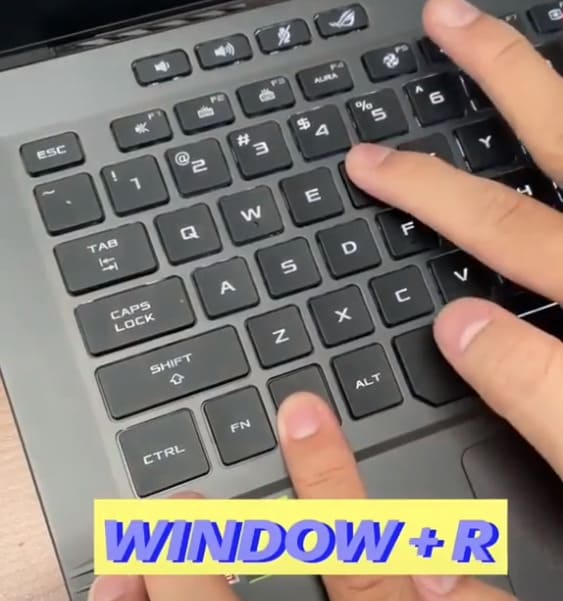
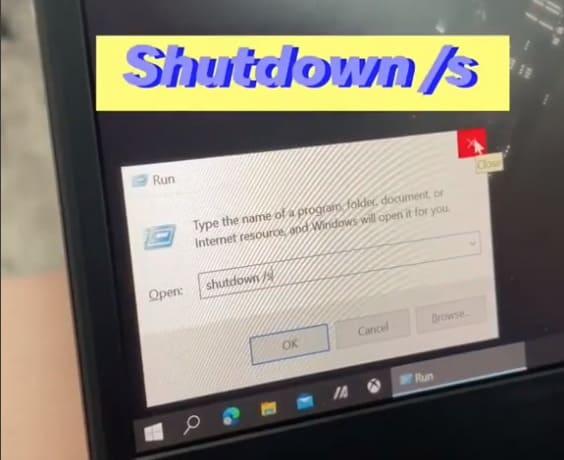
First, you press the Windows + R key combination to open the “Run” dialog box.
3 coolest ways to turn off your computer 12

Then enter the command shutdown /s and press Enter. This command will shutdown your computer in 10 seconds. If you want to change the shutdown time, you can add the argument /t. Eg shutdown /s /t 30 will shut down your computer after 30 seconds. When you want to cancel the shutdown command just type shutdown /a is to be. In addition, you can also learn more 16 extremely cool tricks with CMD here.
3 coolest ways to turn off your computer

2. Super lazy style

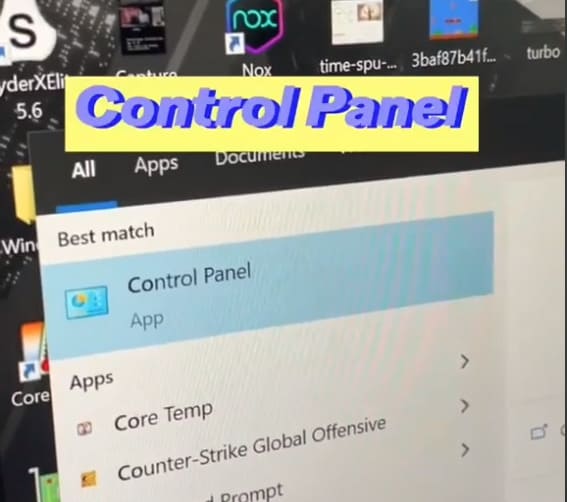
You guys come in Windows Search type Control Panel then select the first result or press the key combination Windows + CHEAP and enter Control already Enter to open Control Panel.
3 coolest ways to turn off your computer

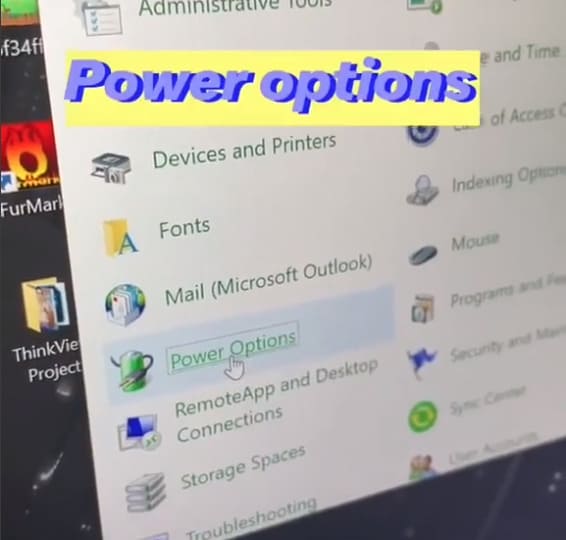
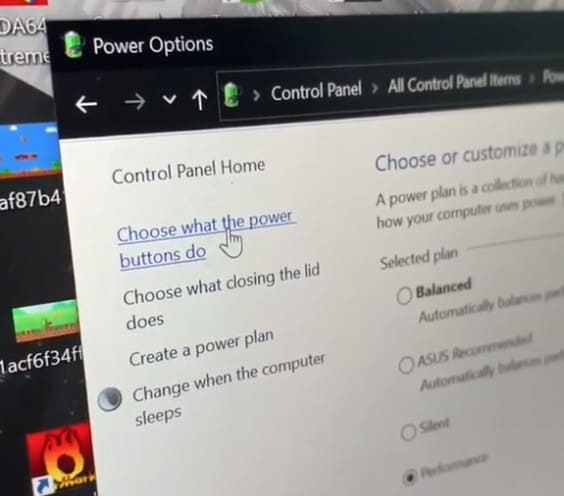
Next, you go to Power options.

3 coolest ways to turn off your computer

Then choose Choose what the power buttons do.3 coolest ways to turn off your computer 16
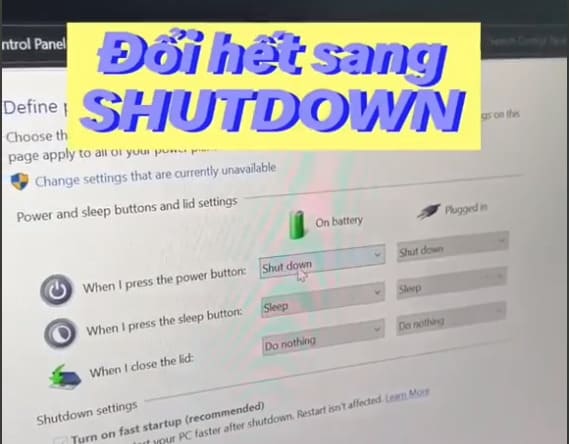
In the section When I press the power button. You switch all options to Shutdownchief On battery and Plugged in.
3 coolest ways to turn off your computer

So every time you want to turn off your computer, just press the power button on your PC or Laptop.

3. Coloring style

First, you go to the link “C:\Windows\System32” and find files slidetoshutdown.exe. Then right click on the file and select Send to -> Desktop to create a file shortcut on the Desktop.
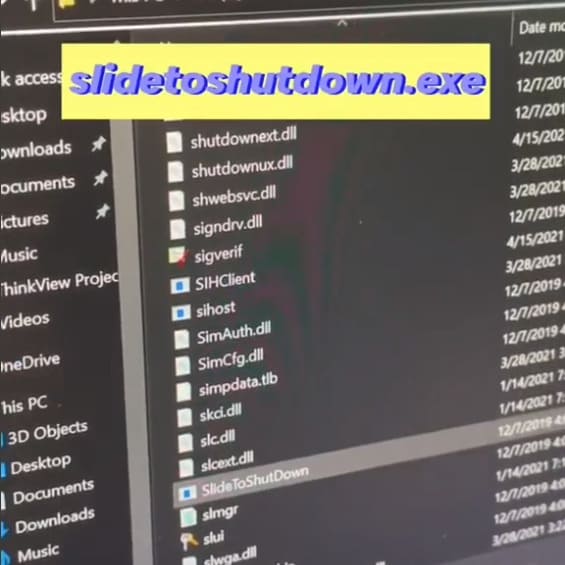
3 coolest ways to turn off your computer

Right-click the newly created shortcut and select Properties. Next select Change Icon to change the shortcut’s icon.
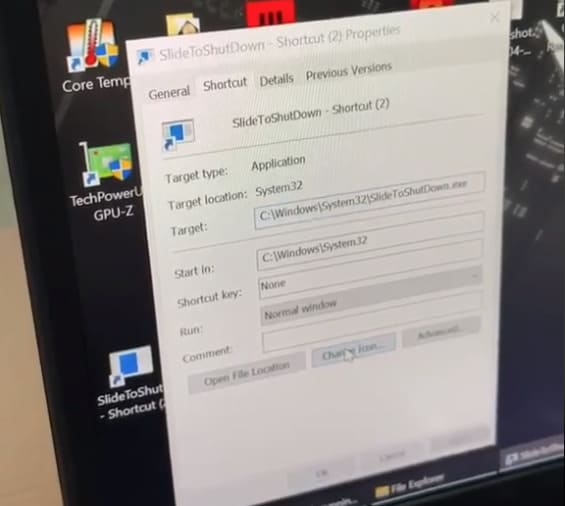
3 coolest ways to turn off your computer 19

Here, you can choose any icon you like. After selecting, press OK -> Apply. If you don’t like these icons, you can find extremely beautiful icons here Please.
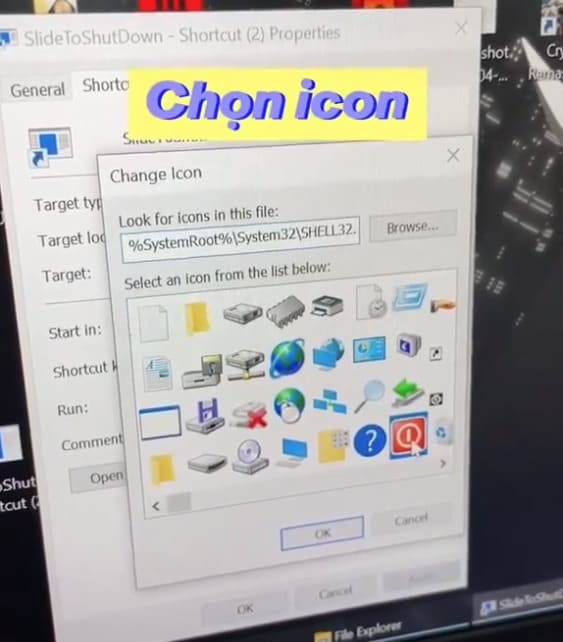
3 coolest ways to turn off your computer 20

Every time you want to turn off the computer, just click on this shortcut.
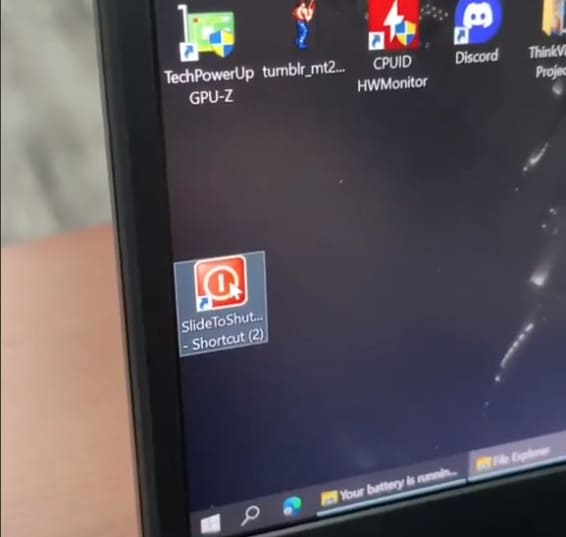
3 coolest ways to turn off your computer 21

This will create an image for you to scroll down. When you drag the image all the way down, your computer will turn off.
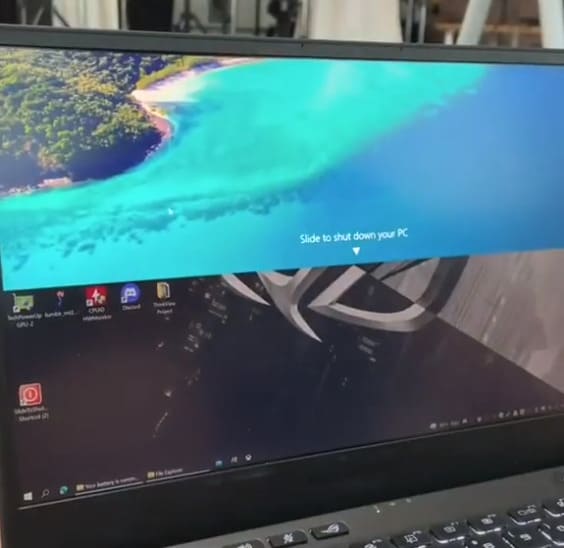
3 coolest ways to turn off your computer 22

That’s it, you’ve just learned the 3 coolest ways to turn off your computer. Comment to let me know how you turn off the computer. In addition, I have a very cool way to turn off the computer for super hacker.


The article achieved: 5/5 – (100 votes)

Tags: computercoolestturnways
Previous Post

Instructions for Hacking Wifi Password with Hashcat -PMKID

Next Post

Instructions to register for free iPhone 11 screen replacement

AnonyViet

AnonyViet

Related Posts

How to add sliders to Facebook Stories to easily rewind videos
Tips

How to add sliders to Facebook Stories to easily rewind videos

April 21, 2026
How to change the default font on Windows 10
Tips

How to change the default font on Windows 10

April 13, 2026
5 tips for using a Browser to replace an App (helps save RAM, time and money)
Tips

5 tips for using a Browser to replace an App (helps save RAM, time and money)

April 13, 2026
How to make funny MeMe photos without Photoshop within 10 seconds
Tips

How to make funny MeMe photos without Photoshop within 10 seconds

April 11, 2026
How to quickly design your own Logo without Photoshop
Tips

How to quickly design your own Logo without Photoshop

April 10, 2026
How to convert Website into App on Windows
Tips

How to convert Website into App on Windows

April 9, 2026
Next Post
Instructions to register for free iPhone 11 screen replacement

Instructions to register for free iPhone 11 screen replacement

0 0 votes
Article Rating
Subscribe
Login
Notify of
guest

guest

0 Comments
Oldest
Newest Most Voted
Inline Feedbacks
View all comments

Recent News

How to create a Face Sticker Collection using ChatGPT

How to create a Face Sticker Collection using ChatGPT

April 29, 2026
How to install the cute Bongo Cat mouse pointer for Windows

How to install the cute Bongo Cat mouse pointer for Windows

April 29, 2026
Tips for pinning the step counter to the iPhone screen to monitor your health

Tips for pinning the step counter to the iPhone screen to monitor your health

April 28, 2026
How to turn off password suggestions on iPhone: Prevent Safari from auto-filling passwords

How to turn off password suggestions on iPhone: Prevent Safari from auto-filling passwords

April 27, 2026
How to create a Face Sticker Collection using ChatGPT

How to create a Face Sticker Collection using ChatGPT

April 29, 2026
How to install the cute Bongo Cat mouse pointer for Windows

How to install the cute Bongo Cat mouse pointer for Windows

April 29, 2026
Tips for pinning the step counter to the iPhone screen to monitor your health

Tips for pinning the step counter to the iPhone screen to monitor your health

April 28, 2026
AnonyViet - English Version

AnonyViet

AnonyViet is a website share knowledge that you have never learned in school!

We are ready to welcome your comments, as well as your articles sent to AnonyViet.

Follow Us

Contact:

Email: anonyviet.com[@]gmail.com

Main Website: https://anonyviet.com

Recent News

How to create a Face Sticker Collection using ChatGPT

How to create a Face Sticker Collection using ChatGPT

April 29, 2026
How to install the cute Bongo Cat mouse pointer for Windows

How to install the cute Bongo Cat mouse pointer for Windows

April 29, 2026
No Result
View All Result
  • Home
  • News
  • Software
  • Knowledge
  • MMO
  • Tips
  • Security
  • Network
  • Office

wpDiscuz
0
0
Would love your thoughts, please comment.x
()
x
| Reply