• Home
  • News
  • Software
  • Knowledge
  • MMO
  • Tips
  • Security
  • Network
  • Office
AnonyViet - English Version
  • Home
  • News
  • Software
  • Knowledge
  • MMO
  • Tips
  • Security
  • Network
  • Office
No Result
View All Result
  • Home
  • News
  • Software
  • Knowledge
  • MMO
  • Tips
  • Security
  • Network
  • Office
No Result
View All Result
AnonyViet - English Version
No Result
View All Result

How to quickly transfer photos from iPhone to Windows 11

AnonyViet by AnonyViet
January 26, 2023
in Software
0

If you want to transfer photos and videos from iPhone to PC running Windows 11, the fastest and easiest way is to plug your phone into your computer for automatic file transfer. And here’s how.

Join the channel Telegram of the AnonyViet 👉 Link 👈

How to quickly transfer photos from iPhone to Windows 11

How to quickly transfer photos from iPhone to Windows 11

If you plug your iPhone into a Windows PC with a USB cable, Windows 11 can connect to the iPhone like a digital camera and read the “DCIM” folder. It can copy photos and videos from your iPhone without additional software.

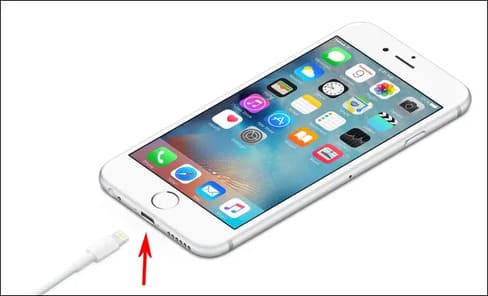
First, locate the appropriate Lightning to USB cable for your iPhone. Usually, this is the type of cable you can use to charge your iPhone. One end will have a port that plugs into your iPhone (the Lightning end) and the other end will be a USB-A or USB-C connector.

Plug the charging cord into your iPhone, then plug the other end into a USB port on your Windows 11 PC.
How to quickly transfer photos from iPhone to Windows 11 13

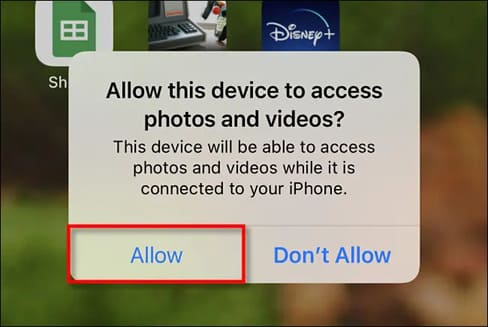
When you plug your iPhone in, it asks you if you want to allow your PC to access the photos and videos on the device. Click “Allow”. This will make the iPhone’s “DCIM” photo and video folder show up on Windows 11.
How to quickly transfer photos from iPhone to Windows 11 14

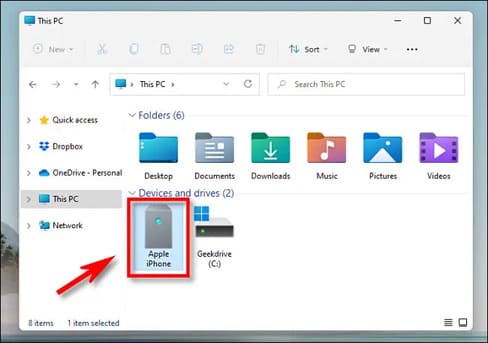
Back on your Windows PC, open File Explorer and go to “This PC”. If iPhone is properly recognized by your PC (and allowed to connect), it will show up as a removable drive in the “Devices and Drives” section.
How to quickly transfer photos from iPhone to Windows 11 15

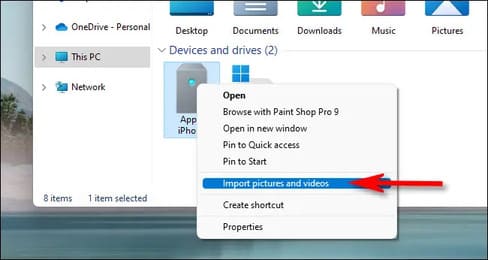
Right-click the iPhone icon in File Explorer and select “Import Pictures and Videos” in the menu.
How to quickly transfer photos from iPhone to Windows 11 16

The “Import Pictures and Videos” window will appear. Windows will scan the photos folder in your iPhone for photos and videos that Windows can copy to your PC.
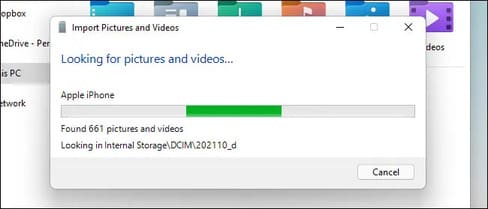
How to quickly transfer photos from iPhone to Windows 11 17

After Windows has found all the new photos and videos it hasn’t imported before, it will show you how many files it can import into Windows.

Select “Import all new items now” and then click the “Import” button.
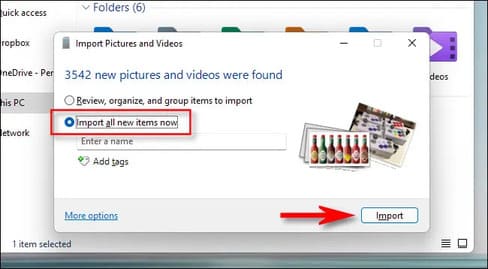
How to quickly transfer photos from iPhone to Windows 11 18

During the import process, Windows copies the photos and videos to a new folder in your Pictures folder by default. If you want to delete all photos and videos from your iPhone after the import is complete, select “Erase After Importing”.

Warning: If you select “Erase After Importing” during the import process, Windows will delete all the photos and videos it imported from your iPhone when it’s done. If you want to leave a copy of your imported photos and videos on your phone, uncheck “Erase After Importing”.
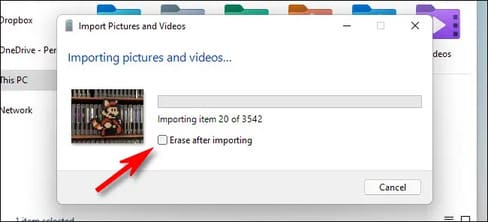
How to quickly transfer photos from iPhone to Windows 11 19

Once the import is complete, open a File Explorer window and go to your Pictures folder. In that folder you will find a folder named date that contains all the photos and videos you just imported. Double click on the folder and you will see the pictures inside.
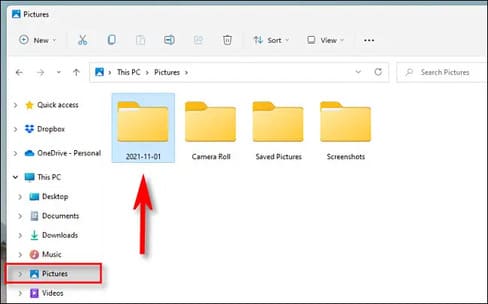
How to quickly transfer photos from iPhone to Windows 11 20

If you notice a bunch of files AAE in the folder, don’t worry. Those are special metadata files that Apple uses to store photo editing information. They’re useless on Windows, so you can delete any .AAE files you see.

Then, unplug your iPhone. You can plug it back in to import photos or videos any time you want. If you don’t select “Erase After Importing” on your last import, Windows will remember which photos were previously imported and you won’t get any duplicates on your next import. Pretty good!

Email photos to yourself

If you just have a few iPhone photos or videos you want to transfer to your Windows 11 PC — or if you can’t find a Lightning cable — you can email photos from your device. To do that, open the Photos app on your iPhone, select the photo you want to email, then tap the share button (the square with the arrow pointing up).
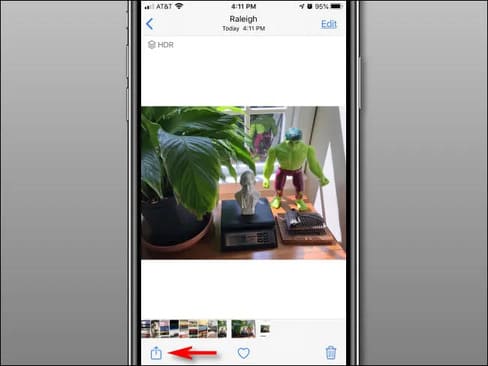
How to quickly transfer photos from iPhone to Windows 11 21

In the menu that appears, tap the Mail app icon, then you can compose an email in the Mail app. You can only submit a limited number of photos this way.

Another way is to send it via Zalo Cloud or Messenger, then download it again.
The article achieved: 5/5 – (100 votes)

Tags: iPhonephotosQuicklyTransferWindows
Previous Post

Lesson 14: Subtraction in Excel – Basic Excel

Next Post

Lesson 15: Multiplication in Excel – Basic Excel

AnonyViet

AnonyViet

Related Posts

Receive Driver Booster 14 license key immediately for free for 6 months
Software

Receive Driver Booster 14 license key immediately for free for 6 months

November 1, 2026
Online pagoda game: Experience practice and relieve stress at home
Software

Online pagoda game: Experience practice and relieve stress at home

November 1, 2026
Instructions for receiving Avira Prime 3 months for free, no credit card
Software

Instructions for receiving Avira Prime 3 months for free, no credit card

October 31, 2026
Instructions for installing CleanYourTv to remove Android TV ads
Software

Instructions for installing CleanYourTv to remove Android TV ads

October 29, 2026
How to play the mosquito swatter game, calling students’ names and asking them to return their homework
Software

How to play the mosquito swatter game, calling students’ names and asking them to return their homework

October 28, 2026
Receive copyright for 3 Halloween software worth 0
Software

Receive copyright for 3 Halloween software worth $150

October 23, 2026
Next Post
Lesson 15: Multiplication in Excel – Basic Excel

Lesson 15: Multiplication in Excel - Basic Excel

0 0 votes
Article Rating
Subscribe
Login
Notify of
guest

guest

0 Comments
Oldest
Newest Most Voted

Recent News

Receive Driver Booster 14 license key immediately for free for 6 months

Receive Driver Booster 14 license key immediately for free for 6 months

November 1, 2026
Online pagoda game: Experience practice and relieve stress at home

Online pagoda game: Experience practice and relieve stress at home

November 1, 2026
Instructions for receiving Avira Prime 3 months for free, no credit card

Instructions for receiving Avira Prime 3 months for free, no credit card

October 31, 2026
Instructions for cleaning LG TV with Antigravity to help it run faster

Instructions for cleaning LG TV with Antigravity to help it run faster

October 30, 2026
Receive Driver Booster 14 license key immediately for free for 6 months

Receive Driver Booster 14 license key immediately for free for 6 months

November 1, 2026
Online pagoda game: Experience practice and relieve stress at home

Online pagoda game: Experience practice and relieve stress at home

November 1, 2026
Instructions for receiving Avira Prime 3 months for free, no credit card

Instructions for receiving Avira Prime 3 months for free, no credit card

October 31, 2026
AnonyViet - English Version

AnonyViet

AnonyViet is a website share knowledge that you have never learned in school!

We are ready to welcome your comments, as well as your articles sent to AnonyViet.

Follow Us

Contact:

Email: anonyviet.com[@]gmail.com

Main Website: https://anonyviet.com

Recent News

Receive Driver Booster 14 license key immediately for free for 6 months

Receive Driver Booster 14 license key immediately for free for 6 months

November 1, 2026
Online pagoda game: Experience practice and relieve stress at home

Online pagoda game: Experience practice and relieve stress at home

November 1, 2026
  • Home
  • Home 2
  • Home 3
  • Home 4
  • Home 5
  • Home 6
  • Next Dest Page
  • Sample Page

say88 tỷ lệ kèo nhà cái kèo nhà cái 5 febet

No Result
View All Result
  • Home
  • News
  • Software
  • Knowledge
  • MMO
  • Tips
  • Security
  • Network
  • Office

say88 tỷ lệ kèo nhà cái kèo nhà cái 5 febet

wpDiscuz
0
0
Would love your thoughts, please comment.x
()
x
| Reply