So only 1 more time, we can use the applications on smartphones to Windows 11 already? However, the hardware requirements to be able to run the applications are relatively high and also require you to have a machine running Windows 11. But to do these things below there is only 1 solution: Install emulators . And today, I will show you how to install Android emulator on VMware
| Join the channel Telegram of the AnonyViet 👉 Link 👈 |
Why install Android on VMware?
For those of you who do dev in Android app programming, it’s obvious that you have to test programs on that platform. So you run it on your real phone? Usually, for devs who have a job, they will often use 2 phones and 1 machine to test those applications to ensure stability on other devices, but for those who do not have enough resources. It is best to use emulators running android.
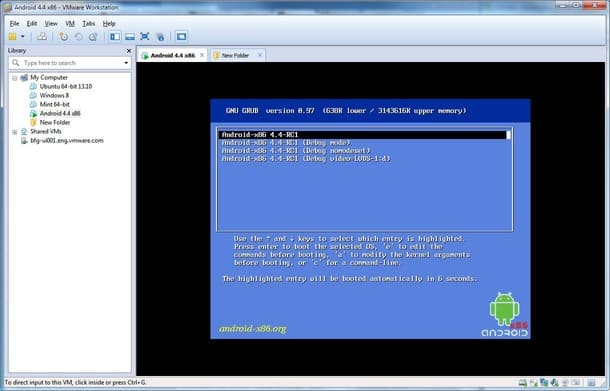
Although today, we have many famous android emulators like Nox Player, Bluestack or Ldplayer, but for a dev, they really haven’t done their job well. And for me personally, using emulators on VMware is a great choice.
Advantages and disadvantages of installing android emulator on VMware
With the advantages and disadvantages based on my personal opinion, you can have the best overview of running Android on VMware.
Advantage:
- Does not require too much hardware
- Relatively simple installation
- Use mouse pointer to move
- Arbitrarily customized like on a real machine
- Can backup and backup using snapshot feature on VMware
Defect:
- Some software will crash when running because the computer’s chip is AMD
- can’t map keys
- can’t be optimized with VMTool – it won’t feel smooth to use
Instructions for installing Android on VMware
Prepare
To prepare for the simulation, we need the following tools:
VMware: You can refer to what is VMware and get a permanent key here
Android ISO file: you guys up Android-x86 to download
Setup
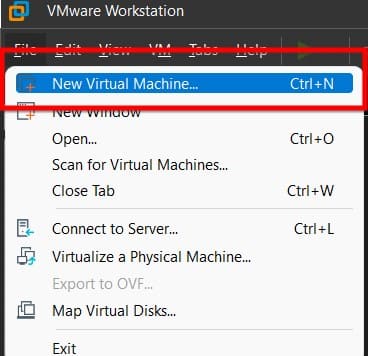
Step 1: Access VMware, select File > New virtual machine (You can replace it with the key combination Ctrl+N)
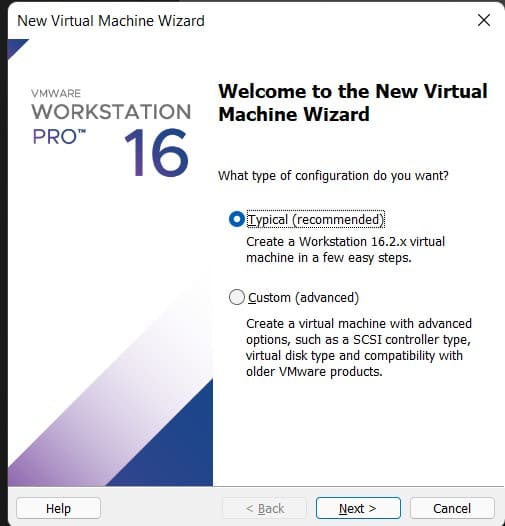
Step 2: It will display the New Virtual Machine Wizard. Here you just need to click Next
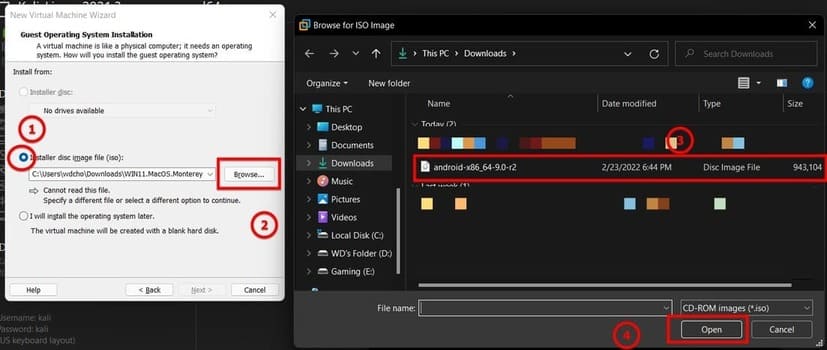
Step 3: Select Installer Disc image file (iso) > Select Browse > Select the downloaded Android Iso file > Click ok > Click next
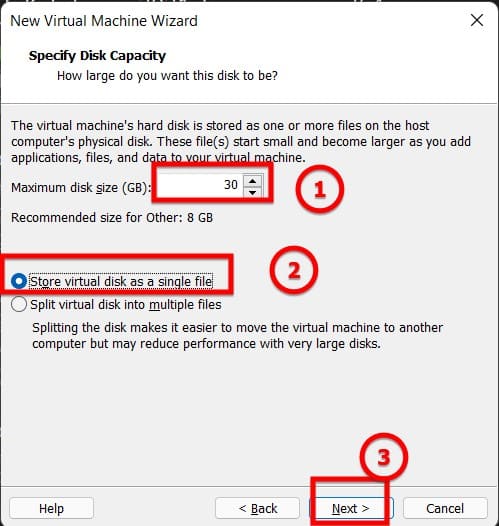
Step 4: At this step, you press next continuously until you get a screen like below, click select Store Virutal disk as a single file and set maximum disk size is 30gb for me! When done, click Next.
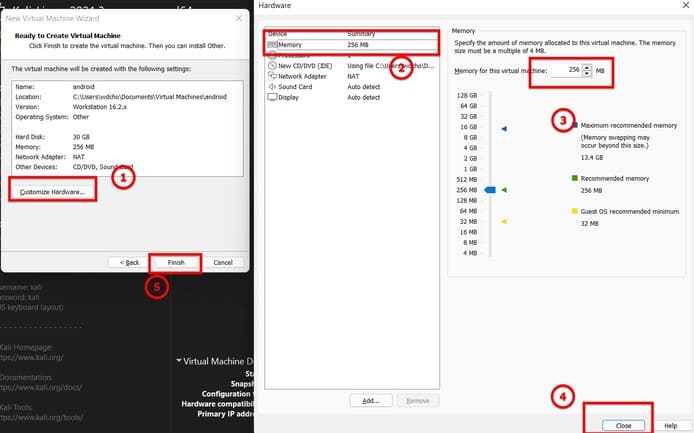
Step 5: You choose customize hardware > memory > Adjust the number to 2048 = 2gb ram (if your device is weaker, leave it at 1024) > Close > Finish
Note: You can choose the number of cores to 2 cores to avoid lag!
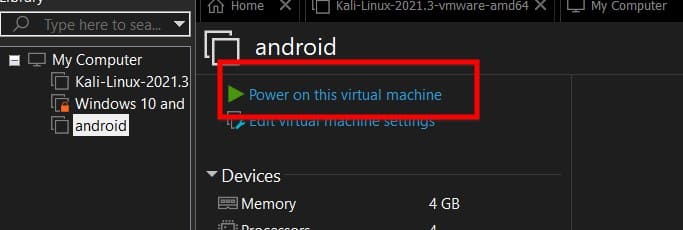
Step 6: You start the virtual machine you just created
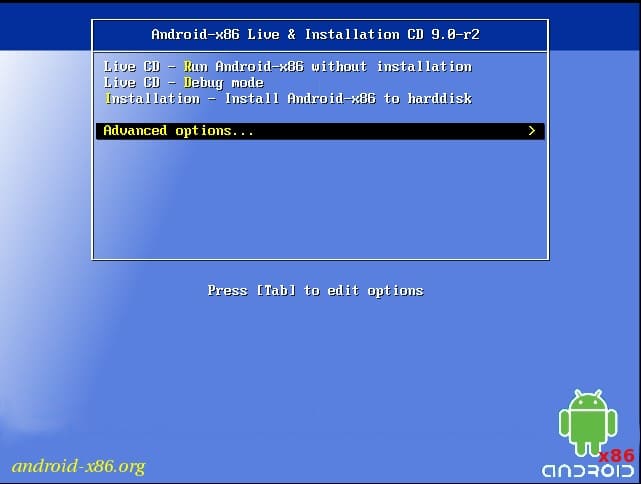
Step 7: When the boot screen appears, select Advance options
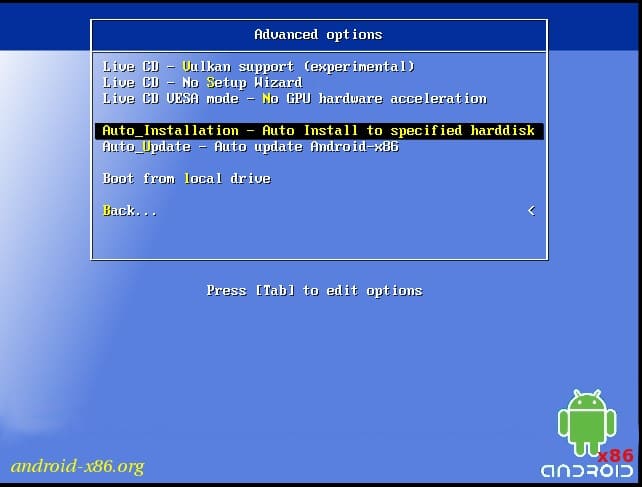
Step 8: At this step, you choose Auto_Installation - Auto Install to specified harddisk
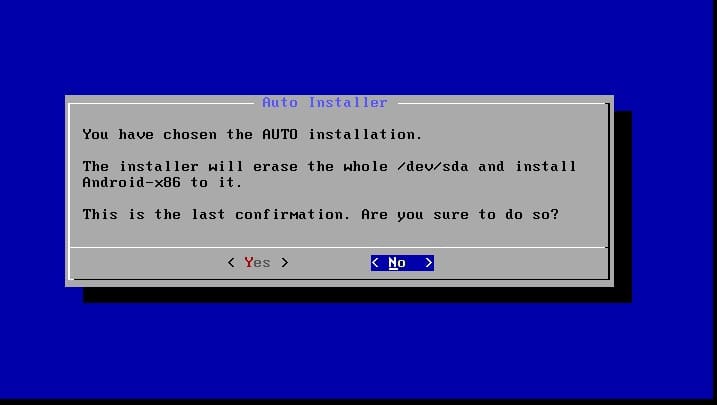
Step 9: They will ask again about deleting all data to install. Please choose yes and press Enter
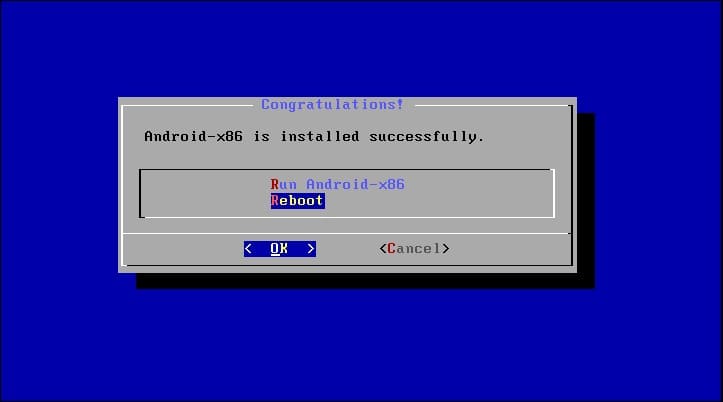
Step 8: When it displays the Congratulations dialog box, the installation is complete. Please select Reboot and click ok
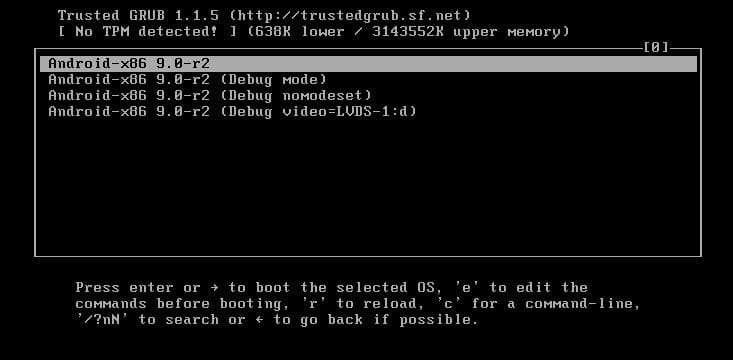
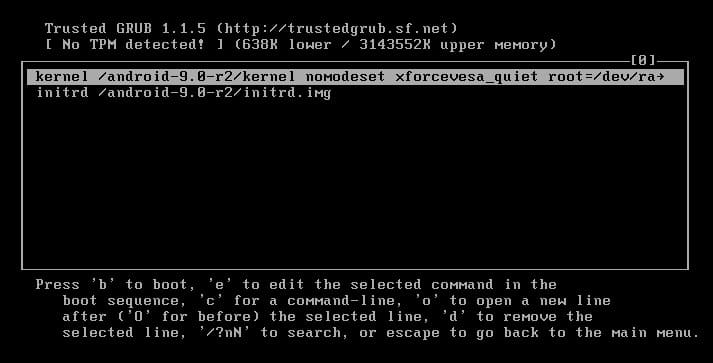
Step 9: After rebooting, the machine will start to run into GRUB, Please quickly press phím E to edit the boot option to avoid the error of not being able to boot the machine.
Note:
- They have auto start with the first choice with a time of 10s. So you should avoid leaving the machine during this time.
- If the machine has automatically booted to the first option, you can restart the machine by selecting restart guest on VMware
- For those of you who have a lot of busy work or practice while reading this article, you can use
Ctrl + Altto move the mouse pointer from the virtual machine!
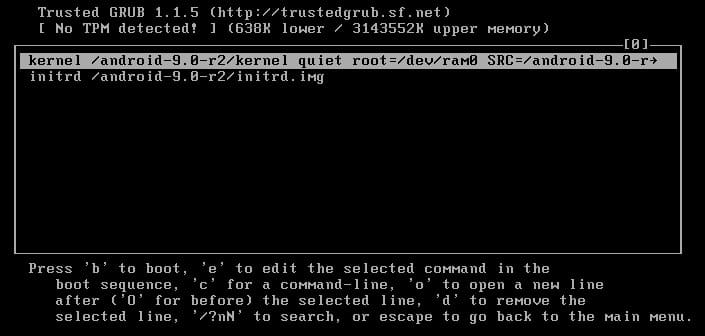
Step 10: You press E to edit the boot command
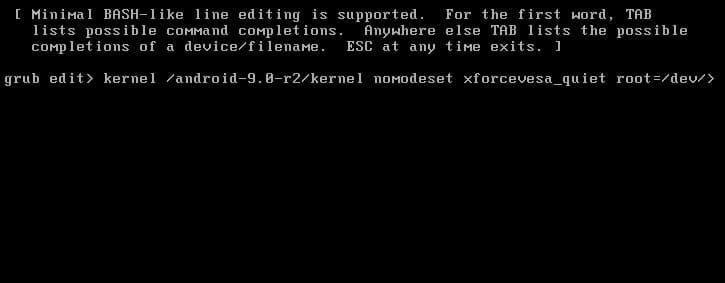
Step 11: You find the word quiet and change it to nomodeset xforcevesa_quiet. Once done, press Enter
Note: just delete the word quiet and fix it as above and encourage you not to edit anything if you don’t understand it! it can damage the virtual machine and you may have to start over
Step 12: You press phím B to start booting your android
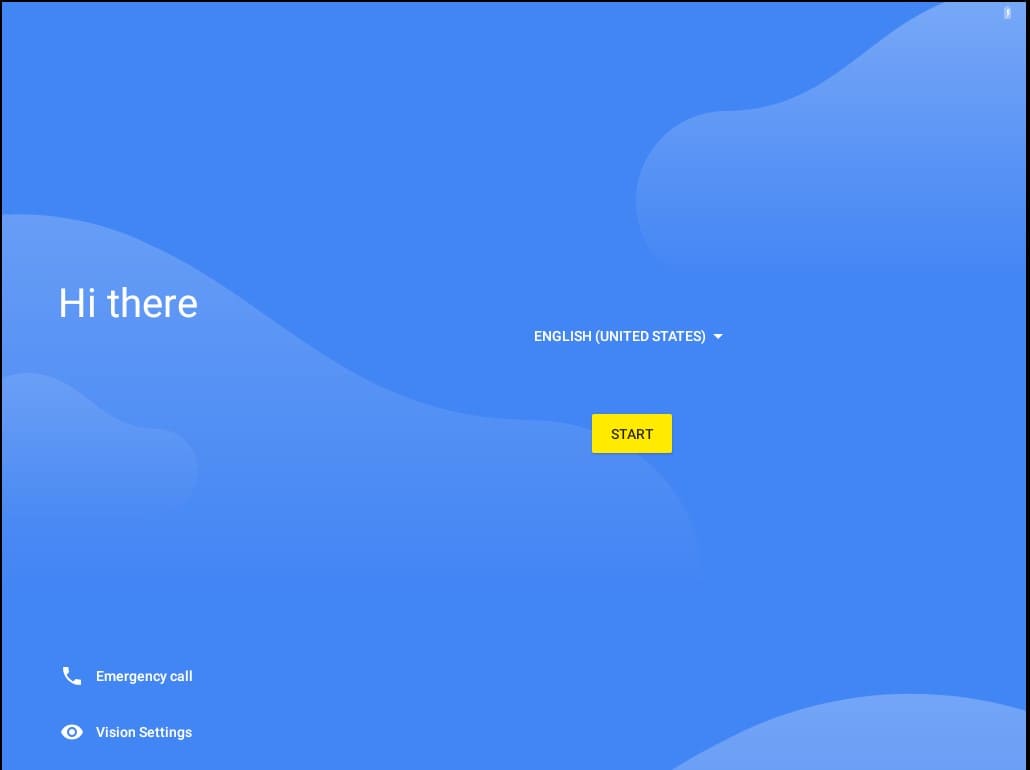
Step 13: Now you just need to set up your android like on your phone
So I just showed you how to install android emulator on VMware. I encourage you not to use it for gaming! If you are interested, you can check out the following articles: Installing Android App on Windows 11 is easier with WSA PacMan