How to extract text from photos using Zalo is a breakthrough feature that helps users no longer have to struggle to retype each line of information. Instead of downloading photos and using a third-party app, you can now act right in the chat window. Let’s explore with AnonyViet now.
📢 Join the channel Telegram belong to AnonyViet
Update new articles, cool tools and IT tips fastest
Learn about AI text scanning technology on Zalo
This feature is essentially an OCR (Optical Character Recognition) tool fine-tuned by the Zalo AI engineering team. Instead of simply sending and receiving photos, the system now has the ability to “read” and understand the characters in that photo. When a photo is sent into a chat, AI will automatically analyze text containers, thereby allowing users to interact directly like reading a Word or PDF document.
The biggest benefit of knowing how to extract text from photos is by Zalo is precision and speed. You no longer have to look at photos and then frantically type in long phone numbers or complicated home addresses. Everything is processed automatically, helping to minimize errors caused by manual data entry, especially in bank transfer transactions or storing customer information.

Instructions on how to extract text from photos using Zalo
To use this feature most effectively, you just need to follow the simple steps below. Note that this feature works best on the latest updated versions of Zalo.
Step 1: Visit Zalo application on your phone, then open the conversation that contains the image you need to get information about. It can be a screenshot, a document photo or a photo taken from a camera.
Step 2: Click directly on the image to open in full screen mode. At this time, observe the function icons appearing on the screen.
Find and tap AI scanning icon (usually a square shape with marked corners or a text symbol). After pressing, you will see a scanning effect running across the image, this is when Zalo AI is working to identify characters.
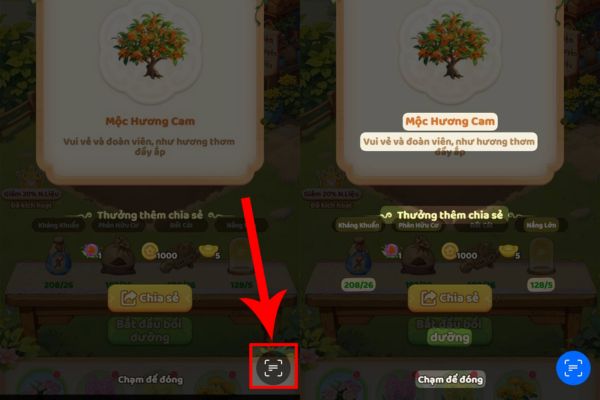
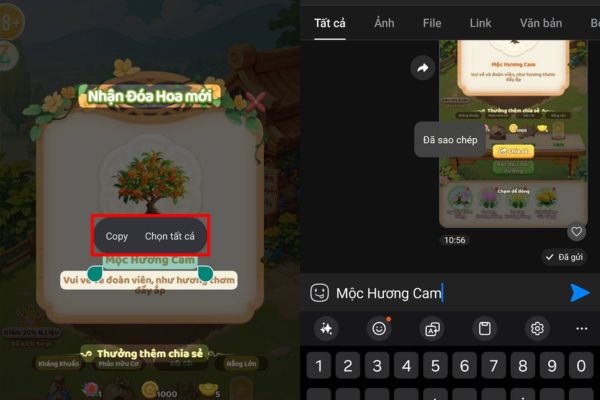
Step 3: After the scanning process is completed, areas containing text in the image will be highlighted. You just need to long press on the text you need, then select the command “Copy” (Copy) from the menu that appears.
Step 4: Now, you can paste the copied text anywhere such as a chat box, note-taking application or web browser to use.
Reasons why text in images cannot be scanned
Even though it is an advanced technology, sometimes users still encounter the situation of not being able to extract the content as desired. Here are the most common causes that you need to pay attention to:
The first is the input image quality. If the photo you receive is too blurry, blurry due to hand shake when taking the photo, or the resolution is too low, the AI will have difficulty distinguishing the handwriting. Lighting also plays an important role; Photos that are too dark or have bright light right at the text position will also cause the system to “give up”.
The second is about formatting and typography. Zalo AI currently supports common printing fonts very well. However, with handwriting that is too fancy, stylized artistic text or stickers with text inserted, the accurate recognition rate will decrease. In addition, if the text in the image is too small or compressed too strongly when sent over the network, it will be difficult for AI to process it.
Finally, don’t forget to check your internet connection and app version. Since this is an AI cloud-based feature, a spotty network connection will cause the scanning process to fail midway. At the same time, if you are still using a Zalo version from “last year”, this feature will certainly not appear on your device.
Conclusion
Hopefully through this article, you have a clear understanding How to extract text from photos using Zalo to apply to daily work. This is really a useful feature that helps us work smarter and reduce boring manual operations. Wish you success and don’t forget to share this tip with your friends.
Frequently Asked Questions (Q&A)
1. Why have I updated Zalo but I still don’t see the AI text scanning icon?
This feature is occasionally updated per account cluster or region. Try logging out and logging back in, or check to see if the photo is clear enough for the system to activate the AI feature.
2. Can Zalo AI extract text from images in many different languages?
Currently, Zalo AI has the best support for Vietnamese and English. For languages with other special characters, accuracy may decrease depending on the complexity of the font.
3. Is there a fee for using the text extraction feature from photos on Zalo?
Absolutely not, this is a free built-in utility to help all users operate more quickly and conveniently.