How to block pop-up ads on Safari is a trick that any iPhone user should know to have a better web surfing experience. Pop-ups are not only annoying but also pose a security risk. With just a few small steps in the settings, you will completely solve this problem. Let’s explore with AnonyViet the detailed steps below.
📢 Join the channel Telegram belong to AnonyViet
Update new articles, cool tools and IT tips fastest
What are the benefits of blocking pop-up ads on Safari?
While using your phone to read news, watch movies or look up documents, you probably feel frustrated many times because strange websites automatically open. These are pop-up ads (pop-up windows) that are embedded on websites. Learn how to block pop-up ads above Safari not only helps you clean up display space but also prevents the risk of accidentally clicking on links containing malicious code.
Many users often mistakenly believe that to block these stubborn ads, they are required to download third-party applications. However, Apple has integrated a set of developer tools (WebKit) right inside the operating system. By blocking pop-up ads on Safari through interfering with feature flags, you will take full control of your browser, save computer space and optimize page loading speed significantly.
Compare your browsing experience before and after setup
To clearly see the importance of this trick, let’s look at the actual evaluation table below. You will notice a clear difference when the network environment is cleaned up.
| Evaluation criteria | Before setup | After setup |
| Page loading speed | Slow due to having to load additional hidden advertising tabs | Fast, smooth, focused on the main content |
| Level of annoyance | High, often redirected to strange websites | Low, no more automatic opening of new tabs |
| Confidentiality | Easily deceived by fake virus warning pop-ups | More secure, control window opening actions |
| Battery consumption | Consumes more battery power because the browser has to process a lot of junk data | Maximum battery saving |
Instructions on how to block pop-up ads on Safari
To block pop-up ads on Safari, you don’t need to connect to a computer or use complicated software. Everything is in the phone’s default settings. Please follow the instructions below sequentially:
Step 1: From your phone’s home screen, find and click Setting > Select next Application.
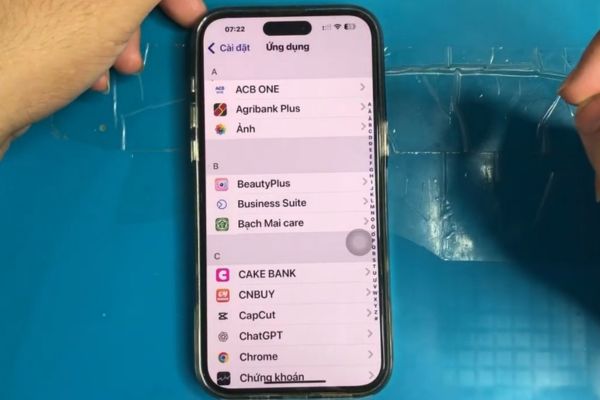
Step 2: Swipe the screen down, search the list of applications and select the item Safari.
Step 3: At the browser settings interface, continue scrolling down to the bottom and click to select the item Advanced.
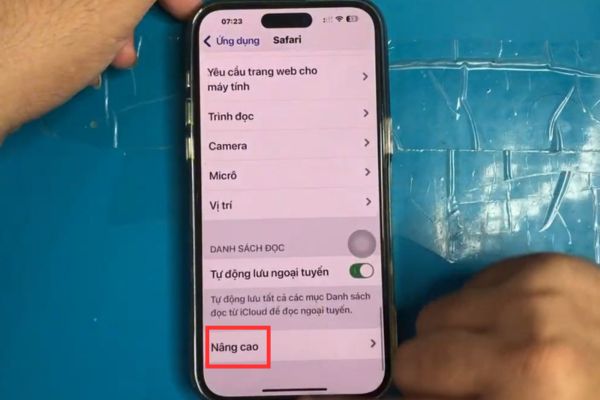
Step 4: In the Advanced menu, find and click the text Feature flag. This is where the browser’s advanced settings are located.
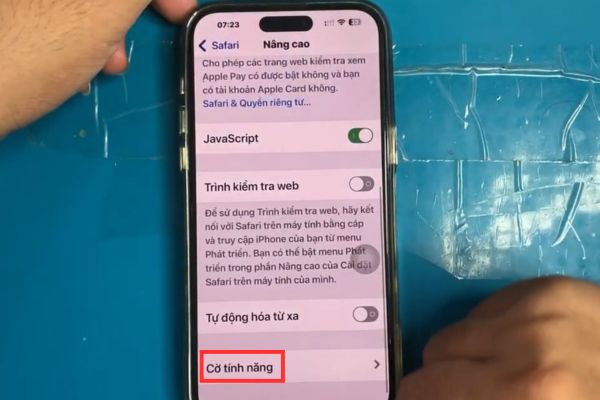
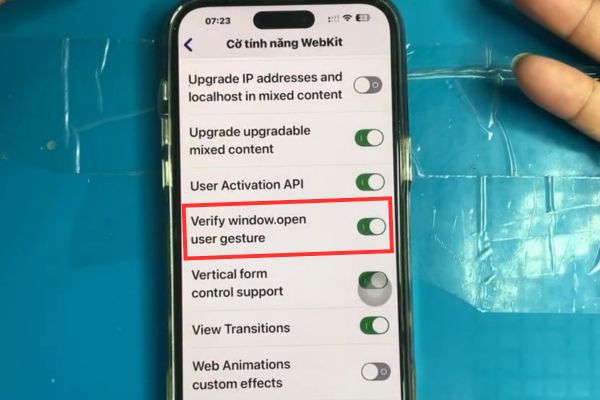
Step 5: At this point, a long list of English command codes will appear. Look for the exact line called “Verify window.open user gesture“.
Step 6: Once you find it, just turn the toolbar next to that text blue to turn this feature on.
So you have completed the setup process. From this point on, the browser will automatically verify actions to open new windows, completely preventing unwanted tabs from automatically jumping out.
Important notes when intervening
The “Feature Flags” area contains a lot of code that deeply interferes with the browser’s WebKit kernel. Although the method of blocking pop-up ads on Safari that we just implemented is completely safe, you need to be absolutely careful not to arbitrarily turn on/off other switches if you do not clearly understand them.
Changing other feature flags indiscriminately can cause the browser to malfunction, fail to display images, or even crash the application while in use. Just use the correct “Verify window.open user gesture” section and you can rest assured to enjoy a clean cyberspace.
Conclusion
In short, blocking pop-up ads on Safari is a small skill but brings enormous benefits to iOS users. You will no longer have to endure the frustrating feeling of strange websites opening automatically. Wishing you successful operations and truly relaxing moments of surfing the web.
Frequently Asked Questions (Q&A)
1. Does turning on this feature slow down web surfing speed?
Are not. On the contrary, blocking pop-ups also helps the browser load pages faster because it does not have to process junk advertising data.
2. Do I need to install an additional external ad blocking application?
Optional. This built-in feature handles automatic pop-ups very well. However, if you want to block more banner ads on the page, you can combine additional extensions.
3. Does this trick apply to Chrome browser on phones?
Are not. This is a setting that interferes with the WebKit kernel specifically for the default browser of the iOS operating system. Chrome will have a separate pop-up blocking setting.