• Home
  • News
  • Software
  • Knowledge
  • MMO
  • Tips
  • Security
  • Network
  • Office
AnonyViet - English Version
  • Home
  • News
  • Software
  • Knowledge
  • MMO
  • Tips
  • Security
  • Network
  • Office
No Result
View All Result
  • Home
  • News
  • Software
  • Knowledge
  • MMO
  • Tips
  • Security
  • Network
  • Office
No Result
View All Result
AnonyViet - English Version
No Result
View All Result

Speak Cells: Excel tool to read spreadsheets by voice very well

AnonyViet by AnonyViet
April 15, 2026
in Knowledge
0

Excel reads spreadsheets by voice is an extremely useful feature but suffers from it Microsoft “hide” quite carefully. Instead of having to strain your eyes to look back and forth between the paper invoice and the screen, you can completely use your ears to check the accuracy. Let’s explore how to use this hidden feature right below.

📢 Join the channel Telegram belong to AnonyViet


👉 Go to Telegram AnonyViet

Update new articles, cool tools and IT tips fastest

Benefits of using Excel to read spreadsheets by voice

Entering data from paperwork into a computer always carries the risk of errors because your eyes have to constantly adjust between two places. Features Speak Cells was born to solve this problem with hearing. When you hear the machine reading out the data you just entered, your brain will react faster to errors, making accounting or data entry work easier and more accurate.

Speak Cells: Excel tool to read spreadsheets by voice very well
Benefits of using Excel to read spreadsheets by voice

How to enable Excel to read spreadsheets by voice

By default, you will not find text reading command buttons on the familiar Ribbon toolbar. To use, we need to bring them to the Quick Access Toolbar area. Below are the detailed steps to bring the Speak Cells toolkit to the main work screen:

Step 1: First, at the main interface of Excellook in the top left corner and tap the small arrow icon. In the drop-down list, select the line More Commands.
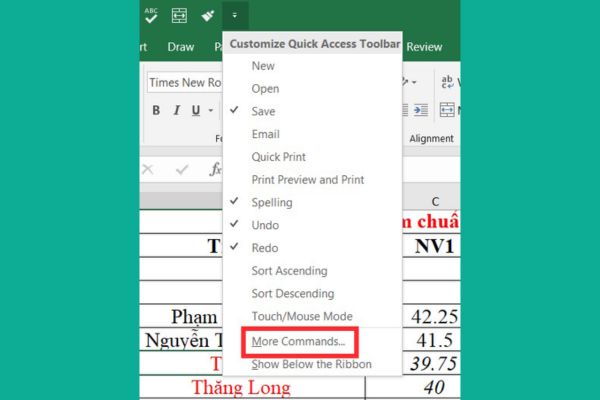
Select the More Commands line

Step 2: A new window appears, in the “Choose commands from” section, switch from “Popular Commands”. Commands Not in the Ribbon. This is where hidden commands are located.

Scroll down and find these 5 important commands to press Add (Add) to the right pane:

  • Speak Cells: Command to read currently selected cells.
  • Stop Speaking: The command stops reading immediately.
  • Speak Cells by Rows: Horizontal data reading mode.
  • Speak Cells by Columns: Vertical column data reading mode.
  • Speak Cells on Enter: Automatically read content immediately after pressing the Enter key.
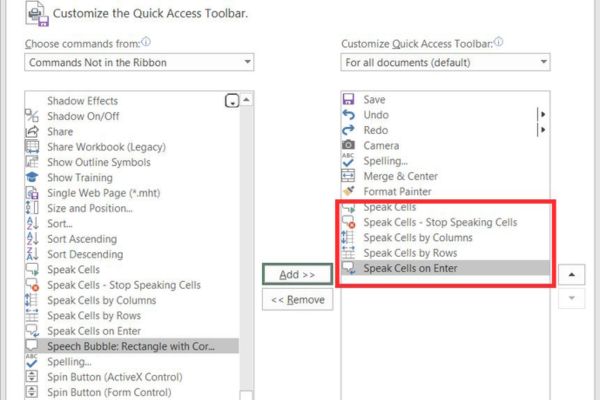
Click Add to the right pane

Step 3: Once you have added enough, press OK to save. At this point, chat frame icons will appear on your toolbar, ready to work.
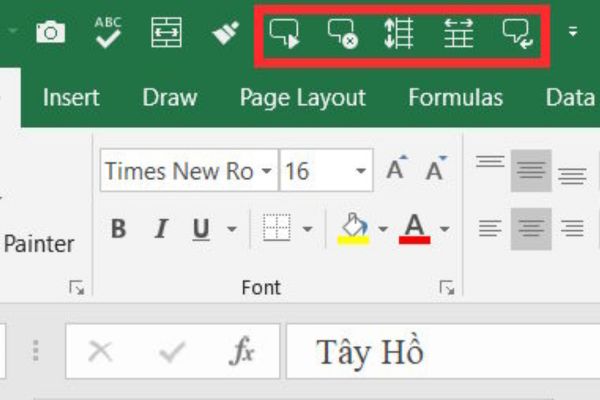
Icons have appeared on the toolbar

Instructions for using Speak Cells for error checking

Depending on your work needs, you can choose to read immediately when entering or re-read the entire existing data table.

Read data as soon as it is entered directly

This is the best way to ensure you don’t incorrectly enter any numbers from the invoice. Click on the icon Speak Cells on Enter on the toolbar. Excel will issue a message: “Cells will now be spoken on Enter”.

From now on, every time you finish typing a cell and press Enterthe machine will read the content aloud. If you hear a discrepancy with the documents, you can correct it immediately. To turn it off, just press the icon again.
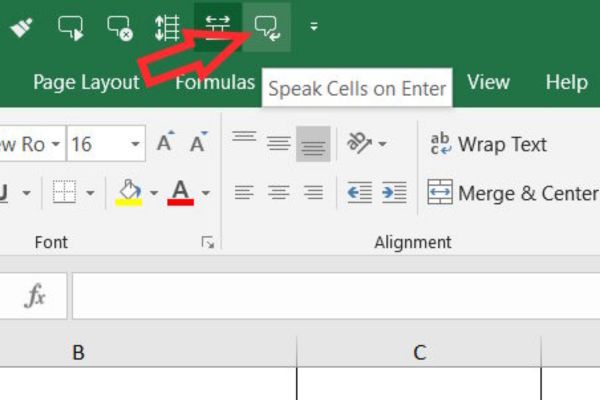
Click the Speak Cells on Enter icon

Re-read the available data sheet

If you already have a spreadsheet full of data and want to review it, do the following:

  1. Highlight the data area or select the cells that need to be read.
  2. Select reading mode: Click Speak by Rows (read from line to line) or Speak by Columns (read from column to column).
  3. Press the button Speak Cells (chat bubble icon with Play button) to start listening.
  4. Excel will highlight the cell being read so you can easily follow it. If you want to stop halfway, press the button Stop Speaking.
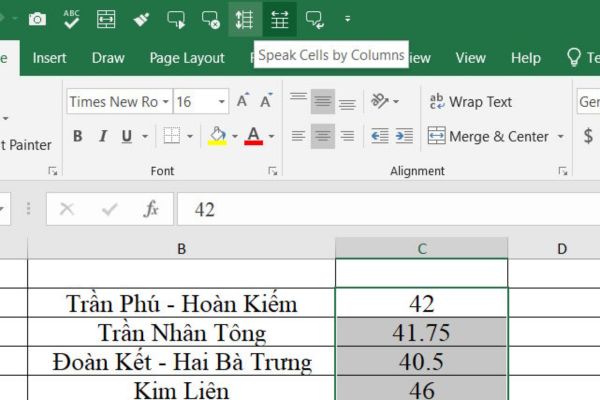
Excel will highlight the cell being read

Note about language

Currently, this feature works best with English. For Vietnamese, Excel does not yet support reading accents, so the sound produced will not be accurate. However, Excel reads spreadsheets by voice extremely effectively with numbers.

No matter what language you work in, the numbers 0-9 are read clearly in English, are easy to hear and are suitable for comparing amounts, product codes or quantities.

Conclusion

Use Excel reads spreadsheets by voice This is a good habit that helps office workers save time and effort. Although it does not yet fully support Vietnamese, its ability to read data is still unmatched. Please share this tip with your colleagues to work more effectively together!


Tags: cellsExcelreadSpeakspreadsheetstoolvoice
Previous Post

Review of Galaxy A57 and A37: Some are eight ounces, some are half a pound

Next Post

How to authenticate the owner’s SIM on VNeID from April 15

AnonyViet

AnonyViet

Related Posts

Instructions on how to draw on Note macOS 27 are extremely convenient
Knowledge

Instructions on how to draw on Note macOS 27 are extremely convenient

July 10, 2026
Instructions for getting Google Play Pass for 1 month for free
Knowledge

Instructions for getting Google Play Pass for 1 month for free

July 9, 2026
How to register your stay when guests stay overnight to avoid fines
Knowledge

How to register your stay when guests stay overnight to avoid fines

July 8, 2026
Tool to look up 2026 high school exam score rankings, confidently choose a university
Knowledge

Tool to look up 2026 high school exam score rankings, confidently choose a university

July 7, 2026
Get Notion Business 30 days free of Claude Opus 4.7 and GPT-5.5
Knowledge

Get Notion Business 30 days free of Claude Opus 4.7 and GPT-5.5

July 6, 2026
Prompt wrote a great Adam voice script for TikTok videos
Knowledge

Prompt wrote a great Adam voice script for TikTok videos

July 3, 2026
Next Post
How to authenticate the owner’s SIM on VNeID from April 15

How to authenticate the owner's SIM on VNeID from April 15

0 0 votes
Article Rating
Subscribe
Login
Notify of
guest

guest

0 Comments
Oldest
Newest Most Voted

Recent News

Instructions on how to create POV product review videos using Flow

Instructions on how to create POV product review videos using Flow

July 13, 2026
How to fix “This PC can’t run Windows 11” error This PC doesn’t meet the minimum system requirements

How to fix “This PC can’t run Windows 11” error This PC doesn’t meet the minimum system requirements

July 13, 2026
Compact design, durable battery, excellent camera: Review of OPPO Reno 16 Pro 5G

Compact design, durable battery, excellent camera: Review of OPPO Reno 16 Pro 5G

July 12, 2026
Download the free 3D Pinball Space Cadet game on the App Store now

Download the free 3D Pinball Space Cadet game on the App Store now

July 12, 2026
Instructions on how to create POV product review videos using Flow

Instructions on how to create POV product review videos using Flow

July 13, 2026
How to fix “This PC can’t run Windows 11” error This PC doesn’t meet the minimum system requirements

How to fix “This PC can’t run Windows 11” error This PC doesn’t meet the minimum system requirements

July 13, 2026
Compact design, durable battery, excellent camera: Review of OPPO Reno 16 Pro 5G

Compact design, durable battery, excellent camera: Review of OPPO Reno 16 Pro 5G

July 12, 2026
AnonyViet - English Version

AnonyViet

AnonyViet is a website share knowledge that you have never learned in school!

We are ready to welcome your comments, as well as your articles sent to AnonyViet.

Follow Us

Contact:

Email: anonyviet.com[@]gmail.com

Main Website: https://anonyviet.com

Recent News

Instructions on how to create POV product review videos using Flow

Instructions on how to create POV product review videos using Flow

July 13, 2026
How to fix “This PC can’t run Windows 11” error This PC doesn’t meet the minimum system requirements

How to fix “This PC can’t run Windows 11” error This PC doesn’t meet the minimum system requirements

July 13, 2026
  • Home
  • Home 2
  • Home 3
  • Home 4
  • Home 5
  • Home 6
  • Next Dest Page
  • Sample Page

say88 tỷ lệ kèo nhà cái kèo nhà cái 5 febet

No Result
View All Result
  • Home
  • News
  • Software
  • Knowledge
  • MMO
  • Tips
  • Security
  • Network
  • Office

say88 tỷ lệ kèo nhà cái kèo nhà cái 5 febet

wpDiscuz
0
0
Would love your thoughts, please comment.x
()
x
| Reply