Excel reads spreadsheets by voice is an extremely useful feature but suffers from it Microsoft “hide” quite carefully. Instead of having to strain your eyes to look back and forth between the paper invoice and the screen, you can completely use your ears to check the accuracy. Let’s explore how to use this hidden feature right below.
📢 Join the channel Telegram belong to AnonyViet
Update new articles, cool tools and IT tips fastest
Benefits of using Excel to read spreadsheets by voice
Entering data from paperwork into a computer always carries the risk of errors because your eyes have to constantly adjust between two places. Features Speak Cells was born to solve this problem with hearing. When you hear the machine reading out the data you just entered, your brain will react faster to errors, making accounting or data entry work easier and more accurate.

How to enable Excel to read spreadsheets by voice
By default, you will not find text reading command buttons on the familiar Ribbon toolbar. To use, we need to bring them to the Quick Access Toolbar area. Below are the detailed steps to bring the Speak Cells toolkit to the main work screen:
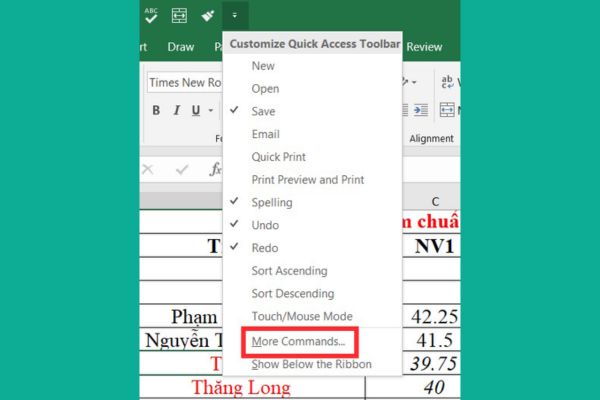
Step 1: First, at the main interface of Excellook in the top left corner and tap the small arrow icon. In the drop-down list, select the line More Commands.
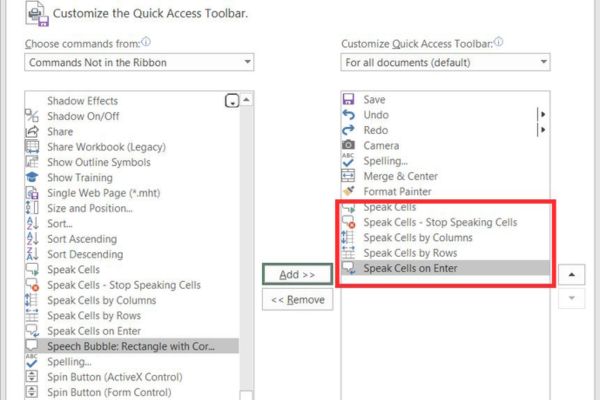
Step 2: A new window appears, in the “Choose commands from” section, switch from “Popular Commands”. Commands Not in the Ribbon. This is where hidden commands are located.
Scroll down and find these 5 important commands to press Add (Add) to the right pane:
- Speak Cells: Command to read currently selected cells.
- Stop Speaking: The command stops reading immediately.
- Speak Cells by Rows: Horizontal data reading mode.
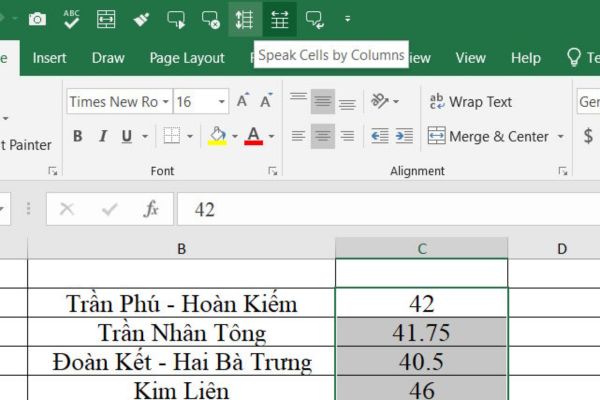
- Speak Cells by Columns: Vertical column data reading mode.
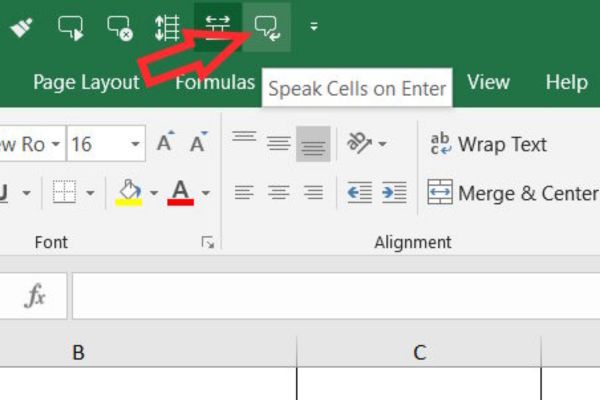
- Speak Cells on Enter: Automatically read content immediately after pressing the Enter key.
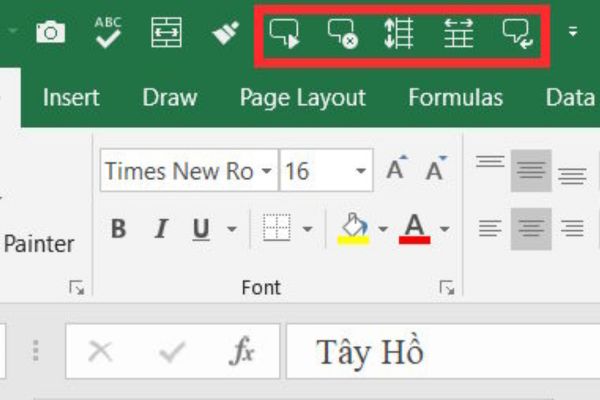
Step 3: Once you have added enough, press OK to save. At this point, chat frame icons will appear on your toolbar, ready to work.
Instructions for using Speak Cells for error checking
Depending on your work needs, you can choose to read immediately when entering or re-read the entire existing data table.
Read data as soon as it is entered directly
This is the best way to ensure you don’t incorrectly enter any numbers from the invoice. Click on the icon Speak Cells on Enter on the toolbar. Excel will issue a message: “Cells will now be spoken on Enter”.
From now on, every time you finish typing a cell and press Enterthe machine will read the content aloud. If you hear a discrepancy with the documents, you can correct it immediately. To turn it off, just press the icon again.
Re-read the available data sheet
If you already have a spreadsheet full of data and want to review it, do the following:
- Highlight the data area or select the cells that need to be read.
- Select reading mode: Click Speak by Rows (read from line to line) or Speak by Columns (read from column to column).
- Press the button Speak Cells (chat bubble icon with Play button) to start listening.
- Excel will highlight the cell being read so you can easily follow it. If you want to stop halfway, press the button Stop Speaking.
Note about language
Currently, this feature works best with English. For Vietnamese, Excel does not yet support reading accents, so the sound produced will not be accurate. However, Excel reads spreadsheets by voice extremely effectively with numbers.
No matter what language you work in, the numbers 0-9 are read clearly in English, are easy to hear and are suitable for comparing amounts, product codes or quantities.
Conclusion
Use Excel reads spreadsheets by voice This is a good habit that helps office workers save time and effort. Although it does not yet fully support Vietnamese, its ability to read data is still unmatched. Please share this tip with your colleagues to work more effectively together!