• Home
  • News
  • Software
  • Knowledge
  • MMO
  • Tips
  • Security
  • Network
  • Office
AnonyViet - English Version
  • Home
  • News
  • Software
  • Knowledge
  • MMO
  • Tips
  • Security
  • Network
  • Office
No Result
View All Result
  • Home
  • News
  • Software
  • Knowledge
  • MMO
  • Tips
  • Security
  • Network
  • Office
No Result
View All Result
AnonyViet - English Version
No Result
View All Result

The secret to turning off the swipe left feature to open the camera on iPhone

AnonyViet by AnonyViet
January 29, 2026
in Knowledge
0

Turn off the swipe left feature to open the camera will help your lock screen become neater and less error-prone. Many people feel annoyed when just a light touch or slide causes the camera to turn on unintentionally. Let’s go together AnonyViet Learn the steps to disable this feature below.

Join the channel Telegram belong to AnonyViet 👉 Link 👈

Instructions to turn off the swipe left feature to open the camera

Job Apple Integrating a quick camera shortcut right on the lock screen brings great convenience when you need to capture the moment. However, this sensitivity is sometimes a “double-edged sword” that causes users to accidentally activate the camera continuously without realizing it. This leads to the device overheating, the battery draining quickly, and the photo library being filled with unwanted photos.

Instructions to turn off the swipe left feature to open the camera

To prevent the camera from automatically activating unintentionally, users only need to make a few simple adjustments right in the device’s settings system.

Step 1: Access camera settings

The first step to change this setting is to access the application Setting (Settings) on the iPhone’s home screen. Here, users need to scroll down and find the item Camera.

Step 2: Disable lock screen shortcut

After entering the Camera settings interface, users will see a list of customization options. Look for the setting line named Swipe the lock screen to open Camera. By manufacturer’s default, this option is always enabled to assist users with quick operations.
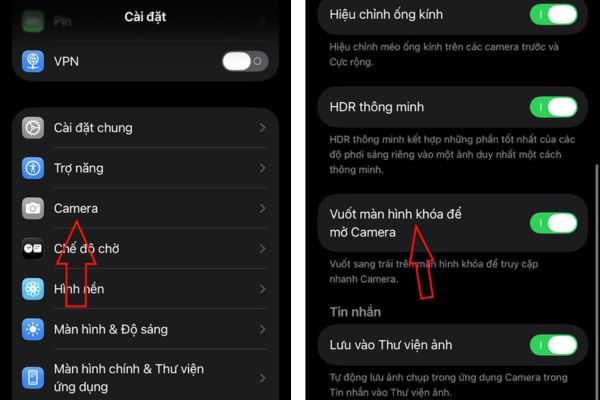
Turn off Swipe lock screen to open Camera

To disable, you just need to flip the switch to the off state. Immediately, swiping left from the lock screen will no longer activate the Camera app. This completely eliminates the possibility of accidentally opening the camera when holding or leaving the phone in your pocket.
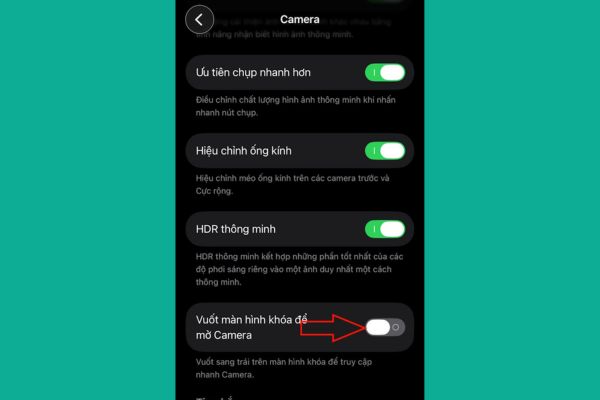
Step 2: Disable lock screen shortcut

Alternative methods of opening the camera

After turning off the swipe feature, users still have many other ways to access the camera when needed without worrying about confusion. You can open the Control Center and select the camera icon, or unlock the screen and tap the Camera app icon on the home screen.

In particular, for those who own iPhone 16 and above, using the dedicated Camera Control physical button will bring a much more professional and accurate photography experience.

Conclusion

Turn off the swipe left feature to open the camera Completely solve the problem of taking “ghost” photos in pockets or handbags that many people encounter. Hopefully this article has provided the concise, easy-to-understand and accurate information you were looking for. See you again in the next tips sharing articles.

Tags: CamerafeatureiPhoneleftopensecretswipeturning
Previous Post

AMIS OneAI: Connect all super AI, experience the latest ChatGPT – 5.2!

Next Post

Instructions for creating GIFs using the Gboard keyboard on iPhone

AnonyViet

AnonyViet

Related Posts

How to block pop-up ads on Safari without installing an app
Knowledge

How to block pop-up ads on Safari without installing an app

May 6, 2026
How to use Clean Up on iPhone to remove excess objects extremely quickly
Knowledge

How to use Clean Up on iPhone to remove excess objects extremely quickly

May 4, 2026
Tips for pinning the step counter to the iPhone screen to monitor your health
Knowledge

Tips for pinning the step counter to the iPhone screen to monitor your health

April 28, 2026
How to turn off password suggestions on iPhone: Prevent Safari from auto-filling passwords
Knowledge

How to turn off password suggestions on iPhone: Prevent Safari from auto-filling passwords

April 27, 2026
Tips to completely turn off CAPTCHA codes on iPhone and Mac are super simple
Knowledge

Tips to completely turn off CAPTCHA codes on iPhone and Mac are super simple

April 25, 2026
How to compress online videos for free without losing quality
Knowledge

How to compress online videos for free without losing quality

April 24, 2026
Next Post
Instructions for creating GIFs using the Gboard keyboard on iPhone

Instructions for creating GIFs using the Gboard keyboard on iPhone

0 0 votes
Article Rating
Subscribe
Login
Notify of
guest

guest

0 Comments
Oldest
Newest Most Voted
Inline Feedbacks
View all comments

Recent News

SafeKid – AI video blocking utility, helps children watch YouTube safely

SafeKid – AI video blocking utility, helps children watch YouTube safely

May 14, 2026
Key Smart Call Blocker Premium 1 year – Block spam calls

Key Smart Call Blocker Premium 1 year – Block spam calls

May 13, 2026
How to use multiple Zalo on one computer for business people

How to use multiple Zalo on one computer for business people

May 13, 2026
Compare vivo X300 Ultra and vivo X200 Ultra: A comprehensive leap forward for the photography “monster”

Compare vivo X300 Ultra and vivo X200 Ultra: A comprehensive leap forward for the photography “monster”

May 12, 2026
SafeKid – AI video blocking utility, helps children watch YouTube safely

SafeKid – AI video blocking utility, helps children watch YouTube safely

May 14, 2026
Key Smart Call Blocker Premium 1 year – Block spam calls

Key Smart Call Blocker Premium 1 year – Block spam calls

May 13, 2026
How to use multiple Zalo on one computer for business people

How to use multiple Zalo on one computer for business people

May 13, 2026
AnonyViet - English Version

AnonyViet

AnonyViet is a website share knowledge that you have never learned in school!

We are ready to welcome your comments, as well as your articles sent to AnonyViet.

Follow Us

Contact:

Email: anonyviet.com[@]gmail.com

Main Website: https://anonyviet.com

Recent News

SafeKid – AI video blocking utility, helps children watch YouTube safely

SafeKid – AI video blocking utility, helps children watch YouTube safely

May 14, 2026
Key Smart Call Blocker Premium 1 year – Block spam calls

Key Smart Call Blocker Premium 1 year – Block spam calls

May 13, 2026
No Result
View All Result
  • Home
  • News
  • Software
  • Knowledge
  • MMO
  • Tips
  • Security
  • Network
  • Office

wpDiscuz
0
0
Would love your thoughts, please comment.x
()
x
| Reply