How to set a recording file as an iOS 26 ringtone has become simpler than ever. From iOS 26 onwards, Apple has brought a groundbreaking feature, allowing users to easily turn any audio file into their favorite ringtone without the need for complicated applications like GarageBand. What are the steps? Let’s explore the detailed instructions right below!
| Join the channel Telegram belong to AnonyViet 👉 Link 👈 |
Explore groundbreaking features on iOS 26
In older iOS versions like iOS 18installing custom ringtones usually requires a fairly complicated process, often involving purchasing ringtones from Apple or using GarageBand. However, with the launch of iOS 26 and iPadOS 26 (currently in beta), Apple has significantly expanded ringtone options, providing unprecedented flexibility for every user.
Now you can use any audio file of maximum duration 30 seconds stored in the Files app in compatible formats such as MP3, WAV, M4A, M4R, FLAC, AIFF, AAC, AMR as ringtone on your iPhone or iPad.
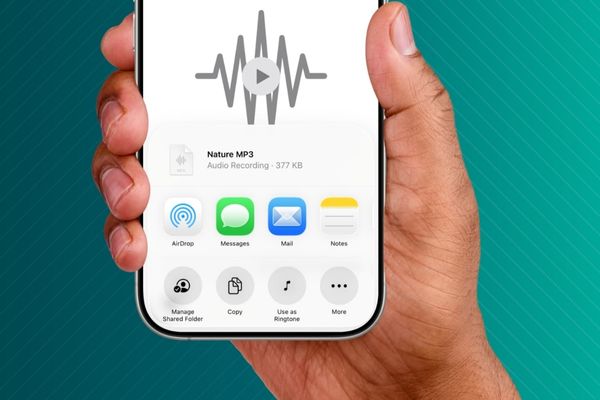
Instructions on how to set a recording file as a ringtone for iOS 26
The process of setting a ringtone from an audio file on iOS 26 is extremely simple. Please follow the steps below:
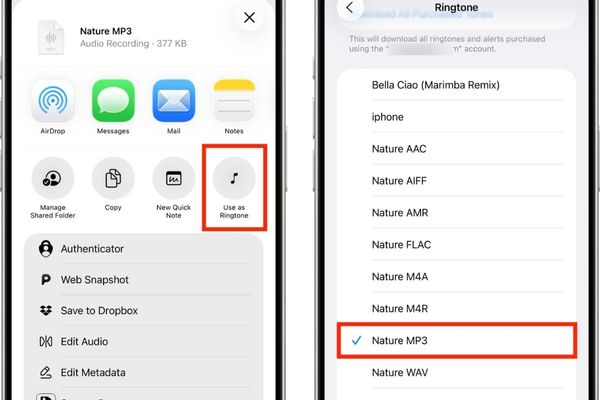
Step 1: First, you need to open the audio file you want to set as a ringtone. You can do this in the built-in iOS Files app or a third-party file manager app like Documents.
- Find the desired audio file.
- Touch and hold the file, then select Share.
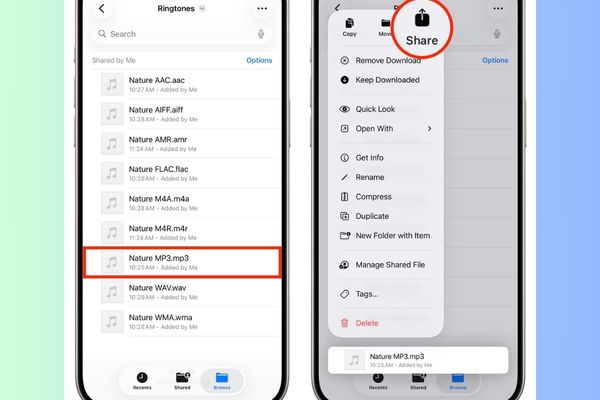
Note: In some third-party apps, you may need to tap the share icon again to access the iOS share menu.
Step 2: Select Use as Ringtone. You will be taken directly to the internal ringtone selection screen Settings.
- Tap on the selected audio file to set it as your default ringtone.
- This ringtone will be added to the list of available ringtones and will remain there until you delete it.
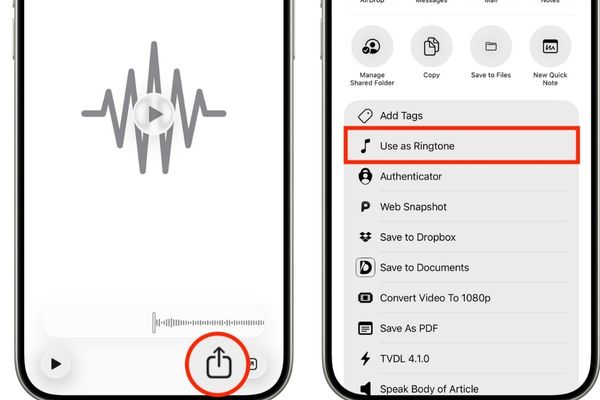
Quick tip: Use Quick Look
Alternatively, you can also touch and hold an audio file in the Files app, select an option Quick Lookthen open the sharing menu and select Use as Ringtone.
How to delete created ringtones on iOS 26
It’s important to note that deleting the original audio file in the Files app will not automatically delete the ringtone you created from it. To remove added ringtones:
- Go Settings > Sounds & Haptics > Ringtone.
- Swipe left on the ringtone you want to delete.
- Touch Delete to remove it from the list.

Fixes an issue where ringtones cannot be set
Sometimes, you may encounter a situation where there is no option to set a ringtone or you get an error. This can happen if:
- The audio file is in an unsupported format, is corrupted, or is compressed abnormally. Try downloading the file again and try again.
- If it still doesn’t work, try another file.
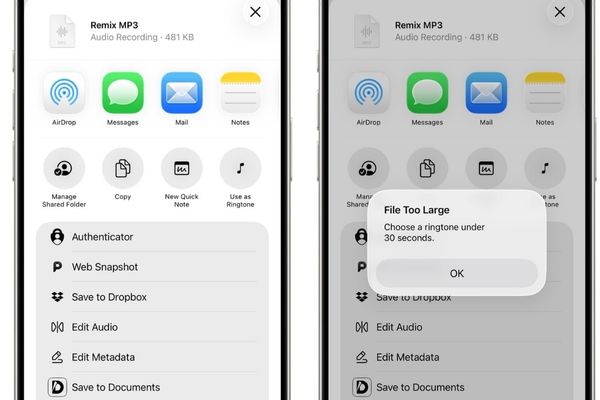
- Ringtones are limited to 30 seconds. If your file is longer than 30 seconds, you may still see the Use as Ringtone option, but the system will error that the file is too large.
Where to get free ringtones?
In addition to using personal recording files, you have many other ways to get unique ringtones.
Convert from song
The best way to get free ringtones is to convert from non-copyright protected songs in the Music app. You can set any 30 seconds of your favorite song as a ringtone.
Download from the internet
You can download free ringtones from websites like Prokerala, Zedge, Tones7, MobCup and mobiles24. Thanks to iOS 26’s support for all major audio file formats for ringtones, you can now also download M4R ringtone files from previously Android-only sites.
You can also assign specific ringtones, message tones, and vibrations to each contact. This helps you know who is calling or texting you without looking at the screen, providing maximum convenience.
How to set iPhone ringtones on older iOS versions
For iOS 18 and earlier, you have four main options for setting ringtones:
- Buy 30-second ringtones from the iTunes Store.
- Download the ringtone, then use GarageBand.
- Create ringtones from scratch in GarageBand.
- Use the Music app on your Mac to create ringtones (doesn’t work with DRM-protected tracks like Apple Music) and sync them to your iPhone.
Conclusion
With the detailed instructions above, customizing your iPhone with unique ringtones from any audio file has become extremely simple. Now you understand How to set recording file as ringtone iOS 26unleash your creativity and make each incoming call special in your own style!