Finally, the file “form_style_5.css” will have content as below. This code simply takes design inspiration from the original page to use for the extension.
.form-style-5{
max-width: 500px;
padding: 10px 20px;
background: #f4f7f8;
margin: 10px auto;
padding: 20px;
background: #f4f7f8;
border-radius: 8px;
font-family: Georgia, "Times New Roman", Times, serif;
}
.form-style-5 fieldset{
border: none;
}
.form-style-5 legend {
font-size: 1.4em;
margin-bottom: 10px;
}
.form-style-5 label {
display: block;
margin-bottom: 8px;
}
.form-style-5 input. input[type="text"],
.form-style-5 input. input[type="date"],
.form-style-5 input. input[type="datetime"],
.form-style-5 input. input[type="email"],
.form-style-5 input. input[type="number"],
.form-style-5 input. input[type="search"],
.form-style-5 input. input[type="time"],
.form-style-5 input. input[type="url"],
.form-style-5 textarea,
.form-style-5 select {
font-family: Georgia, "Times New Roman", Times, serif;
background: rgba(255,255,255,.1);
border: none;
border-radius: 4px;
font-size: 16px;
margin: 0;
outline: 0;
padding: 7px;
width: 100%;
box-sizing: border-box;
-webkit-box-sizing: border-box;
-moz-box-sizing: border-box;
background-color: #e8eeef;
color:#8a97a0;
-webkit-box-shadow: 0 1px 0 rgba(0,0,0,0.03) inset;
box-shadow: 0 1px 0 rgba(0,0,0,0.03) inset;
margin-bottom: 30px;
}
.form-style-5 input. input[type="text"]:focus,
.form-style-5 input. input[type="date"]:focus,
.form-style-5 input. input[type="datetime"]:focus,
.form-style-5 input. input[type="email"]:focus,
.form-style-5 input. input[type="number"]:focus,
.form-style-5 input. input[type="search"]:focus,
.form-style-5 input. input[type="time"]:focus,
.form-style-5 input. input[type="url"]:focus,
.form-style-5 textarea:focus,
.form-style-5 select:focus{
background: #d2d9dd;
}
.form-style-5 select{
-webkit-appearance: menulist-button;
height:35px;
}
.form-style-5 .number {
background: #1abc9c;
color: #fff;
height: 30px;
width: 30px;
display: inline-block;
font-size: 0.8em;
margin-right: 4px;
line-height: 30px;
text-align: center;
text-shadow: 0 1px 0 rgba(255,255,255,0.2);
border-radius: 15px 15px 15px 0px;
}
.form-style-5 input. input[type="submit"],
.form-style-5 input. input[type="button"]
{
position: relative;
display: block;
padding: 19px 39px 18px 39px;
color: #FFF;
margin: 0 auto;
background: #1abc9c;
font-size: 18px;
text-align: center;
font-style: normal;
width: 100%;
border: 1px solid #16a085;
border-width: 1px 1px 3px;
margin-bottom: 10px;
}
.form-style-5 input. input[type="submit"]:hover,
.form-style-5 input. input[type="button"]:hover
{
background: #109177;
}
After completing the extension’s interface, our next job is to write the logic for the extension. The extension will do the following two jobs: add to-dos and display them. So, we need to code the additional features and display them on the extension.
In the code below, I will use two functions: sync.get() and sync.set()are functions of “chrome.storage”. Ham sync.set() save to-do items in memory and sync.get() Used to retrieve and display to-do tasks. I have commented on each feature of the code for you to follow.
function loadItems() { /* First get() the data from the storage */ chrome.storage.sync.get(['todo'], function(result) { var todo = []
if (result && result.todo && result.todo.trim() !== '') { /* Parse and get the array as it is saved as a string */ todo = JSON.parse(result.todo) }
console.log('todo.length=" + todo.length)
for (var i = 0; i < todo.length; i++) { item = todo[i]
if (item && item.trim() !== "') { /* Append the items in the #list for showing them */ var list = document.getElementById('list') var entry = document.createElement('li') var text = document.createTextNode(item)
entry.appendChild(text) list.appendChild(entry) } } })}
/* Load the to-do items upon popup load */document.addEventListener('DOMContentLoaded', function(){ console.log('Inside doc.loaded()')
loadItems()})
/* Save the to-do item upon button click */document.getElementById('btn').addEventListener('click', function (ev) { console.log('Inside btn.click()')
text = document.getElementById('txt').value
if (text && text.trim() !== '') {
/* First get() old data as calling set() will replace it */ chrome.storage.sync.get(['todo'], function(result) { var todo = []
if (result && result.todo && result.todo.trim() !== '') { /* Parse and get the array as it is saved as a string */ todo = JSON.parse(result.todo) }
todo.push(text)
chrome.storage.sync.set({'todo': JSON.stringify(todo)}, function() { /* Data is saved now */
var list = document.getElementById('list')
while (list.firstChild) { list.removeChild(list.firstChild) }
loadItems() }) }) }})
Step 3: Demo extension
Once you’ve written your extension, you need to test whether it works properly by adding the extension to Chrome. First, you have to enable developer mode in Chrome: click the button Options > More tools > Extensionsthen turn it on “Developer mode”.
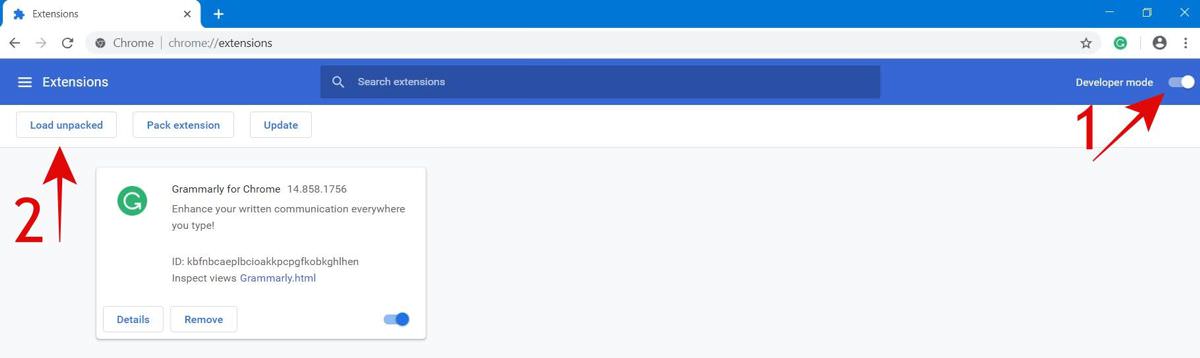
Next click the “Load unpacked” button. If you edit the code, Chrome will automatically reload the extension for you, a very useful “hot reload” feature.
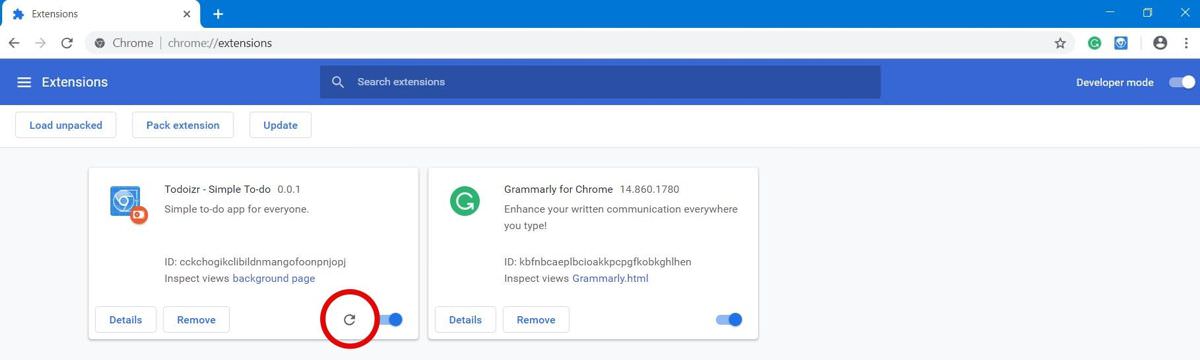
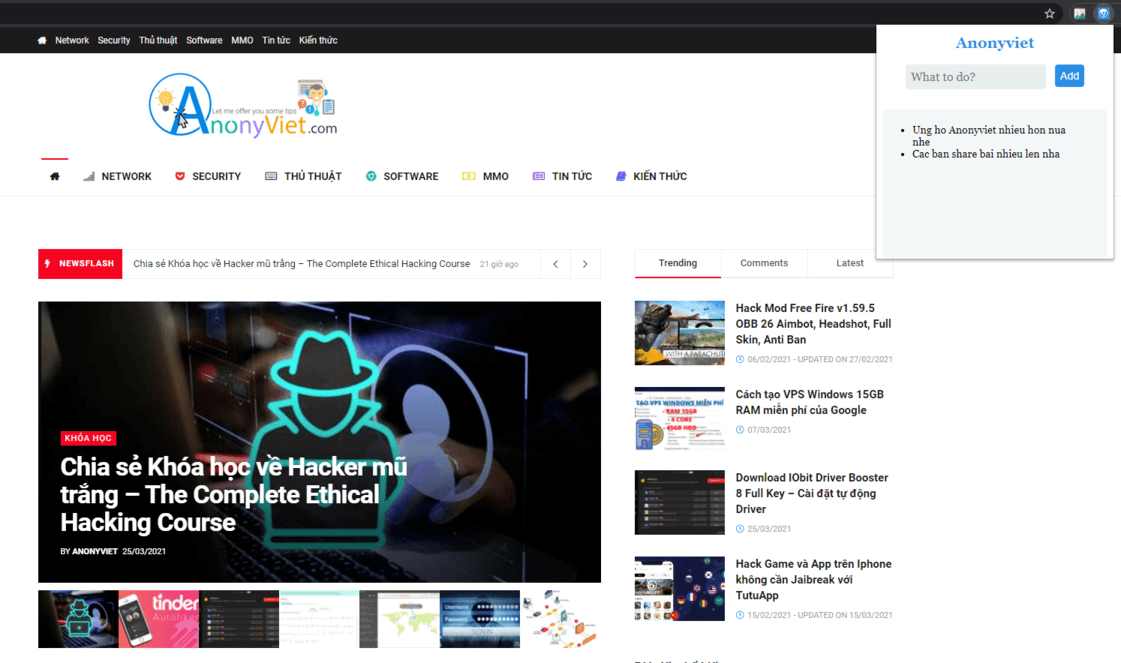
Now, you can use the utility you wrote yourself to record to-dos on Chrome.
Post Extensions to Chrome Store
Although publishing extensions to the online Chrome Web Store is easy, the process is a bit complicated. In short, you have to create a developer account, package your extension and then submit it along with other extension components (like name, icon, screenshots,…); as listed in this article.
Conclude
As said at the beginning of the article, this is not a detailed article instructing you on making extensions. So, if you want to go in the extension direction, here are some pretty good sources that you can refer to:
- All extensions’ abilities, components, and features.
- Sample extensions from the Google Chrome development team.
You can also develop additional features of the extension you just made such as:
- Added option to delete to-dos.
- To-do notification feature.
So, if you are serious on this path, I wish you luck.