Convert PDF to PNG image is a popular need to help you easily share documents or insert into presentations. Are you looking for a quick, free solution that still ensures sharp image quality? With the support of AI technology, this becomes simpler than ever. Let’s immediately discover how to do it through the detailed instructions below!
| Join the channel Telegram belong to AnonyViet 👉 Link 👈 |
Why should you convert PDF to PNG image?
Before we get into the tutorial, let’s look at some of the great benefits when you make this switch:
- Sharing becomes extremely simple, especially on social networking platforms or messaging applications that do not support direct viewing of PDF files.
- PNG images are easily inserted into other content such as PowerPoint presentations, Word documents, or graphic designs without disturbing the layout.
- Your content is better protected, as it will be more difficult for others to copy or edit text from an image file.
- Display quality is guaranteed with the PNG format supporting transparent backgrounds and maintaining high sharpness.
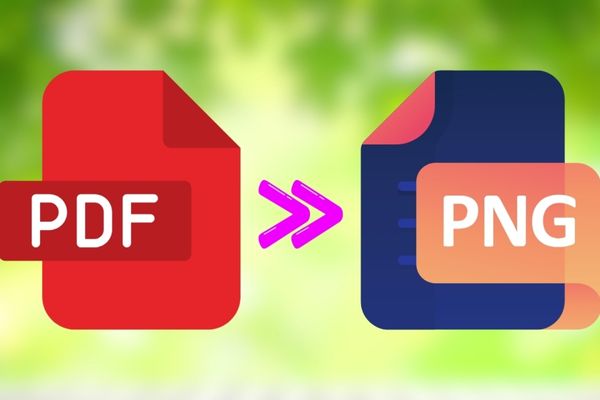
Instructions on how to convert PDF to PNG image
Step 1: First, open your web browser and visit the AI PDF to PNG converter website Monica.

Step 2: To use this feature, the system will ask you log in. You can completely use your existing Google account to log in quickly and conveniently.
Step 3: At the main interface, you will easily see a button named “Select file“. Click on it and navigate to the PDF file on your computer that you need to convert.
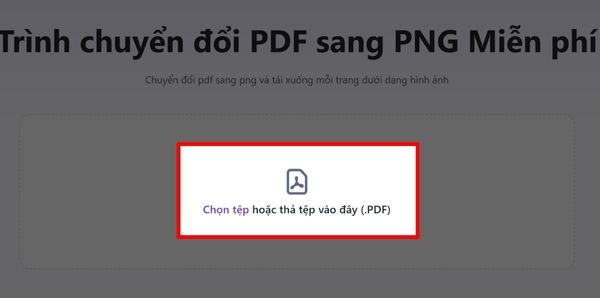
Step 4: After uploading the file, the AI system will automatically begin processing. How fast or slow this process will depend on the number of pages inside PDF file your. When finished, all converted pages will appear, just press the “ buttonDownload” to save all photos to your device.
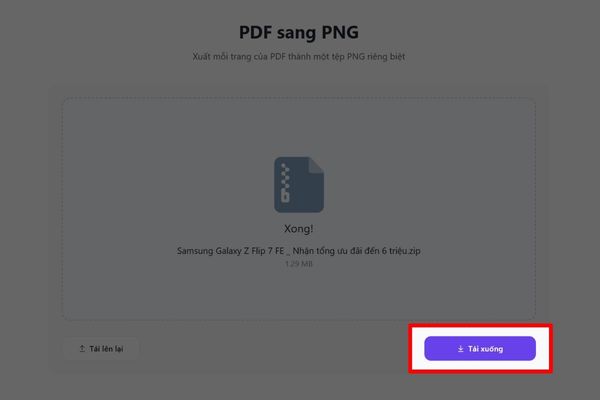
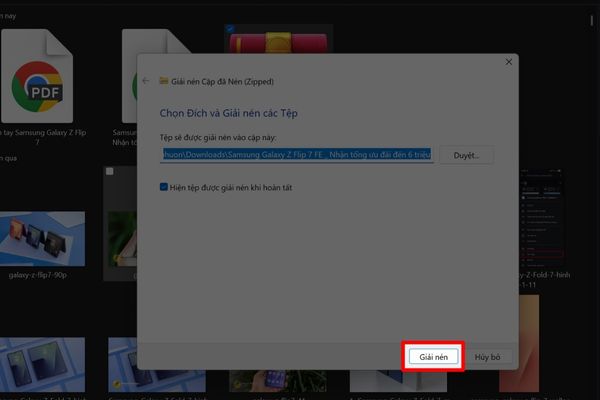
Step 5: PNG image files will be compressed into a single ZIP file for ease of downloading. The last thing you need to do is decompress file, and you’ll have a folder full of sharp, ready-to-use PNG images.
Conclusion
So, with just a few simple steps, you can do it Convert PDF to PNG image quickly and effectively thanks to AI tools. This solution not only saves time but also ensures the output image quality is always sharp, serving all your needs. Hope this article is useful and don’t forget to share so more people know this great tip!