• Home
  • News
  • Software
  • Knowledge
  • MMO
  • Tips
  • Security
  • Network
  • Office
AnonyViet - English Version
  • Home
  • News
  • Software
  • Knowledge
  • MMO
  • Tips
  • Security
  • Network
  • Office
No Result
View All Result
  • Home
  • News
  • Software
  • Knowledge
  • MMO
  • Tips
  • Security
  • Network
  • Office
No Result
View All Result
AnonyViet - English Version
No Result
View All Result

How to record videos using 2 cameras before with Dual Capture

AnonyViet by AnonyViet
October 5, 2025
in Knowledge
0

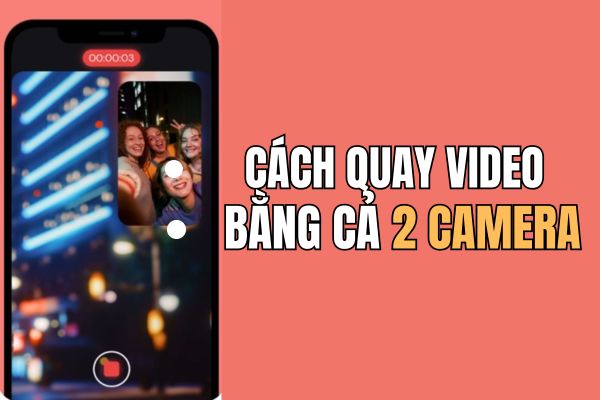
Dual Capture A revolutionary video feature that appears on the entire iPhone 17 line. Instead of having to choose between shooting yourself or the surrounding scenery, you can now record both in the same moment. This feature promises to open an endless creative space for mobile filmmakers, vlogger and daily users.

Join the channel Telegram belong to Anonyviet 👉 Link 👈

What is Dual Capture? How does it work?

This is a completely new video recording mode, allowing iPhone 17 Simultaneous recording from both front and rear camera systems. The result is a single video with the main frame from the rear camera, and a smaller window displays images from the front camera (similar to the “picture in the picture” mode).

This feature is the perfect tool to record true video Reaction, visual guidelines, or simply to share the most complete travel experience, where viewers can see the beautiful scenery and see the emotions of the rotating person.
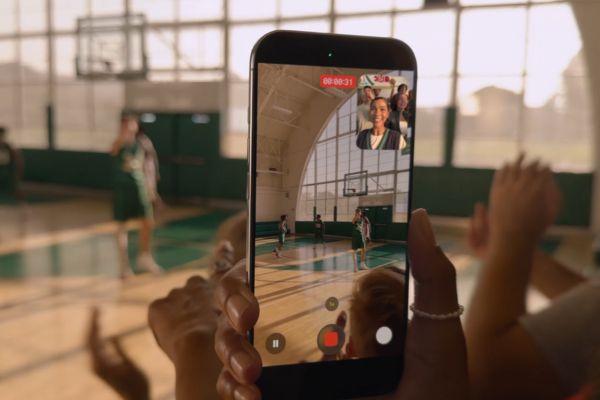
What is Dual Capture and how does it work?

Instructions on how to enable Dual Capture feature on iPhone 17

You just need to follow these steps:

  • First, open the application Camera and slide the toolbar to switch to the mode Video.
  • Next, look to the advanced option icon (with multiple dots) in the upper right corner of the screen.
  • A menu will appear, you just need to choose Dual Capture And click on the viewfinder to confirm the selection.
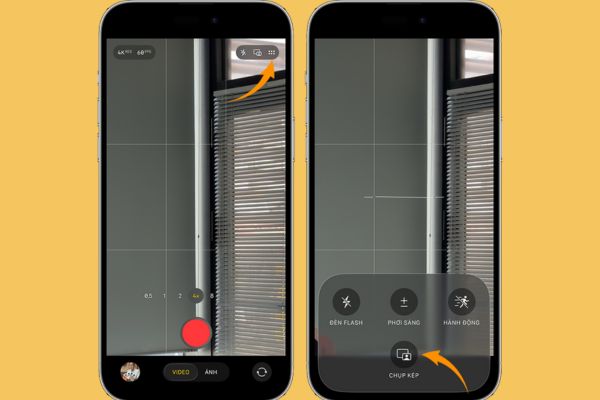
Select Dual Capture
Select Dual Capture
  • Finally, press Red rotation button To start recording the moment from both sides.

A convenient point is that after the first use, a quick and turning icon in the Dual Capture mode will appear right on the video recording interface, helping you access faster in the next time.
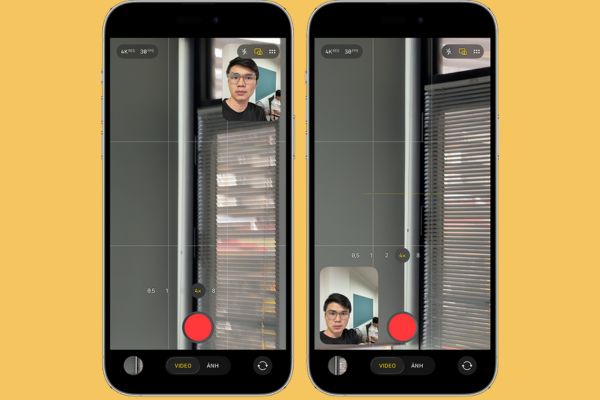
Instructions on how to enable Dual Capture feature on iPhone 17

Master video with unique custom customs

While filming, Apple also provides a few useful customization for you to get the most satisfactory movie.

Flexible conversion of lenses

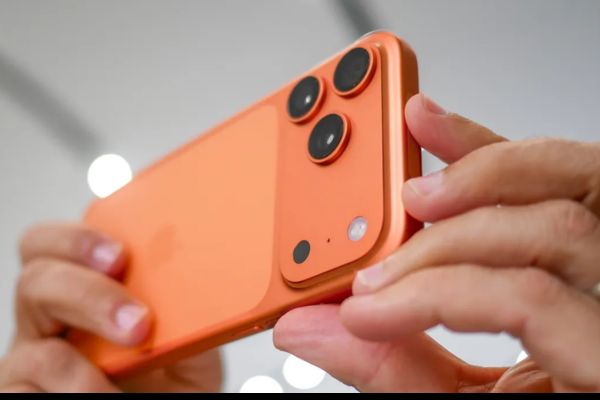
For those who own the iPhone 17 Pro or Pro Max version, you can freely switch between rear camera lenses (48MP, 48MP super wide, 48MP telephoto) even while filming. This allows you to flexibly change your view from panoramic to close -up without interrupting the video.

Customize the position of the front camera window

You can completely use your finger and move the front camera window to any position on the screen. This operation is very helpful to ensure the small window does not cover important details in the main frame. However, remember that all changes in this position will be recorded in the final video.
Master video with unique custom customs

Things to know about quality and limits

To bring the best experience, the Dual Capture feature comes with parameters and certain limits.

Image quality: This feature supports rotation at a high resolution of 1080p or 4K, with two frame speed options of 24 or 30 FPS. In it, setup 4K in 30 fps Considered to be the ideal choice to balance the sharp quality and smoothness, while providing the highest flexibility for post -production.

The limits to note:

  • Currently, users will only have a single layout option, which is “picture in the picture” designed by Apple, cannot swap the main camera position or select the screen division layout as some other devices.
  • The whole scene from both cameras will be combined and saved into A video file Only, instead of exporting two separate files. This helps save capacity but can also reduce the flexibility in the intensive editing process.
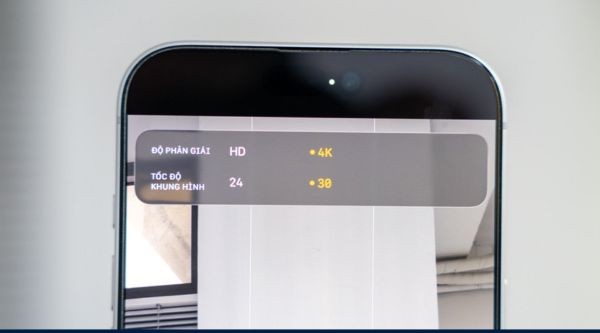
Things to know about quality and limits

Conclusion

Although there are still a few small limits, features Dual Capture On the iPhone 17 will definitely be a big step, giving users a powerful tool to tell stories with images. The ability to record two seamless perspectives promises to inspire countless creative content.


Tags: Camerascapturedualrecordvideos
Previous Post

How to create comics with Gemini to make your own book

Next Post

How to place 2 -layer security for chatgpt

AnonyViet

AnonyViet

Related Posts

How to check network speed on Apple TV when the image is jerky or lagging
Knowledge

How to check network speed on Apple TV when the image is jerky or lagging

June 3, 2026
How to turn off Gemini Nano on Chrome to free up 4GB of memory
Knowledge

How to turn off Gemini Nano on Chrome to free up 4GB of memory

May 30, 2026
How to turn on Voice Isolation, which helps eliminate noise when calling on iPhone
Knowledge

How to turn on Voice Isolation, which helps eliminate noise when calling on iPhone

May 27, 2026
How to transfer files between Windows and Mac over LAN
Knowledge

How to transfer files between Windows and Mac over LAN

May 26, 2026
Snapvie: Tool to download 8K YouTube videos, no installation required
Knowledge

Snapvie: Tool to download 8K YouTube videos, no installation required

May 24, 2026
How to create your own Video AI App to use Omni, Nano Banana without API Key
Knowledge

How to create your own Video AI App to use Omni, Nano Banana without API Key

May 23, 2026
Next Post
How to place 2 -layer security for chatgpt

How to place 2 -layer security for chatgpt

0 0 votes
Article Rating
Subscribe
Login
Notify of
guest

guest

0 Comments
Oldest
Newest Most Voted
Inline Feedbacks
View all comments

Recent News

How to check network speed on Apple TV when the image is jerky or lagging

How to check network speed on Apple TV when the image is jerky or lagging

June 3, 2026
Instructions on how to prevent acquaintances from seeing your Tiktok

Instructions on how to prevent acquaintances from seeing your Tiktok

June 2, 2026
How to record reaction videos with Android phones, no app needed

How to record reaction videos with Android phones, no app needed

June 1, 2026
Instructions on how to get Google AI Pro 1 year for free for new accounts

Instructions on how to get Google AI Pro 1 year for free for new accounts

June 1, 2026
How to check network speed on Apple TV when the image is jerky or lagging

How to check network speed on Apple TV when the image is jerky or lagging

June 3, 2026
Instructions on how to prevent acquaintances from seeing your Tiktok

Instructions on how to prevent acquaintances from seeing your Tiktok

June 2, 2026
How to record reaction videos with Android phones, no app needed

How to record reaction videos with Android phones, no app needed

June 1, 2026
AnonyViet - English Version

AnonyViet

AnonyViet is a website share knowledge that you have never learned in school!

We are ready to welcome your comments, as well as your articles sent to AnonyViet.

Follow Us

Contact:

Email: anonyviet.com[@]gmail.com

Main Website: https://anonyviet.com

Recent News

How to check network speed on Apple TV when the image is jerky or lagging

How to check network speed on Apple TV when the image is jerky or lagging

June 3, 2026
Instructions on how to prevent acquaintances from seeing your Tiktok

Instructions on how to prevent acquaintances from seeing your Tiktok

June 2, 2026
No Result
View All Result
  • Home
  • News
  • Software
  • Knowledge
  • MMO
  • Tips
  • Security
  • Network
  • Office

wpDiscuz
0
0
Would love your thoughts, please comment.x
()
x
| Reply