• Home
  • News
  • Software
  • Knowledge
  • MMO
  • Tips
  • Security
  • Network
  • Office
AnonyViet - English Version
  • Home
  • News
  • Software
  • Knowledge
  • MMO
  • Tips
  • Security
  • Network
  • Office
No Result
View All Result
  • Home
  • News
  • Software
  • Knowledge
  • MMO
  • Tips
  • Security
  • Network
  • Office
No Result
View All Result
AnonyViet - English Version
No Result
View All Result

Instructions on how to send messages on Android

AnonyViet by AnonyViet
May 18, 2025
in Software
0

Have you ever forgotten to send an important message just because of the busy schedule or not good memory? Don’t worry, with features timer sending message On Android, you can schedule a message easily, making sure you do not miss any message. Let’s explore how to do it through this article from Anonyviet!

Join the channel Telegram belong to Anonyviet 👉 Link 👈

Why should you use the timer feature to send the message?

In modern life, sending punctual messages sometimes becomes a deciding factor for success in work or maintaining relationships. The timer feature to send messages not only saves you time but also brings flexibility, especially when you need to send reminders, birthday wishes or important notifications at the right time.

With the development of technology, both Google Messages and Samsung Messages support this feature safely and effectively.
Why should you use the timer feature to send the message?

Timer sending message on Android super convenience with Google Messages

Google Messages is the default messaging application on most devices Androidbrings a simple but powerful experience. Here’s how to schedule a message by this application:

Step 1: Open Google Messages, choose a conversation and enter the message content you want to send.

Step 2: Click the icon plus (+) in the lower left corner> Select Schedule sent (Schedule Send) from the menu.

You can choose the suggested timeline or press Choose date and time (Select date and time) to customize.
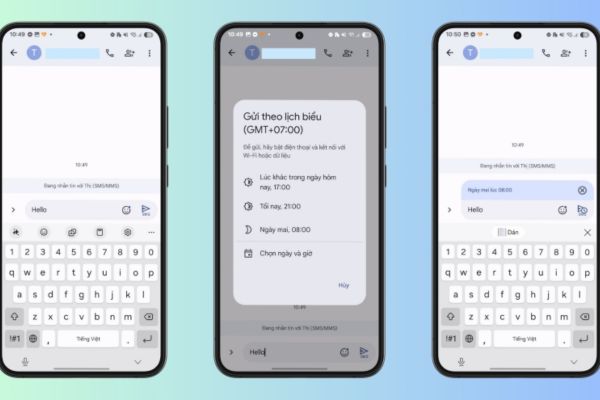
Timer sending message on Android super convenience with Google Messages

Step 3: After selecting the time, the message will display the time label with the clock icon> click Paper aircraft icon To complete.

To view or edit, go to the scheduled message (Scheduled Messages), where you can update, send immediately or cancel the message.
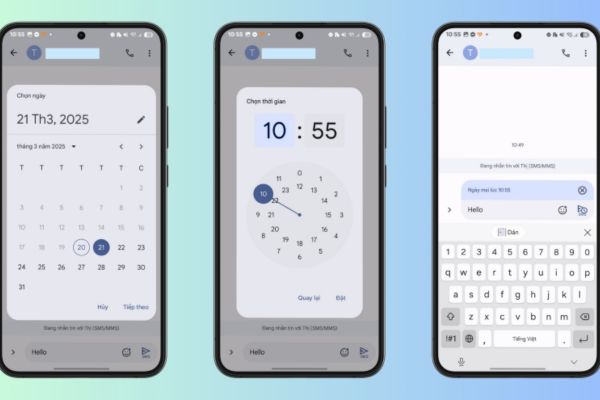
You can view or edit

Tip: If the recipient does not use RCS, turn on the option to automatically send it back in the form of SMS/MMS in RCS settings to make sure the message is sent successfully.

Timer sending message with Samsung Messages

If you use the phone SamsungSamsung Messages application is also a great choice to schedule a message. How to do as follows:

Step 1: Open Samsung Messages, in conversation> Click the icon Three dots (…) and choose Schedule a message (Schedule Message).

Step 2: Choose the desired date and time, then click Finished (Done)> Compose the message and press the icon paper aircraft.
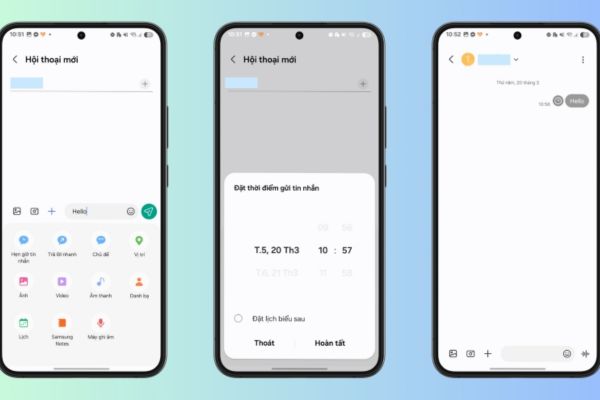
Timer sending message with Samsung Messages

Step 3: The scheduled message will display with the clock icon> you can click it to select immediately send (Send now), delete (Delete) or edit (Edit).
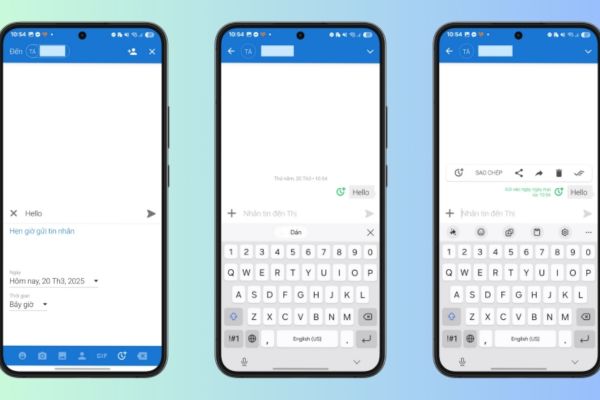
The scheduled message will be displayed with the clock icon

Both applications ensure security and do not require additional software installation, helping you feel secure to use.

Schedule a message by third party application

Although Google Messages and Samsung Messages meet basic needs, some users still want to try third -party applications like Textra SMSMicrosoft SMS Organizer or Auto Text. These applications support timer sending messages to regular SMS, but not compatible with RCS.

However, to ensure personal information security, you should prioritize official applications from Google or Samsung instead of third -party solutions!

Conclusion

Timer sending message On Android is not only a useful feature but also a powerful support tool for busy life. With simple steps from Google Messages or Samsung Messages, you absolutely can control your time. Try today to never miss an important message again!


Tags: AndroidInstructionsmessagessend
Previous Post

Display the Internet speed on Windows Taskbar with Du Metter

Next Post

Instructions for downloading all photos and story from Instagram

AnonyViet

AnonyViet

Related Posts

Samsung Galaxy Z Fold 8 Ultra and Z Fold 7: Is it worth upgrading?
Software

Samsung Galaxy Z Fold 8 Ultra and Z Fold 7: Is it worth upgrading?

July 28, 2026
Instructions on how to get 1 year of VIP Hidely VPN for free
Software

Instructions on how to get 1 year of VIP Hidely VPN for free

July 25, 2026
Instructions on how to block strange devices from accessing your home Wifi
Software

Instructions on how to block strange devices from accessing your home Wifi

July 25, 2026
Instructions on how to get Norton 360 Deluxe for 1 year for free
Software

Instructions on how to get Norton 360 Deluxe for 1 year for free

July 19, 2026
Is Xiaomi Redmi A7 a valuable choice in the popular smartphone segment?
Software

Is Xiaomi Redmi A7 a valuable choice in the popular smartphone segment?

July 14, 2026
Compact design, durable battery, excellent camera: Review of OPPO Reno 16 Pro 5G
Software

Compact design, durable battery, excellent camera: Review of OPPO Reno 16 Pro 5G

July 12, 2026
Next Post
Instructions for downloading all photos and story from Instagram

Instructions for downloading all photos and story from Instagram

0 0 votes
Article Rating
Subscribe
Login
Notify of
guest

guest

0 Comments
Oldest
Newest Most Voted

Recent News

Windows 7/8.1/10 users will be upgraded to Windows 11 for free

Windows 7/8.1/10 users will be upgraded to Windows 11 for free

July 30, 2026
Instructions for receiving the free Certified LLM Security Expert certificate

Instructions for receiving the free Certified LLM Security Expert certificate

July 30, 2026
MSI laptops are not just for gamers: Which line is suitable for students, office workers and creative people?

MSI laptops are not just for gamers: Which line is suitable for students, office workers and creative people?

July 29, 2026
What is quantum resistant cryptography? Why must the Internet change?

What is quantum resistant cryptography? Why must the Internet change?

July 29, 2026
Windows 7/8.1/10 users will be upgraded to Windows 11 for free

Windows 7/8.1/10 users will be upgraded to Windows 11 for free

July 30, 2026
Instructions for receiving the free Certified LLM Security Expert certificate

Instructions for receiving the free Certified LLM Security Expert certificate

July 30, 2026
MSI laptops are not just for gamers: Which line is suitable for students, office workers and creative people?

MSI laptops are not just for gamers: Which line is suitable for students, office workers and creative people?

July 29, 2026
AnonyViet - English Version

AnonyViet

AnonyViet is a website share knowledge that you have never learned in school!

We are ready to welcome your comments, as well as your articles sent to AnonyViet.

Follow Us

Contact:

Email: anonyviet.com[@]gmail.com

Main Website: https://anonyviet.com

Recent News

Windows 7/8.1/10 users will be upgraded to Windows 11 for free

Windows 7/8.1/10 users will be upgraded to Windows 11 for free

July 30, 2026
Instructions for receiving the free Certified LLM Security Expert certificate

Instructions for receiving the free Certified LLM Security Expert certificate

July 30, 2026
  • Home
  • Home 2
  • Home 3
  • Home 4
  • Home 5
  • Home 6
  • Next Dest Page
  • Sample Page

say88 tỷ lệ kèo nhà cái kèo nhà cái 5 febet

No Result
View All Result
  • Home
  • News
  • Software
  • Knowledge
  • MMO
  • Tips
  • Security
  • Network
  • Office

say88 tỷ lệ kèo nhà cái kèo nhà cái 5 febet

wpDiscuz
0
0
Would love your thoughts, please comment.x
()
x
| Reply