• Home
  • News
  • Software
  • Knowledge
  • MMO
  • Tips
  • Security
  • Network
  • Office
AnonyViet - English Version
  • Home
  • News
  • Software
  • Knowledge
  • MMO
  • Tips
  • Security
  • Network
  • Office
No Result
View All Result
  • Home
  • News
  • Software
  • Knowledge
  • MMO
  • Tips
  • Security
  • Network
  • Office
No Result
View All Result
AnonyViet - English Version
No Result
View All Result

Change super easy Windows folder icon

AnonyViet by AnonyViet
May 12, 2025
in Software
0

Have you ever felt bored with the default folder icons on Windows? If the answer is yes, then Folder icon changer It is the perfect solution for you. With this application, changing the folder icon is not only simple but also extremely fast, helping you personalize the working space in your own style!

Join the channel Telegram belong to Anonyviet 👉 Link 👈

What is Folder Icon Changer?

Folder Icon Changer is a free tool designed to change the folder icon on the operating system Windows Easy way. While Windows allows you to change the folder icon via manual settings, the big drawback is that you can only perform each folder one – a time -consuming process. With Folder Icon Changer, everything is optimized: You can handle multiple folders at the same time with just a few simple dragging operations.

Not only that, the application also allows you to restore the original icon with just one click – something that not all software can do. Currently, the Folder Icon Changer is available on Microsoft Store, making loading and installing more convenient than ever.
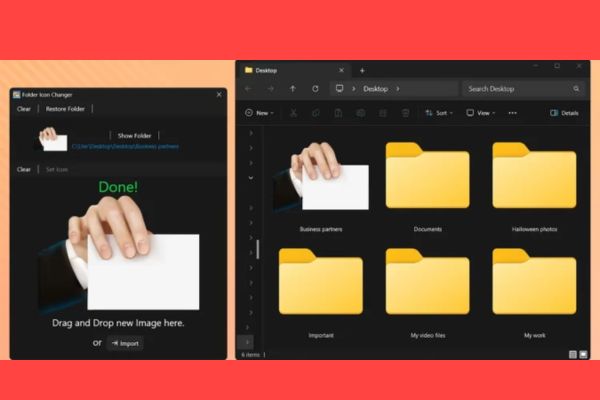
What is Folder Icon Changer?

Where to download folder icon changer?

To own the folder icon changer, you just need to visit Microsoft Store, search for applications or click on the official link from the Maketone developer HERE. Then press “Download”For free installation.
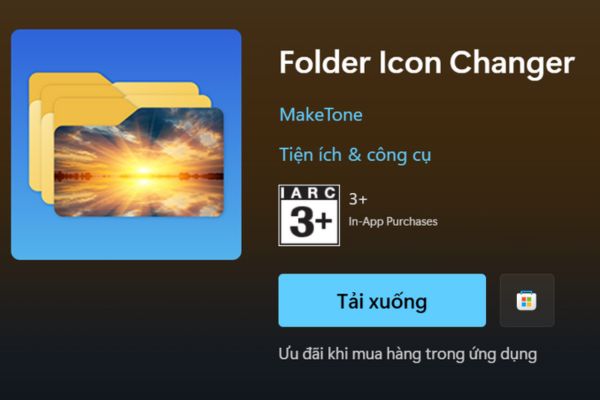
Where to download folder icon changer?

With a friendly interface and light capacity, this is definitely an indispensable tool for those who love creativity on the computer.

  • Developer: Maketone
  • Price: Free
  • Support format: JPG, PNG, BMP, TIFF, ICO

Instructions for using folder icon changer

Step 1: Open the Folder Icon Changer application, you will see two main areas:

  • Drag and Drop Your Folder here: Press the “Import” button or drag and drop the folder you want to change the icon here.
  • Drag and Drop Your Image here: Similarly, click “Import” or drag and drop the icon image you want to use.

The application supports many popular formats such as JPG, PNG, BMP, TIFF and ICOs, helping you to freely choose the right image for your preferences.
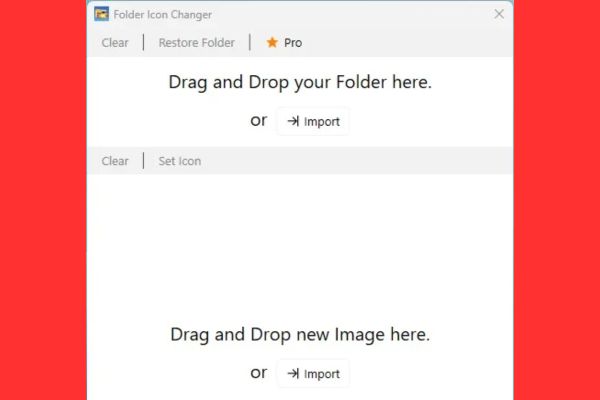
Add folders and images

Step 2: Immediately after you add folders and images, the application will automatically apply a new icon to the folder. When the screen displays the “Done” notification, that is, the process has been completed.
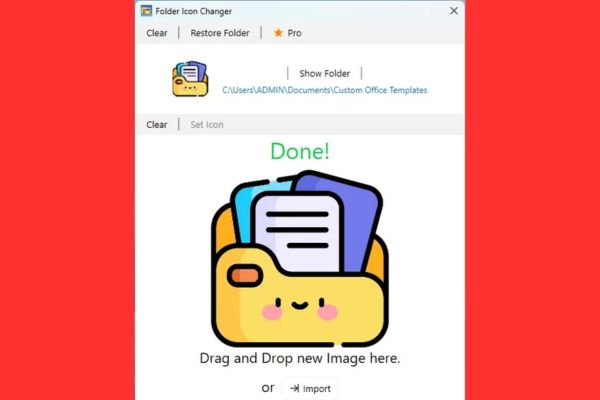
The process has been completed

You can press “Show folder“To open the folder and check the results immediately.
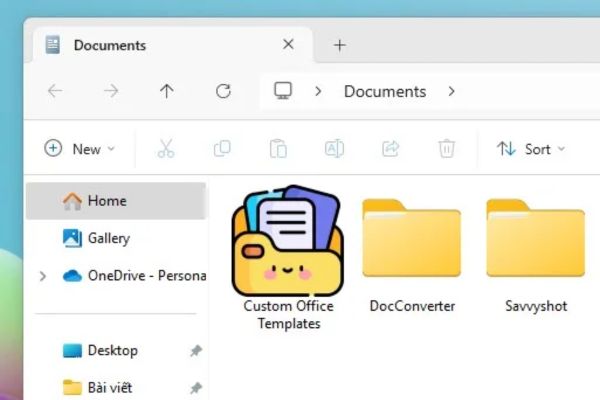
Press "Show folder" to check
Click “Show Folder” to check

Step 3: If you want to change to another icon, just click “Clear”To delete the current option and repeat the above steps.

And if you change your mind and want to return to the default icon of Windows? Don’t worry, just choose “Restore folder” – Everything will be restored as the original in an instant.

Conclude

If you are looking for a simple and effective way to refresh the folders on Windows, Folder icon changer It is the option not to be missed. With a few dragging operations, you can turn monotonous folders into a space with a personal impression. Have you tried it yet? Please share your experience!


Tags: changeeasyFolderIconsuperWindows
Previous Post

How to use Auto Share Facebook to increase the article sharing

Next Post

Learn about En81 safety standards for home elevators

AnonyViet

AnonyViet

Related Posts

How to extract text from photos using Zalo is super simple
Software

How to extract text from photos using Zalo is super simple

May 29, 2026
HONOR 600 in hand – High-end design, 200MP camera, not cheap price
Software

HONOR 600 in hand – High-end design, 200MP camera, not cheap price

May 28, 2026
Instructions for getting 4 months of Adobe copyright for free
Software

Instructions for getting 4 months of Adobe copyright for free

May 28, 2026
The truth about the 7,000 mAh battery on Xiaomi 17T Pro: What benefits do users get?
Software

The truth about the 7,000 mAh battery on Xiaomi 17T Pro: What benefits do users get?

May 28, 2026
Instructions on how to turn text into stickers on Gboard
Software

Instructions on how to turn text into stickers on Gboard

May 26, 2026
Instructions on how to turn off YouTube Shorts on iPhone
Software

Instructions on how to turn off YouTube Shorts on iPhone

May 24, 2026
Next Post
Learn about En81 safety standards for home elevators

Learn about En81 safety standards for home elevators

0 0 votes
Article Rating
Subscribe
Login
Notify of
guest

guest

0 Comments
Oldest
Newest Most Voted
Inline Feedbacks
View all comments

Recent News

How to turn off Gemini Nano on Chrome to free up 4GB of memory

How to turn off Gemini Nano on Chrome to free up 4GB of memory

May 30, 2026
Instructions for receiving Lovable Pro 12 months for free

Instructions for receiving Lovable Pro 12 months for free

May 29, 2026
How to extract text from photos using Zalo is super simple

How to extract text from photos using Zalo is super simple

May 29, 2026
HONOR 600 in hand – High-end design, 200MP camera, not cheap price

HONOR 600 in hand – High-end design, 200MP camera, not cheap price

May 28, 2026
How to turn off Gemini Nano on Chrome to free up 4GB of memory

How to turn off Gemini Nano on Chrome to free up 4GB of memory

May 30, 2026
Instructions for receiving Lovable Pro 12 months for free

Instructions for receiving Lovable Pro 12 months for free

May 29, 2026
How to extract text from photos using Zalo is super simple

How to extract text from photos using Zalo is super simple

May 29, 2026
AnonyViet - English Version

AnonyViet

AnonyViet is a website share knowledge that you have never learned in school!

We are ready to welcome your comments, as well as your articles sent to AnonyViet.

Follow Us

Contact:

Email: anonyviet.com[@]gmail.com

Main Website: https://anonyviet.com

Recent News

How to turn off Gemini Nano on Chrome to free up 4GB of memory

How to turn off Gemini Nano on Chrome to free up 4GB of memory

May 30, 2026
Instructions for receiving Lovable Pro 12 months for free

Instructions for receiving Lovable Pro 12 months for free

May 29, 2026
No Result
View All Result
  • Home
  • News
  • Software
  • Knowledge
  • MMO
  • Tips
  • Security
  • Network
  • Office

wpDiscuz
0
0
Would love your thoughts, please comment.x
()
x
| Reply