• Home
  • News
  • Software
  • Knowledge
  • MMO
  • Tips
  • Security
  • Network
  • Office
AnonyViet - English Version
  • Home
  • News
  • Software
  • Knowledge
  • MMO
  • Tips
  • Security
  • Network
  • Office
No Result
View All Result
  • Home
  • News
  • Software
  • Knowledge
  • MMO
  • Tips
  • Security
  • Network
  • Office
No Result
View All Result
AnonyViet - English Version
No Result
View All Result

Instructions for using anyone to delete noise in the video

AnonyViet by AnonyViet
April 24, 2025
in Knowledge
0

Have you ever filmed a passionate video, but the surrounding noise ruined the viewer’s experience? Do not worry! With modern technology, noise erasing is now easier and more effective than ever. Let’s explore the way Use someone to delete the noise in the video To bring clear, professional sound in just a few simple steps.

Join the channel Telegram belong to Anonyviet 👉 Link 👈

Note: This tutorial is now applicable to Samsung phone Integrated Galaxy AI. If other models support this feature in the future, I will update more so you don’t miss any information.

Why use anyone to delete noise in the video?

Noise from wind, cars, or surrounding voices can reduce the quality of your video. Using the noise in the video not only helps to eliminate unwanted sounds, but also enhances the audience experience.

Smart AI technology has the ability to analyze and separate noise from the main voice, bringing clean and clear sound. This is the perfect solution for those who want to create professional content without expensive equipment or complex software.

Why use anyone to delete noise in the video?

Instructions for step by step using anyone to delete noise in the video

Here’s how to perform details on the phone Samsung With Galaxy AI. Just a few steps, you will see a clear difference in the sound quality of the video.

Step 1: First, open the video you want to delete the noise on your Samsung phone. Then, find and click the icon Pen (usually located in the corner of the screen) to access the video editor. Next, select the icon Sound To start processing the sound.
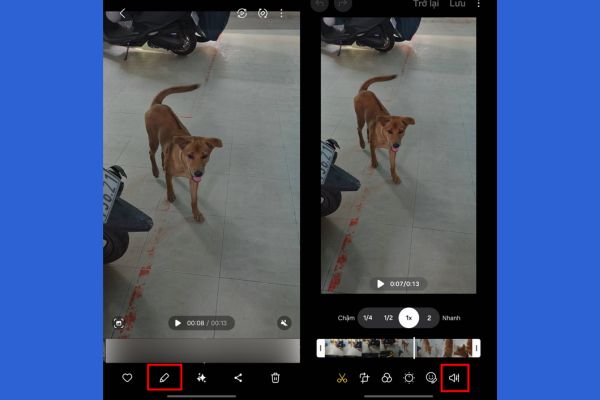
Select audio icon
Select audio icon

Step 2: In the audio editing interface, you will see the item Delete sound. Here, Galaxy Ai offers two options: erasing voice and deleting noise. If your goal is to eliminate the surrounding noise like the sound of wind, the sound of the car or the mixed sound, choose Noise.

Then, drag the adjustment bar to the level -100 To completely eliminate unwanted sounds. AI technology will automatically analyze and process, retain the main voice in the video in the most natural way.
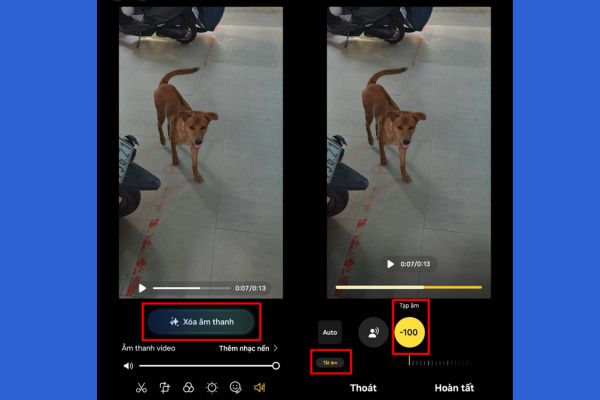
Pull the adjustment bar to -100

Step 3: After adjusting, press Finish To apply changes. Next, choose Save copy To retain the original video and create a new version that has been processed noise.
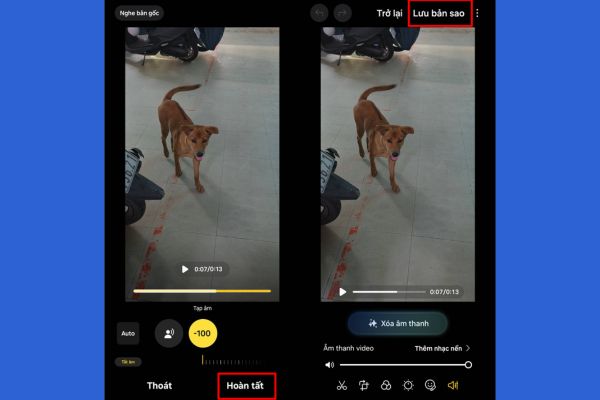
Pull the adjustment bar to -100

Review the video to check the sound quality – you will be surprised at the difference that AI brings! The sound is now clear, clear, making your content more attractive than ever.

Who should use this technology?

Whether you are a vlogger, an amateur filmmaker or simply a person who likes to record memories, the feature that uses the noise in the video is a useful tool. It is especially suitable for those who regularly recording outdoors, where noise is hard to control. With Galaxy Who, you no longer have to worry about the sound that reduces the attraction of the content.

Conclude

AI technology has changed the way we edit and upgrade videos, especially in audio processing. Use someone to delete the noise in the video Not only simple but also outstanding effect, helping you create professional products right on your phone. Try this feature immediately on Samsung Galaxy Ai!


Tags: deleteInstructionsnoisevideo
Previous Post

How to create secret messages in photos with python

Next Post

What to do when losing files? How to get data back quickly with MyRecover

AnonyViet

AnonyViet

Related Posts

How to avoid Adblock detection on Youtube with 4 good tips
Knowledge

How to avoid Adblock detection on Youtube with 4 good tips

April 17, 2026
How to transfer ChatGPT data to Claude is extremely simple
Knowledge

How to transfer ChatGPT data to Claude is extremely simple

April 16, 2026
Speak Cells: Excel tool to read spreadsheets by voice very well
Knowledge

Speak Cells: Excel tool to read spreadsheets by voice very well

April 15, 2026
Complete set of AI training materials from the Ministry of Education at all levels (Elementary – High School)
Knowledge

Complete set of AI training materials from the Ministry of Education at all levels (Elementary – High School)

April 13, 2026
How to add WiFi Bluetooth button to iPhone home screen
Knowledge

How to add WiFi Bluetooth button to iPhone home screen

April 13, 2026
Instructions on how to activate 120Hz for smooth Safari browsing
Knowledge

Instructions on how to activate 120Hz for smooth Safari browsing

April 12, 2026
Next Post
What to do when losing files? How to get data back quickly with MyRecover

What to do when losing files? How to get data back quickly with MyRecover

0 0 votes
Article Rating
Subscribe
Login
Notify of
guest

guest

0 Comments
Oldest
Newest Most Voted
Inline Feedbacks
View all comments

Recent News

Japanese Watch Week: Choose the color that suits your destiny, start the new year well at Mobile World

Japanese Watch Week: Choose the color that suits your destiny, start the new year well at Mobile World

April 20, 2026
4K Video Downloader Plus – Tool to download YouTube videos on macOS

4K Video Downloader Plus – Tool to download YouTube videos on macOS

April 20, 2026
How to add Watermark to Google Docs to protect copyright

How to add Watermark to Google Docs to protect copyright

April 19, 2026
How to intercept traffic using Burp Suite to analyze HTTP/HTTPS

How to intercept traffic using Burp Suite to analyze HTTP/HTTPS

April 18, 2026
Japanese Watch Week: Choose the color that suits your destiny, start the new year well at Mobile World

Japanese Watch Week: Choose the color that suits your destiny, start the new year well at Mobile World

April 20, 2026
4K Video Downloader Plus – Tool to download YouTube videos on macOS

4K Video Downloader Plus – Tool to download YouTube videos on macOS

April 20, 2026
How to add Watermark to Google Docs to protect copyright

How to add Watermark to Google Docs to protect copyright

April 19, 2026
AnonyViet - English Version

AnonyViet

AnonyViet is a website share knowledge that you have never learned in school!

We are ready to welcome your comments, as well as your articles sent to AnonyViet.

Follow Us

Contact:

Email: anonyviet.com[@]gmail.com

Main Website: https://anonyviet.com

Recent News

Japanese Watch Week: Choose the color that suits your destiny, start the new year well at Mobile World

Japanese Watch Week: Choose the color that suits your destiny, start the new year well at Mobile World

April 20, 2026
4K Video Downloader Plus – Tool to download YouTube videos on macOS

4K Video Downloader Plus – Tool to download YouTube videos on macOS

April 20, 2026
No Result
View All Result
  • Home
  • News
  • Software
  • Knowledge
  • MMO
  • Tips
  • Security
  • Network
  • Office

wpDiscuz
0
0
Would love your thoughts, please comment.x
()
x
| Reply