• Home
  • News
  • Software
  • Knowledge
  • MMO
  • Tips
  • Security
  • Network
  • Office
AnonyViet - English Version
  • Home
  • News
  • Software
  • Knowledge
  • MMO
  • Tips
  • Security
  • Network
  • Office
No Result
View All Result
  • Home
  • News
  • Software
  • Knowledge
  • MMO
  • Tips
  • Security
  • Network
  • Office
No Result
View All Result
AnonyViet - English Version
No Result
View All Result

How to transfer bookmarks and extension from Chrome to Edge

AnonyViet by AnonyViet
February 8, 2025
in Tips
0

Edge Chromium has issued the official version. Because of using Chromium nucleus, Edge can completely use extension from Google Chrome. If you want to move from Chrome to Edge, Microsoft will help you move everything like history, saved password, bookmark … but for the extension you cannot use Edge's existing features but must follow step by step manually steps . Please follow the instructions below of Anonyviet.

Join the channel Telegram belong to Anonyviet 👉 Link 👈

Chrome users want to synchronize configuration with Edge without having to worry about losing bookmarks and extensions. Now, Edge is built on Google's Chromium platform, you just need to transfer all your settings from Chrome to Edge.

Here are steps step by step instructions on how to get data from Chrome to Edge so you can switch to a new Microsoft browser without having to repeat from the beginning. Also you should also read through some Features of Edge Chromium Not to be missed.

Bookmark from Chrome to Edge

If on the computer has not installed the new edge, please visit Download edge page For Windows, Mac, iOS or Android.

When you start the browser for the first time, it will ask you if you want synchronized from chrome. Be sure This option is selected.

How to transfer bookmarks and extension from Chrome to Edge

After you complete a few next reminder, Edge will set up bookmarks for you. According to Anonyviet's experience, Bookmark from Chrome to Edge will appear right below the address bar.

If the data synchronization process from Chorme through Edge does not work or you want to enter after the initial setup, Click on the three horizontal dots In the upper right corner selected Setting -> Profiles -> Import Browser Data.

How to transfer bookmarks and extension from Chrome to Edge

Check the options that you want to sync data from Chrome to Edge. Section Import From Choose Google Chrome. Click the button Import To get data from Chrome to Edge.

Select synchronous data from Chrome to Edge

Transfer the extension from Chrome to Edge

Don't worry if you don't see an extension (Extension) of Chrome above Edge. To enable the extension installation feature from Chrome you need to perform manually in step by step:

Select Three horizontal dots In the upper right corner of the Edge browser. Select “Extensions“From the drop -down menu. Again, do not worry if you don't have any extensions.

Install Extensions Edge

Before you add Chrome's extension, please Turn on the “Allow Extensions from other Stores” slides In the lower right corner of the extensions.

Allow Extensions From Other Stores

Next access the page Online Chrome store. Click Sign in To log in with Google account that you are synchronizing on Chrome,

Sign Web Store Chrome

After logging in, click on the picture gearselect “My utilities and applications”

Convert chrome extension to edge

Click to tab LibraryHere you will list the extensions on Chrome you have installed. Now you choose the extension you want to switch from Chrome to Edge, click on Add Chrome. These extensions will be downloaded and installed on Edge

How to transfer bookmarks and extension from Chrome to Edge

This will not be too difficult when you want to transfer data from Chrome to Edge. All necessary information will be transferred to Edge, you will not have to spend time to reset from the beginning.

Previous Post

Instructions to create events invitations with Apple Invites

Next Post

How to download PDF files from scribd without an extension

AnonyViet

AnonyViet

Related Posts

Get free Cambridge courses to prepare for IELTS, Starters, Movers
Tips

Get free Cambridge courses to prepare for IELTS, Starters, Movers

June 4, 2026
How to record reaction videos with Android phones, no app needed
Tips

How to record reaction videos with Android phones, no app needed

June 1, 2026
Instructions on how to get Google AI Pro 1 year for free for new accounts
Tips

Instructions on how to get Google AI Pro 1 year for free for new accounts

June 1, 2026
Top free AI tools to help write, test and optimize content
Tips

Top free AI tools to help write, test and optimize content

June 1, 2026
Instructions for receiving Lovable Pro 12 months for free
Tips

Instructions for receiving Lovable Pro 12 months for free

May 29, 2026
Instructions for receiving 1 month of ElevenLabs Creator for free worth
Tips

Instructions for receiving 1 month of ElevenLabs Creator for free worth $22

May 25, 2026
Next Post
How to download PDF files from scribd without an extension

How to download PDF files from scribd without an extension

0 0 votes
Article Rating
Subscribe
Login
Notify of
guest

guest

0 Comments
Oldest
Newest Most Voted
Inline Feedbacks
View all comments

Recent News

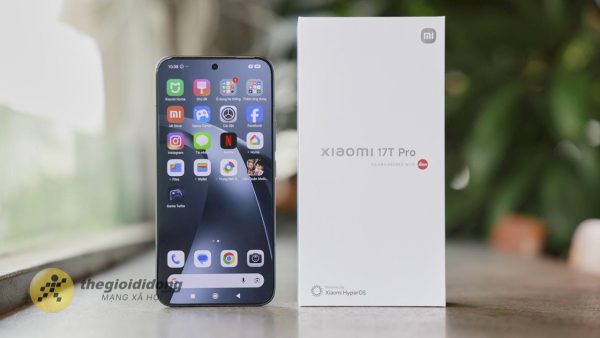
Practical use of Xiaomi 17T Pro: This is a good phone in 2026

Practical use of Xiaomi 17T Pro: This is a good phone in 2026

June 8, 2026
Instructions to receive 6 months of IObit Malware Fighter 13 Pro for free

Instructions to receive 6 months of IObit Malware Fighter 13 Pro for free

June 7, 2026
How to use free online textbooks from grades 1 to 12

How to use free online textbooks from grades 1 to 12

June 6, 2026
How to convert HEIC photos to JPG on iPhone without using an app

How to convert HEIC photos to JPG on iPhone without using an app

June 5, 2026
Practical use of Xiaomi 17T Pro: This is a good phone in 2026

Practical use of Xiaomi 17T Pro: This is a good phone in 2026

June 8, 2026
Instructions to receive 6 months of IObit Malware Fighter 13 Pro for free

Instructions to receive 6 months of IObit Malware Fighter 13 Pro for free

June 7, 2026
How to use free online textbooks from grades 1 to 12

How to use free online textbooks from grades 1 to 12

June 6, 2026
AnonyViet - English Version

AnonyViet

AnonyViet is a website share knowledge that you have never learned in school!

We are ready to welcome your comments, as well as your articles sent to AnonyViet.

Follow Us

Contact:

Email: anonyviet.com[@]gmail.com

Main Website: https://anonyviet.com

Recent News

Practical use of Xiaomi 17T Pro: This is a good phone in 2026

Practical use of Xiaomi 17T Pro: This is a good phone in 2026

June 8, 2026
Instructions to receive 6 months of IObit Malware Fighter 13 Pro for free

Instructions to receive 6 months of IObit Malware Fighter 13 Pro for free

June 7, 2026
  • Home
  • Home 2
  • Home 3
  • Home 4
  • Home 5
  • Home 6
  • Next Dest Page
  • Sample Page

6789 kv999

No Result
View All Result
  • Home
  • News
  • Software
  • Knowledge
  • MMO
  • Tips
  • Security
  • Network
  • Office

6789 kv999

wpDiscuz
0
0
Would love your thoughts, please comment.x
()
x
| Reply