• Home
  • News
  • Software
  • Knowledge
  • MMO
  • Tips
  • Security
  • Network
  • Office
AnonyViet - English Version
  • Home
  • News
  • Software
  • Knowledge
  • MMO
  • Tips
  • Security
  • Network
  • Office
No Result
View All Result
  • Home
  • News
  • Software
  • Knowledge
  • MMO
  • Tips
  • Security
  • Network
  • Office
No Result
View All Result
AnonyViet - English Version
No Result
View All Result

Instructions for creating a falling snow effect when hovering the mouse

AnonyViet by AnonyViet
December 23, 2024
in Software
0

Create a falling snow effect on mouse hover is a great way to bring the winter atmosphere closer to you. With Snowflakes Cursor software, every time the mouse moves, your screen will be covered with sparkling snowflakes, creating a new and exciting visual experience.

Join the channel Telegram belong to AnonyViet 👉 Link 👈

What is Snowflakes Cursor?

Snowflakes Cursor is portable software, does not need to be installed but still provides vivid and beautiful snowfall effects. Each time you move the mouse on the screen, snowflakes of various sizes will gently fall, creating a magical scene, especially striking when used on a dark background.

The strength of Snowflakes Cursor is its simplicity of use and high usability. When you open the program, the falling snow effect will work automatically without requiring any complicated settings.
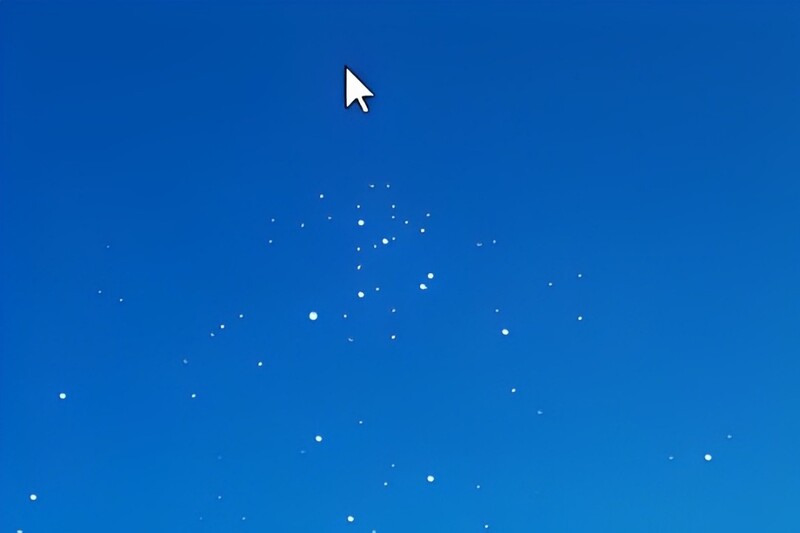
What is Snowflakes Cursor?

See more: Download the beautiful Merry Christmas wallpaper set for the Christmas season

How to create a falling snow effect on hover with Snowflakes Cursor

You can download Snowflakes Cursor from the official website here. Because this is portable software, just download and run directly, no need to perform any additional installation steps.
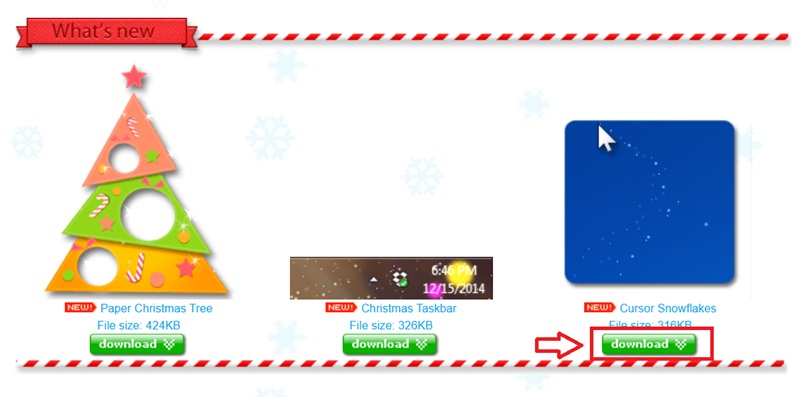
Download Snowflakes Cursor

After running, the software will automatically start with Windows. However, if you do not want this effect to appear automatically every time you turn on the device, you can:

  1. Right click on the little snowflake icon in the notification area.
  2. Deselect Start when I start Windows to turn off the system startup feature.
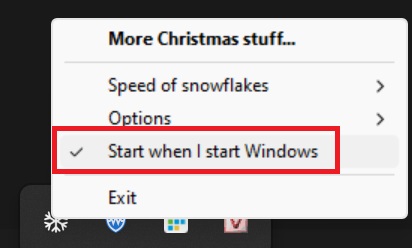
Uncheck Start when I start Windows

Otherwise, if you want to turn it back on, just do the same and select this option again.

Customize the falling snow effect

1. Choose the snowfall speed

Snowflakes Cursor allows you to adjust the speed of snowfall:

  • Slow: Brings a feeling of relaxation and gentleness.
  • Normal: Natural effect, not too fast or slow.
  • Fast: Creates a vibrant feeling, suitable for those who love new things.
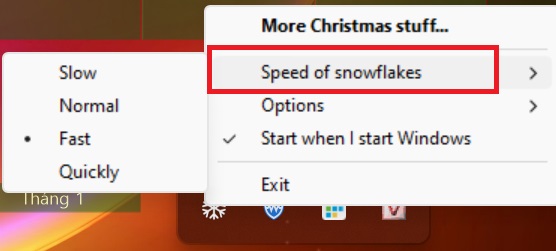
Choose the snowfall rate

2. Choose a display effect

You can choose different display modes to optimize your experience:

  • Transparency effect: Perfect for when you want to keep the look clean but still have snowfall.
  • Shown in all windows: Increased prominence, providing a more realistic snowfall experience.

Advice: For the best experience, choose a normal fall speed and enable snowfall display on all windows.

The falling snow effect works flexibly with all types of mouse cursors on Windows. When Snowflakes Cursor runs in the background, just move the mouse and snowflakes will automatically appear.

If you want to pause the effect, right-click the snowflake icon in the system tray and select Exit to exit the application.

See more: Origin of Christmas? Why is December 25 Christmas?

Conclusion

Snowflakes Cursor is the tool create a falling snow effect on mouse hover brings relaxing fun, especially for those who love winter and want to enjoy the snow scene right on the computer screen. With just a few simple steps, you can make your work corner more lively than ever!


Tags: creatingeffectfallinghoveringInstructionsmousesnow
Previous Post

Instructions for removing video backgrounds using the Unscreen Online tool

Next Post

Fireworks Effect Code According to Mouse – Tet Website Decoration

AnonyViet

AnonyViet

Related Posts

Receive copyright for 3 Halloween software worth 0
Software

Receive copyright for 3 Halloween software worth $150

October 23, 2026
Instructions for receiving 3 months of MultCloud Premium for free with 200GB data
Software

Instructions for receiving 3 months of MultCloud Premium for free with 200GB data

October 17, 2026
Instructions for receiving pension through VNeID without going to the ward
Software

Instructions for receiving pension through VNeID without going to the ward

October 16, 2026
Record first, choose focus later: how to use 4K 60 fps Cinema mode on iPhone 18 Pro
Software

Record first, choose focus later: how to use 4K 60 fps Cinema mode on iPhone 18 Pro

October 15, 2026
How to receive 22k from Viettel Tammi on the occasion of 22nd birthday
Software

How to receive 22k from Viettel Tammi on the occasion of 22nd birthday

October 15, 2026
3 valuable upgrades on Samsung Galaxy A08 compared to its predecessor A07
Software

3 valuable upgrades on Samsung Galaxy A08 compared to its predecessor A07

October 12, 2026
Next Post
Fireworks Effect Code According to Mouse – Tet Website Decoration

Fireworks Effect Code According to Mouse - Tet Website Decoration

0 0 votes
Article Rating
Subscribe
Login
Notify of
guest

guest

0 Comments
Oldest
Newest Most Voted

Recent News

Instructions for registering for OxionAI Pro for 1 year with many powerful AI models

Instructions for registering for OxionAI Pro for 1 year with many powerful AI models

October 24, 2026
How are Windows 11 Pro and Windows 10 Pro different?

How are Windows 11 Pro and Windows 10 Pro different?

October 23, 2026
Instructions for using CleanYourTV: Remove ads on Android TV, Google TV

Instructions for using CleanYourTV: Remove ads on Android TV, Google TV

October 23, 2026
Receive copyright for 3 Halloween software worth 0

Receive copyright for 3 Halloween software worth $150

October 23, 2026
Instructions for registering for OxionAI Pro for 1 year with many powerful AI models

Instructions for registering for OxionAI Pro for 1 year with many powerful AI models

October 24, 2026
How are Windows 11 Pro and Windows 10 Pro different?

How are Windows 11 Pro and Windows 10 Pro different?

October 23, 2026
Instructions for using CleanYourTV: Remove ads on Android TV, Google TV

Instructions for using CleanYourTV: Remove ads on Android TV, Google TV

October 23, 2026
AnonyViet - English Version

AnonyViet

AnonyViet is a website share knowledge that you have never learned in school!

We are ready to welcome your comments, as well as your articles sent to AnonyViet.

Follow Us

Contact:

Email: anonyviet.com[@]gmail.com

Main Website: https://anonyviet.com

Recent News

Instructions for registering for OxionAI Pro for 1 year with many powerful AI models

Instructions for registering for OxionAI Pro for 1 year with many powerful AI models

October 24, 2026
How are Windows 11 Pro and Windows 10 Pro different?

How are Windows 11 Pro and Windows 10 Pro different?

October 23, 2026
  • Home
  • Home 2
  • Home 3
  • Home 4
  • Home 5
  • Home 6
  • Next Dest Page
  • Sample Page

say88 tỷ lệ kèo nhà cái kèo nhà cái 5 febet

No Result
View All Result
  • Home
  • News
  • Software
  • Knowledge
  • MMO
  • Tips
  • Security
  • Network
  • Office

say88 tỷ lệ kèo nhà cái kèo nhà cái 5 febet

wpDiscuz
0
0
Would love your thoughts, please comment.x
()
x
| Reply