
• Home
  • News
  • Software
  • Knowledge
  • MMO
  • Tips
  • Security
  • Network
  • Office
AnonyViet - English Version
  • Home
  • News
  • Software
  • Knowledge
  • MMO
  • Tips
  • Security
  • Network
  • Office
No Result
View All Result
  • Home
  • News
  • Software
  • Knowledge
  • MMO
  • Tips
  • Security
  • Network
  • Office
No Result
View All Result
AnonyViet - English Version
No Result
View All Result

5+ ways to recover deleted messages on Android phones

AnonyViet by AnonyViet
November 29, 2024
in Software
0

Did you accidentally delete an important message on your Android phone? Don't worry, there is still hope to recover it. However, the possibility Recover deleted messages depends on a number of factors, including the type of phone you're using and the steps you've taken before to be able to recover your data.

Join the channel Telegram belong to AnonyViet 👉 Link 👈

Ways to recover deleted messages on Android phones

1. Check the Recycle Bin on your Samsung phone

Some phones, especially Samsung models, have a Recycle Bin feature that stores deleted messages for 30 days. This makes it easy to recover deleted messages.

  1. Open the Samsung Messages app and tap the three dots icon in the upper right corner.
  2. Select the 'Recycle Bin' or 'Trash' option in the menu that appears.
  3. You will see all your deleted messages stored here. Now, click 'Edit' in the upper right corner and then select 'All' to select all messages.
  4. Finally, tap 'Restore' in the lower left corner to restore deleted messages. These messages will reappear in your messages folder.

See more: Download the legendary Winamp music player application now on iOS and Android

2. Check your spam and archive folders

Sometimes, you may accidentally archive a message, causing it to move to the Archive folder, making it no longer visible with other messages. In this case, you can easily find and move it back to the Messages folder, by doing the following:

Step 1: Open the Messages app and tap the account icon in the upper right corner.

Step 2: In the pop-up window, tap 'Archived' to access archived messages.
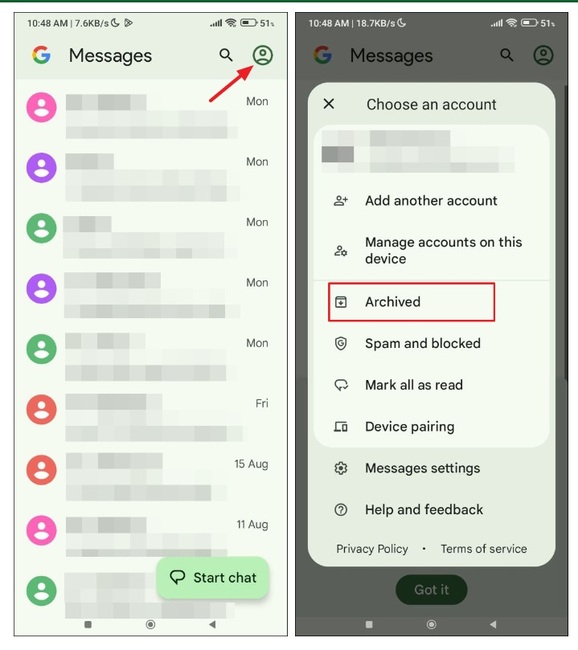
Click 'Archive'
Click 'Archive'

Step 3: Touch and hold the message you want to unarchive, then tap the icon at the top to return the message to your messages folder.
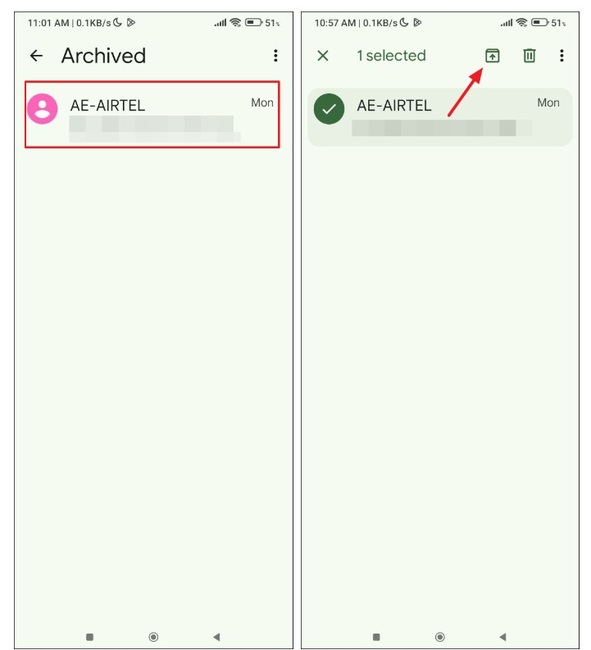
Touch and hold the message you want to unarchive

In addition to the Archived folder, you should also check your Spam folder because some messages may be automatically classified as spam. To do this, tap the profile icon in the Messages app again, then select 'Spam and blocked'. This allows you to look through messages in your Spam folder.
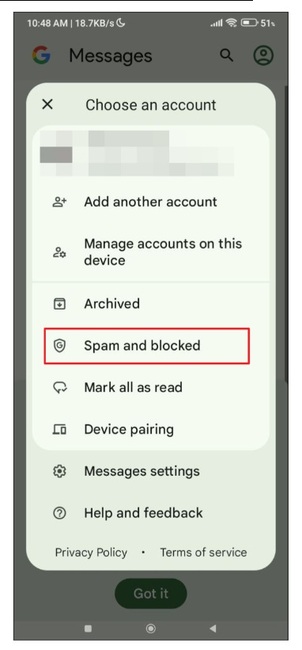
Select 'Spam and blocked'

3. Use Google Drive backups

If you have Google Drive backup enabled on your phone, you can restore deleted messages by restoring the backup. However, to do this, you will have to reset the device to factory settings, which means erasing all the data on it. So, be sure to create a backup of your data before doing this.

Step 1: Open Settings and tap 'System'.

Step 2: Select 'Reset options' or 'Factory reset'. (Depending on the device, this may be in the Additional settings section)
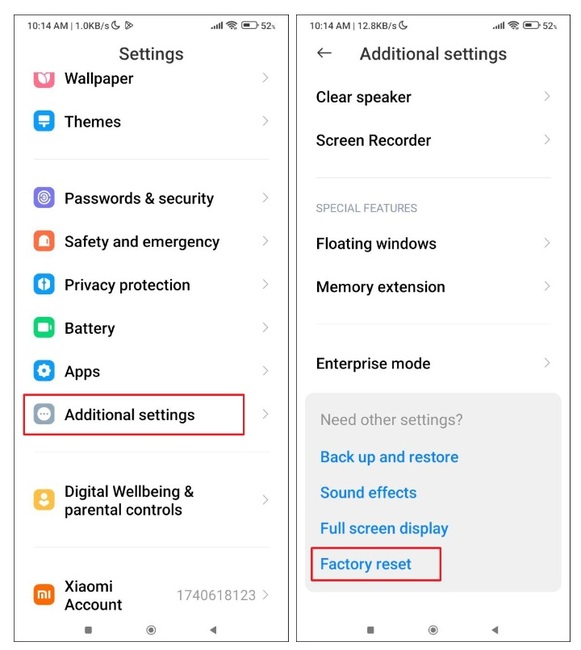
Select'Factory reset'
Select 'Factory reset'

Step 3: Tap 'Erase All Data' and follow the on-screen steps to complete the device reset process.
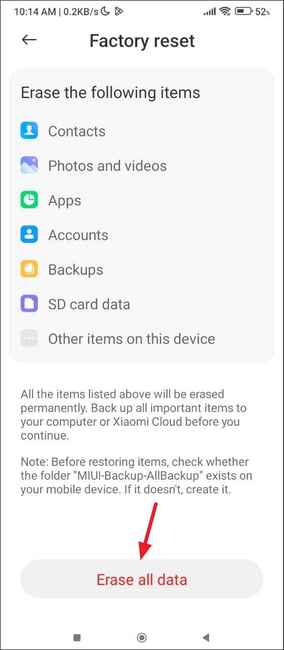
Click 'Erase All Data'

Step 4: Once the device is reset, you can set it up again. During setup, sign in with the Google account you used to create the backup.

Step 5: Once the device is set up, select Google One backup > Select SMS Messages to activate it.

This will cause your phone to start restoring messages and other items from the backup. Once the process is complete, the deleted message will also appear in the Messages app.

4. Use Phone Link

If you connected your Android phone to your Windows computer using the Phone Link app, deleted text messages may still show up in the app. The steps are as follows:

  1. Open the Phone Link application from the Start menu on your computer.
  2. When the app opens, you'll see a list of messages on the connected Android device.
  3. Once you find the deleted message, you can take a screenshot on your computer to save it before it is deleted.
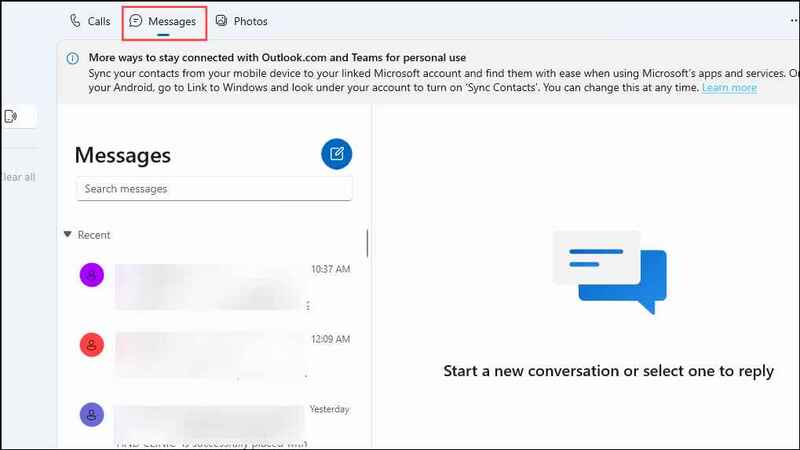
Use Phone Link to restore deleted messages

5. Try a third-party data recovery application

If you haven't created a Google One backup, no problem, there are still some third-party data recovery apps that can help you recover deleted messages. Some popular applications include PhoneRescue and Dr. Fone Android Data Recovery.
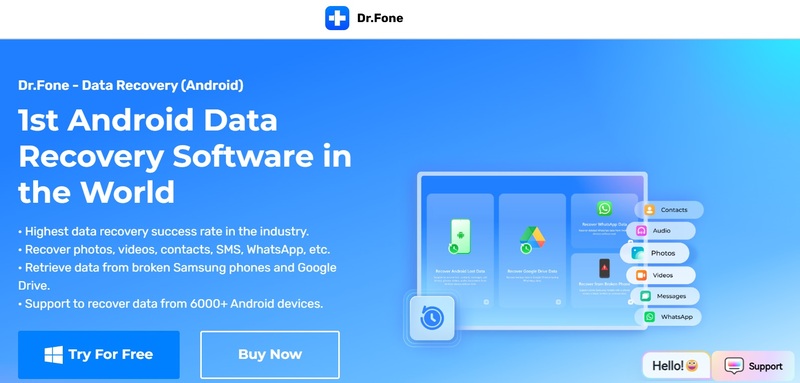
Try a third-party data recovery application
  1. Download and install the data recovery application and open it.
  2. The app will scan the device for deleted items, including text messages.
  3. When the scan is complete, the app will show you the recoverable items.
  4. Select the items you want to restore and click 'Restore' or similar.

See more: How to fix when Messenger calls echo on iPhone and Android

Conclusion

Recover deleted messages on Android phones can be a simple or complex process, depending on the specific situation. However, by applying the methods mentioned in this article, you can increase your chances of recovering your important messages. Remember to always create regular data backups to avoid unfortunate data loss in the future.


Tags: Androiddeletedmessagesphonesrecoverways
Previous Post

Image to Text Converter: Separate Vietnamese text from multiple images at the same time

Next Post

How to find all other people's posts on Facebook for accurate results

AnonyViet

AnonyViet

Related Posts

4K Video Downloader Plus – Tool to download YouTube videos on macOS
Software

4K Video Downloader Plus – Tool to download YouTube videos on macOS

April 20, 2026
How to authenticate the owner’s SIM on VNeID from April 15
Software

How to authenticate the owner’s SIM on VNeID from April 15

April 15, 2026
Review of Galaxy A57 and A37: Some are eight ounces, some are half a pound
Software

Review of Galaxy A57 and A37: Some are eight ounces, some are half a pound

April 14, 2026
JOPDF: Versatile PDF editing software for Windows and Mac
Software

JOPDF: Versatile PDF editing software for Windows and Mac

April 10, 2026
MyVehicle: Convenient and secure motorcycle maintenance reminder app
Software

MyVehicle: Convenient and secure motorcycle maintenance reminder app

April 10, 2026
How to turn off AI on Gmail to absolutely protect personal data
Software

How to turn off AI on Gmail to absolutely protect personal data

April 8, 2026
Next Post
How to find all other people's posts on Facebook for accurate results

How to find all other people's posts on Facebook for accurate results

0 0 votes
Article Rating
Subscribe
Login
Notify of
guest

guest

0 Comments
Oldest
Newest Most Voted
Inline Feedbacks
View all comments

Recent News

Reputable LG repair service in Hanoi & Ho Chi Minh City with LGservicecenter

Reputable LG repair service in Hanoi & Ho Chi Minh City with LGservicecenter

April 21, 2026
Japanese Watch Week: Choose the color that suits your destiny, start the new year well at Mobile World

Japanese Watch Week: Choose the color that suits your destiny, start the new year well at Mobile World

April 20, 2026
4K Video Downloader Plus – Tool to download YouTube videos on macOS

4K Video Downloader Plus – Tool to download YouTube videos on macOS

April 20, 2026
How to add Watermark to Google Docs to protect copyright

How to add Watermark to Google Docs to protect copyright

April 19, 2026
Reputable LG repair service in Hanoi & Ho Chi Minh City with LGservicecenter

Reputable LG repair service in Hanoi & Ho Chi Minh City with LGservicecenter

April 21, 2026
Japanese Watch Week: Choose the color that suits your destiny, start the new year well at Mobile World

Japanese Watch Week: Choose the color that suits your destiny, start the new year well at Mobile World

April 20, 2026
4K Video Downloader Plus – Tool to download YouTube videos on macOS

4K Video Downloader Plus – Tool to download YouTube videos on macOS

April 20, 2026
AnonyViet - English Version

AnonyViet

AnonyViet is a website share knowledge that you have never learned in school!

We are ready to welcome your comments, as well as your articles sent to AnonyViet.

Follow Us

Contact:

Email: anonyviet.com[@]gmail.com

Main Website: https://anonyviet.com

Recent News

Reputable LG repair service in Hanoi & Ho Chi Minh City with LGservicecenter

Reputable LG repair service in Hanoi & Ho Chi Minh City with LGservicecenter

April 21, 2026
Japanese Watch Week: Choose the color that suits your destiny, start the new year well at Mobile World

Japanese Watch Week: Choose the color that suits your destiny, start the new year well at Mobile World

April 20, 2026
No Result
View All Result
  • Home
  • News
  • Software
  • Knowledge
  • MMO
  • Tips
  • Security
  • Network
  • Office

wpDiscuz
0
0
Would love your thoughts, please comment.x
()
x
| Reply







