• Home
  • News
  • Software
  • Knowledge
  • MMO
  • Tips
  • Security
  • Network
  • Office
AnonyViet - English Version
  • Home
  • News
  • Software
  • Knowledge
  • MMO
  • Tips
  • Security
  • Network
  • Office
No Result
View All Result
  • Home
  • News
  • Software
  • Knowledge
  • MMO
  • Tips
  • Security
  • Network
  • Office
No Result
View All Result
AnonyViet - English Version
No Result
View All Result

How to Hide Ads on iPhone iOS 18 with Distraction Control

AnonyViet by AnonyViet
September 22, 2024
in Knowledge
0

Are you annoyed by constant ads and distractions while surfing the web? With iOS 18, Apple's latest operating system, you will no longer have to worry about that thanks to the feature Distraction Control. This smart tool gives you more control over your browsing, allowing you to block ads and hide elements that interrupt your experience.

Join the channel Telegram belong to AnonyViet 👉 Link 👈

How does Distraction Control work?

Distraction Control gives you the freedom to remove or “hide” distracting elements on web pages. You can easily turn off pop-ups, auto-popup ads, or any other irrelevant content that you find annoying.

Distraction Control first appeared in the iOS 18 beta 5 and macOS Sequoia beta 5 developer updates.
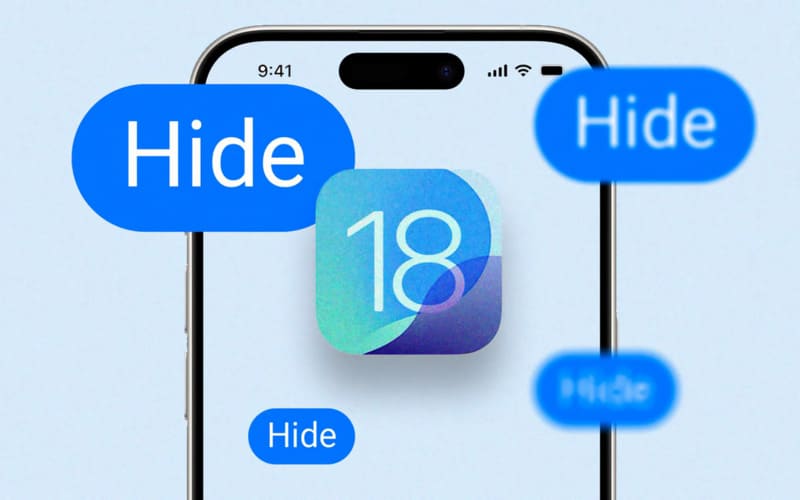
How does Distraction Control work?

See also: Music Touch on iOS 18: Experience Music Through Tactile Sense

How to hide web ads using Distraction Control

To take advantage of Distraction Control, you need to update your iPhone to iOS 18. Once updated, you can easily enable this feature by:

Step 1: Visit the website you want to hide ads from via Safari on your iPhone.

Step 2: Click the rectangle icon with two lines underneath it located to the left of the address bar.

Step 3: Select “Hide distracting items”. In the new interface, continue to press “OK” to confirm.

Step 4: Now, if you want to hide any element on the website, just click on “Hide” and confirm to complete.
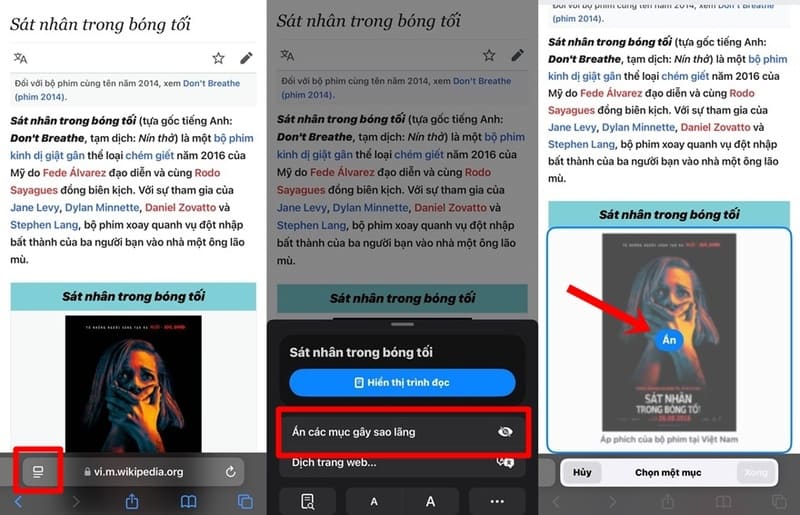
How to hide web ads using Distraction Control

Benefits of using Distraction Control

Distraction Control offers many significant benefits to users, including:

Reduce advertising annoyance

One of the most obvious benefits of Distraction Control is its ability to block unwanted ads. This helps users avoid interruptions while browsing the web, especially when searching for information or enjoying content.

Reduce advertising annoyance

Focus on what matters

The feature allows you to remove irrelevant or distracting elements, helping you focus more on what really matters. This improves your browsing experience, helping you access information quickly and efficiently.

Smoother and faster web browsing

By removing heavy elements like ads, websites load faster and don't experience any freezes or lags. This creates a smooth browsing experience, which is especially useful when accessing heavy or slow websites.

Note on Distraction Control

Apple emphasizes that Distraction Control is not a tool to completely block ads on iPhone. While you can temporarily disable ads, they may reappear through other methods.

If you want to show hidden items again, just open Safari, select the menu icon and click “Show Hidden Items”.
Distraction Control is not a comprehensive ad blocker

See also: How to adjust the width of the iPhone flashlight beam iOS 18

Conclusion

Distraction Control is a valuable feature that provides a smoother browsing experience for users. It not only helps you reduce distractions but also allows you to focus on important content. With Distraction Control, surfing the web becomes more enjoyable and more efficient than ever.


Tags: AdscontrolDistractionhideiOSiPhone
Previous Post

How to Enable VoLTE on Google Pixel

Next Post

TUT Verify Google Maps Business in 5 Minutes

AnonyViet

AnonyViet

Related Posts

How to create Safari extension on iOS 27 and macOS 27
Knowledge

How to create Safari extension on iOS 27 and macOS 27

October 3, 2026
How to write the word Hoa Ki on Casio calculator
Knowledge

How to write the word Hoa Ki on Casio calculator

October 3, 2026
Instructions on how to increase the font size on Apple TV are extremely easy
Knowledge

Instructions on how to increase the font size on Apple TV are extremely easy

October 1, 2026
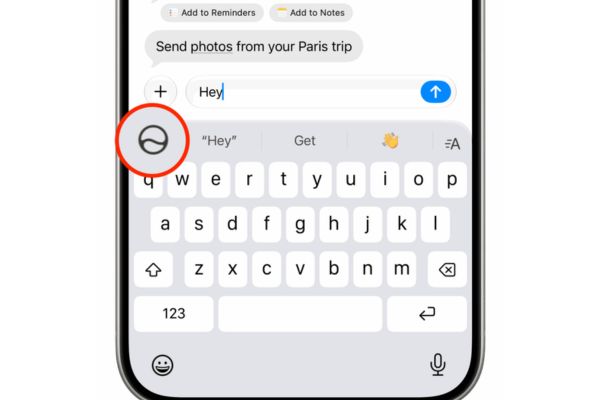
Instructions on how to turn off Write with Siri on iOS 27
Knowledge

Instructions on how to turn off Write with Siri on iOS 27

October 1, 2026
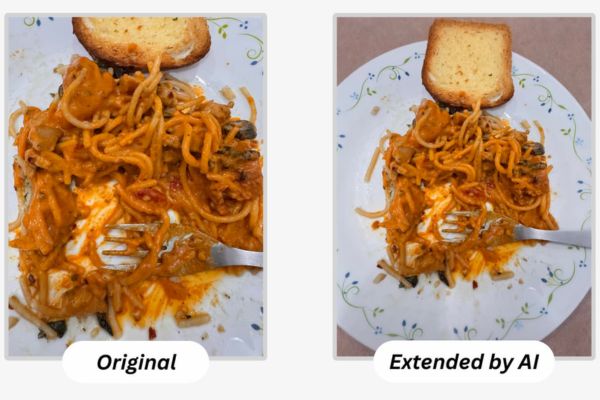
How to expand photos on iOS 27 with the latest Extend tool
Knowledge

How to expand photos on iOS 27 with the latest Extend tool

October 1, 2026
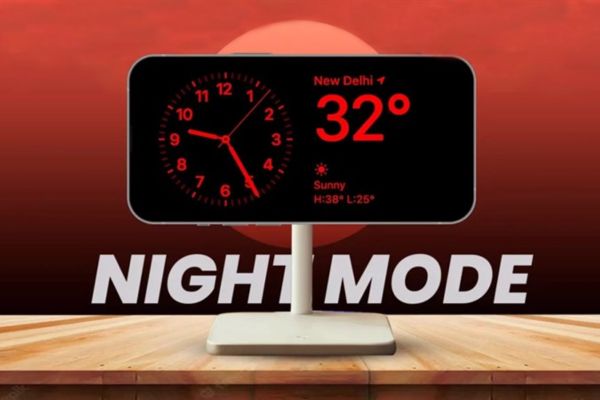
How to turn off the red screen on StandBy mode for iPhone
Knowledge

How to turn off the red screen on StandBy mode for iPhone

October 1, 2026
Next Post
TUT Verify Google Maps Business in 5 Minutes

TUT Verify Google Maps Business in 5 Minutes

0 0 votes
Article Rating
Subscribe
Login
Notify of
guest

guest

0 Comments
Oldest
Newest Most Voted

Recent News

How to rename Columns or Rows in Google Sheets

How to rename Columns or Rows in Google Sheets

October 5, 2026
How to install the latest Windows 11

How to install the latest Windows 11

October 4, 2026
Instructions for receiving 3 months of Shopee VIP from Vinaphone for 0 VND

Instructions for receiving 3 months of Shopee VIP from Vinaphone for 0 VND

October 3, 2026
How to create Safari extension on iOS 27 and macOS 27

How to create Safari extension on iOS 27 and macOS 27

October 3, 2026
How to rename Columns or Rows in Google Sheets

How to rename Columns or Rows in Google Sheets

October 5, 2026
How to install the latest Windows 11

How to install the latest Windows 11

October 4, 2026
Instructions for receiving 3 months of Shopee VIP from Vinaphone for 0 VND

Instructions for receiving 3 months of Shopee VIP from Vinaphone for 0 VND

October 3, 2026
AnonyViet - English Version

AnonyViet

AnonyViet is a website share knowledge that you have never learned in school!

We are ready to welcome your comments, as well as your articles sent to AnonyViet.

Follow Us

Contact:

Email: anonyviet.com[@]gmail.com

Main Website: https://anonyviet.com

Recent News

How to rename Columns or Rows in Google Sheets

How to rename Columns or Rows in Google Sheets

October 5, 2026
How to install the latest Windows 11

How to install the latest Windows 11

October 4, 2026
  • Home
  • Home 2
  • Home 3
  • Home 4
  • Home 5
  • Home 6
  • Next Dest Page
  • Sample Page

say88 tỷ lệ kèo nhà cái kèo nhà cái 5 febet

No Result
View All Result
  • Home
  • News
  • Software
  • Knowledge
  • MMO
  • Tips
  • Security
  • Network
  • Office

say88 tỷ lệ kèo nhà cái kèo nhà cái 5 febet

wpDiscuz
0
0
Would love your thoughts, please comment.x
()
x
| Reply