• Home
  • News
  • Software
  • Knowledge
  • MMO
  • Tips
  • Security
  • Network
  • Office
AnonyViet - English Version
  • Home
  • News
  • Software
  • Knowledge
  • MMO
  • Tips
  • Security
  • Network
  • Office
No Result
View All Result
  • Home
  • News
  • Software
  • Knowledge
  • MMO
  • Tips
  • Security
  • Network
  • Office
No Result
View All Result
AnonyViet - English Version
No Result
View All Result

How to hide and lock apps with Face ID on iOS 18

AnonyViet by AnonyViet
June 12, 2024
in Software
0

iOS 18 brings many valuable improvements, including features Hide and lock apps with Face ID is a highlight not to be missed. This feature not only helps users keep the home screen interface neat but also enhances security and privacy.

Join the channel Telegram belong to AnonyViet 👉 Link 👈

Instructions for hiding and locking applications using Face ID

How to hide applications on iPhone

To increase safety, Apple supports users to both hide and lock applications on iPhone.

Step 1: Long press on the app icon and select Require Face ID to start the process.
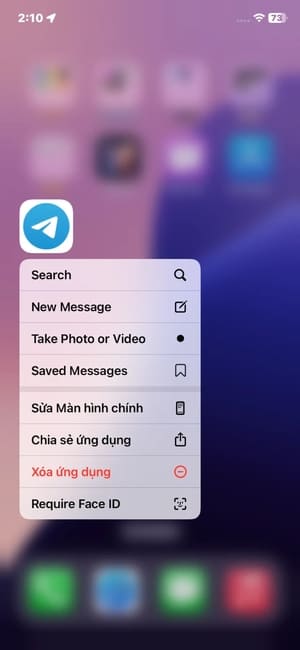
How to hide and lock apps with Face ID

Step 2: Select Hide and Request with Face ID from the three options displayed to proceed with hiding the application.
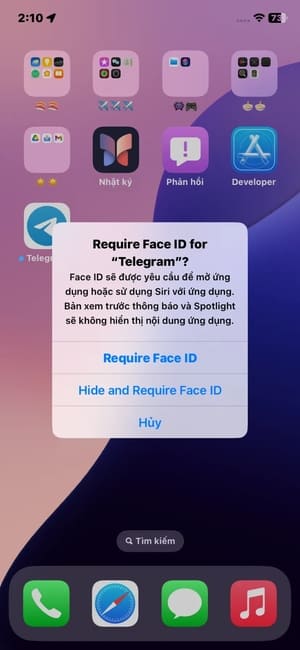
Select Hide and Request with Face ID

Step 3: After selecting Hide App, the application will be completely hidden from the home screen and system.
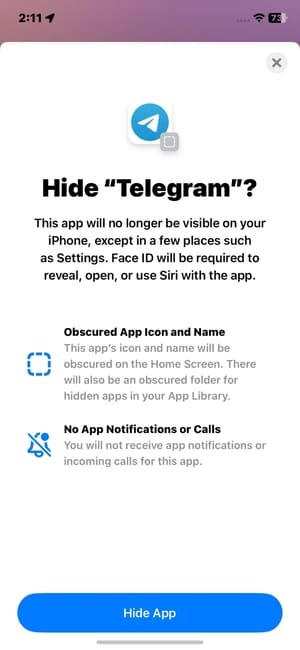
Select Hide App
Select Hide App

Note:

This feature only applies to third-party apps and not to Apple's default apps. Once an app is hidden, you won't be able to find it on your iPhone, even using Spotlight.

To show the app again, users need to go to the hidden folder and tap on the app icon. If you want the app to appear on the home screen, long press it and select 'Do Not Require Face ID'.
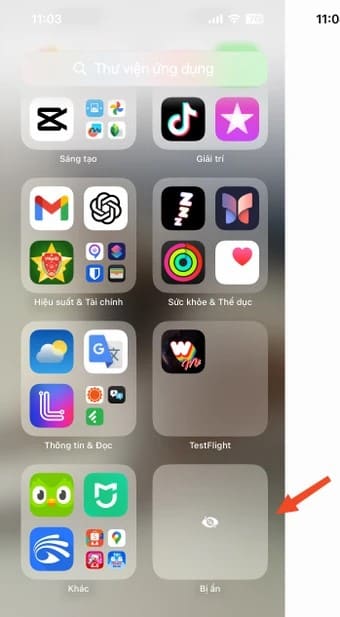
Go to the hidden folder and tap the app icon

See more: New features of iOS 18

How to lock apps on iPhone

To protect personal information on apps like banking, password managers, or photo galleries on your iPhone, iOS 18 beta offers an advanced solution: use Face ID to lock apps. Here's how:

Long press the app icon and select 'Require Face ID' to activate this feature.
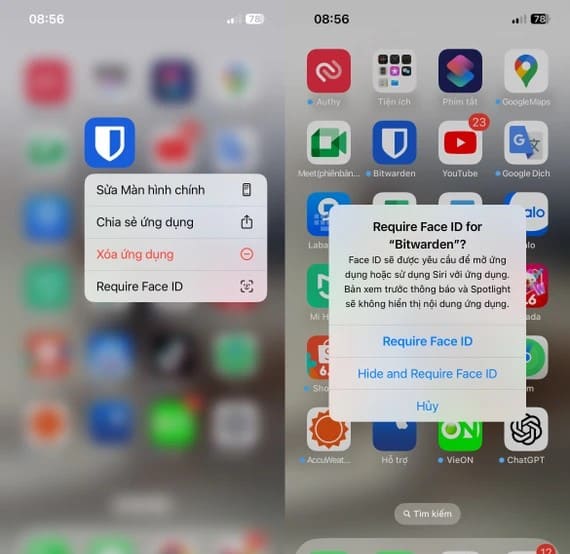
Select 'Require Face ID'

Once activated, to open the application, you need to go through the identity verification process with Face ID or Touch ID. Besides, any notifications and Spotlight search results will not display any information from the locked app.

If you want to disable this feature, simply reverse the steps above and select 'Don't Require Face ID' so the app no ​​longer requires authentication via Face ID.
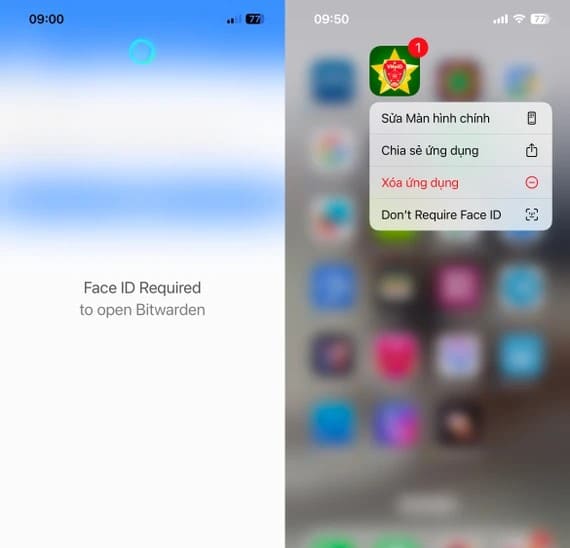
Select 'Don't Require Face ID' to disable the feature

When will iOS 18 be released?

iOS 18 release date has been announced Apple announced at the WWDC 2024 event, starting June 10, 2024. The iOS 18 Beta test version will be released a month after the conference, allowing users to explore new features.

Apple will then work to fix any issues that arise before the official release. In September 2024, the official version of iOS 18 will be announced simultaneously with the launch of the new generation iPhone.
When will iOS 18 be released?

See more: Download IObit Malware Fighter 11 Full Key – Effective Malware removal software

Epilogue

Thus, the Hide and lock apps with Face ID iOS 18 beta isn't simply a security improvement; it also represents progress in optimizing user experience. Let's look forward to the next breakthroughs that Apple will bring in the future!


Tags: appsFacehideiOSLock
Previous Post

Letter i on Apple Watch: Meaning and usage

Next Post

Instructions on 3 ways to transfer files from Android to MacBook

AnonyViet

AnonyViet

Related Posts

Receive copyright for 3 Halloween software worth 0
Software

Receive copyright for 3 Halloween software worth $150

October 23, 2026
Instructions for receiving 3 months of MultCloud Premium for free with 200GB data
Software

Instructions for receiving 3 months of MultCloud Premium for free with 200GB data

October 17, 2026
Instructions for receiving pension through VNeID without going to the ward
Software

Instructions for receiving pension through VNeID without going to the ward

October 16, 2026
Record first, choose focus later: how to use 4K 60 fps Cinema mode on iPhone 18 Pro
Software

Record first, choose focus later: how to use 4K 60 fps Cinema mode on iPhone 18 Pro

October 15, 2026
How to receive 22k from Viettel Tammi on the occasion of 22nd birthday
Software

How to receive 22k from Viettel Tammi on the occasion of 22nd birthday

October 15, 2026
3 valuable upgrades on Samsung Galaxy A08 compared to its predecessor A07
Software

3 valuable upgrades on Samsung Galaxy A08 compared to its predecessor A07

October 12, 2026
Next Post
Instructions on 3 ways to transfer files from Android to MacBook

Instructions on 3 ways to transfer files from Android to MacBook

0 0 votes
Article Rating
Subscribe
Login
Notify of
guest

guest

0 Comments
Oldest
Newest Most Voted

Recent News

Instructions for registering for OxionAI Pro for 1 year with many powerful AI models

Instructions for registering for OxionAI Pro for 1 year with many powerful AI models

October 24, 2026
How are Windows 11 Pro and Windows 10 Pro different?

How are Windows 11 Pro and Windows 10 Pro different?

October 23, 2026
Instructions for using CleanYourTV: Remove ads on Android TV, Google TV

Instructions for using CleanYourTV: Remove ads on Android TV, Google TV

October 23, 2026
Receive copyright for 3 Halloween software worth 0

Receive copyright for 3 Halloween software worth $150

October 23, 2026
Instructions for registering for OxionAI Pro for 1 year with many powerful AI models

Instructions for registering for OxionAI Pro for 1 year with many powerful AI models

October 24, 2026
How are Windows 11 Pro and Windows 10 Pro different?

How are Windows 11 Pro and Windows 10 Pro different?

October 23, 2026
Instructions for using CleanYourTV: Remove ads on Android TV, Google TV

Instructions for using CleanYourTV: Remove ads on Android TV, Google TV

October 23, 2026
AnonyViet - English Version

AnonyViet

AnonyViet is a website share knowledge that you have never learned in school!

We are ready to welcome your comments, as well as your articles sent to AnonyViet.

Follow Us

Contact:

Email: anonyviet.com[@]gmail.com

Main Website: https://anonyviet.com

Recent News

Instructions for registering for OxionAI Pro for 1 year with many powerful AI models

Instructions for registering for OxionAI Pro for 1 year with many powerful AI models

October 24, 2026
How are Windows 11 Pro and Windows 10 Pro different?

How are Windows 11 Pro and Windows 10 Pro different?

October 23, 2026
  • Home
  • Home 2
  • Home 3
  • Home 4
  • Home 5
  • Home 6
  • Next Dest Page
  • Sample Page

say88 tỷ lệ kèo nhà cái kèo nhà cái 5 febet

No Result
View All Result
  • Home
  • News
  • Software
  • Knowledge
  • MMO
  • Tips
  • Security
  • Network
  • Office

say88 tỷ lệ kèo nhà cái kèo nhà cái 5 febet

wpDiscuz
0
0
Would love your thoughts, please comment.x
()
x
| Reply