• Home
  • News
  • Software
  • Knowledge
  • MMO
  • Tips
  • Security
  • Network
  • Office
AnonyViet - English Version
  • Home
  • News
  • Software
  • Knowledge
  • MMO
  • Tips
  • Security
  • Network
  • Office
No Result
View All Result
  • Home
  • News
  • Software
  • Knowledge
  • MMO
  • Tips
  • Security
  • Network
  • Office
No Result
View All Result
AnonyViet - English Version
No Result
View All Result

How to turn off Recall on Windows to ensure privacy

AnonyViet by AnonyViet
May 26, 2024
in Tips
0

With the ability to intelligently record user activities, Recall promises to be an effective tool to help you find information quickly without having to rummage through each file or folder. But if you don't like this feature, here are the instructions How to turn off Recall extremely simple.

Join the channel Telegram belong to AnonyViet 👉 Link 👈

What is the Recall feature on Copilot Plus?

Microsoft has just announced the new Copilot+ Plus computer line with many outstanding improvements compared to the previously launched AI PC line. In addition to impressive speed and performance improvements, the AI ​​model, Microsoft also introduced a number of exclusive AI-focused features to this series.

Including features Recall. With this tool, all user activities on the computer can be recorded and stored for anyone to view (as long as they have access to that user's computer).
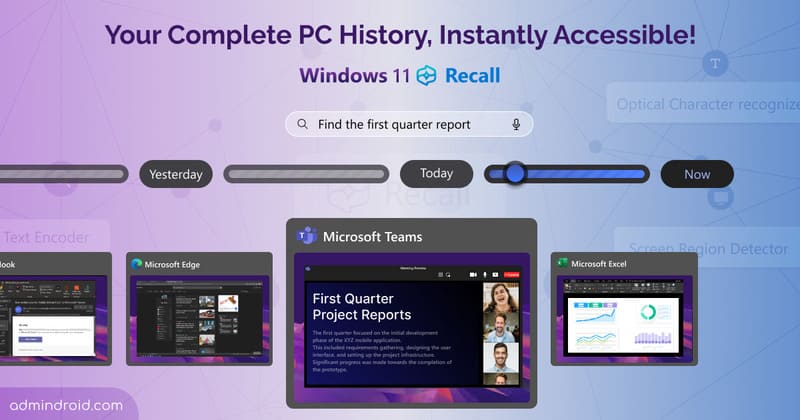
Recall feature on Copilot Plus

However, it cannot be denied that this feature is also very convenient when you want to quickly find something you viewed on your computer without having to rummage through files or folders or browsing history. , email,…

The good news is that you have complete control over how you use Recall. You can disable this feature permanently or pause it temporarily, or you can also filter out some specific apps or websites from Recall while still using it normally.

How to completely turn off Recall

Step 1: Go to Settings > Select 'Privacy & Security'

Step 2: Select 'Recall & Snapshots'.

Step 3: Deactivate the 'Save Snapshots' option.
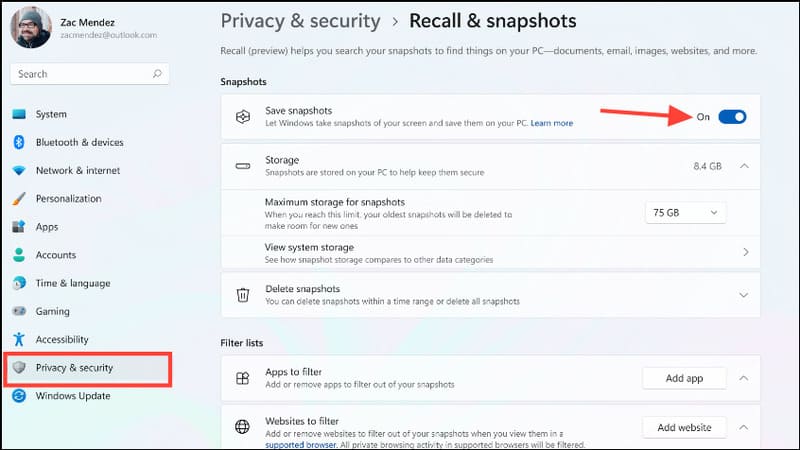
Deactivate the 'Save Snapshots' option

So Windows will no longer save any snapshots of your PC to use for the Recall feature. To use this feature again, you just need to turn the above button back on and you're done.

How to temporarily turn off Recall

When you only want to turn off this feature at certain times such as when entering a password or filling in sensitive information. You just:

Step 1: Click the Recall icon from the system tray.

Step 2: Click the Pause button to pause it.
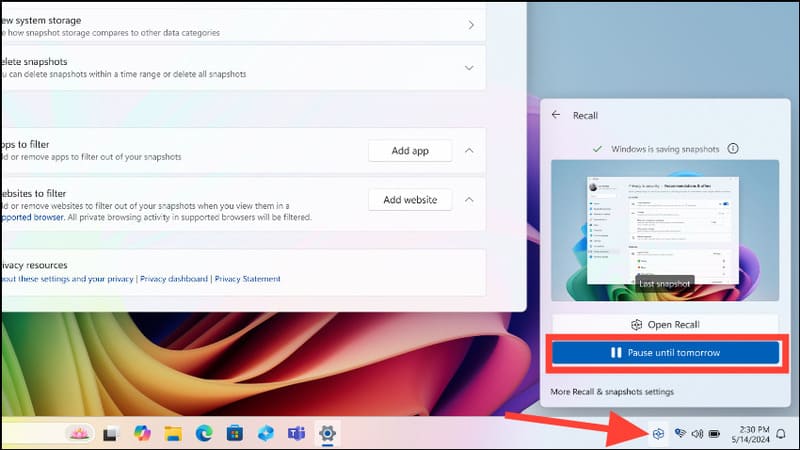
How to temporarily turn off Recall

How to filter specific applications and websites from Recall

If you like the Recall feature in the new PC Copilot+ but don't want it to record certain apps or websites, you can easily filter them out in Settings.

You can add any sensitive websites such as banking websites to the list of websites to filter. Since Recall doesn't perform any content moderation, it won't hide any passwords or financial account numbers.

To filter out specific apps or websites, do the following:

Step 1: Open Settings > Select ''Privacy & Security''

Step 2: Click 'Recall & Snapshots'

Step 3: In the Apps to Filter section, click 'Add app' to add the application you want to exclude from Recall's features.
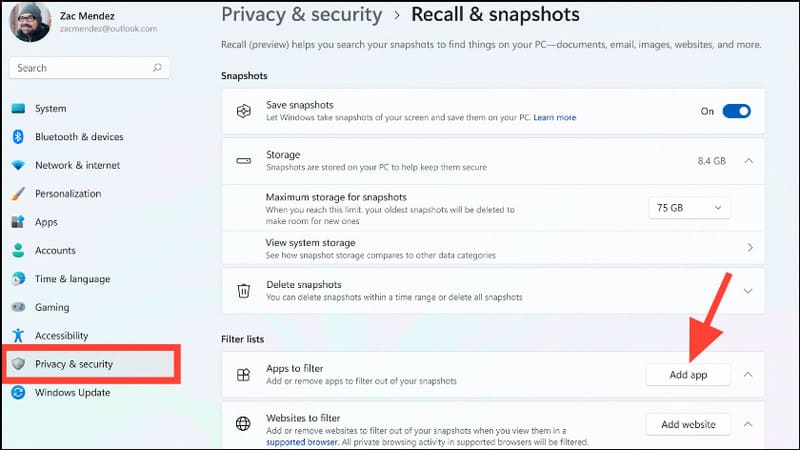
Select 'Add app' to add the app you want to exclude from Recall's features.

Step 4: To add a website, click the 'Add website' button next to the Websites to Filter option.
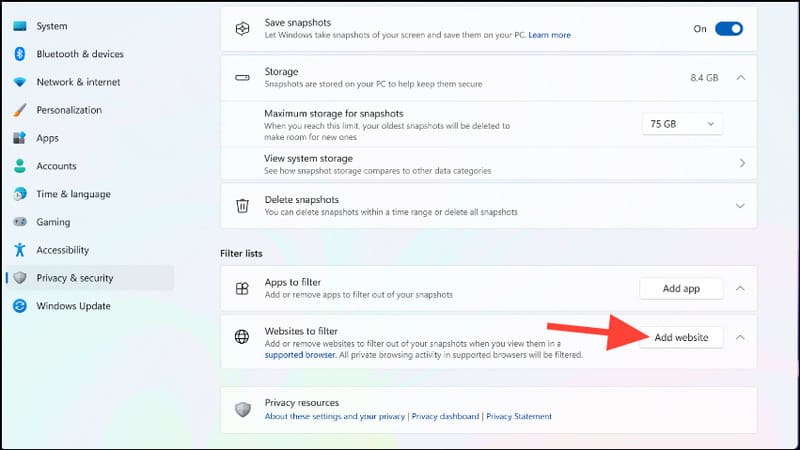
Click 'Add website' to add a website

Step 5: Then enter the URL of the website and press the Add button to finish.
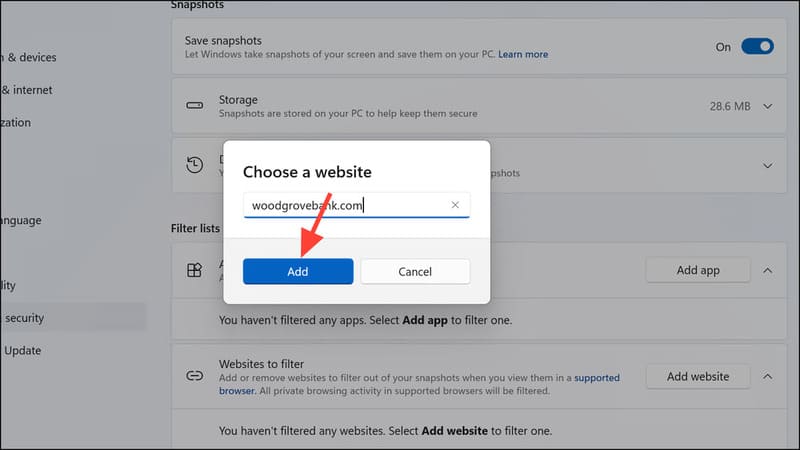
Enter the website URL then press the Add button

Epilogue

How to turn off Recall It's not too difficult if you know how to do it. You can easily completely turn off, temporarily turn off or filter out sensitive applications or websites from Recall's memory system, helping to ensure the safety of personal information and optimize the user experience. your computer.

Tags: EnsureprivacyrecallturnWindows
Previous Post

How to enable Widgets on Windows 11 lock screen

Next Post

Facebook's default Avatar collection has changed its background image

AnonyViet

AnonyViet

Related Posts

How to add sliders to Facebook Stories to easily rewind videos
Tips

How to add sliders to Facebook Stories to easily rewind videos

April 21, 2026
How to change the default font on Windows 10
Tips

How to change the default font on Windows 10

April 13, 2026
5 tips for using a Browser to replace an App (helps save RAM, time and money)
Tips

5 tips for using a Browser to replace an App (helps save RAM, time and money)

April 13, 2026
How to make funny MeMe photos without Photoshop within 10 seconds
Tips

How to make funny MeMe photos without Photoshop within 10 seconds

April 11, 2026
How to quickly design your own Logo without Photoshop
Tips

How to quickly design your own Logo without Photoshop

April 10, 2026
How to convert Website into App on Windows
Tips

How to convert Website into App on Windows

April 9, 2026
Next Post
Facebook's default Avatar collection has changed its background image

Facebook's default Avatar collection has changed its background image

0 0 votes
Article Rating
Subscribe
Login
Notify of
guest

guest

0 Comments
Oldest
Newest Most Voted
Inline Feedbacks
View all comments

Recent News

Tips for pinning the step counter to the iPhone screen to monitor your health

Tips for pinning the step counter to the iPhone screen to monitor your health

April 28, 2026
How to turn off password suggestions on iPhone: Prevent Safari from auto-filling passwords

How to turn off password suggestions on iPhone: Prevent Safari from auto-filling passwords

April 27, 2026
Instructions for looking up prescriptions on VNeID instead of paper medical books

Instructions for looking up prescriptions on VNeID instead of paper medical books

April 26, 2026
Tips to completely turn off CAPTCHA codes on iPhone and Mac are super simple

Tips to completely turn off CAPTCHA codes on iPhone and Mac are super simple

April 25, 2026
Tips for pinning the step counter to the iPhone screen to monitor your health

Tips for pinning the step counter to the iPhone screen to monitor your health

April 28, 2026
How to turn off password suggestions on iPhone: Prevent Safari from auto-filling passwords

How to turn off password suggestions on iPhone: Prevent Safari from auto-filling passwords

April 27, 2026
Instructions for looking up prescriptions on VNeID instead of paper medical books

Instructions for looking up prescriptions on VNeID instead of paper medical books

April 26, 2026
AnonyViet - English Version

AnonyViet

AnonyViet is a website share knowledge that you have never learned in school!

We are ready to welcome your comments, as well as your articles sent to AnonyViet.

Follow Us

Contact:

Email: anonyviet.com[@]gmail.com

Main Website: https://anonyviet.com

Recent News

Tips for pinning the step counter to the iPhone screen to monitor your health

Tips for pinning the step counter to the iPhone screen to monitor your health

April 28, 2026
How to turn off password suggestions on iPhone: Prevent Safari from auto-filling passwords

How to turn off password suggestions on iPhone: Prevent Safari from auto-filling passwords

April 27, 2026
No Result
View All Result
  • Home
  • News
  • Software
  • Knowledge
  • MMO
  • Tips
  • Security
  • Network
  • Office

wpDiscuz
0
0
Would love your thoughts, please comment.x
()
x
| Reply