• Home
  • News
  • Software
  • Knowledge
  • MMO
  • Tips
  • Security
  • Network
  • Office
AnonyViet - English Version
  • Home
  • News
  • Software
  • Knowledge
  • MMO
  • Tips
  • Security
  • Network
  • Office
No Result
View All Result
  • Home
  • News
  • Software
  • Knowledge
  • MMO
  • Tips
  • Security
  • Network
  • Office
No Result
View All Result
AnonyViet - English Version
No Result
View All Result

Instructions for turning on Spatial Sound on Windows 11 to enjoy vivid sound

AnonyViet by AnonyViet
May 18, 2024
in Tips
0

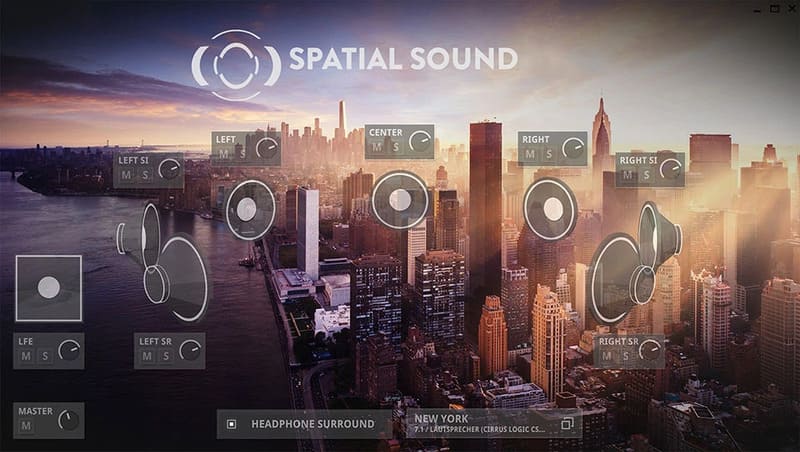
Spatial Sound is an advanced audio feature on Windows 11, allowing you to experience virtual surround sound from common output devices such as headphones or speakers. Spatial Sound helps you feel the space and direction of sound, creating a vivid and realistic feeling.

Join the channel Telegram belong to AnonyViet 👉 Link 👈

What is Spatial Sound?

When Spatial Sound is turned on and connected to a recording device and speaker, you will hear sounds that help you locate your position in 3D space easily. In addition, this application also gives you a unique and outstanding surround sound feeling.
Spatial Sound
Spatial Sound

Spatial Sound surround helps reproduce sound from different directions around you, helping you experience more realistic sound than Stereo sound with only two left and right channels.

When you use headphones and enable Spatial Sound, you will experience virtual spatial sound because this feature mixes the sound. When you listen to music or play games, sound is sent to your headphones to help you know which direction the sound is coming from.

Instructions for turning on Spatial Sound on Windows 11

Step 1: Press the Windows + R key combination to open the Run dialog box > Type Control Panel > Press Enter

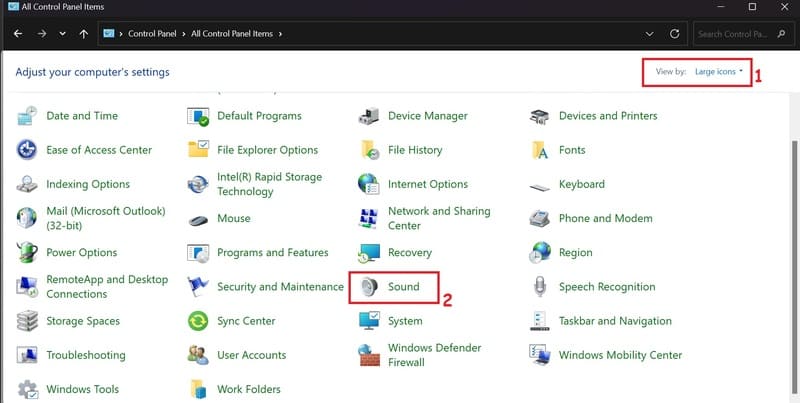
Step 2: Set View by to Large icons > Select Sound.
Spatial Sound
Set View by to Large icons > Select Sound

Step 3: On the Playback tab, select the audio device for which you want to enable Spatial Sound > Click Properties
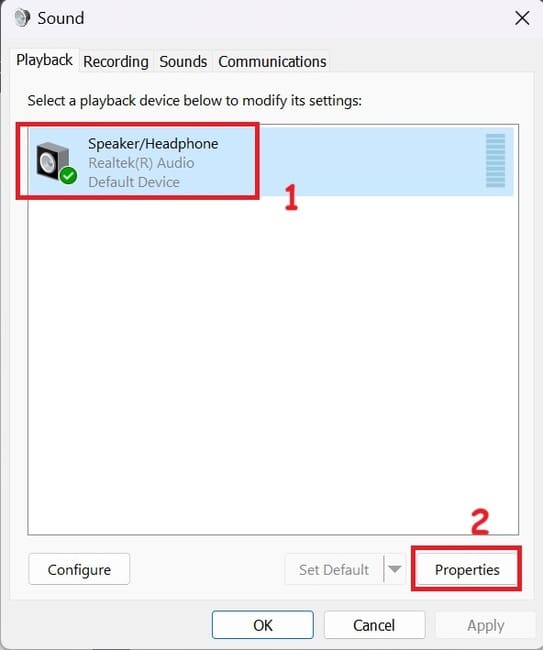
Spatial Sound
Click Properties

Step 4: Switch to the Spatial Sound tab > Click the drop-down menu and select the Spatial Sound format you want to use, for example Windows Sonic for Headphones or Dolby Atmos for Headphones.
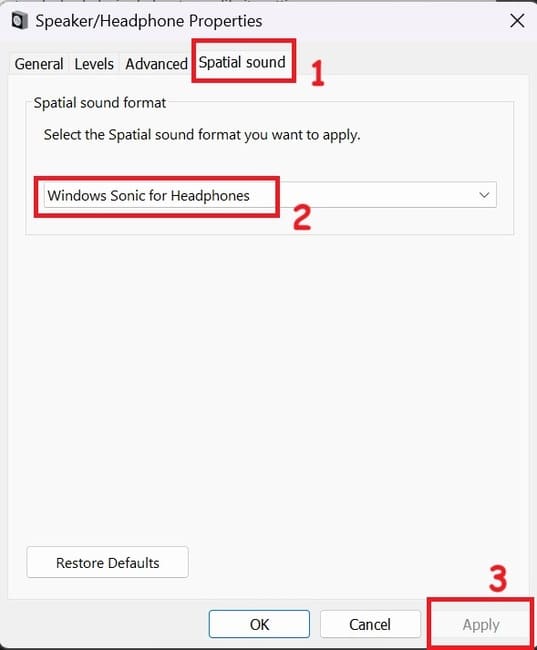
Spatial Sound
Click Windows Sonic for Headphones

Step 5: Click Apply to save the changes, then click OK.

After making the changes, your audio device will use Spatial Sound.

Epilogue

Like any other audio feature, Spatial Sound can greatly enhance your listening experience – and it's easy to enable on your Windows PC. Good luck!

Tags: enjoyInstructionssoundSpatialturningvividWindows
Previous Post

[Lập Trình Game] Lesson 7: Move between levels when completing tasks

Next Post

Instructions for setting Windows screen lock time

AnonyViet

AnonyViet

Related Posts

How to record reaction videos with Android phones, no app needed
Tips

How to record reaction videos with Android phones, no app needed

June 1, 2026
Instructions on how to get Google AI Pro 1 year for free for new accounts
Tips

Instructions on how to get Google AI Pro 1 year for free for new accounts

June 1, 2026
Top free AI tools to help write, test and optimize content
Tips

Top free AI tools to help write, test and optimize content

June 1, 2026
Instructions for receiving Lovable Pro 12 months for free
Tips

Instructions for receiving Lovable Pro 12 months for free

May 29, 2026
Instructions for receiving 1 month of ElevenLabs Creator for free worth
Tips

Instructions for receiving 1 month of ElevenLabs Creator for free worth $22

May 25, 2026
How to create beautiful studio-like preschool graduation photos for your child
Tips

How to create beautiful studio-like preschool graduation photos for your child

May 21, 2026
Next Post
Instructions for setting Windows screen lock time

Instructions for setting Windows screen lock time

0 0 votes
Article Rating
Subscribe
Login
Notify of
guest

guest

0 Comments
Oldest
Newest Most Voted
Inline Feedbacks
View all comments

Recent News

How to record reaction videos with Android phones, no app needed

How to record reaction videos with Android phones, no app needed

June 1, 2026
Instructions on how to get Google AI Pro 1 year for free for new accounts

Instructions on how to get Google AI Pro 1 year for free for new accounts

June 1, 2026
Top free AI tools to help write, test and optimize content

Top free AI tools to help write, test and optimize content

June 1, 2026
TruyenDrive: Turn Google Drive into a professional manga reader

TruyenDrive: Turn Google Drive into a professional manga reader

May 31, 2026
How to record reaction videos with Android phones, no app needed

How to record reaction videos with Android phones, no app needed

June 1, 2026
Instructions on how to get Google AI Pro 1 year for free for new accounts

Instructions on how to get Google AI Pro 1 year for free for new accounts

June 1, 2026
Top free AI tools to help write, test and optimize content

Top free AI tools to help write, test and optimize content

June 1, 2026
AnonyViet - English Version

AnonyViet

AnonyViet is a website share knowledge that you have never learned in school!

We are ready to welcome your comments, as well as your articles sent to AnonyViet.

Follow Us

Contact:

Email: anonyviet.com[@]gmail.com

Main Website: https://anonyviet.com

Recent News

How to record reaction videos with Android phones, no app needed

How to record reaction videos with Android phones, no app needed

June 1, 2026
Instructions on how to get Google AI Pro 1 year for free for new accounts

Instructions on how to get Google AI Pro 1 year for free for new accounts

June 1, 2026
No Result
View All Result
  • Home
  • News
  • Software
  • Knowledge
  • MMO
  • Tips
  • Security
  • Network
  • Office

wpDiscuz
0
0
Would love your thoughts, please comment.x
()
x
| Reply