• Home
  • News
  • Software
  • Knowledge
  • MMO
  • Tips
  • Security
  • Network
  • Office
AnonyViet - English Version
  • Home
  • News
  • Software
  • Knowledge
  • MMO
  • Tips
  • Security
  • Network
  • Office
No Result
View All Result
  • Home
  • News
  • Software
  • Knowledge
  • MMO
  • Tips
  • Security
  • Network
  • Office
No Result
View All Result
AnonyViet - English Version
No Result
View All Result

How to turn on the virtual keyboard on Windows 11 when the physical keyboard is broken

AnonyViet by AnonyViet
March 19, 2024
in Tips
0

How to enable virtual keyboard on Windows 11 is one of the useful tricks that allows you to input by touching the screen or hovering the mouse. You can use the virtual keyboard when your physical keyboard is broken, or when you want to experiment with different keyboard types. In this article, AnonyViet will show you how to turn on the virtual keyboard on Windows 11 simply and easily.

Join the channel Telegram belong to AnonyViet 👉 Link 👈

What is virtual keyboard?

When the keyboard has problems, all or some keys are broken, you can use the virtual keyboard to replace it. The virtual keyboard, also known as On-Screen Keyboard (OSK), is a feature integrated from the Windows XP operating system, very convenient for Windows-based laptops with touch screens and foldable designs.

The virtual keyboard has all the necessary functions like regular computer keyboards on the market. However, not all users need this feature, but if you have a laptop with a touch screen and want to use it as a tablet, the virtual keyboard is a very necessary feature.

How to enable virtual keyboard on Windows 11

If you use a touch computer running Windows 11, you'll need a virtual keyboard to type when you don't have a physical keyboard. By displaying an icon on the taskbar, you can call up the virtual keyboard at any time. Here's how.

Step 1: Right click on the taskbar and select 'Taskbar Settings'

How to enable virtual keyboard on Windows 11
Select 'Taskbar Settings'

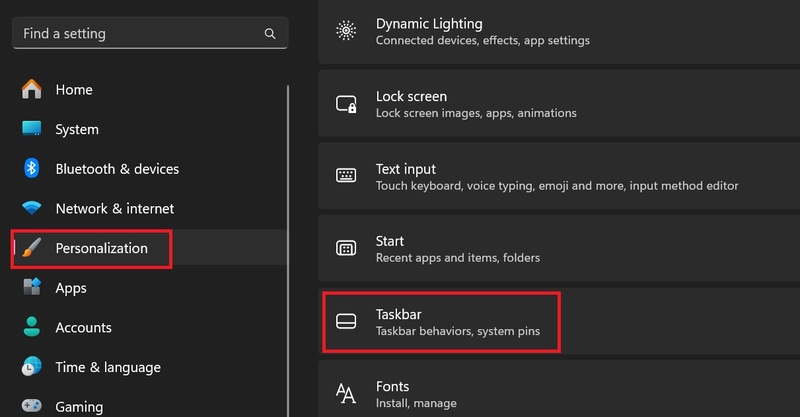
Step 2: Select the Personalization tab > Select 'Taskbar'
How to enable virtual keyboard on Windows 11
Select 'Taskbar'

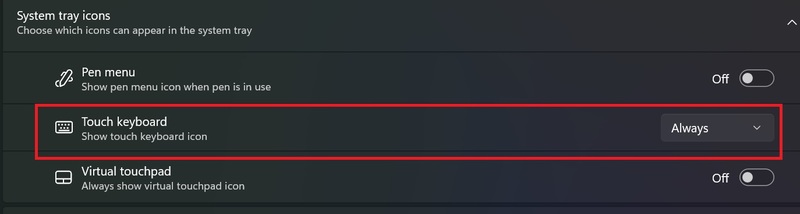
Step 3: At Touch Keyboard > Click 'Always'
How to enable virtual keyboard on Windows 11
At Touch Keyboard > Click 'Always'

Immediately, you will see a small keyboard icon in the lower right corner of the taskbar.

How to enable virtual keyboard on Windows 11
Small keyboard icon

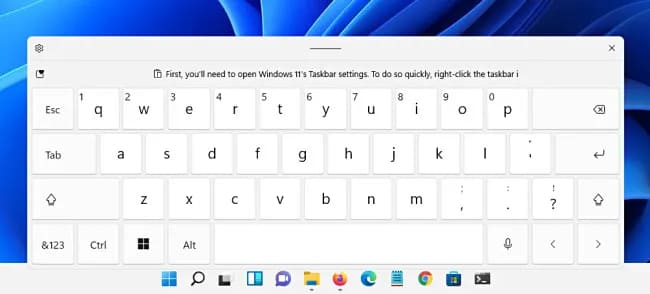
If you double-click that icon, a virtual keyboard will appear at the bottom of your screen, just above the taskbar.
How to enable virtual keyboard on Windows 11

With a touchscreen, you can tap the virtual keyboard to type in any app – just like you would use a physical keyboard (or you could click with a mouse).

When you finish typing and want to hide the keyboard, tap the “X” button in the right corner of the keyboard window. You can recall the virtual keyboard at any time by tapping the keyboard icon on the taskbar.

Epilogue

How to enable virtual keyboard on Windows 11 It's not too difficult if you follow the steps we have instructed. You can also change the appearance, size, and shortcuts of the virtual keyboard to your liking. Good luck!


The article scored: 5/5 – (100 votes)

Tags: brokenKeyboardPhysicalturnvirtualWindows
Previous Post

How to quickly blur website content to increase security and privacy

Next Post

Discover the hidden emoji game on Instagram

AnonyViet

AnonyViet

Related Posts

Instructions to receive Claude Fable 5 for free for 30 days
Tips

Instructions to receive Claude Fable 5 for free for 30 days

June 15, 2026
Delete all Event Logs on Windows to remove traces of activity
Tips

Delete all Event Logs on Windows to remove traces of activity

June 15, 2026
Instructions for creating Minecraft-style food photos
Tips

Instructions for creating Minecraft-style food photos

June 9, 2026
Get free Cambridge courses to prepare for IELTS, Starters, Movers
Tips

Get free Cambridge courses to prepare for IELTS, Starters, Movers

June 4, 2026
How to record reaction videos with Android phones, no app needed
Tips

How to record reaction videos with Android phones, no app needed

June 1, 2026
Instructions on how to get Google AI Pro 1 year for free for new accounts
Tips

Instructions on how to get Google AI Pro 1 year for free for new accounts

June 1, 2026
Next Post
Discover the hidden emoji game on Instagram

Discover the hidden emoji game on Instagram

0 0 votes
Article Rating
Subscribe
Login
Notify of
guest

guest

0 Comments
Oldest
Newest Most Voted
Inline Feedbacks
View all comments

Recent News

Instructions to receive Claude Fable 5 for free for 30 days

Instructions to receive Claude Fable 5 for free for 30 days

June 15, 2026
Instructions on how to activate the new Siri on iOS 27

Instructions on how to activate the new Siri on iOS 27

June 15, 2026
Delete all Event Logs on Windows to remove traces of activity

Delete all Event Logs on Windows to remove traces of activity

June 15, 2026
Instructions on how to get the latest 200GB MultCloud for free in 2026

Instructions on how to get the latest 200GB MultCloud for free in 2026

June 14, 2026
Instructions to receive Claude Fable 5 for free for 30 days

Instructions to receive Claude Fable 5 for free for 30 days

June 15, 2026
Instructions on how to activate the new Siri on iOS 27

Instructions on how to activate the new Siri on iOS 27

June 15, 2026
Delete all Event Logs on Windows to remove traces of activity

Delete all Event Logs on Windows to remove traces of activity

June 15, 2026
AnonyViet - English Version

AnonyViet

AnonyViet is a website share knowledge that you have never learned in school!

We are ready to welcome your comments, as well as your articles sent to AnonyViet.

Follow Us

Contact:

Email: anonyviet.com[@]gmail.com

Main Website: https://anonyviet.com

Recent News

Instructions to receive Claude Fable 5 for free for 30 days

Instructions to receive Claude Fable 5 for free for 30 days

June 15, 2026
Instructions on how to activate the new Siri on iOS 27

Instructions on how to activate the new Siri on iOS 27

June 15, 2026
  • Home
  • Home 2
  • Home 3
  • Home 4
  • Home 5
  • Home 6
  • Next Dest Page
  • Sample Page

6789 kv999

No Result
View All Result
  • Home
  • News
  • Software
  • Knowledge
  • MMO
  • Tips
  • Security
  • Network
  • Office

6789 kv999

wpDiscuz
0
0
Would love your thoughts, please comment.x
()
x
| Reply