• Home
  • News
  • Software
  • Knowledge
  • MMO
  • Tips
  • Security
  • Network
  • Office
AnonyViet - English Version
  • Home
  • News
  • Software
  • Knowledge
  • MMO
  • Tips
  • Security
  • Network
  • Office
No Result
View All Result
  • Home
  • News
  • Software
  • Knowledge
  • MMO
  • Tips
  • Security
  • Network
  • Office
No Result
View All Result
AnonyViet - English Version
No Result
View All Result

Instructions for installing and using Windows 10 Theme

AnonyViet by AnonyViet
January 11, 2024
in Tips
0

Windows 10 supports users to customize Windows to make it look more beautiful. Depending on personal preferences, each person will have different customization methods. Currently, Microsoft has developed a repository Windows 10 Themes Large with many different interfaces. You can freely choose a free Theme that suits your personal preferences.

Join the channel Telegram belong to AnonyViet 👉 Link 👈

When installing the Theme directly from Microsoft's official source, you don't need to worry about weighing down your device. Because the product is genuine, Microsoft has integrated it with appropriate parameters. So that when you change to their new Theme, the performance and computer resources will still be maintained.

Install and use Windows 10 Theme

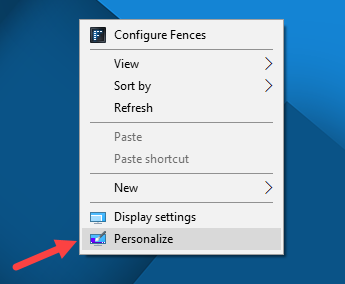
Theme change function and online Theme store link are built into Windows 10. You do not need to install any other third-party software. Now, let's click Right click on the desktop and select Persionalize.
Instructions for installing and using Windows 10 Theme 9

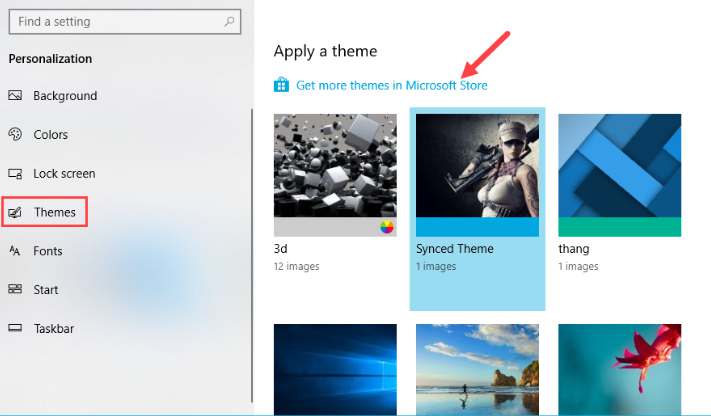
Display Persionalize allows you to customize the interface according to personal preferences. Here you see a window listing the things Windows 10 allows for customization. Select the item Themes to customize the interface!!
Instructions for installing and using Windows 10 Theme 10

After clicking Themes The right side will display the available interfaces on the computer. You choose the line Get more themes in Microsoft Store (like the photo above) to enter the interface store. At this time, Microsoft's Theme interface store has a name Windows Themes will open.
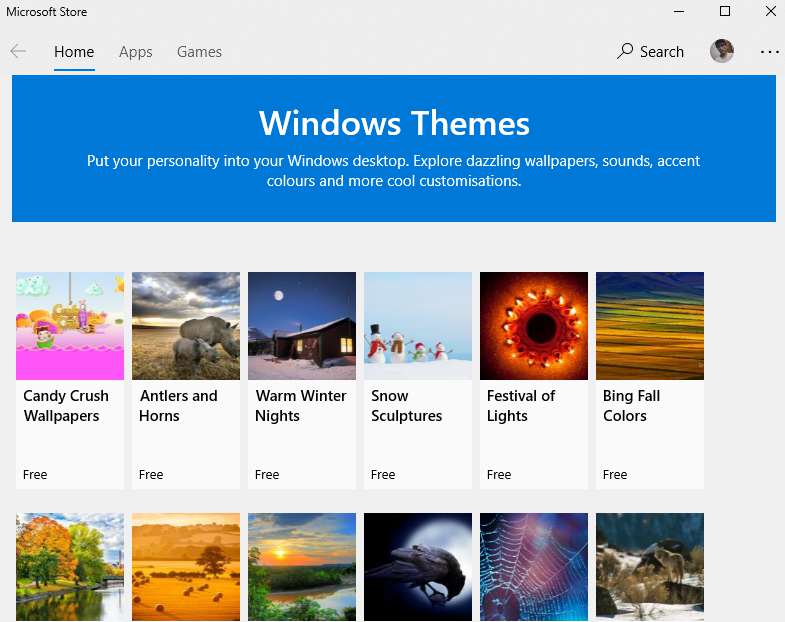
Instructions for installing and using Theme Windows 10 11

In the bottom corner of each Theme you will see its price. Most are free!!
Now click select Go to the Theme you want to download.
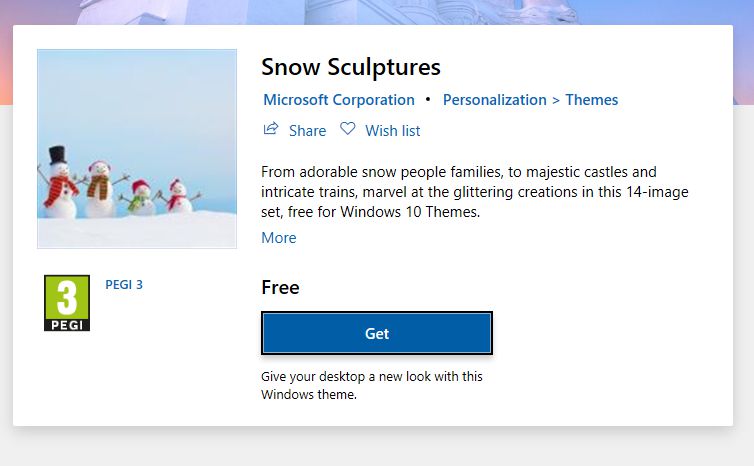
Instructions for installing and using Theme Windows 10 12

Push the button Get to download the Theme to your device. The loading process will take some time!!
Once completed, you will receive a notification as shown below.
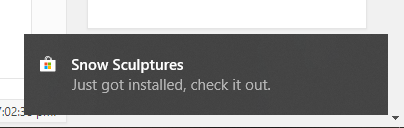
Instructions for installing and using Theme Windows 10 13

Now an installation window will appear. You just need to press the button Apply to use Windows 10 Theme right away.
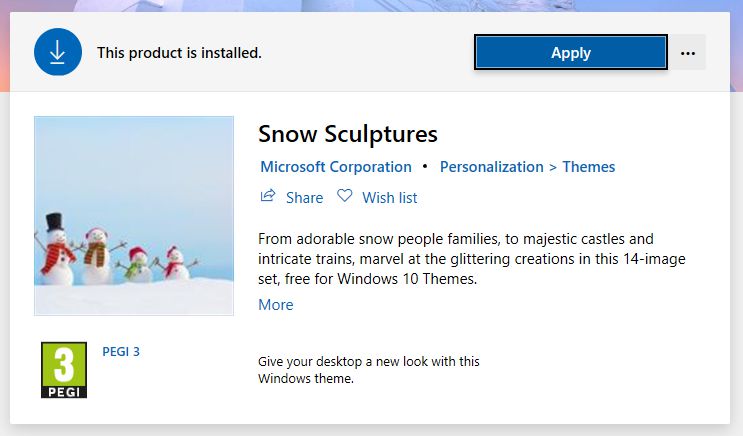

Instructions for installing and using Windows 10 Theme

The article scored: 5/5 – (100 votes)

Previous Post

How to create extremely interesting movement effects on the map

Next Post

How to delete multiple messages on Messenger in just 1 minute

AnonyViet

AnonyViet

Related Posts

How to add sliders to Facebook Stories to easily rewind videos
Tips

How to add sliders to Facebook Stories to easily rewind videos

April 21, 2026
How to change the default font on Windows 10
Tips

How to change the default font on Windows 10

April 13, 2026
5 tips for using a Browser to replace an App (helps save RAM, time and money)
Tips

5 tips for using a Browser to replace an App (helps save RAM, time and money)

April 13, 2026
How to make funny MeMe photos without Photoshop within 10 seconds
Tips

How to make funny MeMe photos without Photoshop within 10 seconds

April 11, 2026
How to quickly design your own Logo without Photoshop
Tips

How to quickly design your own Logo without Photoshop

April 10, 2026
How to convert Website into App on Windows
Tips

How to convert Website into App on Windows

April 9, 2026
Next Post
How to delete multiple messages on Messenger in just 1 minute

How to delete multiple messages on Messenger in just 1 minute

0 0 votes
Article Rating
Subscribe
Login
Notify of
guest

guest

0 Comments
Oldest
Newest Most Voted
Inline Feedbacks
View all comments

Recent News

How to turn off password suggestions on iPhone: Prevent Safari from auto-filling passwords

How to turn off password suggestions on iPhone: Prevent Safari from auto-filling passwords

April 27, 2026
Instructions for looking up prescriptions on VNeID instead of paper medical books

Instructions for looking up prescriptions on VNeID instead of paper medical books

April 26, 2026
Tips to completely turn off CAPTCHA codes on iPhone and Mac are super simple

Tips to completely turn off CAPTCHA codes on iPhone and Mac are super simple

April 25, 2026
Compare Poco X8 Pro and Poco X7 Pro: A new step for the “king” of mid-range performance

Compare Poco X8 Pro and Poco X7 Pro: A new step for the “king” of mid-range performance

April 24, 2026
How to turn off password suggestions on iPhone: Prevent Safari from auto-filling passwords

How to turn off password suggestions on iPhone: Prevent Safari from auto-filling passwords

April 27, 2026
Instructions for looking up prescriptions on VNeID instead of paper medical books

Instructions for looking up prescriptions on VNeID instead of paper medical books

April 26, 2026
Tips to completely turn off CAPTCHA codes on iPhone and Mac are super simple

Tips to completely turn off CAPTCHA codes on iPhone and Mac are super simple

April 25, 2026
AnonyViet - English Version

AnonyViet

AnonyViet is a website share knowledge that you have never learned in school!

We are ready to welcome your comments, as well as your articles sent to AnonyViet.

Follow Us

Contact:

Email: anonyviet.com[@]gmail.com

Main Website: https://anonyviet.com

Recent News

How to turn off password suggestions on iPhone: Prevent Safari from auto-filling passwords

How to turn off password suggestions on iPhone: Prevent Safari from auto-filling passwords

April 27, 2026
Instructions for looking up prescriptions on VNeID instead of paper medical books

Instructions for looking up prescriptions on VNeID instead of paper medical books

April 26, 2026
No Result
View All Result
  • Home
  • News
  • Software
  • Knowledge
  • MMO
  • Tips
  • Security
  • Network
  • Office

wpDiscuz
0
0
Would love your thoughts, please comment.x
()
x
| Reply