• Home
  • News
  • Software
  • Knowledge
  • MMO
  • Tips
  • Security
  • Network
  • Office
AnonyViet - English Version
  • Home
  • News
  • Software
  • Knowledge
  • MMO
  • Tips
  • Security
  • Network
  • Office
No Result
View All Result
  • Home
  • News
  • Software
  • Knowledge
  • MMO
  • Tips
  • Security
  • Network
  • Office
No Result
View All Result
AnonyViet - English Version
No Result
View All Result

WinSetupFromUSB – Create USB to install Windows with many integrated versions

AnonyViet by AnonyViet
October 27, 2023
in Tips
0

As someone who likes to tinker with computers, many people often ask you to install Windows for them. Each person has their own preferences, some people like to use Windows 7, others like to use Windows 10. Your solution is to use WinSetupFromUSB to create a USB to install Windows with many integrated versions. This is convenient so that you can go to any computer and install Windows suitable for the user.

Join the channel Telegram belong to AnonyViet 👉 Link 👈

To create a Windows installation USB, you need a high-capacity USB. AnonyViet recommends at least 8-32Gb if you want to integrate 3 or 4 versions of Windows into 1 USB. Then use the software WinSetupFromUSB to create USB boot.

WinSetupFromUSB is a bootable USB disk creation program that integrates many versions of Windows. You can use that USB to install Windows XP/Vista/7/8/10 or Windows Server without a disc. This means that 1 USB will have all Windows installers integrated into it. With the new version WinSetupFromUSB supports both Legacy and UEFI standards.

How to Create a Windows installation USB using WinSetupFromUSB

First, you need to prepare the Windows ISO file want to integrate download to computer. Afterward download WinSetupFromUSB Go to your computer and launch it. After unpacking, there will be 2 versions, 32bit and 64bit, you need to run the correct version suitable for Windows.

Now plug the USB into the computer and press the button Refresh Let the software recognize the USB. Next click Advanced Options. Check the box “Custom menu names for Vista/7/8/10/Server Source” so you can name the folder containing the Windows ISO file that needs to be integrated, and name the Boot Menu.

Next is to check in “Auto format it with Fbinst“ and choose format FAT32.

Now, you choose the first Windows version you want to integrate into the USB. Check “Windows Vista/7/8/10/Server 2008/2012 based ISO” click on (“…”) and select the ISO file (eg Windows 7)

How to Create a Windows installation USB using WinSetupFromUSB

Normally from Windows 7 and above, the ISO file will be larger than 4GB and cannot be copied to the USB FAT32 format, then you will receive a notification. split files. You just keep pressing OK.

Finally press the button Go to create the Windows-integrated USB Boot setup process. During the operation, you will receive 2 notificationsjust press OK to continue. When WinSetupFromUSB is Formatting the USB, there will be a message asking you to name the folder containing the ISO File and name the Boot Menu. You can set it yourself for easy management.

When completed, a notification will appear Job Done! So Completed setup of 1 version Windows to USB.

How to integrate multiple Windows onto USB using WinSetupFromUSB

How to integrate multiple Windows onto USB using WinSetupFromUSB

According to the instructions above, you have integrated the first Windows installer onto the USB. To integrate other Windows (For example, Windows 10), follow the steps above, but be careful ARE NOT check in “Auto format it with Fbinst“.

It’s just a matter of changing places.”Windows Vista/7/8/10/Server 2008/2012 based ISO” click on (“…”) and select another Windows ISO file.

You can also integrate additional Linux installers such as: Ubuntu, Centos, Redhat, Kali Linux… by checking Linux IOS other Grub4Dos complatibe IOS and points to its ISO file.

How to fix stalled USB creation process

For some computers using Windows 10, the software will crash when creating a USB Boot. You can fix it as follows:

Method 1: Restart the computer and run WinSetupFromUSB again
Method 2: Download WinSetupFromUSB a slightly lower version and recreate a USB Boot to install Windows

The article scored: 5/5 – (100 votes)

Previous Post

How to create AI photos with keyboard shortcuts on iPhone

Next Post

How to know if the recipient has read the email or not

AnonyViet

AnonyViet

Related Posts

Microsoft is preparing to launch Windows 11
Tips

Microsoft is preparing to launch Windows 11

October 9, 2026
How to download all photos from Google Photos to transfer to another service
Tips

How to download all photos from Google Photos to transfer to another service

October 8, 2026
How to use newly updated utilities on Windows 10
Tips

How to use newly updated utilities on Windows 10

October 7, 2026
Stealth Reader – Web story reader with Excel interface without being detected by the boss
Tips

Stealth Reader – Web story reader with Excel interface without being detected by the boss

October 7, 2026
Tips for handling when JPG images cannot be saved in Photoshop
Tips

Tips for handling when JPG images cannot be saved in Photoshop

October 6, 2026
Windows 11 release date and new features
Tips

Windows 11 release date and new features

October 6, 2026
Next Post
How to know if the recipient has read the email or not

How to know if the recipient has read the email or not

0 0 votes
Article Rating
Subscribe
Login
Notify of
guest

guest

0 Comments
Oldest
Newest Most Voted

Recent News

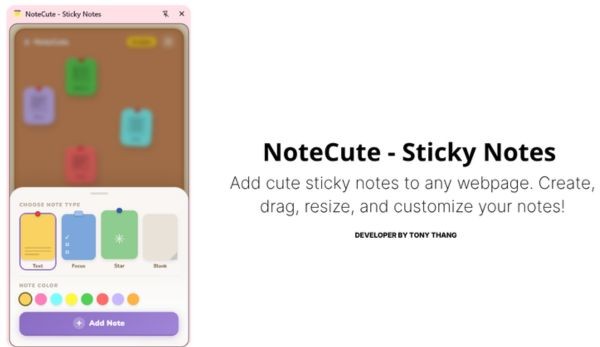
NoteCute – Extension to create super cute sticky notes

NoteCute – Extension to create super cute sticky notes

October 10, 2026
Super virtual way to change the photography angle using AI on iPhone

Super virtual way to change the photography angle using AI on iPhone

October 9, 2026
Instructions for detecting network vulnerabilities: How to check the system for data leaks (IP/DNS)

Instructions for detecting network vulnerabilities: How to check the system for data leaks (IP/DNS)

October 9, 2026
Microsoft is preparing to launch Windows 11

Microsoft is preparing to launch Windows 11

October 9, 2026
NoteCute – Extension to create super cute sticky notes

NoteCute – Extension to create super cute sticky notes

October 10, 2026
Super virtual way to change the photography angle using AI on iPhone

Super virtual way to change the photography angle using AI on iPhone

October 9, 2026
Instructions for detecting network vulnerabilities: How to check the system for data leaks (IP/DNS)

Instructions for detecting network vulnerabilities: How to check the system for data leaks (IP/DNS)

October 9, 2026
AnonyViet - English Version

AnonyViet

AnonyViet is a website share knowledge that you have never learned in school!

We are ready to welcome your comments, as well as your articles sent to AnonyViet.

Follow Us

Contact:

Email: anonyviet.com[@]gmail.com

Main Website: https://anonyviet.com

Recent News

NoteCute – Extension to create super cute sticky notes

NoteCute – Extension to create super cute sticky notes

October 10, 2026
Super virtual way to change the photography angle using AI on iPhone

Super virtual way to change the photography angle using AI on iPhone

October 9, 2026
  • Home
  • Home 2
  • Home 3
  • Home 4
  • Home 5
  • Home 6
  • Next Dest Page
  • Sample Page

say88 tỷ lệ kèo nhà cái kèo nhà cái 5 febet

No Result
View All Result
  • Home
  • News
  • Software
  • Knowledge
  • MMO
  • Tips
  • Security
  • Network
  • Office

say88 tỷ lệ kèo nhà cái kèo nhà cái 5 febet

wpDiscuz
0
0
Would love your thoughts, please comment.x
()
x
| Reply