• Home
  • News
  • Software
  • Knowledge
  • MMO
  • Tips
  • Security
  • Network
  • Office
AnonyViet - English Version
  • Home
  • News
  • Software
  • Knowledge
  • MMO
  • Tips
  • Security
  • Network
  • Office
No Result
View All Result
  • Home
  • News
  • Software
  • Knowledge
  • MMO
  • Tips
  • Security
  • Network
  • Office
No Result
View All Result
AnonyViet - English Version
No Result
View All Result

Instructions to customize the Windows interface with Rainmeter

AnonyViet by AnonyViet
February 19, 2023
in Tips
0

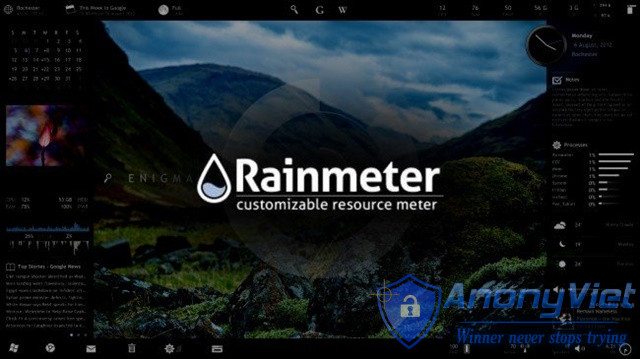
Dubbed a fully-deserved “replacement” for the old Windows Widget feature, Rainmeter is also considered an indispensable component in the field of Windows interface customization. Light capacity, does not affect system performance, easy to customize, beautiful interface, diverse widgets and many features are advantages that users can find in this software.

Join the channel Telegram belong to AnonyViet 👉 Link 👈
Instructions to customize the Windows interface with Rainmeter 15

If you are planning to try Rainmeter, please refer to the following tutorial article.

Install Rainmeter

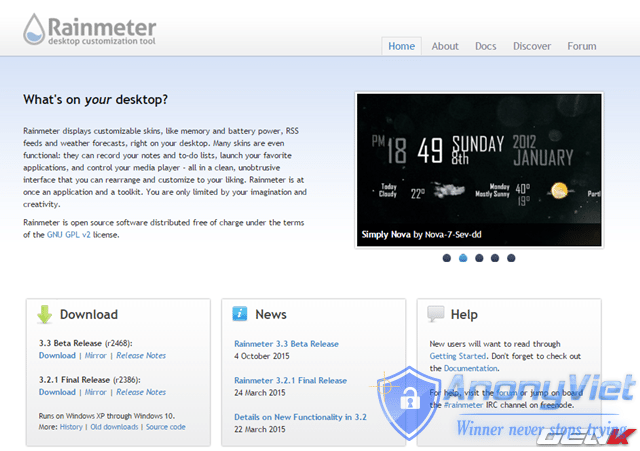
Rainmeter is open source software and is provided completely free, users can download it at the official website of this software. here or on the Github page here.
Instructions to customize the Windows interface with Rainmeter 16

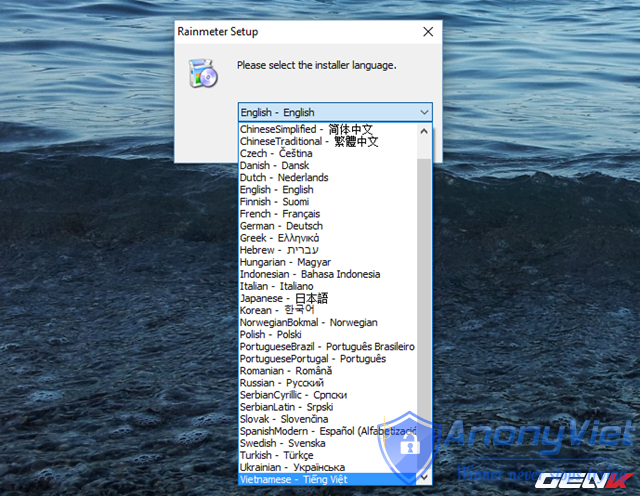
After downloading, run Rainmeter’s EXE file (Run Administrator) to launch the software installation interface. It is quite interesting that this software also supports Vietnamese.
Instructions to customize the Windows interface with Rainmeter 17

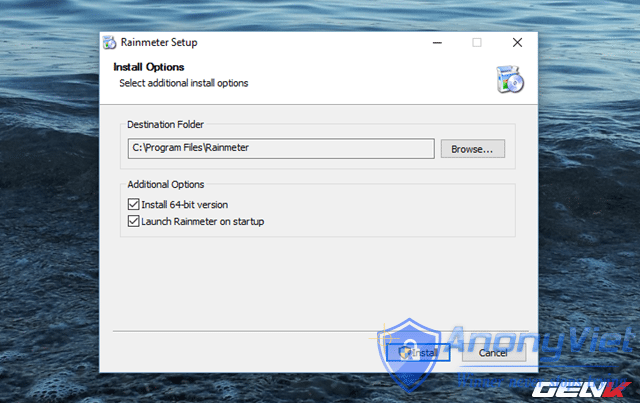
The installation and configuration process is relatively simple and doesn’t come with any components installed.
Instructions to customize the Windows interface with Rainmeter 18

After the installation is finished, keep the Run Rainmeter option to start this software.
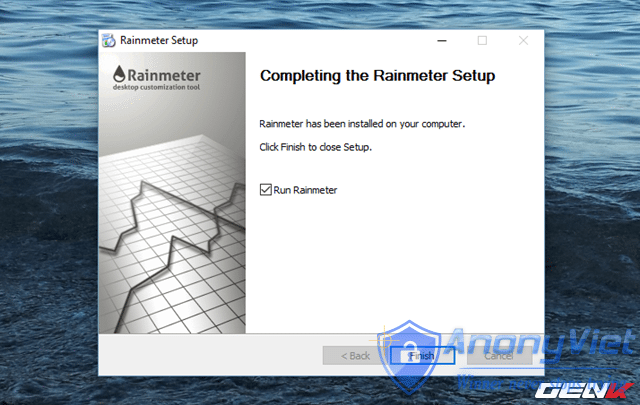
Instructions to customize the Windows interface with Rainmeter 19

Basic customization

A few seconds after the installation finishes, Rainmeter’s default skins will appear on your desktop.

Instructions to customize the Windows interface with Rainmeter 20

To close the intro widget in the middle of the desktop, right-click it and choose the Unload Skin command.
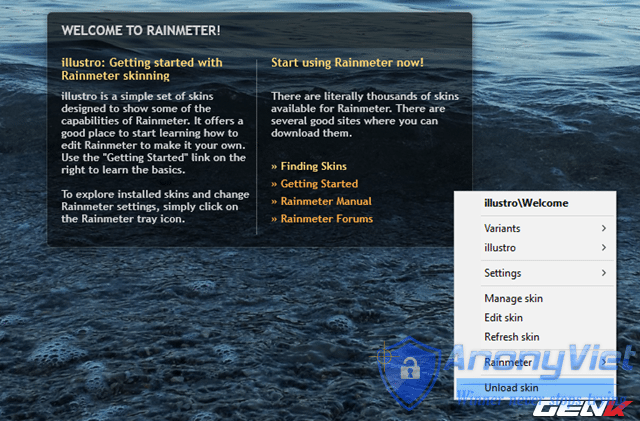
Instructions to customize the Windows interface with Rainmeter 21

Next, to open Rainmeter’s main management interface, right-click on any widget and select the Manage Skin command.
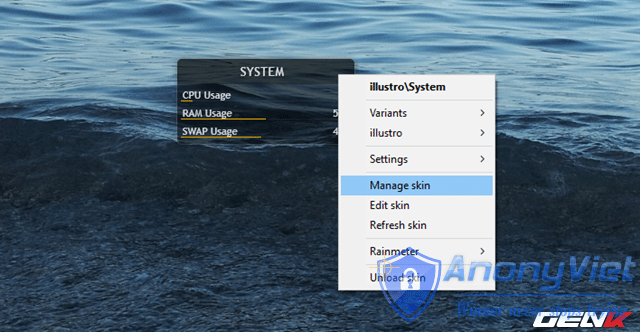
Instructions to customize the Windows interface with Rainmeter 22

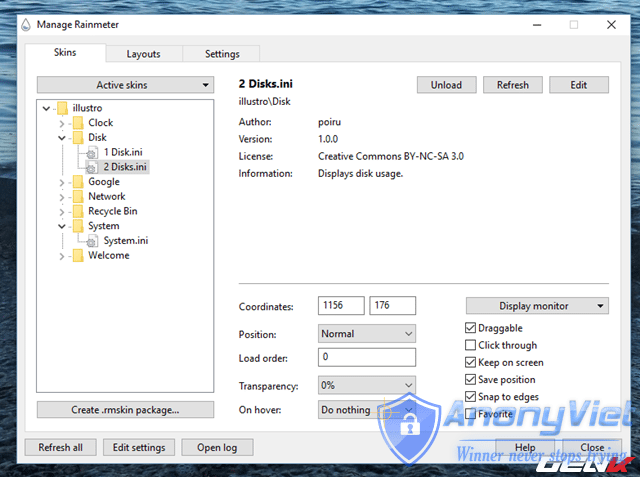
In the Manage Rainmeter dialog box, you will see a list of the current Rainmeter skins and editing options.
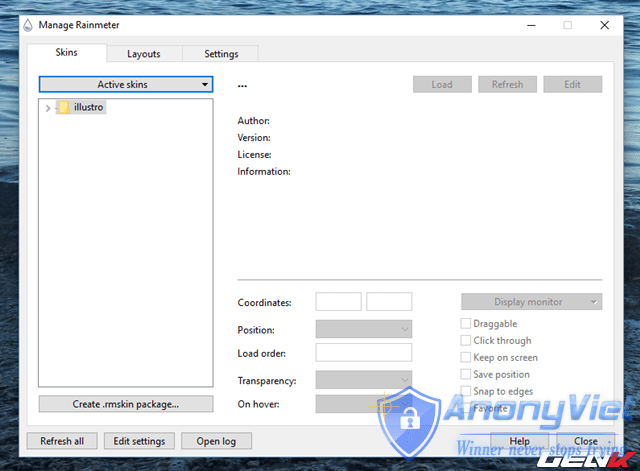
Instructions to customize the Windows interface with Rainmeter 23

Now click on the Active Skins option and choose which widget element you want and proceed to customize it to your liking. The Unload/Load option button will allow you to enable/disable the widget, Refresh allows you to refresh the widget state and Edit to open the widget editing dialog with lines of code.
Instructions to customize the Windows interface with Rainmeter 24

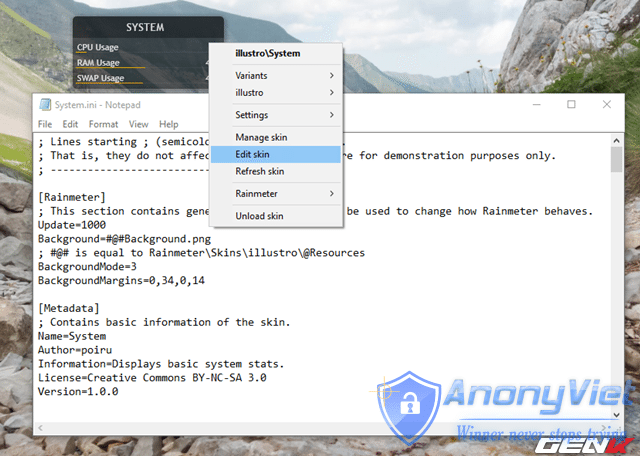
To re-customize a certain widget, in addition to the options provided in Manage Rainmeter, you can customize it right from the code that builds it. Specifically, right-click a widget to be edited and select the Edit Skin command, Notepad will appear, automatically open the widget source code and ready for you to edit.
Instructions to customize the Windows interface with Rainmeter 25

Find skins for Rainmeter

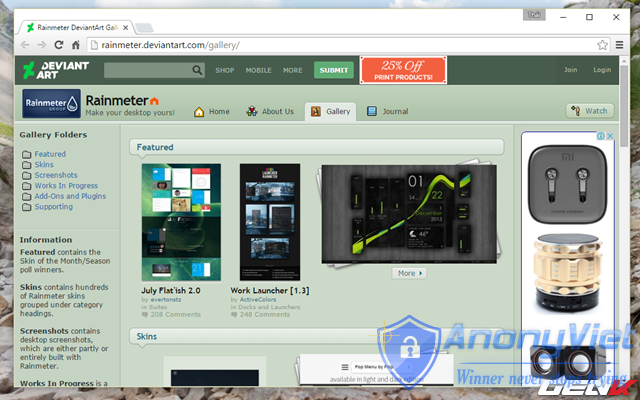
In addition to the Rainmeter skins that are available from the official Rainmeter website, users can also find and download more from other authors that are provided for free on the website. DeviantArt, Customize.organd Rainmeter subreddit.
Instructions to customize the Windows interface with Rainmeter 26

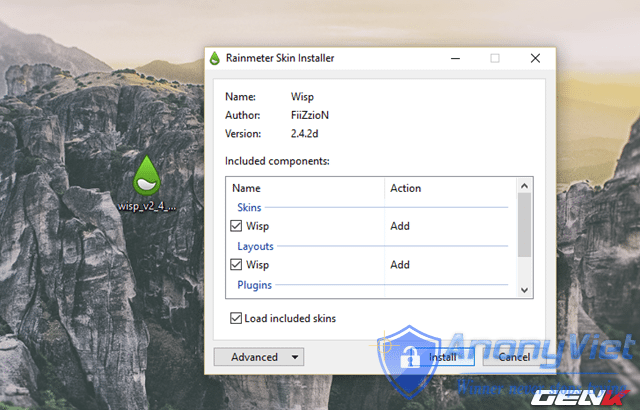
Once you find a theme you like, download it and you will have a file in the format “.rmskin”. To install, simply double-click it and click Install in the dialog box that appears.
Instructions to customize the Windows interface with Rainmeter 27

That’s it, the rest of your work is simply to customize it to your liking. Hope you will create yourself a very “unique” desktop with Rainmeter.

Source: GenK

Like fanpage to update more good posts every day!

Previous Post

Instructions for using Wallpaper Engine to create animated wallpapers for computers

Next Post

Instructions to increase Facebook Sub by Like post

AnonyViet

AnonyViet

Related Posts

How to add sliders to Facebook Stories to easily rewind videos
Tips

How to add sliders to Facebook Stories to easily rewind videos

April 21, 2026
How to change the default font on Windows 10
Tips

How to change the default font on Windows 10

April 13, 2026
5 tips for using a Browser to replace an App (helps save RAM, time and money)
Tips

5 tips for using a Browser to replace an App (helps save RAM, time and money)

April 13, 2026
How to make funny MeMe photos without Photoshop within 10 seconds
Tips

How to make funny MeMe photos without Photoshop within 10 seconds

April 11, 2026
How to quickly design your own Logo without Photoshop
Tips

How to quickly design your own Logo without Photoshop

April 10, 2026
How to convert Website into App on Windows
Tips

How to convert Website into App on Windows

April 9, 2026
Next Post
Instructions to increase Facebook Sub by Like post

Instructions to increase Facebook Sub by Like post

0 0 votes
Article Rating
Subscribe
Login
Notify of
guest

guest

0 Comments
Oldest
Newest Most Voted
Inline Feedbacks
View all comments

Recent News

Create an avatar to celebrate April 30 with a beautiful red flag shirt with yellow stars

Create an avatar to celebrate April 30 with a beautiful red flag shirt with yellow stars

April 30, 2026
How to get 2 months of Super Duolingo for free worth 300k

How to get 2 months of Super Duolingo for free worth 300k

April 30, 2026
How to create a Face Sticker Collection using ChatGPT

How to create a Face Sticker Collection using ChatGPT

April 29, 2026
How to install the cute Bongo Cat mouse pointer for Windows

How to install the cute Bongo Cat mouse pointer for Windows

April 29, 2026
Create an avatar to celebrate April 30 with a beautiful red flag shirt with yellow stars

Create an avatar to celebrate April 30 with a beautiful red flag shirt with yellow stars

April 30, 2026
How to get 2 months of Super Duolingo for free worth 300k

How to get 2 months of Super Duolingo for free worth 300k

April 30, 2026
How to create a Face Sticker Collection using ChatGPT

How to create a Face Sticker Collection using ChatGPT

April 29, 2026
AnonyViet - English Version

AnonyViet

AnonyViet is a website share knowledge that you have never learned in school!

We are ready to welcome your comments, as well as your articles sent to AnonyViet.

Follow Us

Contact:

Email: anonyviet.com[@]gmail.com

Main Website: https://anonyviet.com

Recent News

Create an avatar to celebrate April 30 with a beautiful red flag shirt with yellow stars

Create an avatar to celebrate April 30 with a beautiful red flag shirt with yellow stars

April 30, 2026
How to get 2 months of Super Duolingo for free worth 300k

How to get 2 months of Super Duolingo for free worth 300k

April 30, 2026
No Result
View All Result
  • Home
  • News
  • Software
  • Knowledge
  • MMO
  • Tips
  • Security
  • Network
  • Office

wpDiscuz
0
0
Would love your thoughts, please comment.x
()
x
| Reply