• Home
  • News
  • Software
  • Knowledge
  • MMO
  • Tips
  • Security
  • Network
  • Office
AnonyViet - English Version
  • Home
  • News
  • Software
  • Knowledge
  • MMO
  • Tips
  • Security
  • Network
  • Office
No Result
View All Result
  • Home
  • News
  • Software
  • Knowledge
  • MMO
  • Tips
  • Security
  • Network
  • Office
No Result
View All Result
AnonyViet - English Version
No Result
View All Result

Change the mouse pointer icon

AnonyViet by AnonyViet
February 18, 2023
in Tips
0

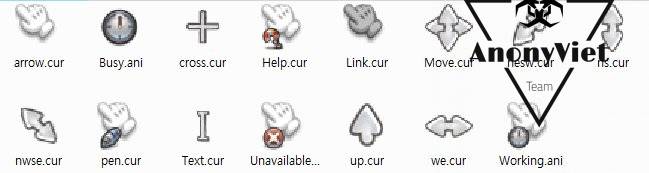
If you are so bored with the traditional arrow icon of the mouse pointer, why not change it to another icon? Today AnonyViet will guide you on how to change the Mouse pointer icon, using the built-in functions of Windows.

Join the channel Telegram belong to AnonyViet 👉 Link 👈

Change pointer icon Mouse 6

Download

Backup link

Or see the TOP 10 most beautiful mouse pointer icons here:

Step 1: First we unzip the file Mario Gant – AnonyViet.Com.rar go out

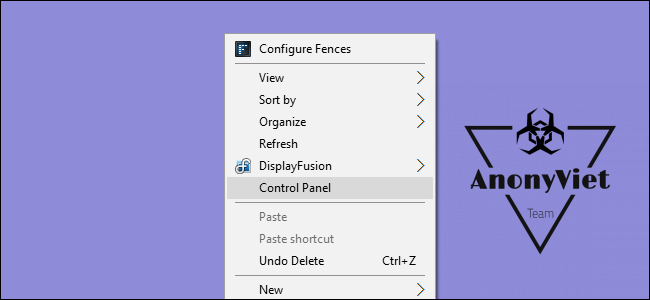
Step 2: Then we enter Start and search mouse or in Control panel and find the icon mouse

Change the mouse pointer icon 7

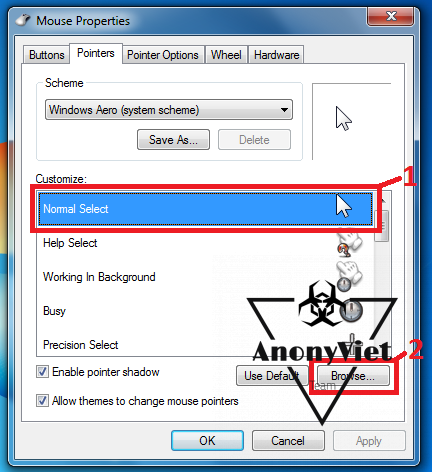
Step 3: Select the Pointers tab and click Normal Select (1) and click Browse… (2)
Change the mouse pointer icon 8

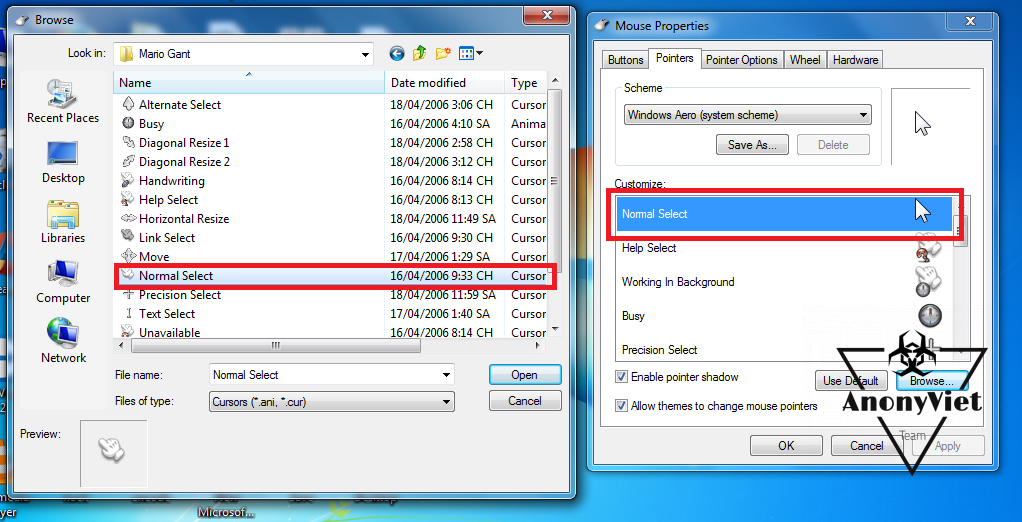
Step 4: Then, you find the folder containing Mario Gantselect the file with the same name as the old mouse model (eg: the old type of mouse named Nomal Select, find the file nomal select and replace it)
Change the mouse pointer icon 9

Step 5: Finally, we select the remaining mouse types for the same name: Help Select then select help select, busy select busy,… ^^ and click OK to save it.

So AnonyViet showed you how to change the Mario Gant mouse style very well, right ^^ ? Thank you for reading this article

AnonyViet wishes you success!!!

The article achieved: 5/5 – (100 votes)

Previous Post

Improve RAM with just one USB on Windows 10

Next Post

Instructions for adding Control Panel to the Right Click Menu

AnonyViet

AnonyViet

Related Posts

How to open “This PC” instead of “Quick Access” in File Explorer by default
Tips

How to open “This PC” instead of “Quick Access” in File Explorer by default

October 17, 2026
How to create a virtual Pet, a virtual character running around on the Desktop to relax
Tips

How to create a virtual Pet, a virtual character running around on the Desktop to relax

October 15, 2026
15 cách tăng tốc Windows 10 nhanh như gió
Tips

15 cách tăng tốc Windows 10 nhanh như gió

October 14, 2026
How to create Guest mode Shortcuts for Chrome and Edge
Tips

How to create Guest mode Shortcuts for Chrome and Edge

October 13, 2026
Test what breed of dog you are through 10 multiple choice questions
Tips

Test what breed of dog you are through 10 multiple choice questions

October 13, 2026
Fliqlo – Create digital clock screens on Windows and phones
Tips

Fliqlo – Create digital clock screens on Windows and phones

October 12, 2026
Next Post
Instructions for adding Control Panel to the Right Click Menu

Instructions for adding Control Panel to the Right Click Menu

0 0 votes
Article Rating
Subscribe
Login
Notify of
guest

guest

0 Comments
Oldest
Newest Most Voted

Recent News

How to open “This PC” instead of “Quick Access” in File Explorer by default

How to open “This PC” instead of “Quick Access” in File Explorer by default

October 17, 2026
Instructions for receiving 3 months of MultCloud Premium for free with 200GB data

Instructions for receiving 3 months of MultCloud Premium for free with 200GB data

October 17, 2026
Instructions for receiving pension through VNeID without going to the ward

Instructions for receiving pension through VNeID without going to the ward

October 16, 2026
MBTI, Big Five, DISC or Holland: which personality test should you choose?

MBTI, Big Five, DISC or Holland: which personality test should you choose?

October 15, 2026
How to open “This PC” instead of “Quick Access” in File Explorer by default

How to open “This PC” instead of “Quick Access” in File Explorer by default

October 17, 2026
Instructions for receiving 3 months of MultCloud Premium for free with 200GB data

Instructions for receiving 3 months of MultCloud Premium for free with 200GB data

October 17, 2026
Instructions for receiving pension through VNeID without going to the ward

Instructions for receiving pension through VNeID without going to the ward

October 16, 2026
AnonyViet - English Version

AnonyViet

AnonyViet is a website share knowledge that you have never learned in school!

We are ready to welcome your comments, as well as your articles sent to AnonyViet.

Follow Us

Contact:

Email: anonyviet.com[@]gmail.com

Main Website: https://anonyviet.com

Recent News

How to open “This PC” instead of “Quick Access” in File Explorer by default

How to open “This PC” instead of “Quick Access” in File Explorer by default

October 17, 2026
Instructions for receiving 3 months of MultCloud Premium for free with 200GB data

Instructions for receiving 3 months of MultCloud Premium for free with 200GB data

October 17, 2026
  • Home
  • Home 2
  • Home 3
  • Home 4
  • Home 5
  • Home 6
  • Next Dest Page
  • Sample Page

say88 tỷ lệ kèo nhà cái kèo nhà cái 5 febet

No Result
View All Result
  • Home
  • News
  • Software
  • Knowledge
  • MMO
  • Tips
  • Security
  • Network
  • Office

say88 tỷ lệ kèo nhà cái kèo nhà cái 5 febet

wpDiscuz
0
0
Would love your thoughts, please comment.x
()
x
| Reply