• Home
  • News
  • Software
  • Knowledge
  • MMO
  • Tips
  • Security
  • Network
  • Office
AnonyViet - English Version
  • Home
  • News
  • Software
  • Knowledge
  • MMO
  • Tips
  • Security
  • Network
  • Office
No Result
View All Result
  • Home
  • News
  • Software
  • Knowledge
  • MMO
  • Tips
  • Security
  • Network
  • Office
No Result
View All Result
AnonyViet - English Version
No Result
View All Result

Fix dark screen on Windows 10

AnonyViet by AnonyViet
February 17, 2023
in Tips
0

Today, I have a situation where the screen on Windows 10 is dark and dark, the icons are not clear. The reason is that I have just updated the Intel Onboard Card Driver and the Monitor Driver.

Join the channel Telegram belong to AnonyViet 👉 Link 👈

This situation is on Windows 10 build 1709 and latest. The previous versions, I have not had. After struggling for a while, I also found a way to fix it. It turns out that the color on Windows 10 is bold, dark is a feature, not a bug.

To remedy the situation dark on Windows 10you need to use a built-in Windows tool called “Calibrate Display”.

You go to Settings -> Display -> Display adapter properties

Fix dark screen on Windows 10

In the next dialog box, select the tab Color Management, then click on the . button Color Management

Calibrate Display

Next you choose to Tab Advance in the next dialog box. Then click the . button “Calibrate Display”

Calibrate Display

Now the window Display Color Calibration wizard will appear.
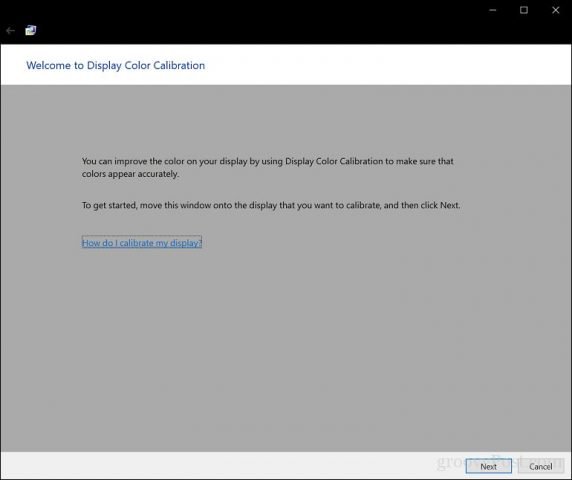
Calibrate Display

You need use mouse hold that window move around the screen to button next is displayed.

If you don’t understand, watch the video below

The amount of colors your monitor is capable of displaying depends on many factors, which include the graphics adapter, the type of display you are using, and the interface. For monitor module, it is recommended that you use DVI (digital video interface) for accuracy guaranteed. Windows 10 Testing Tool focuses on several details:

  • Gamma – red, green and blue colors are projected onto the screen to make up the color of the image.
  • Brightness and Contrast
  • Color Balance

Press next to start color calibration.

Just press next until the last screen. After completing the correction, you can compare your previous settings with the current modifications. You can go back and make changes. If the color on the screen is already bright. Please click finish to save the changes. The screen will now light up as usual.
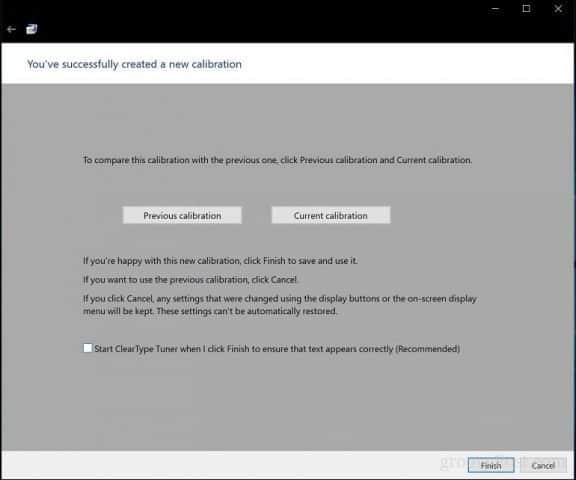
Calibrate Display

With this little trick, I hope you will fix the problem Dark screen on Windows 10. If the color above Windows 10 is dark, dark This is the most effective solution.


The article achieved: 5/5 – (100 votes)

Previous Post

Introducing the TOP of the best and extremely useful websites in 2018

Next Post

Tut Facebook unlock the latest FAQ Apps 5s Valentine 2018

AnonyViet

AnonyViet

Related Posts

How to add sliders to Facebook Stories to easily rewind videos
Tips

How to add sliders to Facebook Stories to easily rewind videos

April 21, 2026
How to change the default font on Windows 10
Tips

How to change the default font on Windows 10

April 13, 2026
5 tips for using a Browser to replace an App (helps save RAM, time and money)
Tips

5 tips for using a Browser to replace an App (helps save RAM, time and money)

April 13, 2026
How to make funny MeMe photos without Photoshop within 10 seconds
Tips

How to make funny MeMe photos without Photoshop within 10 seconds

April 11, 2026
How to quickly design your own Logo without Photoshop
Tips

How to quickly design your own Logo without Photoshop

April 10, 2026
How to convert Website into App on Windows
Tips

How to convert Website into App on Windows

April 9, 2026
Next Post
Tut Facebook unlock the latest FAQ Apps 5s Valentine 2018

Tut Facebook unlock the latest FAQ Apps 5s Valentine 2018

0 0 votes
Article Rating
Subscribe
Login
Notify of
guest

guest

0 Comments
Oldest
Newest Most Voted
Inline Feedbacks
View all comments

Recent News

How to create a Face Sticker Collection using ChatGPT

How to create a Face Sticker Collection using ChatGPT

April 29, 2026
How to install the cute Bongo Cat mouse pointer for Windows

How to install the cute Bongo Cat mouse pointer for Windows

April 29, 2026
Tips for pinning the step counter to the iPhone screen to monitor your health

Tips for pinning the step counter to the iPhone screen to monitor your health

April 28, 2026
How to turn off password suggestions on iPhone: Prevent Safari from auto-filling passwords

How to turn off password suggestions on iPhone: Prevent Safari from auto-filling passwords

April 27, 2026
How to create a Face Sticker Collection using ChatGPT

How to create a Face Sticker Collection using ChatGPT

April 29, 2026
How to install the cute Bongo Cat mouse pointer for Windows

How to install the cute Bongo Cat mouse pointer for Windows

April 29, 2026
Tips for pinning the step counter to the iPhone screen to monitor your health

Tips for pinning the step counter to the iPhone screen to monitor your health

April 28, 2026
AnonyViet - English Version

AnonyViet

AnonyViet is a website share knowledge that you have never learned in school!

We are ready to welcome your comments, as well as your articles sent to AnonyViet.

Follow Us

Contact:

Email: anonyviet.com[@]gmail.com

Main Website: https://anonyviet.com

Recent News

How to create a Face Sticker Collection using ChatGPT

How to create a Face Sticker Collection using ChatGPT

April 29, 2026
How to install the cute Bongo Cat mouse pointer for Windows

How to install the cute Bongo Cat mouse pointer for Windows

April 29, 2026
No Result
View All Result
  • Home
  • News
  • Software
  • Knowledge
  • MMO
  • Tips
  • Security
  • Network
  • Office

wpDiscuz
0
0
Would love your thoughts, please comment.x
()
x
| Reply