• Home
  • News
  • Software
  • Knowledge
  • MMO
  • Tips
  • Security
  • Network
  • Office
AnonyViet - English Version
  • Home
  • News
  • Software
  • Knowledge
  • MMO
  • Tips
  • Security
  • Network
  • Office
No Result
View All Result
  • Home
  • News
  • Software
  • Knowledge
  • MMO
  • Tips
  • Security
  • Network
  • Office
No Result
View All Result
AnonyViet - English Version
No Result
View All Result

How to reduce delay Right-click menu

AnonyViet by AnonyViet
February 16, 2023
in Tips
0

The right-click menu is one of the indispensable functions of Windows. It helps users to quickly access certain software on the computer. However, now there are some machines that enter the right-click menu very slowly, causing discomfort to users. So today I will show you how to reduce the right click menu delay. The ways below I have done and bring very clear results, so you can rest assured to try it.

Join the channel Telegram belong to AnonyViet 👉 Link 👈

First, press the key combination Windows + CHEAP to open the dialog box Runthen fill in Regedit and press Ok:
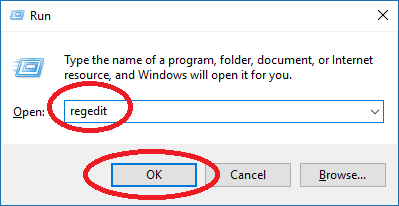
How to reduce delay Right click menu 8

Then the window Registry Editor is opened, please look in the left window, access the following path: HKEY_CURRENT_USER\Control Panel\Desktop
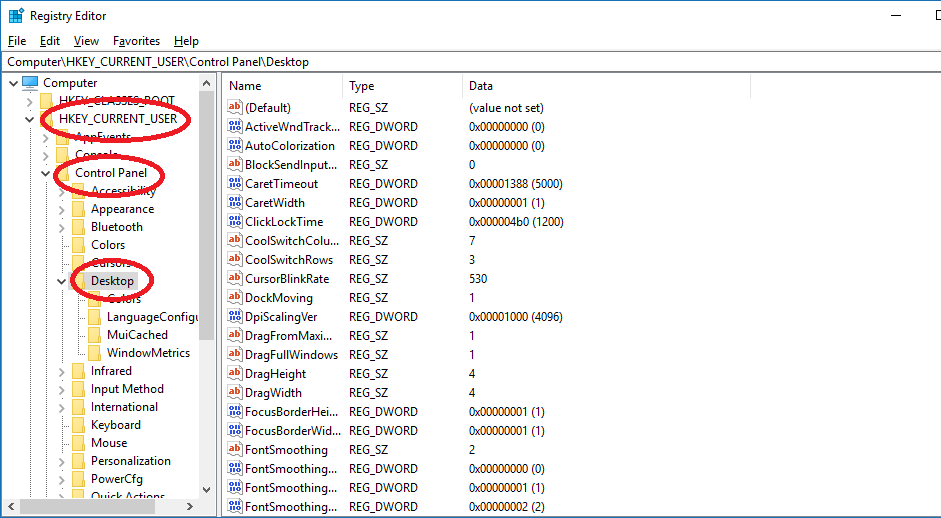
How to reduce delay Right click menu 9

Then look for the line MenuShowDelaydouble click to open and enter 400 to the line Value data then press the button OK to save.How to reduce delay Right click menu 10
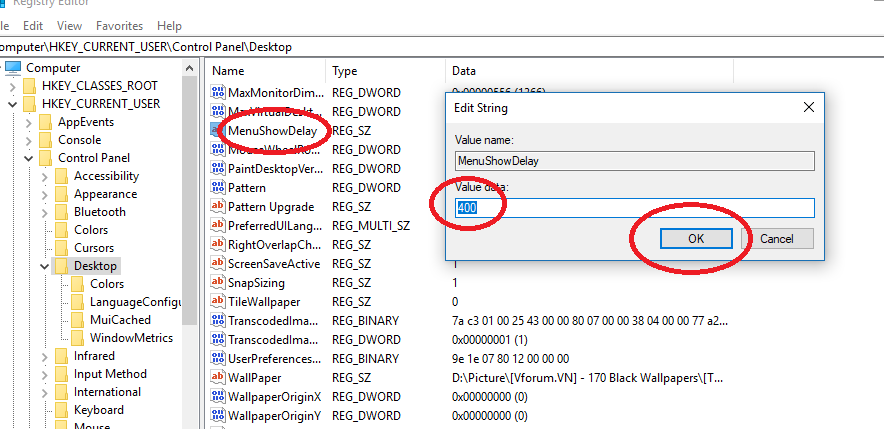
Note: If there is no line MenuShowDelaythen please create your own by right-clicking on an empty space in the right pane and selecting new then choose String Value. Enter the name MenuShowDelay then enter 400 to the line Value data then press the button OK to save.
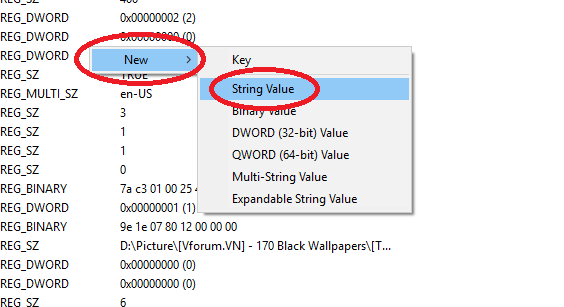
How to reduce lag 11 . Right-click menu

There is also a way to help improve speed Menu your right mouse. That is, please turn off the added programs Menu Right click is not required. Because when so many programs are added Menu would be the main cause of the Menu Right click appears late.

To turn it off, you need a 3rd party software to do this. Please use the software Ccleaner.

Download CCleaner

After installing the software Ccleaner. Please open the software. Then choose the item Toolsselect continuation Start-up. Keep looking to the right, tap the bar Context menu (If you don’t see the bar Context menuplease click the arrow to the right > )

Then select the programs and software that you want to remove Menu right click and press Turn off.
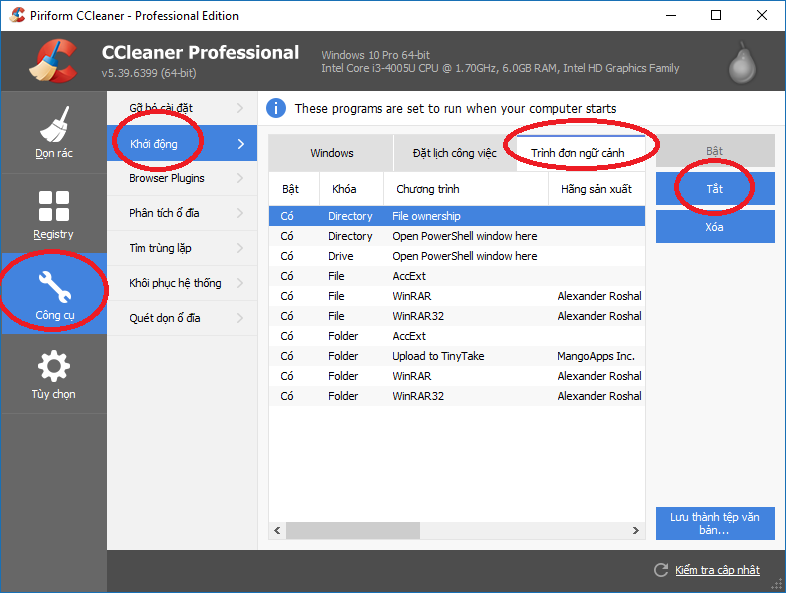
How to reduce lag 12 . Right-click menu

Recently, I showed you how to reduce latency Menu right mouse button. Very simple, right? This way promises to help Menu Your right click appears faster, smoother.

GOOD LUCK.

The article achieved: 5/5 – (100 votes)

Previous Post

Instructions to increase Facebook Likes very quickly and safely

Next Post

Instructions for using SmartArt to create charts on PowerPoint

AnonyViet

AnonyViet

Related Posts

How are Windows 11 Pro and Windows 10 Pro different?
Tips

How are Windows 11 Pro and Windows 10 Pro different?

October 23, 2026
Instructions for using CleanYourTV: Remove ads on Android TV, Google TV
Tips

Instructions for using CleanYourTV: Remove ads on Android TV, Google TV

October 23, 2026
How to use Messenger without a Facebook account
Tips

How to use Messenger without a Facebook account

October 22, 2026
The website helps you draw beautifully like TikToker Viet My
Tips

The website helps you draw beautifully like TikToker Viet My

October 21, 2026
Instructions on how to hard reset iPhone 18 Pro / iPhone 18 Pro Max
Tips

Instructions on how to hard reset iPhone 18 Pro / iPhone 18 Pro Max

October 21, 2026
Anyone can do how to increase Internet speed using CMD
Tips

Anyone can do how to increase Internet speed using CMD

October 20, 2026
Next Post
Instructions for using SmartArt to create charts on PowerPoint

Instructions for using SmartArt to create charts on PowerPoint

0 0 votes
Article Rating
Subscribe
Login
Notify of
guest

guest

0 Comments
Oldest
Newest Most Voted

Recent News

How are Windows 11 Pro and Windows 10 Pro different?

How are Windows 11 Pro and Windows 10 Pro different?

October 23, 2026
Instructions for using CleanYourTV: Remove ads on Android TV, Google TV

Instructions for using CleanYourTV: Remove ads on Android TV, Google TV

October 23, 2026
Receive copyright for 3 Halloween software worth 0

Receive copyright for 3 Halloween software worth $150

October 23, 2026
How to use Messenger without a Facebook account

How to use Messenger without a Facebook account

October 22, 2026
How are Windows 11 Pro and Windows 10 Pro different?

How are Windows 11 Pro and Windows 10 Pro different?

October 23, 2026
Instructions for using CleanYourTV: Remove ads on Android TV, Google TV

Instructions for using CleanYourTV: Remove ads on Android TV, Google TV

October 23, 2026
Receive copyright for 3 Halloween software worth 0

Receive copyright for 3 Halloween software worth $150

October 23, 2026
AnonyViet - English Version

AnonyViet

AnonyViet is a website share knowledge that you have never learned in school!

We are ready to welcome your comments, as well as your articles sent to AnonyViet.

Follow Us

Contact:

Email: anonyviet.com[@]gmail.com

Main Website: https://anonyviet.com

Recent News

How are Windows 11 Pro and Windows 10 Pro different?

How are Windows 11 Pro and Windows 10 Pro different?

October 23, 2026
Instructions for using CleanYourTV: Remove ads on Android TV, Google TV

Instructions for using CleanYourTV: Remove ads on Android TV, Google TV

October 23, 2026
  • Home
  • Home 2
  • Home 3
  • Home 4
  • Home 5
  • Home 6
  • Next Dest Page
  • Sample Page

say88 tỷ lệ kèo nhà cái kèo nhà cái 5 febet

No Result
View All Result
  • Home
  • News
  • Software
  • Knowledge
  • MMO
  • Tips
  • Security
  • Network
  • Office

say88 tỷ lệ kèo nhà cái kèo nhà cái 5 febet

wpDiscuz
0
0
Would love your thoughts, please comment.x
()
x
| Reply