• Home
  • News
  • Software
  • Knowledge
  • MMO
  • Tips
  • Security
  • Network
  • Office
AnonyViet - English Version
  • Home
  • News
  • Software
  • Knowledge
  • MMO
  • Tips
  • Security
  • Network
  • Office
No Result
View All Result
  • Home
  • News
  • Software
  • Knowledge
  • MMO
  • Tips
  • Security
  • Network
  • Office
No Result
View All Result
AnonyViet - English Version
No Result
View All Result

8 CMD commands to help you manage your network on Windows

AnonyViet by AnonyViet
January 1, 2023
in Network
0

Ping

“Ping” is one of the most basic yet useful network commands to use in CMD. It tells you if your computer can send packets to an IP address or domain name, and if so, how long it will take the data to get there and back.

This command works by sending multiple packets of data and seeing how many come back. Lost package leads to poor network performance and this is a convenient way to check.

By default it will send 4 packets, each packet waits 4 seconds before timeout. You can increase the number of packages like this:

ping anonyviet.com -n 10
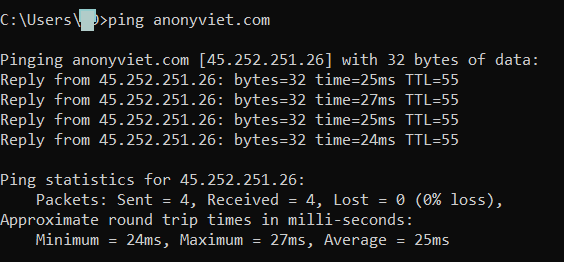
ping

And you can increase the timeout like this (value in milliseconds):

ping anonyviet.com -w 6000

2. Tracert

“Tracert” stands for Trace Route. And like “ping”, it sends a packet of data to track the route the packet will take through which intermediate IPs to reach the destination IP.

The Tracert command gives a line-by-line summary of each hop, including the delay between the computer and the hop and the IP address of that hop (plus the domain name if applicable).
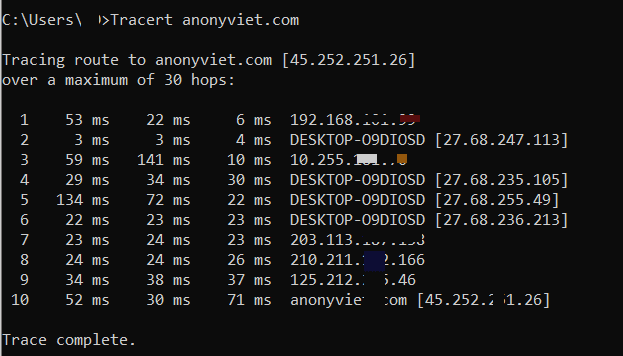
8 CMD commands to help you manage your network on Windows

3. Pathping

“Pathping” is similar to “tracert”, except it provides more information and takes longer to execute. After sending packets to the destination address, it analyzes the route taken and calculates packet loss on a per hop basis.
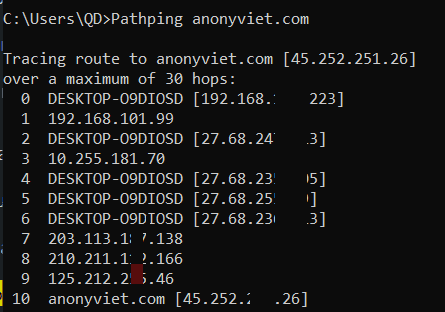
Pathping

4. IPconfig

“Ipconfig” to view your IP address and network card details. It will display including IP, Subnet, Gateway, DNS, MAC address…

Commonly used ipconfig commands:

  • ipconfig /all : displays all network card related information
  • ipconfig /release : delete current IP address
  • ipconfig /renew: get new IP from DHCP
  • ipconfig /flushdns: clear DNS cache

5. Getmac

Every device that complies with the IEEE 802 standard has a unique MAC (Media Access Control) address. Manufacturers assign MAC addresses and store them in the device’s hardware. Some people use MAC addresses to limit which devices can connect to the network.

You may see more than one MAC address depending on the number of network-related adapters on your system. For example, Wi-Fi and Ethernet connections will have separate MAC addresses. If you want to know more, check out these difference between IP and MAC address .

6. Nslookup

“Nslookup” stands for Name Server Lookup, its main use is to find out the IP address of the Domain. However, if the Domain is behind a Proxy like Cloudflare, you can only see Cloudflare’s IP.

7. Netstat

“Netstat” is a tool for network statistics, diagnostics and analysis. By default, the Netstat command shows all “active connections” on your system whether those connections are on the LAN or over the internet. An active connection doesn’t mean data is moving — it just means a port is open and ready to accept connections.

Indeed, “netstat” is useful to the average user because of its ability to display Port information, and that can be useful when you need Nat Port.

netstat -r: Displays the contents of the IP routing table. This information is equivalent to the print route command. After every second, the selected information is displayed again. Press CTRL + C to stop the rendering process again. If this parameter is omitted, netstat prints the selected information only once.

8. Netsh

“Netsh” stands for Network Shell. It’s a cmd command for networking that allows you to view and configure the Network Cards on your computer.

When typing netsh in cmd you will switch to shell mode. You can configure Route, DHCH, set IP…. Netsh-related commands include:

For example, you can run the command netsh wlan this to see all the Wifi Cards on the computer.

Rate this post

Tags: CMDcommandsmanagenetworkWindows
Previous Post

What is cold beating? What is the penalty for cold hitting behavior in football?

Next Post

Tracing Gmail account owners with Ghunt V2 (Gmail OSINT)

AnonyViet

AnonyViet

Related Posts

Save image as Type contains malicious code: Remove immediately before losing money unfairly!
Network

Save image as Type contains malicious code: Remove immediately before losing money unfairly!

March 19, 2026
Instructions on how to register a .co.uk domain name for free for 1 year
Network

Instructions on how to register a .co.uk domain name for free for 1 year

March 12, 2026
How to Setup Paperclip AI: Create a Company for AI Agent
Network

How to Setup Paperclip AI: Create a Company for AI Agent

March 12, 2026
Compilation of free and cheap APIs to run OpenClaw stably
Network

Compilation of free and cheap APIs to run OpenClaw stably

March 10, 2026
3 Services to Determine IP Location for Website (IP Geolocation API)
Network

3 Services to Determine IP Location for Website (IP Geolocation API)

March 10, 2026
How to buy a .STORE domain name for 1 USD (2026): Detailed instructions from A–Z
Network

How to buy a .STORE domain name for 1 USD (2026): Detailed instructions from A–Z

March 3, 2026
Next Post
Tracing Gmail account owners with Ghunt V2 (Gmail OSINT)

Tracing Gmail account owners with Ghunt V2 (Gmail OSINT)

0 0 votes
Article Rating
Subscribe
Login
Notify of
guest

guest

0 Comments
Oldest
Newest Most Voted
Inline Feedbacks
View all comments

Recent News

Tips to completely turn off CAPTCHA codes on iPhone and Mac are super simple

Tips to completely turn off CAPTCHA codes on iPhone and Mac are super simple

April 25, 2026
Compare Poco X8 Pro and Poco X7 Pro: A new step for the “king” of mid-range performance

Compare Poco X8 Pro and Poco X7 Pro: A new step for the “king” of mid-range performance

April 24, 2026
How to compress online videos for free without losing quality

How to compress online videos for free without losing quality

April 24, 2026
Top 5 apps to view good days 2026 for free on iOS and Android

Top 5 apps to view good days 2026 for free on iOS and Android

April 23, 2026
Tips to completely turn off CAPTCHA codes on iPhone and Mac are super simple

Tips to completely turn off CAPTCHA codes on iPhone and Mac are super simple

April 25, 2026
Compare Poco X8 Pro and Poco X7 Pro: A new step for the “king” of mid-range performance

Compare Poco X8 Pro and Poco X7 Pro: A new step for the “king” of mid-range performance

April 24, 2026
How to compress online videos for free without losing quality

How to compress online videos for free without losing quality

April 24, 2026
AnonyViet - English Version

AnonyViet

AnonyViet is a website share knowledge that you have never learned in school!

We are ready to welcome your comments, as well as your articles sent to AnonyViet.

Follow Us

Contact:

Email: anonyviet.com[@]gmail.com

Main Website: https://anonyviet.com

Recent News

Tips to completely turn off CAPTCHA codes on iPhone and Mac are super simple

Tips to completely turn off CAPTCHA codes on iPhone and Mac are super simple

April 25, 2026
Compare Poco X8 Pro and Poco X7 Pro: A new step for the “king” of mid-range performance

Compare Poco X8 Pro and Poco X7 Pro: A new step for the “king” of mid-range performance

April 24, 2026
No Result
View All Result
  • Home
  • News
  • Software
  • Knowledge
  • MMO
  • Tips
  • Security
  • Network
  • Office

wpDiscuz
0
0
Would love your thoughts, please comment.x
()
x
| Reply