Nowadays, public wifi networks are very common and found everywhere. Normally, we won't think twice before connecting because it's free, but that free thing can cost us a lot.
| Join the channel Telegram belong to AnonyViet 👉 Link 👈 |
Public Wi-Fi or hotspots have never been as secure as home or work Wi-Fi because it is free for everyone. Any experienced middle man can hack into your wifi and monitor your web browsing activities.
Hackers can also access your computer through public wifi and steal sensitive data. So, it's best to protect your running PC Windows 11 before connecting to public Wi-Fi.
The 7 best ways to protect your PC on public Wi-Fi
Therefore, in this article, we will list some ways to protect your Windows PC on public Wi-Fi. These are general tips, but they do their job quite well.
1. Always use a VPN

As we know, the role of the application VPN is to encrypt your traffic and make you anonymous. Because the VPN reroutes your traffic through its private servers spread across multiple regions, intermediaries won't be able to access or steal your valuable data.
Due to high-quality encryption, it will take cybercriminals about a month to intercept your data. VPNs act as an additional layer of security, and people must be connected to the private server's IP address before using public Wi-Fi.
2. Update your operating system
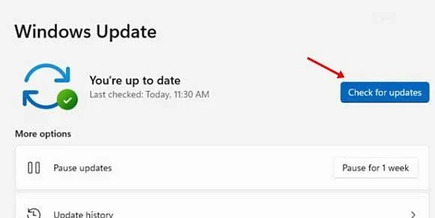
Using Windows 11, you may have noticed that most system updates include bug fixes, patches, and security improvements. Security updates are essential and should never be overlooked.
While timely operating system updates do not completely eliminate the risk of attacks, it does make things difficult for cybercriminals.
So it's best to update Windows 11. To update Windows 11, go to Settings > Windows Update > Check for Updates and download available updates.
3. Turn off Network Discovery & Sharing
When network discovery is turned on, your computer can see other computers and network devices. Similarly, your device will be visible to other network computers. Therefore, if you are using public wifi, it is best to turn off this option.
1. First, open Windows 11 search and type Control Panel. Then, open Control Panel.
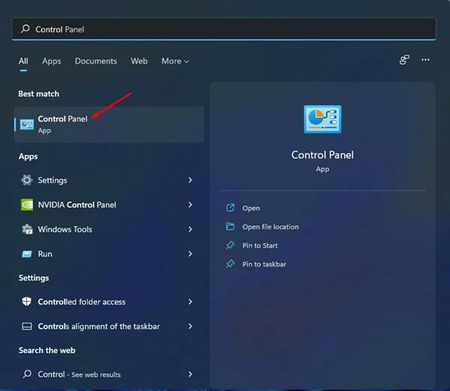
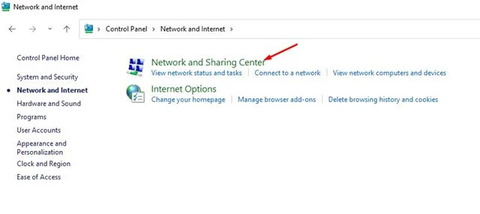
2. On Control Panel, click the Network and Internet option.
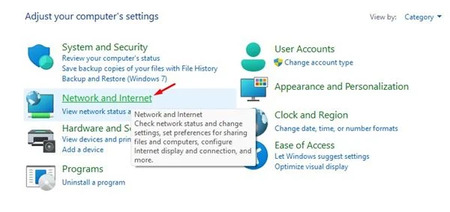
3. Click Network and Sharing center on the next page.
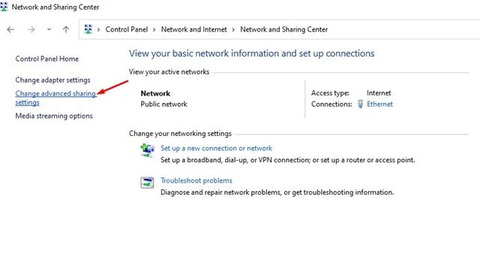
4. On the left menu, click options Change Advanced sharing settings.
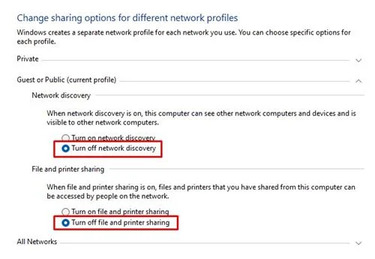
5. Now, choose Turn off network discovery.
6. In the File and printer sharing section, select Turn off file and printer sharing.
4. Turn on Firewall & Network Protection
Both Windows 10 and Windows 11 have a Firewall system. The firewall system is enabled by default, but third-party antivirus programs often turn it off.
The role of a firewall is to protect your PC from unknown threats and hackers. It detects and prevents malicious events or hackers from gaining unauthorized access to your PC.
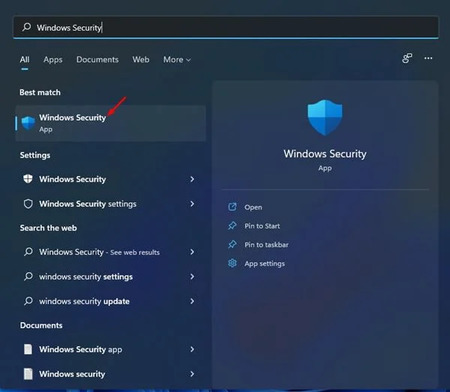
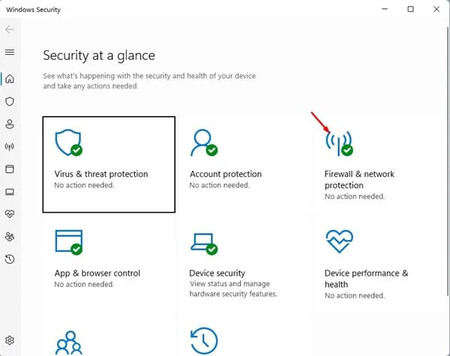
1. First of all, open the Windows Security app on your Windows 11.
2. Next, click on options Firewall & network protection.
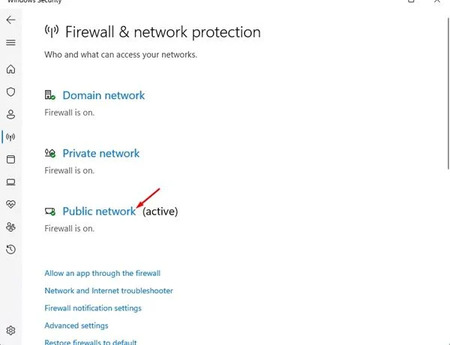
3. On the next screen, click on options Public Network.
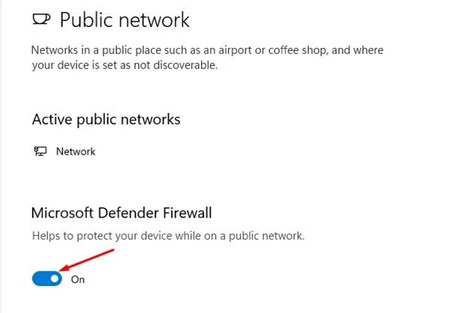
4. On the next screen, turn on Microsoft Defender Firewall.
5. Turn off wifi when you don't use it
While connected to Public WiFI, we are given an option to remember the network. This is done to enable automatic wifi connection.
If you have enabled automatic wifi connection, your wifi adapter will automatically connect to the public network it was previously connected to.
Hackers may try to track your keystrokes or browsing history if this event occurs by installing malicious applications. Such applications and services run silently in the background and try to connect to the internet to exchange data.
Therefore, it is best to turn off the Wi-Fi connection when not in use. It will protect your PC and will save your battery.
6. Always use HTTPS
You can easily spot a secure website by simply looking at the HTTPS mark in the address bar. If you're not using a VPN, don't open websites that aren't protected with HTTPS.
While entering sensitive details like passwords, ensure that the website has an encrypted connection. Therefore, if you are trying to access a website on a Public Network, make sure that the website's URL begins with HTTPS.
If you're using Google Chrome, you can force the web browser to always use secure connections.
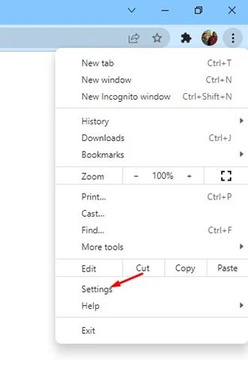
1. First, open the Google Chrome browser and click on the three dots.

2. From the list of options, select Settings.
3. On the page Settingsclick options Security & Privacy.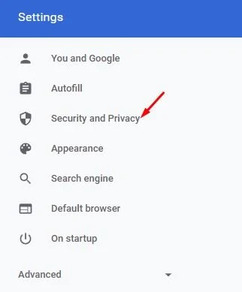
4. Then on the right, click options Security.
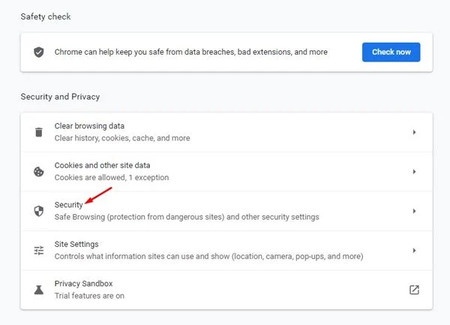
4. Find and enable the option 'Always use secure connections' in Security.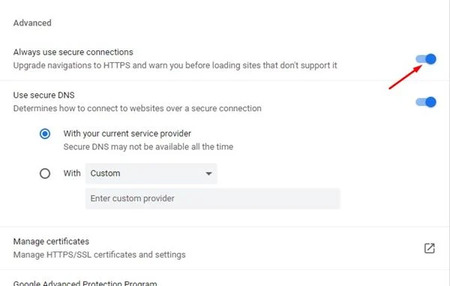
7. Update your anti-virus/Internet security program
Many antivirus programs and internet security software offer protection for your wifi. Additionally, many security programs today come with a built-in VPN.
Therefore, you should update your security program, especially before connecting to public Wi-Fi.
Here are some ways to protect your computer when using public wifi. I hope this article will help you.