• Home
  • News
  • Software
  • Knowledge
  • MMO
  • Tips
  • Security
  • Network
  • Office
AnonyViet - English Version
  • Home
  • News
  • Software
  • Knowledge
  • MMO
  • Tips
  • Security
  • Network
  • Office
No Result
View All Result
  • Home
  • News
  • Software
  • Knowledge
  • MMO
  • Tips
  • Security
  • Network
  • Office
No Result
View All Result
AnonyViet - English Version
No Result
View All Result

6 habits that can cause Windows to break

AnonyViet by AnonyViet
January 25, 2023
in Tips
0

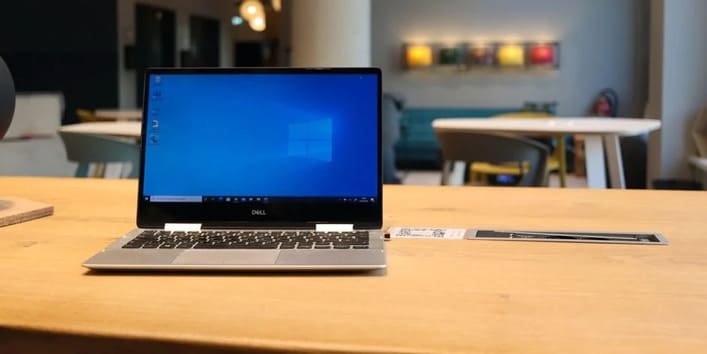
Have you ever deleted a system file, edited Windows settings, or turned off some process that caused Windows to behave abnormally? If so, you’re ruining your PC. There are many Windows settings and processes required for the operating system to function smoothly. Disabling them may cause your operating system to misbehave or even reinstall Windows.

Join the channel Telegram of the AnonyViet 👉 Link 👈

6 habits that can cause Windows to break

Here are some things you should never do in Windows to avoid trouble.

6 things you do that can cause Windows to break

1. Modify Registry Editor
6 habits that can cause Windows to break 4

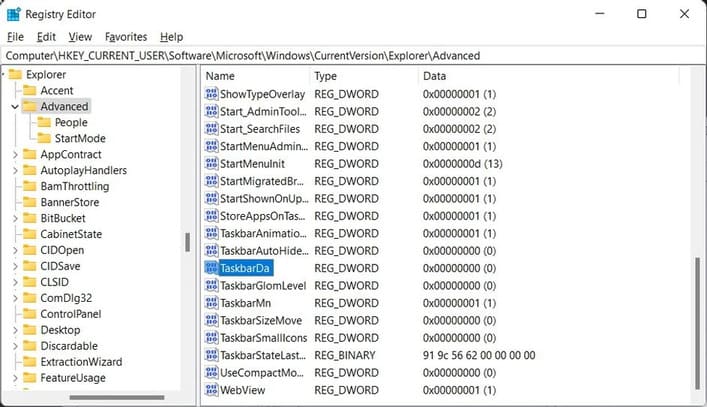
Sometimes, we need to modify the Windows Registry keys to disable a few specific settings, make the software run more smoothly, or fix problems. When all the traditional ways do not solve the problem, tweaking the Registry Editor will usually fix the problem.

While it can help with serious problems, it’s one of those places you should avoid at all costs unless absolutely necessary.

A Registry edit can slow down your computer’s performance, leak security, corrupt drivers, restrict access to frequently used features, or even reinstall the operating system.

Microsoft issues a dire warning to users about modifying the Registry Editor, so you can see how serious it is. Whenever you have a fix for a problem other than changing the Registry, use it and stay as far away from the Registry as possible.

2. Turn off Windows automatic updates
6 habits that can cause Windows to break 5

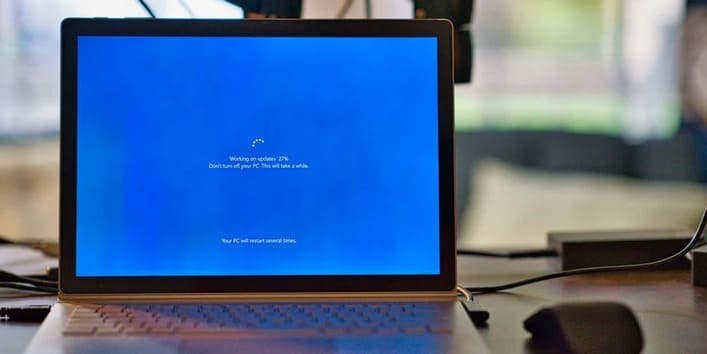
Windows updates are essential to use new features introduced by Microsoft, speed up operating system performance by eliminating system errors, and make the operating system more secure. so that no dangerous malware can get into your system.

Disabling Windows auto-update will lead to other problems. You will start to notice stability issues, performance drops, antivirus regularly notifying about malware attacks, etc.

Therefore, when you get tired of Windows updates and think about turning them off completely, then you should rethink your decision. Even if you don’t want Windows to update automatically, you can temporarily disable it. Then update the OS after a week or two and pause. You need to make sure not to turn it off for months.

3. Disable Microsoft Defender Firewall

Microsoft Defender Firewall makes it easy for the system to block unauthorized access through Windows. The malware detection program is blocked before it enters your computer and immediately blocks infected files or warns you in advance.

Microsoft Defender Firewall is always on and acts as a continuous layer of protection against any attack to keep your computer and data safe. If you turn it off, you will open the main portal and let the virus in.

This puts your data at risk and affects your security and privacy. Therefore, turn on the firewall at all costs. Even if you want to disable the firewall for some reason, make sure you have an alternative to take over its responsibility.

4. Run commands from untrusted sources in Command Prompt
6 habits that can cause Windows to break 6

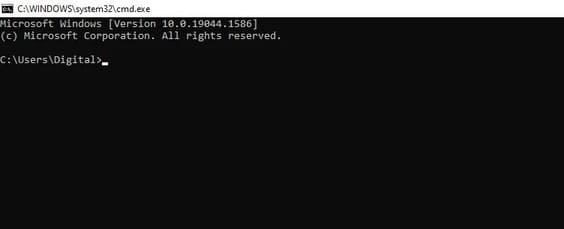
The Windows command line interpreter, Command Prompt, allows Windows proficient users to perform specific tasks with the help of commands. You can run different scans in the Command Prompt app, compare files, adjust power settings to optimize your device’s power consumption, and more.

In most cases, to execute commands, you must give the Command Prompt application administrator rights. As a result, the processes you run in the application will have access to all Windows files. So running commands from untrusted sources without knowing what they do can definitely get you in trouble.


The article achieved: 5/5 – (100 votes)

Tags: breakhabitsWindows
Previous Post

Lesson 148: How to remove spaces in Excel

Next Post

Simple DoS DHCP Server Attack Using Python

AnonyViet

AnonyViet

Related Posts

Instructions for Logo Design in just a few clicks with Logaster
Tips

Instructions for Logo Design in just a few clicks with Logaster

July 20, 2026
3 coolest ways to turn off your computer
Tips

3 coolest ways to turn off your computer

July 19, 2026
Instructions for checking Windows copyright using Powershell to avoid penalties
Tips

Instructions for checking Windows copyright using Powershell to avoid penalties

July 19, 2026
Who leaked Windows 11?
Tips

Who leaked Windows 11?

July 18, 2026
Instructions for Getting Netflix 30 Days Free to Watch Movies
Tips

Instructions for Getting Netflix 30 Days Free to Watch Movies

July 18, 2026
How to create a website introducing yourself using Bio Link for free
Tips

How to create a website introducing yourself using Bio Link for free

July 17, 2026
Next Post
Simple DoS DHCP Server Attack Using Python

Simple DoS DHCP Server Attack Using Python

0 0 votes
Article Rating
Subscribe
Login
Notify of
guest

guest

0 Comments
Oldest
Newest Most Voted

Recent News

Instructions for Logo Design in just a few clicks with Logaster

Instructions for Logo Design in just a few clicks with Logaster

July 20, 2026
Clean Tam – Accompanying the green space of every Vietnamese family

Clean Tam – Accompanying the green space of every Vietnamese family

July 20, 2026
3 coolest ways to turn off your computer

3 coolest ways to turn off your computer

July 19, 2026
Instructions on how to get Norton 360 Deluxe for 1 year for free

Instructions on how to get Norton 360 Deluxe for 1 year for free

July 19, 2026
Instructions for Logo Design in just a few clicks with Logaster

Instructions for Logo Design in just a few clicks with Logaster

July 20, 2026
Clean Tam – Accompanying the green space of every Vietnamese family

Clean Tam – Accompanying the green space of every Vietnamese family

July 20, 2026
3 coolest ways to turn off your computer

3 coolest ways to turn off your computer

July 19, 2026
AnonyViet - English Version

AnonyViet

AnonyViet is a website share knowledge that you have never learned in school!

We are ready to welcome your comments, as well as your articles sent to AnonyViet.

Follow Us

Contact:

Email: anonyviet.com[@]gmail.com

Main Website: https://anonyviet.com

Recent News

Instructions for Logo Design in just a few clicks with Logaster

Instructions for Logo Design in just a few clicks with Logaster

July 20, 2026
Clean Tam – Accompanying the green space of every Vietnamese family

Clean Tam – Accompanying the green space of every Vietnamese family

July 20, 2026
  • Home
  • Home 2
  • Home 3
  • Home 4
  • Home 5
  • Home 6
  • Next Dest Page
  • Sample Page

say88 tỷ lệ kèo nhà cái kèo nhà cái 5 febet

No Result
View All Result
  • Home
  • News
  • Software
  • Knowledge
  • MMO
  • Tips
  • Security
  • Network
  • Office

say88 tỷ lệ kèo nhà cái kèo nhà cái 5 febet

wpDiscuz
0
0
Would love your thoughts, please comment.x
()
x
| Reply