
• Home
  • News
  • Software
  • Knowledge
  • MMO
  • Tips
  • Security
  • Network
  • Office
AnonyViet - English Version
  • Home
  • News
  • Software
  • Knowledge
  • MMO
  • Tips
  • Security
  • Network
  • Office
No Result
View All Result
  • Home
  • News
  • Software
  • Knowledge
  • MMO
  • Tips
  • Security
  • Network
  • Office
No Result
View All Result
AnonyViet - English Version
No Result
View All Result

4 ways to fix bluetooth connectivity on Windows 11

AnonyViet by AnonyViet
August 8, 2025
in Tips
0

The error of not connecting Bluetooth on Windows 11 is a problem that many users have headaches, especially when headphones, keyboards, mice or smart devices do not work. These incidents usually appear after system updates, hardware conflicts or driver errors. Anonyviet will show you how Fix errors without bluetooth A detailed, easy -to -understand and effective way with proven methods.

Join the channel Telegram belong to Anonyviet 👉 Link 👈

4 ways to fix bluetooth connectivity on Windows 11

Bluetooth is a “powerful assistant” to connect wirelessly, but sometimes Windows 11 causes you a headache with errors such as non -connected device, Bluetooth icon disappearing, or the button to turn on/off. These problems often appear after system updates, error drivers or hardware conflicts. Here are ways to fix bluetooth connectivity, ensuring you will soon bring everything back to normal.

Method 1: Check and activate Bluetooth service

System Windows 11 Based on Bluetooth Support Service to operate all Bluetooth functions. If this service is turned off or does not automatically run, you will not be able to connect the device, not even see bluetooth in the settings. Please check now!

How to do it:

  • Press Windows + Rtype Services.mscthen click Enter.
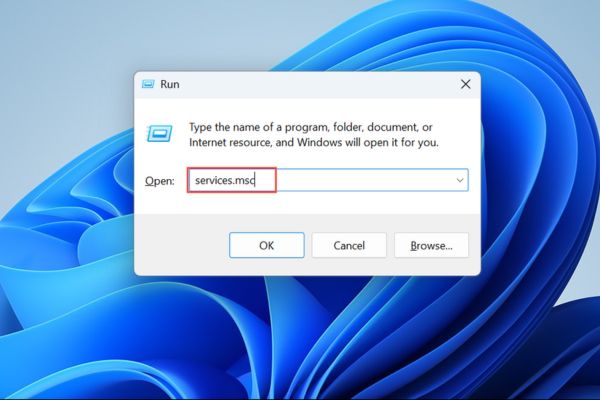
How to fix bluetooth connectivity
  • In the Services window, search Bluetooth Support Servicedouble click to open.
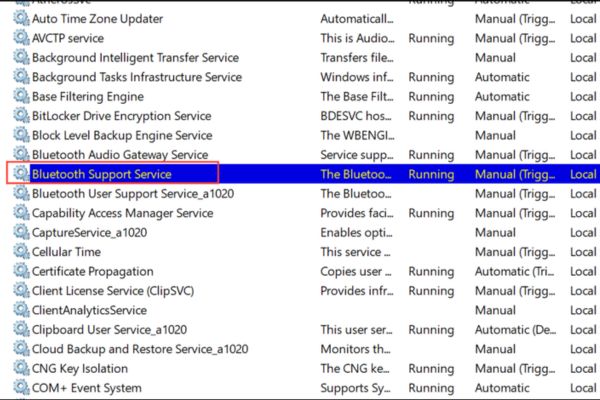
Open Bluetooth Support Service
  • Set Startup Type Thanh Automatic. If the service does not run, click Start.
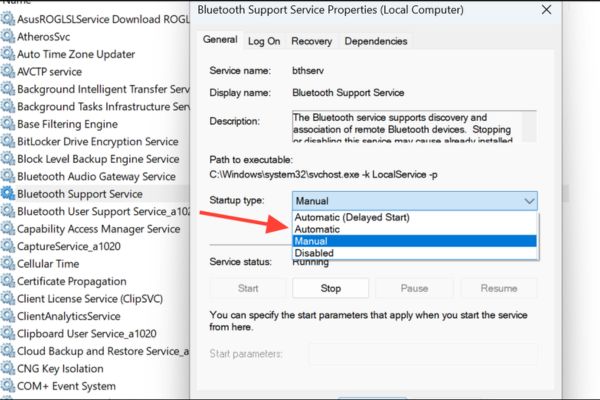
Set the startup type into Automatic
  • Do the same Bluetooth audio gateway service and Bluetooth User Support Service (Maybe your computer name).
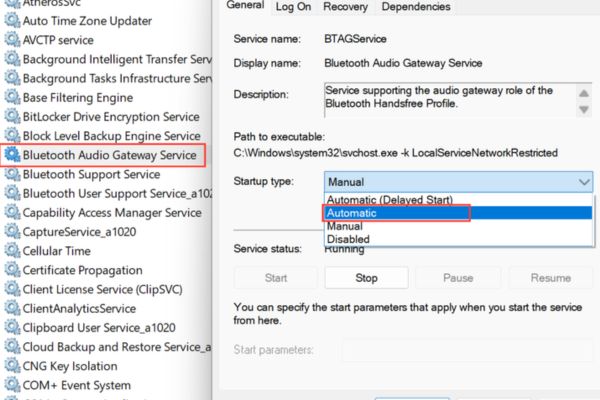
Do the same with Bluetooth Audio Gateway Service and Bluetooth User Support Service
  • Restart the device and check whether Bluetooth is active.

This method is simple but effective, especially if the error is related to the system service.

Method 2: Update or reinstall the Bluetooth Driver

The outdated, broken, or unauthorized Bluetooth Driver is a familiar “culprit” that causes Bluetooth connectivity. How to handle as follows:

How to do it:

  • Right -click the Start button, select Device Manager.
  • Open the Bluetooth section, right -click on Bluetooth adapter (Usually called Intel Wireless Bluetooth or Realtek Bluetooth), choose Update driver.
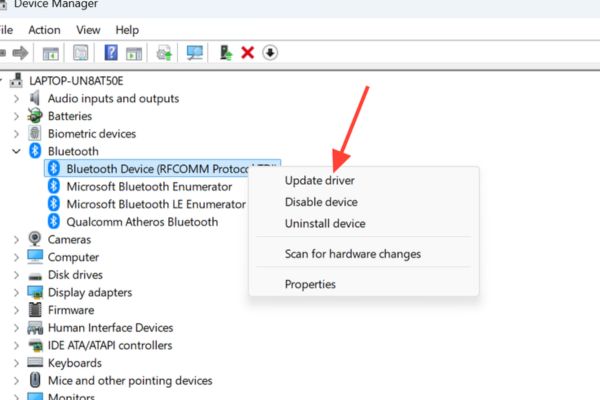
Select update driver
  • Select the item Search Automatically for Drivers. If Windows said the driver was the latest, don’t stop, try the next step.
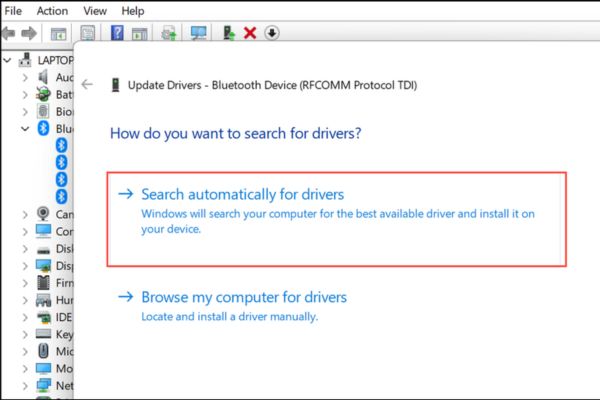
Select Search Automatically for Drivers
  • Right -click on the adapter and then choose Uninstall Device. If you have Delete the Driver Software for this device option, please accumulate, then click Uninstall.
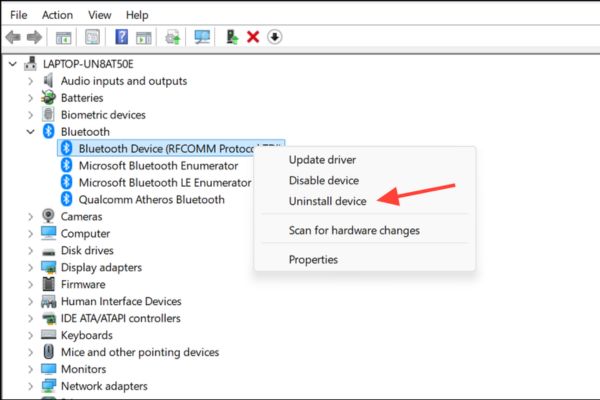
Right -click on the adapter and select Uninstall Device
  • Restart the device. Windows will try to reinstall the driver automatically. If not, go to the PC manufacturer or motherboard manufacturer to download the latest driver.

If you use Windows 11 24h2 with Intel adapter, make sure the Bluetooth driver from the version 23.60 and above to avoid compatibility errors. The driver update often solves problems such as flickering connectivity or Bluetooth button disappearing.

Method 3: Recover the lost Bluetooth button

After updating Windows, the Bluetooth button in Quick Settings or Settings sometimes “no wings and flying”. Don’t worry, you can recover it by rebooting or checking hidden equipment.

How to do it:

  • Hold down the key Shiftthen choose Shut Down From the Start menu. Keep Shift until the machine is completely turned off to delete the driver’s cache.
  • Turn on the device, enter Settings> Bluetooth & Devices Or Quick Settings to check if the Bluetooth button has appeared.
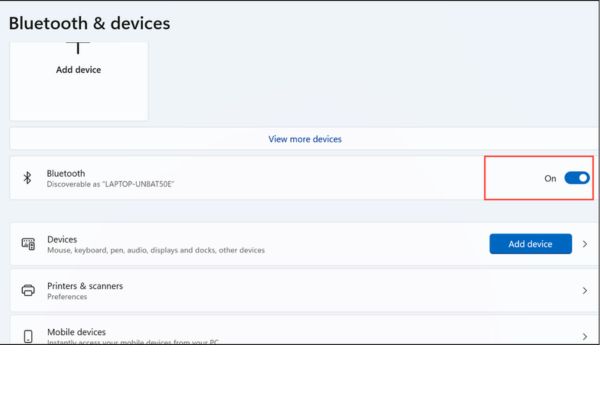
Go to Settings> Bluetooth & Devices” width=”600″ height=”400″ srcset=”https://anonyviet.com/wp-content/uploads/2025/05/sua-loi-khong-ket-noi-duoc-bluetooth-8.jpg 600w, https://anonyviet.com/wp-content/uploads/2025/05/sua-loi-khong-ket-noi-duoc-bluetooth-8-300×200.jpg 300w” sizes=”(max-width: 600px) 100vw, 600px”/><figcaption id=Go to Settings> Bluetooth & Devices
  • If still not see, open Device Managerenter View> Show Hidden Devicesfind and remove blurt bluetooth devices (gray). Then restart the device.
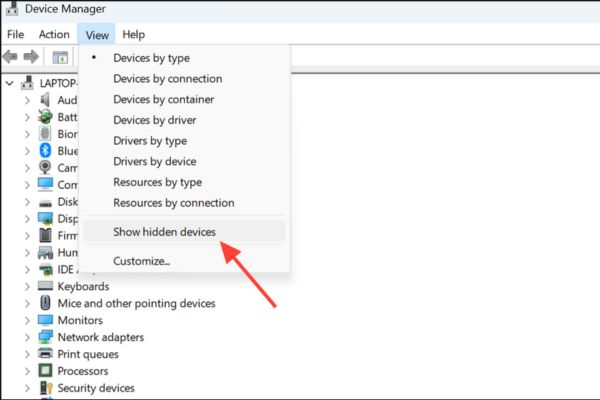
Go to view> show hidden devices” width=”600″ height=”400″ srcset=”https://anonyviet.com/wp-content/uploads/2025/05/sua-loi-khong-ket-noi-duoc-bluetooth-9.jpg 600w, https://anonyviet.com/wp-content/uploads/2025/05/sua-loi-khong-ket-noi-duoc-bluetooth-9-300×200.jpg 300w” sizes=”(max-width: 600px) 100vw, 600px”/><figcaption id=Go to view> show hidden devices

This method is useful when the Bluetooth interface is faulty after the update.

Method 4: Convert device detection mode to advanced

Windows 11 By default only find devices Bluetooth Save energy, so some devices such as speakers, printers, or smart toys may not appear. Switching to Advanced mode will help you detect them.

How to do it:

  • Enter Settings> Bluetooth & Devices> Devices.
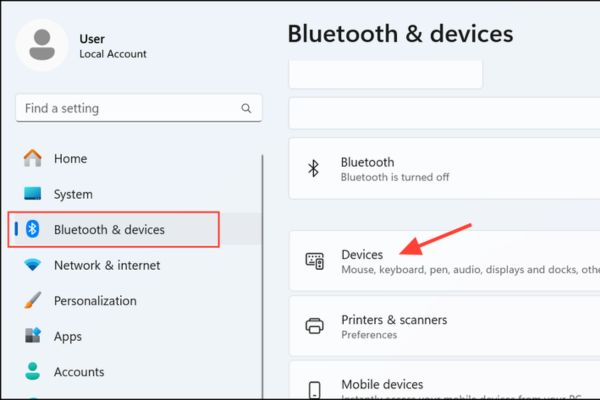
Go to Settings> Bluetooth & Devices> Devices” width=”600″ height=”400″ srcset=”https://anonyviet.com/wp-content/uploads/2025/05/sua-loi-khong-ket-noi-duoc-bluetooth-10.jpg 600w, https://anonyviet.com/wp-content/uploads/2025/05/sua-loi-khong-ket-noi-duoc-bluetooth-10-300×200.jpg 300w” sizes=”(max-width: 600px) 100vw, 600px”/><figcaption id=Go to Settings> Bluetooth & Devices> Devices
  • Pull down Device Settingsfind Bluetooth Devices Discoverychange from default to Advanced.
  • Try pairing the device again.

This method is especially effective if your device does not display in the connection list.

Conclude

Fix errors without bluetooth On Windows 11 is not too complicated if you apply the right steps. From the service inspection to update the driver, each method is aimed at a specific cause. Try step by step sequentially to quickly recover the connection and enjoy the smooth wireless experience!


Tags: BluetoothconnectivityfixwaysWindows
Previous Post

How to receive 3 months of free chatgpt plus from shopee

Next Post

Openai launched GPT-5: Smarry and free for everyone!

AnonyViet

AnonyViet

Related Posts

How to change the default font on Windows 10
Tips

How to change the default font on Windows 10

April 13, 2026
5 tips for using a Browser to replace an App (helps save RAM, time and money)
Tips

5 tips for using a Browser to replace an App (helps save RAM, time and money)

April 13, 2026
How to make funny MeMe photos without Photoshop within 10 seconds
Tips

How to make funny MeMe photos without Photoshop within 10 seconds

April 11, 2026
How to quickly design your own Logo without Photoshop
Tips

How to quickly design your own Logo without Photoshop

April 10, 2026
How to convert Website into App on Windows
Tips

How to convert Website into App on Windows

April 9, 2026
Instructions for getting 3 months of Adobe Express Pro for free
Tips

Instructions for getting 3 months of Adobe Express Pro for free

April 9, 2026
Next Post
Openai launched GPT-5: Smarry and free for everyone!

Openai launched GPT-5: Smarry and free for everyone!

0 0 votes
Article Rating
Subscribe
Login
Notify of
guest

guest

0 Comments
Oldest
Newest Most Voted
Inline Feedbacks
View all comments

Recent News

How to transfer ChatGPT data to Claude is extremely simple

How to transfer ChatGPT data to Claude is extremely simple

April 16, 2026
How to authenticate the owner’s SIM on VNeID from April 15

How to authenticate the owner’s SIM on VNeID from April 15

April 15, 2026
Speak Cells: Excel tool to read spreadsheets by voice very well

Speak Cells: Excel tool to read spreadsheets by voice very well

April 15, 2026
Review of Galaxy A57 and A37: Some are eight ounces, some are half a pound

Review of Galaxy A57 and A37: Some are eight ounces, some are half a pound

April 14, 2026
How to transfer ChatGPT data to Claude is extremely simple

How to transfer ChatGPT data to Claude is extremely simple

April 16, 2026
How to authenticate the owner’s SIM on VNeID from April 15

How to authenticate the owner’s SIM on VNeID from April 15

April 15, 2026
Speak Cells: Excel tool to read spreadsheets by voice very well

Speak Cells: Excel tool to read spreadsheets by voice very well

April 15, 2026
AnonyViet - English Version

AnonyViet

AnonyViet is a website share knowledge that you have never learned in school!

We are ready to welcome your comments, as well as your articles sent to AnonyViet.

Follow Us

Contact:

Email: anonyviet.com[@]gmail.com

Main Website: https://anonyviet.com

Recent News

How to transfer ChatGPT data to Claude is extremely simple

How to transfer ChatGPT data to Claude is extremely simple

April 16, 2026
How to authenticate the owner’s SIM on VNeID from April 15

How to authenticate the owner’s SIM on VNeID from April 15

April 15, 2026
No Result
View All Result
  • Home
  • News
  • Software
  • Knowledge
  • MMO
  • Tips
  • Security
  • Network
  • Office

wpDiscuz
0
0
Would love your thoughts, please comment.x
()
x
| Reply





