How to create Windows Security Scan shortcut on Windows 11 is a handy trick that every Windows user should know. This not only saves time but also helps you quickly scan your computer system whenever needed, ensuring maximum security for your computer.
| Join the channel Telegram belong to AnonyViet 👉 Link 👈 |
Windows Security – Antivirus “bodyguard” available on Windows 11
Windows Security is an antivirus utility available on Windows 11 that helps you protect against viruses, malware, adware, and Ransomware. In the latest update, Microsoft also added protection against security vulnerabilities.
Even though Windows Security can scan your system automatically, sometimes you still want to check manually. This is easier if you create shortcuts to quickly access the scan options.
See also: How to get Avira Antivirus Pro 2024 license for free for 3 months
3 ways to create Windows Security Scan shortcut keys on Windows 11
Method 1: Create Quick Scan shortcut on Desktop
This will help you create a shortcut on your desktop, allowing you to perform a quick scan with just one click. Here's how:
Step 1: Right-click an empty area on the desktop and select New > Shortcut
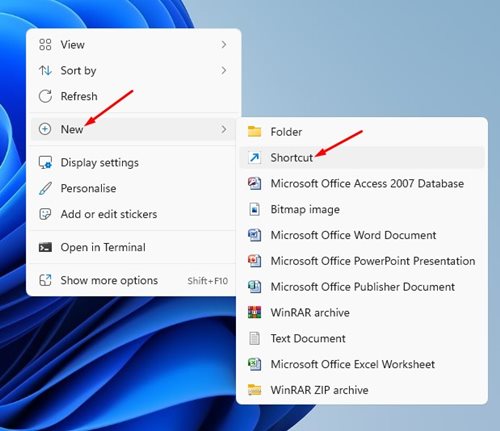 Select New > Shortcut
Step 2: In the “Type the location of the item” section, enter the following path and click the Next button.
“%ProgramFiles%\Windows Defender\MpCmdRun.exe” -Scan -ScanType 1
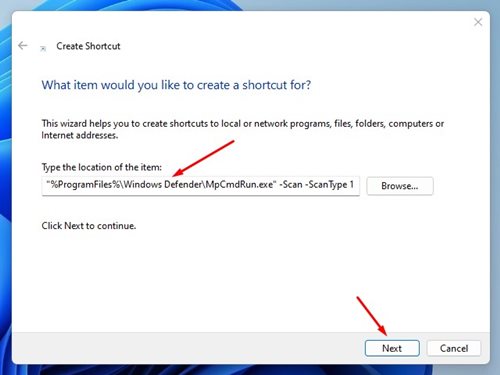
Step 3: Enter a shortcut name, such as Quick Scan or Security Scan, and then click the Finish button.

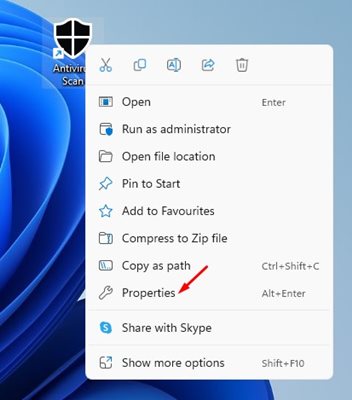
Step 4: You will see a new shortcut on your Windows 11 home screen. Double click it to start scanning.

Step 5: If you want to customize the shortcut, right-click on it and select Properties > Select Change icon
- In the Look for icons in this file section, paste the following path:
%ProgramFiles%\Windows Defender\EppManifest.dll
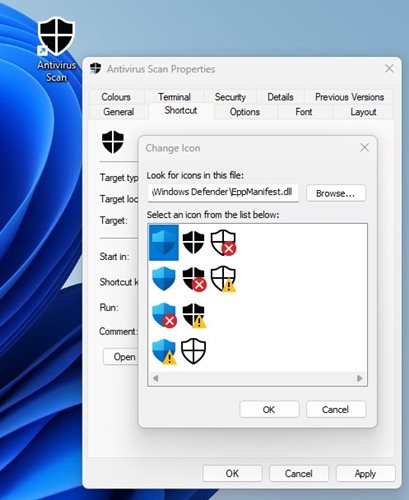
- Select the icon you like and click Apply.
Method 2: Create a Windows Security shortcut to scan options
If you want, you can also create a shortcut on the home screen to open the “Virus and Threat protection” page of Windows Security. This way, you will be able to directly select the type of scan you want such as Full Scan, Custom Scan or Quick Scan, etc.
Step 1: First, right-click on an empty space on the desktop and select New > Shortcut
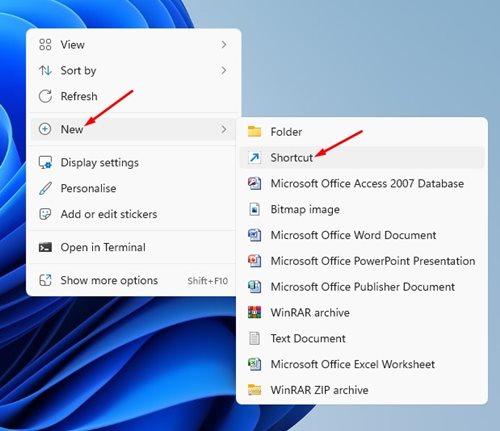 Right-click on an empty space on the desktop and select New > Shortcut
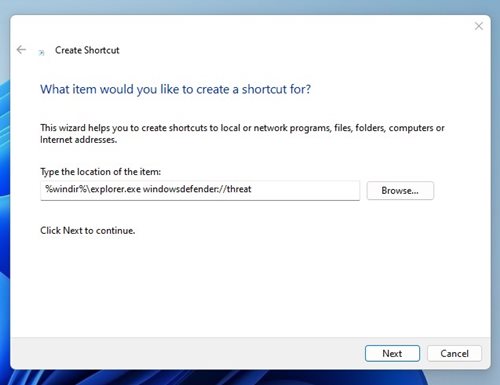
Step 2: Enter the following path and click the Next button
%windir%\explorer.exe windowsdefender://threat
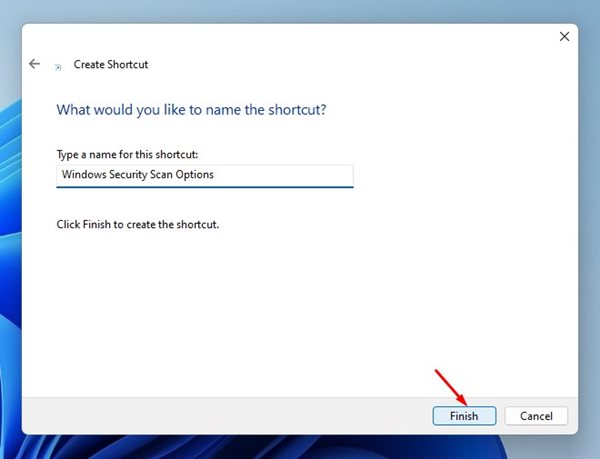
Step 3: On the “Name the shortcut” window, name the shortcut whatever you want, such as Scan Options, Security Scan, or Virus and Threat Protection.
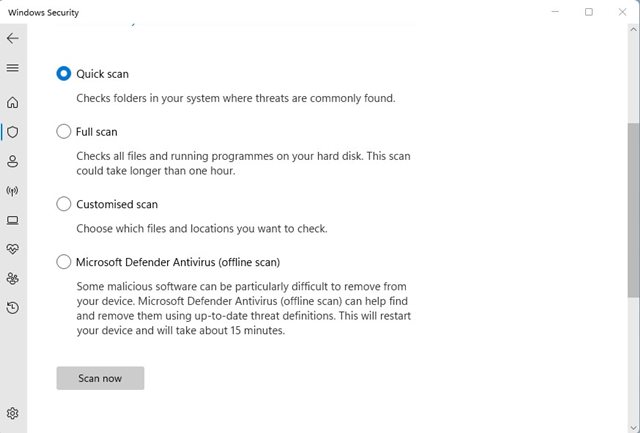
Step 4: Double click on the shortcut file you just created and select the scan option.
If you want an easier way to access the Windows Security application, you can add a shortcut to the right-click menu. Here's how:
Step 1: Access the link HERE and download the Winaero Tweaker ZIP file.
Step 2: Unzip and install WinaeroTweaker
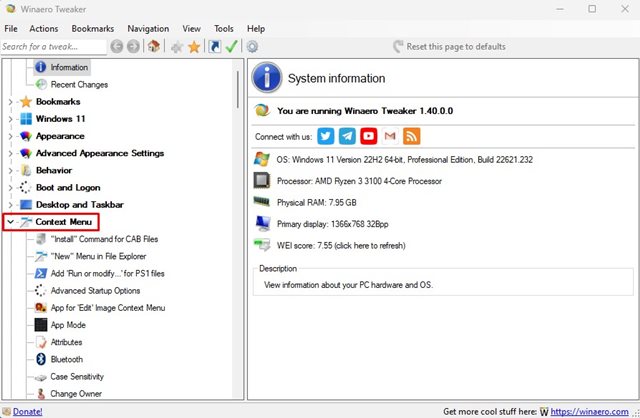
Step 3: Run Winawer Tweaker and double click on Context menu in the left sidebar.
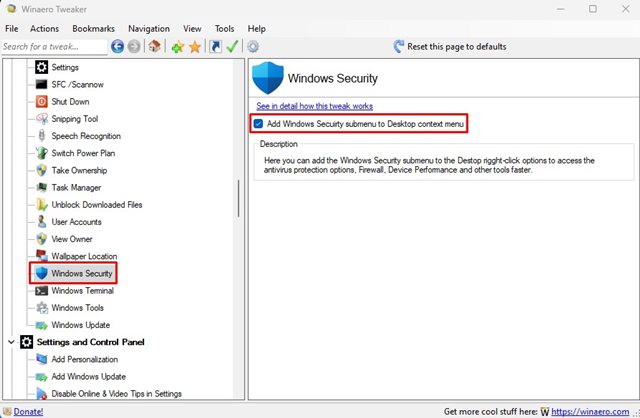
Step 4: Select Windows Security on the left. Then check the “Add Windows Security submenu to Desktop context menu” option.
That's it, to check again, just right-click on the home screen and select “Show more options > Windows Security”.
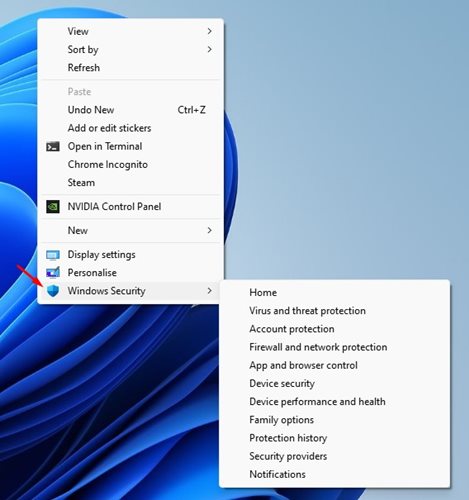 Right click and select “Show more options > Windows Security”
See also: 6 ways to protect your computer from viruses when you don't have anti-virus software
Conclusion
So, we have guided you through How to create Windows Security Scan shortcut on Windows 11. Hopefully, with these detailed and easy-to-understand instructions, you will be able to easily implement and make better use of the built-in security tools on Windows. Wish you success!