
• Home
  • News
  • Software
  • Knowledge
  • MMO
  • Tips
  • Security
  • Network
  • Office
AnonyViet - English Version
  • Home
  • News
  • Software
  • Knowledge
  • MMO
  • Tips
  • Security
  • Network
  • Office
No Result
View All Result
  • Home
  • News
  • Software
  • Knowledge
  • MMO
  • Tips
  • Security
  • Network
  • Office
No Result
View All Result
AnonyViet - English Version
No Result
View All Result

11 applications should be installed when installing Windows 11

AnonyViet by AnonyViet
January 26, 2023
in Tips
0

This year is the year of Windows 11. Since its launch, this operating system has been available on a variety of PCs and laptops. Windows 11 has not changed much with Windows 10, but after installing Windows 11, you should also install the following applications to add more features.

Join the channel Telegram of the AnonyViet 👉 Link 👈

11 Apps You Should Have After Installing Windows 11

EARTRUMPET
11 applications should be installed when installing Windows 11

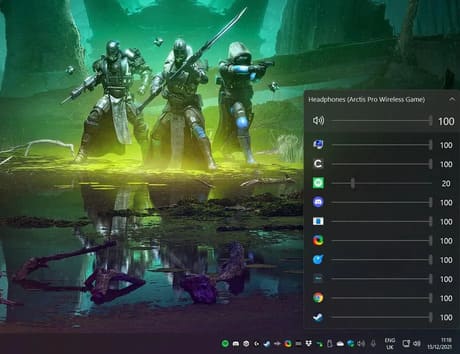
Microsoft’s built-in audio management feature in Windows 11 still doesn’t work well. The good news for you is EarTrumpet completely overhauled, giving you the ability to control the audio for any application and change the output for them. If you want YouTube to play out of your speakers but still want in-game audio to come out on your headphones, this is the app for you.

TWEETEN
11 applications should be installed when installing Windows 11 12

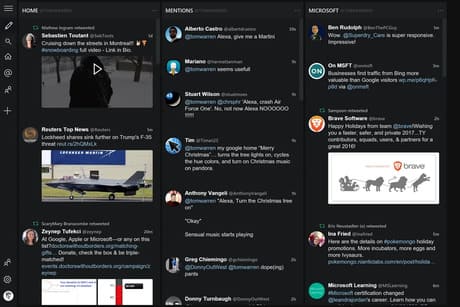
Twitter for Windows is just a web app, and TweetDeck doesn’t have an app. If you’re a fan of TweetDeck, then Tweeten will give you TweetDeck’s web interface and make it more Windows 11 friendly. There’s a bunch of customization options and even a notification interface if you want to be alerted to Twitter activity.

FEEDLAB
11 applications should be installed when installing Windows 11 13

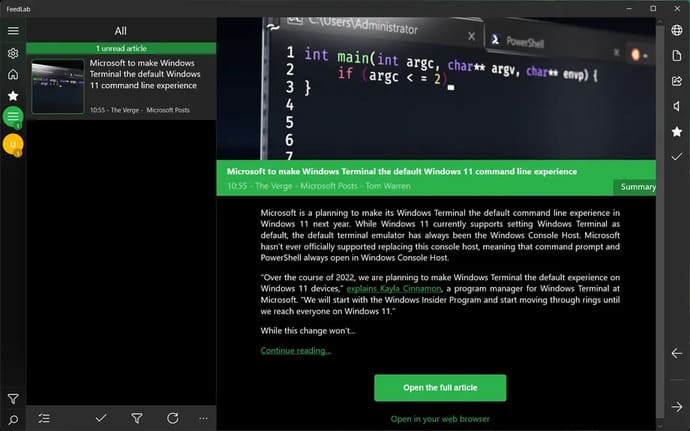
There are many RSS applications available on Windows, but FeedLab is my top choice. I’ve been using this RSS reader since Nextgen Reader suddenly stopped working on my new PC. FeedLab has many customizations and features to read daily news and is updated regularly. Although this app has ads, you only need to pay 1 coffee to remove ads and support the developer.

POWERTOYS
11 applications should be installed when installing Windows 11 14

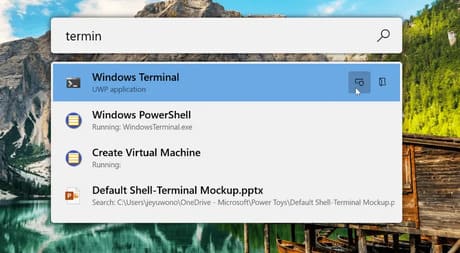
PowerToys will be essential if you want more customization of how Windows works. There are many tools available, including utilities to keep your PC from turning off the screen, a system-wide color picker, and the FancyZones window manager that allows you to quickly arrange windows by categories. different layouts.

One of the features I like is Run, which acts as a launcher just like Mac’s spotlight to let you quickly find apps and files, or search the internet.

ONENOTE
11 applications should be installed when installing Windows 11 15

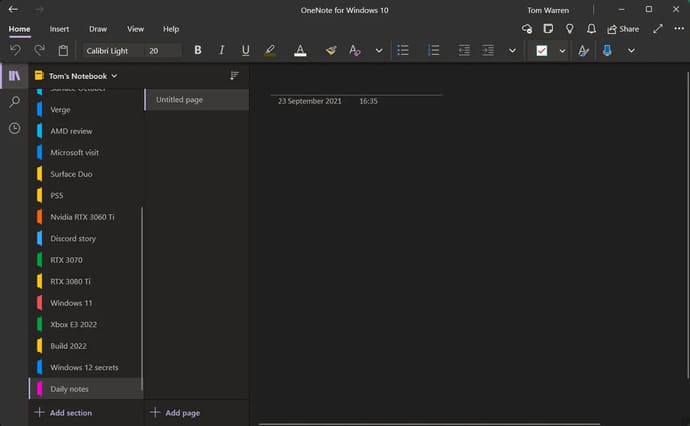
I use OneNote every day to organize my notes for work and sync them across my PC, laptop, and phone. OneNote is free and full-featured, and lets you split notes into separate notebooks, sections, and pages. It also fully supports handwriting, so if you want to take actual notes with a stylus, this is an ideal choice.

ADOBE PHOTOSHOP EXPRESS
11 applications should be installed when installing Windows 11 16

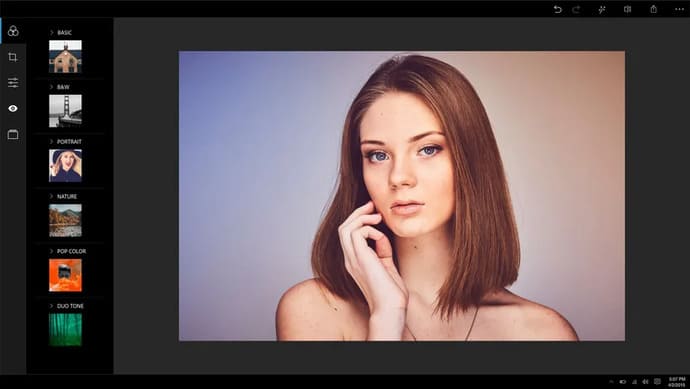
Adobe Photoshop Express is a free photo editing tool that has all the basics you need. While the Photos app in Windows 11 has been improved, Photoshop Express has easy-to-use slider adjustments and automatic fixes. It also has a bunch of photo editing features and even lets you remove smudges or dirt from your photos.

SHAREX
11 applications should be installed when installing Windows 11 17

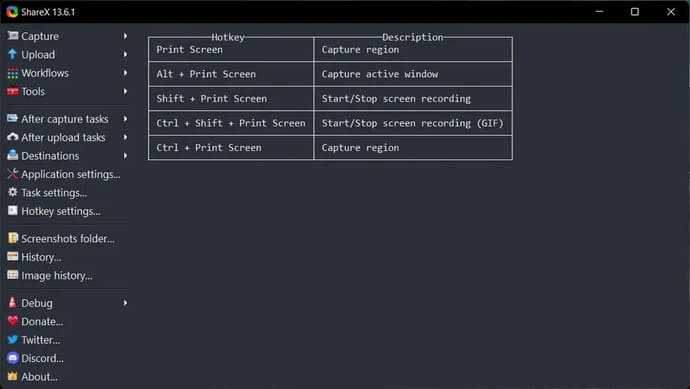
ShareX is the best screen capture tool for Windows 11. It is a small user-friendly utility that allows you to quickly crop, draw and even create GIFs or screen recordings. You can also take a screenshot and automatically upload it to Imgur or other file hosting sites with just one tap.

QUICKLOOK
11 applications should be installed when installing Windows 11 18

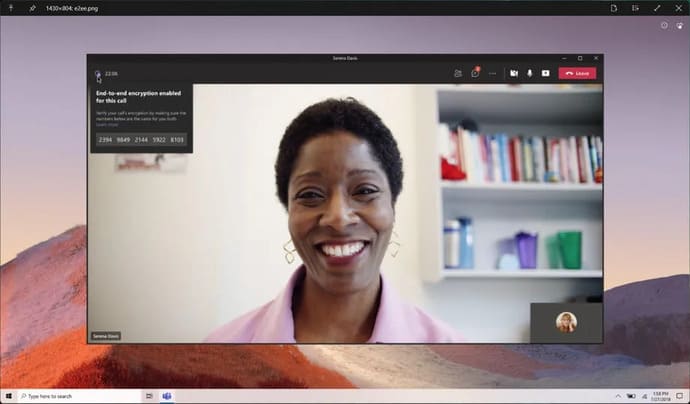
QuickLook is a great app to install if you’re moving from a Mac to a PC, but it’s also useful for professional PC users. It allows you to quickly preview files in File Explorer using the spacebar. It works much like macOS’s Quick Look feature – you can press enter to open the file in the default app or choose a different app. It works well for most file types that you want to preview, but GIFs can take a few seconds. QuickLook is much better than constantly opening files to find the file you want or looking at thumbnails.

START11
11 applications should be installed when installing Windows 11 19

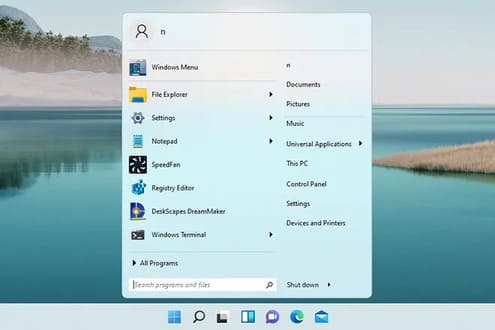
Stardock’s new Start11 application allows you to create the look and feel of the Start Menu on Windows 11. You can bring the classic look back to the Start menu, resize the taskbar and place it on multiple monitors. Windows 11 users don’t really need to resort to third-party apps just to restore basic taskbar functionality, but Start11 is sure to come in handy. If you are missing the date and time on multiple monitors, ElevenClock can also be used.

DOLBY ACCESS
11 applications should be installed when installing Windows 11

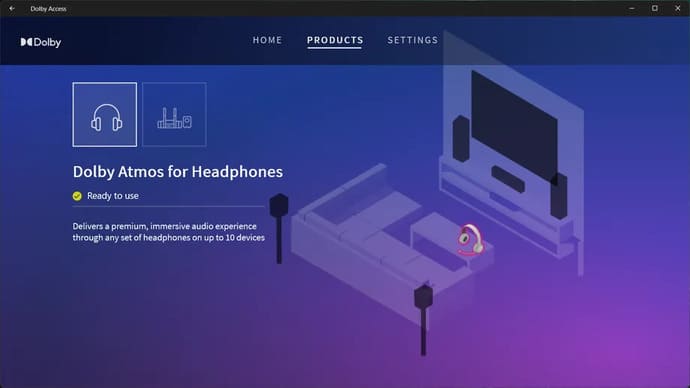
If you play a lot of games on your PC, then I recommend using Dolby Atmos for headphones. The Dolby Access app requires you to pay $14.99 for the license, but if you’re a gamer who wants to hear all the footsteps of your enemies, it’s well worth it. The license also extends to Xbox, so if you have an Xbox One or Xbox Series X/S, you’ll also get full Dolby Atmos support. It even has a 30-day trial, so you can try Dolby Atmos for headphones and see if it sounds better than Microsoft’s built-in Windows Sonic.

VLC FOR WINDOWS
11 applications should be installed when installing Windows 11

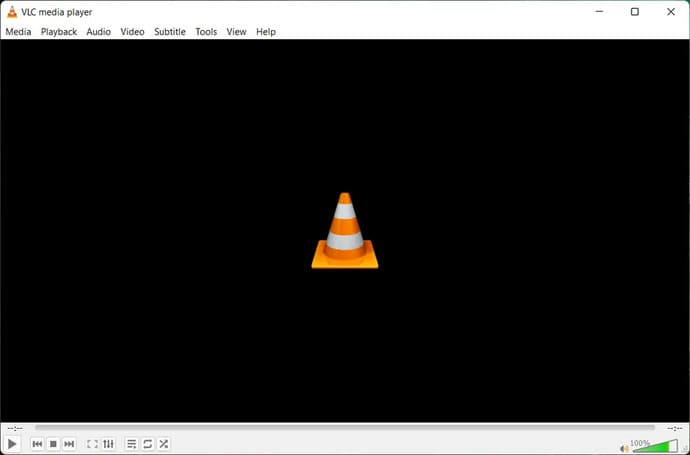
Thanks to streaming services, it’s increasingly rare to play audio or video content offline on a PC these days, but VLC does all you need when it comes to offline video playback. It’s a free app that supports a wide variety of codecs, so it can watch anything.


The article achieved: 5/5 – (100 votes)

Tags: applicationsinstalledinstallingWindows
Previous Post

Sử dụng cùng lúc Tor và VPN có hoàn toàn ẩn danh không?

Next Post

Lesson 56: How to create a search dialog box in Excel

AnonyViet

AnonyViet

Related Posts

How to use CMD environment variables in Windows
Tips

How to use CMD environment variables in Windows

January 18, 2026
How to add or remove columns in File Explorer Windows 11
Tips

How to add or remove columns in File Explorer Windows 11

January 17, 2026
Sign up for Pluralsight One for 1 year of free access to Online courses
Tips

Sign up for Pluralsight One for 1 year of free access to Online courses

January 16, 2026
How to schedule a Batch file (CMD) to run on Windows
Tips

How to schedule a Batch file (CMD) to run on Windows

January 15, 2026
Instructions for downloading Facebook Videos with new interface 2021
Tips

Instructions for downloading Facebook Videos with new interface 2021

January 14, 2026
How to get ChatGPT K-12 Teacher for free
Tips

How to get ChatGPT K-12 Teacher for free

January 13, 2026
Next Post
Lesson 56: How to create a search dialog box in Excel

Lesson 56: How to create a search dialog box in Excel

0 0 votes
Article Rating
Subscribe
Login
Notify of
guest

guest

0 Comments
Oldest
Newest Most Voted
Inline Feedbacks
View all comments

Recent News

How to use automatic verification bot to register for ChatGPT K12, Spotify Student,…

How to use automatic verification bot to register for ChatGPT K12, Spotify Student,…

January 18, 2026
Instructions on how to create head-grabbing photos – New trend causing TikTok storm

Instructions on how to create head-grabbing photos – New trend causing TikTok storm

January 18, 2026
How to use CMD environment variables in Windows

How to use CMD environment variables in Windows

January 18, 2026
Instructions for installing the application “Are you dead yet” – Demumu

Instructions for installing the application “Are you dead yet” – Demumu

January 17, 2026
How to use automatic verification bot to register for ChatGPT K12, Spotify Student,…

How to use automatic verification bot to register for ChatGPT K12, Spotify Student,…

January 18, 2026
Instructions on how to create head-grabbing photos – New trend causing TikTok storm

Instructions on how to create head-grabbing photos – New trend causing TikTok storm

January 18, 2026
How to use CMD environment variables in Windows

How to use CMD environment variables in Windows

January 18, 2026
AnonyViet - English Version

AnonyViet

AnonyViet is a website share knowledge that you have never learned in school!

We are ready to welcome your comments, as well as your articles sent to AnonyViet.

Follow Us

Contact:

Email: anonyviet.com[@]gmail.com

Main Website: https://anonyviet.com

Recent News

How to use automatic verification bot to register for ChatGPT K12, Spotify Student,…

How to use automatic verification bot to register for ChatGPT K12, Spotify Student,…

January 18, 2026
Instructions on how to create head-grabbing photos – New trend causing TikTok storm

Instructions on how to create head-grabbing photos – New trend causing TikTok storm

January 18, 2026
  • Home
  • Home 2
  • Home 3
  • Home 4
  • Home 5
  • Home 6
  • Next Dest Page
  • Sample Page

https://sun52.network

No Result
View All Result
  • Home
  • News
  • Software
  • Knowledge
  • MMO
  • Tips
  • Security
  • Network
  • Office

https://sun52.network

wpDiscuz
0
0
Would love your thoughts, please comment.x
()
x
| Reply






