• Home
  • News
  • Software
  • Knowledge
  • MMO
  • Tips
  • Security
  • Network
  • Office
AnonyViet - English Version
  • Home
  • News
  • Software
  • Knowledge
  • MMO
  • Tips
  • Security
  • Network
  • Office
No Result
View All Result
  • Home
  • News
  • Software
  • Knowledge
  • MMO
  • Tips
  • Security
  • Network
  • Office
No Result
View All Result
AnonyViet - English Version
No Result
View All Result

What does “Run as Administrator” mean in Windows 10?

AnonyViet by AnonyViet
January 30, 2023
in Tips
0

If you use Windows 10, you have certainly seen the phrase “Run as Administrator” at least once. But what does “Run as Administrator” mean? In this article, I will explain why it is important, how it works and when to use this privilege.

Join the channel Telegram of the AnonyViet 👉 Link 👈

"Run as Administrator" What does it mean in Windows 10?

Administrator has full system access rights

There are two types of accounts in Windows: Standard account (Standard user) and Administrator account (Administrator). Admin accounts can configure system settings and access normally restricted parts of the operating system. (There is also a hidden account named “Administrator”, but any account can be Administrator.)

The role of the Admin is to allow the normal account to change certain settings of the operating system.

If you own your own PC and it’s not managed by the company, you’re probably using an Administrator account. (You can check your admin status by going to Settings > Accounts > Your Info. You will see “Administrator” below your name if you are an administrator. If you have other accounts set up on Windows 10, you can go to Settings > Accounts > Family & other users to see if other accounts are administrators).

But even if you are using an Administrator account on Windows, not every application needs full Admin rights. In fact, it’s not good for security, for example your web browser shouldn’t have full access to your entire operating system. User Account Control (UAC) limits the permissions that applications have, even if you launch them from the Administrator account.

When you use “Run as Administrator”, UAC will not re-authenticate and the application will be run with full Admin rights and access to everything on your system.

So when you run an application as Administrator it means you are giving the application special permission to access restricted areas of Windows 10 system which would otherwise be restricted. . This presents potential security dangers, but is sometimes necessary for some programs to function correctly.

When should you run an application with Run as Administrator ?

If an app isn’t working as you expect, you can run it as Admin and see if that solves the problem. This can happen with utility programs that require deep access to perform diagnostics on the file system, configure storage devices, or change the settings of some devices connected to the system. your system.

What applications can run with Run as Administrator privileges?

Only applications programmed for legacy Win32 and Win64 APIs can run as Admin. Traditionally, those are apps made for Windows 7 and earlier, but many modern Windows apps can still work. Applications UWP (Universal Windows Platform) — and apps downloaded from the Microsoft Store — cannot run as Administrator (unless you are Admin).

How to run the application with Administrator rights?

If you want to run Windows 10 apps as Admin, open the Start Menu and find the app. Right-click the application icon, then select “More” from the menu. In the “More” menu, select “Run as Administrator”.
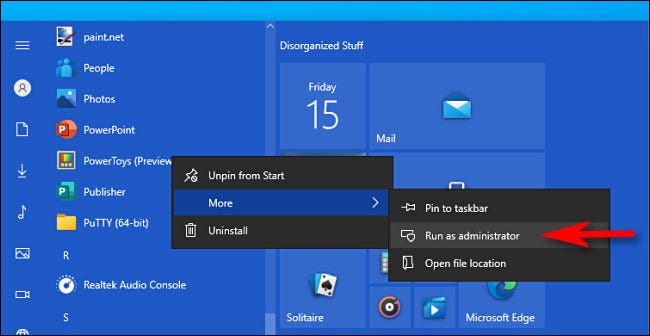
How to run application with Administrator rights?

Also, if you want to always run the application as Admin, create a Shortcut to the application on the Desktop, Taskbar or in File Explorer. Right click on the shortcut and select “Properties”. In the Properties window, click the “Compatibility” tab, then select the “Run this program as an Administrator” section.
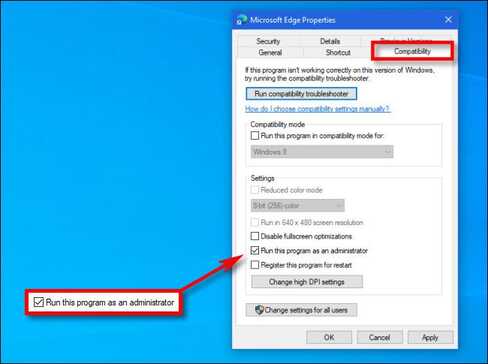
Run this program as an Administrator

Then, close the Properties window Now, every time you run an application from that Shortcut, you will always run that application with Administrator privileges.

You can also run the program as Admin from the “Run” box (open by pressing Windows + R) if you press Ctrl + Shift + Enter when executing the application.


The article achieved: 5/5 – (100 votes)

Tags: AdministratorRunWindows
Previous Post

Tool to encrypt Virus tail .vbs bypass Antivirus 2017

Next Post

Download Assassin’s Creed II for free on Uplay

AnonyViet

AnonyViet

Related Posts

How to add sliders to Facebook Stories to easily rewind videos
Tips

How to add sliders to Facebook Stories to easily rewind videos

April 21, 2026
How to change the default font on Windows 10
Tips

How to change the default font on Windows 10

April 13, 2026
5 tips for using a Browser to replace an App (helps save RAM, time and money)
Tips

5 tips for using a Browser to replace an App (helps save RAM, time and money)

April 13, 2026
How to make funny MeMe photos without Photoshop within 10 seconds
Tips

How to make funny MeMe photos without Photoshop within 10 seconds

April 11, 2026
How to quickly design your own Logo without Photoshop
Tips

How to quickly design your own Logo without Photoshop

April 10, 2026
How to convert Website into App on Windows
Tips

How to convert Website into App on Windows

April 9, 2026
Next Post
Download Assassin’s Creed II for free on Uplay

Download Assassin's Creed II for free on Uplay

0 0 votes
Article Rating
Subscribe
Login
Notify of
guest

guest

0 Comments
Oldest
Newest Most Voted
Inline Feedbacks
View all comments

Recent News

Tips for pinning the step counter to the iPhone screen to monitor your health

Tips for pinning the step counter to the iPhone screen to monitor your health

April 28, 2026
How to turn off password suggestions on iPhone: Prevent Safari from auto-filling passwords

How to turn off password suggestions on iPhone: Prevent Safari from auto-filling passwords

April 27, 2026
Instructions for looking up prescriptions on VNeID instead of paper medical books

Instructions for looking up prescriptions on VNeID instead of paper medical books

April 26, 2026
Tips to completely turn off CAPTCHA codes on iPhone and Mac are super simple

Tips to completely turn off CAPTCHA codes on iPhone and Mac are super simple

April 25, 2026
Tips for pinning the step counter to the iPhone screen to monitor your health

Tips for pinning the step counter to the iPhone screen to monitor your health

April 28, 2026
How to turn off password suggestions on iPhone: Prevent Safari from auto-filling passwords

How to turn off password suggestions on iPhone: Prevent Safari from auto-filling passwords

April 27, 2026
Instructions for looking up prescriptions on VNeID instead of paper medical books

Instructions for looking up prescriptions on VNeID instead of paper medical books

April 26, 2026
AnonyViet - English Version

AnonyViet

AnonyViet is a website share knowledge that you have never learned in school!

We are ready to welcome your comments, as well as your articles sent to AnonyViet.

Follow Us

Contact:

Email: anonyviet.com[@]gmail.com

Main Website: https://anonyviet.com

Recent News

Tips for pinning the step counter to the iPhone screen to monitor your health

Tips for pinning the step counter to the iPhone screen to monitor your health

April 28, 2026
How to turn off password suggestions on iPhone: Prevent Safari from auto-filling passwords

How to turn off password suggestions on iPhone: Prevent Safari from auto-filling passwords

April 27, 2026
No Result
View All Result
  • Home
  • News
  • Software
  • Knowledge
  • MMO
  • Tips
  • Security
  • Network
  • Office

wpDiscuz
0
0
Would love your thoughts, please comment.x
()
x
| Reply