Are you looking for a solution to “turn” blurry, poor quality photos into sharper and more vivid ones? Or simply want to enlarge the image size without losing quality? Do not worry, Upscayl is the “miracle” for you! This free and extremely easy-to-use app allows you to enhance image quality with the ability to magically magnify up to 16 times.
| Join the channel Telegram belong to AnonyViet 👉 Link 👈 |
Upscayl – The “lifesaver” solution for poor quality photos
In today's digital age, images play an extremely important role in life and work. However, we cannot always own high quality, sharp photos as desired. Blurred, grainy, low resolution photos… are always the obsession of many people.
Finding high-quality original photos or using professional photo editing software can be the solution, but not everyone has the time, skills and expense. Therefore, Upscayl was born as a “lifesaver” solution, helping you solve this problem quickly, effectively and completely free of charge.

See more: Global Speed: Control video speed on any website
What's special about Upscayl?
Below are Upscayl's unique features that you should not miss:
Free and easy to use
Upscayl is a free desktop application that allows users to enhance and enlarge low-resolution images. This application stands out thanks to its ability to enhance image quality without the need for complex and professional software.

Magnify images up to 16 times
Upscayl's most outstanding feature is the ability to enlarge images up to 16 times while still maintaining the best image quality. This makes it easy to print and enlarge images to serve many different purposes without worrying about broken or blurred images.
Cross-platform support
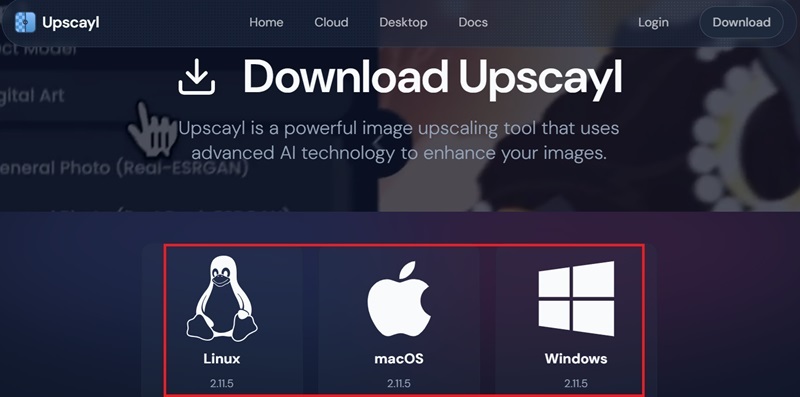
Upscayl is compatible with most popular operating systems today such as Windows, macOS and Linux. Thanks to that, you can easily use Upscayl on many different devices without any problems.
Diverse AI models for image processing
Upscayl offers many different AI models, each with its own advantages and disadvantages. This allows you to choose the model that best suits your needs to achieve the most optimal results.
Customize the saved image format
Upscayl supports storing images after processing in many different formats such as PNG, JPG, WEBP… helping you easily share and use images for many different purposes.
Instructions for use Upscayl
Step 1: Access Upscayl homepage and download the version appropriate for your operating system. The installation process is extremely simple and quick.
Step 2: Start Upscayl and select the image you want to enlarge or improve quality by dragging and dropping directly into the application interface or clicking the “Select Image” button to select from your computer.
Additionally, if you want to batch process images, you can enable the “Batch Upscayl” option and select a whole folder of images by pressing “Select Folder.”
Step 3: Upscayl offers many different processing models, helping you improve image quality according to your needs. Click “Select Model” to select a suitable model. Each model will have its own advantages, so you can experiment and choose the most optimal model for your image.
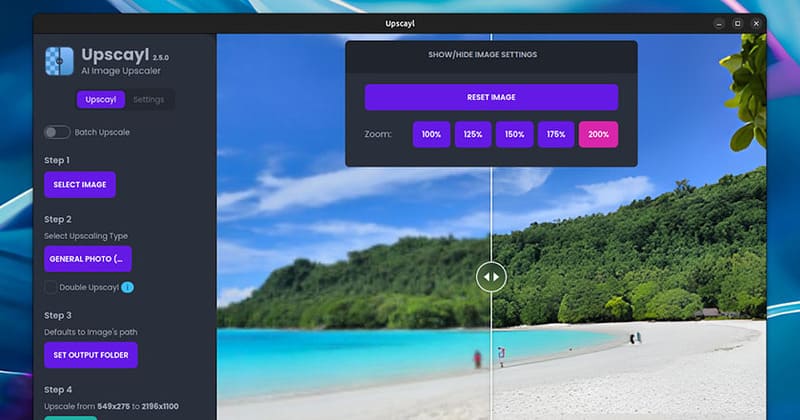
Step 4: After selecting the model, you continue to adjust the image zoom level in the “Image Scale” section. The default zoom level is 4x, but you can increase it up to 16x depending on your requirements. However, please note that too high a zoom level can slow down processing, especially for low-end computers.
Step 5: Upscayl will automatically save the image after processing at the location of the original image file. However, if you want to save somewhere else, you can click “Select Output Folder” to select the desired folder to save photos.
Step 6: Finally, click the “Upscayl” button to start the process of enlarging the image. This process will take a few minutes, depending on the size and resolution of the original image. Once completed, you can preview the improved image on the right side of the app interface.

See more: Uninstall applications thoroughly with Bulk Crap Uninstaller
Conclusion
With outstanding features and simple usage, Upscayl worthy of being a “powerful assistant” to help you “turn” blurry, poor quality photos into sharper and more vivid than ever. Don't wait any longer, download Upscayl today and experience the “miracle” for your images!