• Home
  • News
  • Software
  • Knowledge
  • MMO
  • Tips
  • Security
  • Network
  • Office
AnonyViet - English Version
  • Home
  • News
  • Software
  • Knowledge
  • MMO
  • Tips
  • Security
  • Network
  • Office
No Result
View All Result
  • Home
  • News
  • Software
  • Knowledge
  • MMO
  • Tips
  • Security
  • Network
  • Office
No Result
View All Result
AnonyViet - English Version
No Result
View All Result

Top 4 Word tips everyone should know when going to work

AnonyViet by AnonyViet
January 1, 2023
in Office
0

Needless to say, Word or Microsoft Word is one of three extremely famous tools in the world of office computing or students from Microsoft. However, some of you find it difficult to use Word and there are some tasks you have to do manually. So today I will guide you with tips when you use word!

Microsoft Word – The best editing software

Microsoft Word, also known by another name as Winword, is a popular word processing program today of the famous software company Microsoft. It allows users to work with text, effects such as fonts, colors, along with graphics and many other types of multimedia such as audio and video making text editing more convenient. . In addition, there are also tools such as spell checking, grammar of many different languages ​​to support users. Not only that, Word can also work with HTML to be able to create web pages

Top 4 Word tips everyone should know when going to work

Up to now, Word has passed 38 years of life and during this time it has also been updated and now Microsoft has just released the version of the year. 2021 on October 5 (which coincides with the release date of Windows 11) with a lot of new features and the ability to improve machine resource consumption.

With some of the tips I’m about to share below, you won’t have to waste time in your drafting work.

Some tips for using Word that you should know

Using Translate in Word

Many of you use word and sometimes you will have to write an essay or write a document that requires both Vietnamese and English. Many times you will have to use Google Translate, but if you have a computer that cannot use Google Chrome while editing or your Chrome is not turned on at that time, don’t worry, now I will guide you. Please use the Translate feature in Word!

Step 1: On the toolbar, select Review
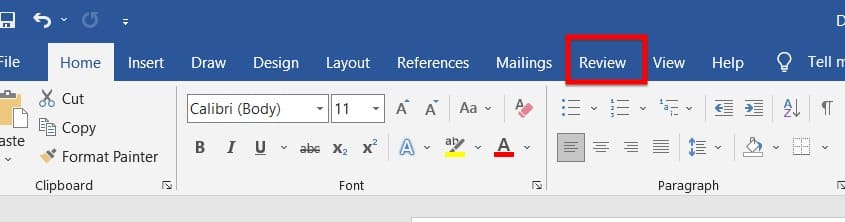
Go to the Review section on the toolbar

Step 2: In the Language section, select Transate. Here we have 2 silks to choose from:

  • Translate section: Word will automatically translate the highlighted text
  • Translate Document: Word will automatically translate your entire file
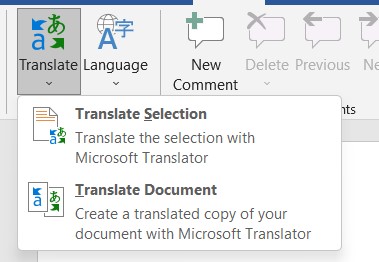
Select Translate

Step 3: Here, you choose the language you want to translate into and click Translate
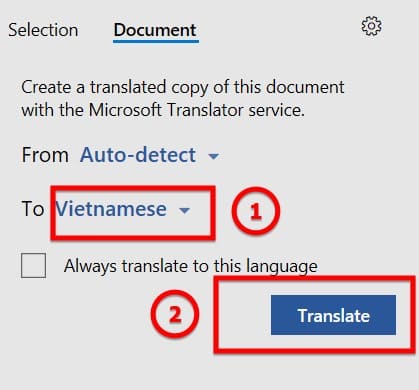
Click the Translate button

Edit PDF File in Word

Many of you must have seen or heard about PDF files, right? Indeed, the convenience of PDF files is undeniable. But what if you want to edit them? So right now I will guide you!

You may be interested in: Instructions to convert Word files into PDF files for teachers

Step 1: On the toolbar, you choose File -> select Open
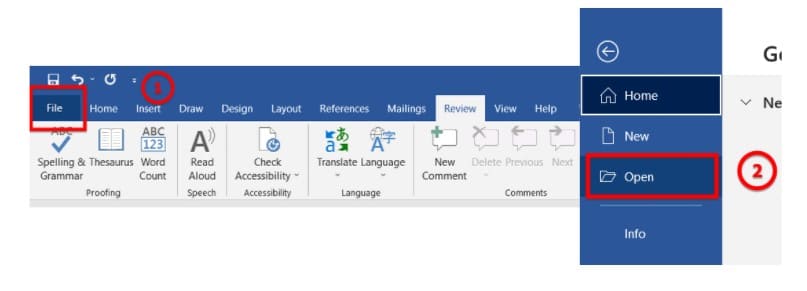
Open file/folder

Step 2: Open your PDF file and you’re done
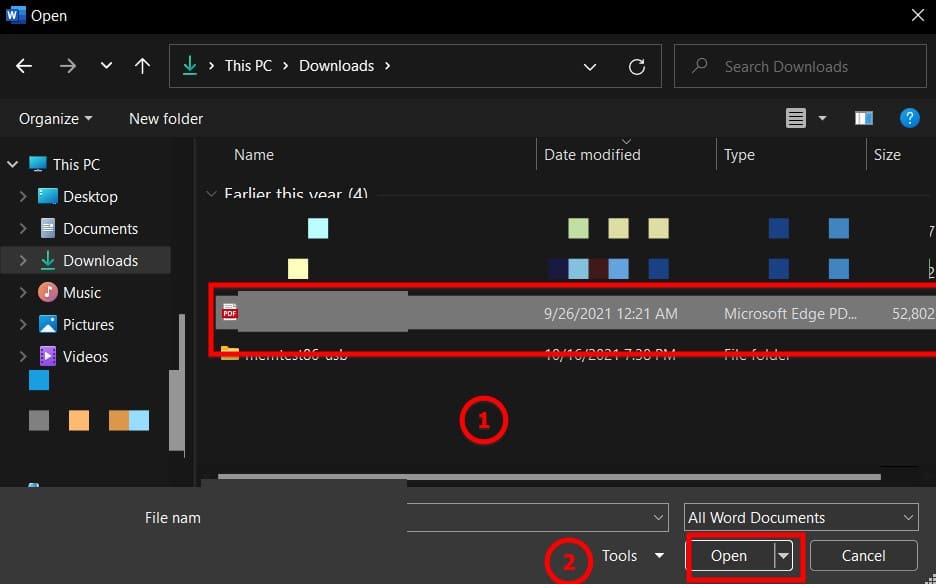
Open your PDF file

Hide / Show Text

Many of you must use Word as your electronic diary, right? So what if you have a secret but don’t want your parents to read it? Hiding text will help you do that and soon I will show you how to hide text.

Guide to Hide Text

Step 1: Highlight the text you want to hide
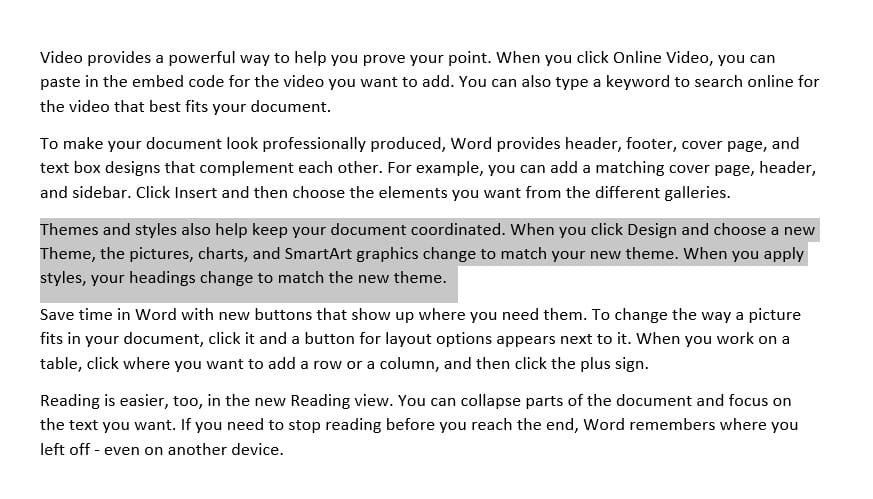
Text to hide

Step 2: In the Home Tab, In the font section, there is a small stamp in the right corner. Click and the font dialog box will appear.

Step 3: In the Font Dialog, Click the Hidden box and click ok
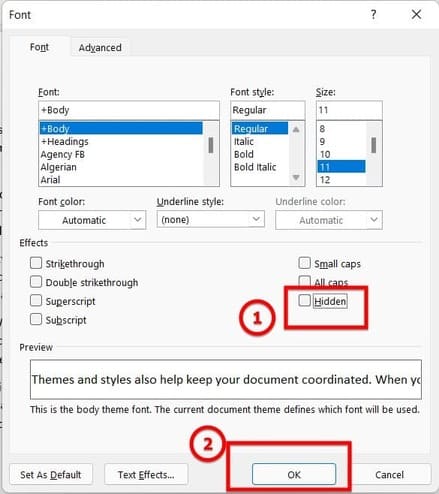
Font dialog box

Tutorial Show hidden text

Step 1: Highlight the part around the hidden text

Step 2: In the Home Tab, In the font section, there is a small stamp in the right corner. Click and the font dialog box will appear.
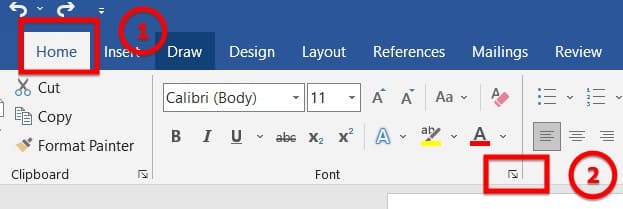
Open the Font dialog box

Step 3: In the Font Dialog, Click to uncheck the Hidden box and click ok

Font dialog box

Instructions for calculating in Word

Step 1: In the insert tab, select Table -> Excel spreadsheet
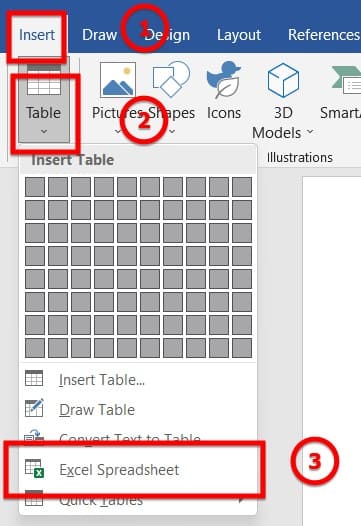
Open Excel spreadsheet

Step 2: Enter your data and functions and calculate as in Excel

Step 3: Click on the outside of the table and you’re done

The article achieved: 5/5 – (100 votes)

Tags: tipsTopwordwork
Previous Post

Word experienced an error trying to open the file error – Word experienced an error trying to open the file

Next Post

How to delete recent file opening history on Word

AnonyViet

AnonyViet

Related Posts

Instructions on how to hide formulas in Excel to secure data
Office

Instructions on how to hide formulas in Excel to secure data

February 6, 2026
Top who creates the most beautiful presentation slide today
Office

Top who creates the most beautiful presentation slide today

September 23, 2025
Automatically check and correct spelling errors on Google Docs
Office

Automatically check and correct spelling errors on Google Docs

February 23, 2025
Instructions for downloading Google Docs files easily on any device
Office

Instructions for downloading Google Docs files easily on any device

December 18, 2024
Launching AI image creation feature on Google Docs
Office

Launching AI image creation feature on Google Docs

November 20, 2024
Instructions for using Google Docs without internet
Office

Instructions for using Google Docs without internet

November 2, 2024
Next Post
How to delete recent file opening history on Word

How to delete recent file opening history on Word

0 0 votes
Article Rating
Subscribe
Login
Notify of
guest

guest

0 Comments
Oldest
Newest Most Voted
Inline Feedbacks
View all comments

Recent News

How to avoid Adblock detection on Youtube with 4 good tips

How to avoid Adblock detection on Youtube with 4 good tips

April 17, 2026
How to transfer ChatGPT data to Claude is extremely simple

How to transfer ChatGPT data to Claude is extremely simple

April 16, 2026
How to authenticate the owner’s SIM on VNeID from April 15

How to authenticate the owner’s SIM on VNeID from April 15

April 15, 2026
Speak Cells: Excel tool to read spreadsheets by voice very well

Speak Cells: Excel tool to read spreadsheets by voice very well

April 15, 2026
How to avoid Adblock detection on Youtube with 4 good tips

How to avoid Adblock detection on Youtube with 4 good tips

April 17, 2026
How to transfer ChatGPT data to Claude is extremely simple

How to transfer ChatGPT data to Claude is extremely simple

April 16, 2026
How to authenticate the owner’s SIM on VNeID from April 15

How to authenticate the owner’s SIM on VNeID from April 15

April 15, 2026
AnonyViet - English Version

AnonyViet

AnonyViet is a website share knowledge that you have never learned in school!

We are ready to welcome your comments, as well as your articles sent to AnonyViet.

Follow Us

Contact:

Email: anonyviet.com[@]gmail.com

Main Website: https://anonyviet.com

Recent News

How to avoid Adblock detection on Youtube with 4 good tips

How to avoid Adblock detection on Youtube with 4 good tips

April 17, 2026
How to transfer ChatGPT data to Claude is extremely simple

How to transfer ChatGPT data to Claude is extremely simple

April 16, 2026
No Result
View All Result
  • Home
  • News
  • Software
  • Knowledge
  • MMO
  • Tips
  • Security
  • Network
  • Office

wpDiscuz
0
0
Would love your thoughts, please comment.x
()
x
| Reply