• Home
  • News
  • Software
  • Knowledge
  • MMO
  • Tips
  • Security
  • Network
  • Office
AnonyViet - English Version
  • Home
  • News
  • Software
  • Knowledge
  • MMO
  • Tips
  • Security
  • Network
  • Office
No Result
View All Result
  • Home
  • News
  • Software
  • Knowledge
  • MMO
  • Tips
  • Security
  • Network
  • Office
No Result
View All Result
AnonyViet - English Version
No Result
View All Result

The easiest way to send multiple photos at once using Gmail

AnonyViet by AnonyViet
January 27, 2023
in Tips
0

You need to send an email but have to attach hundreds of photos, what to do, there is a method to send multiple photos at once using the simplest Gmail. Instead of clicking to attach each image, you can use a 3rd hosting service to upload him, then share this link with the recipient. This will save a lot of time compared to manually sending each image via email.

Join the channel Telegram of the AnonyViet 👉 Link 👈

With the current 4.0 technology era, it is not difficult for us to see that people tend to communicate through social networking channels or through email boxes such as Gmail, Outlook or some functional websites. similar ability. And in today’s post, I will show you 3 simple ways to send photos via Email!

Why send pictures via Email

Usually, to say send pictures, what is the first thing that comes to mind? Sending via Social Network like Facebook or Instagram? If you send that, the maximum image size you can upload is only 8 MB but for Email you can send up to 25 MB per photo and that is more than enough to be able to send 1 photo. High Quality.

So how to send multiple photos at once without wasting time?
The easiest way to send multiple photos at once using Gmail

For those of you who want to send photos over 25MB, there is also a way. That is pushing to their corporate cloud storage like Drive or Google Photo. For this method, you can send both via Email or social networking sites, but for the best optimization and highest security, I recommend you to switch to Email.

The easiest way to send multiple photos at once using Gmail

In this article, I will guide everyone to use products from google such as Gmail, Google Drive and Google Photo to send images via Email!

Instructions for sending photos under 25 MB

For images under 25 MB, you can use the usual way of sending mail by composing in gmail.

Step 1: Access to Gmail your
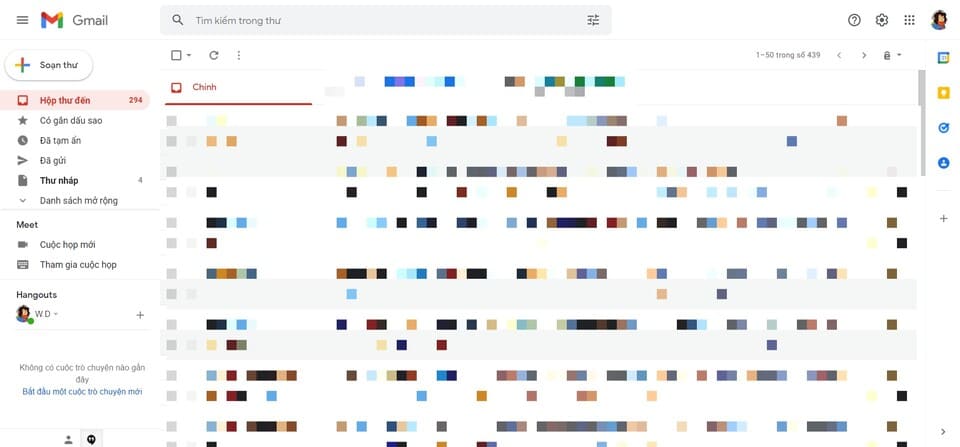
Access to Email

Step 2: Click compose message on the left side of the screen
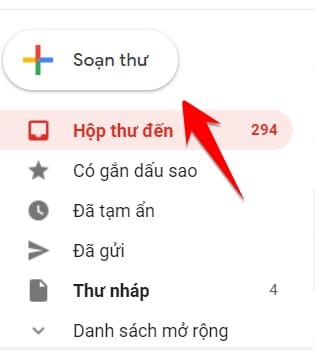
Compose

Step 3: At the compose section, Click on the pin at the bottom of the screen📎
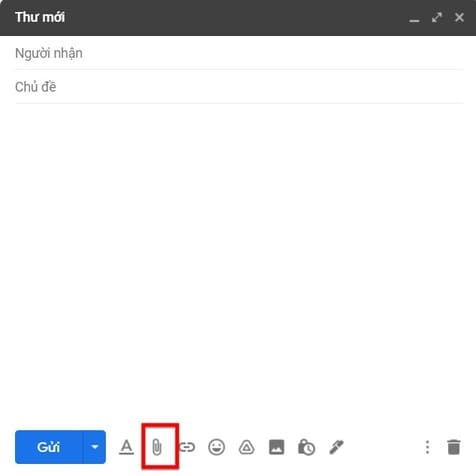
Select Attach file

Step 4: Your computer will now display a dialog box for file selection. You select the image file to send and click Open. All you have to do is send an email
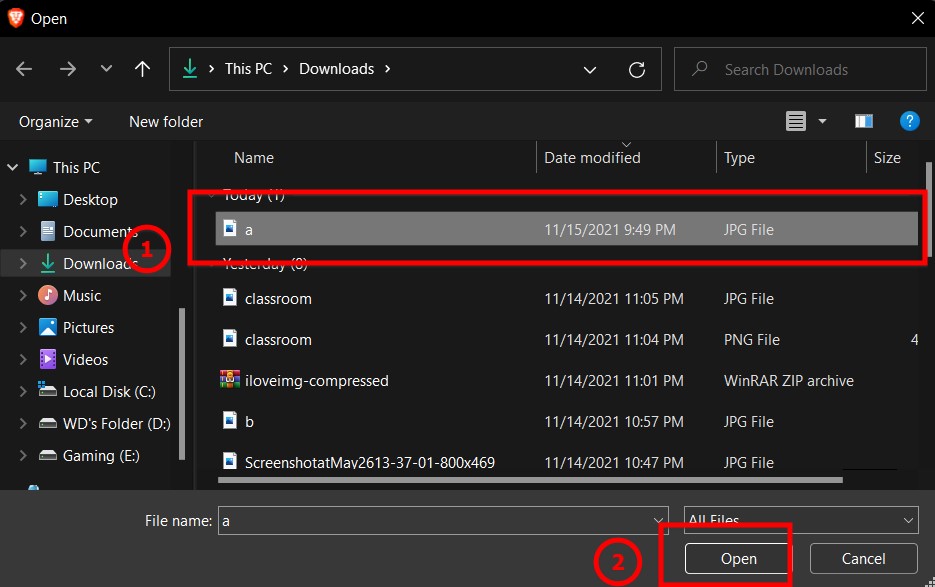
Select the photo you want to send

Instructions for sending Emails with multiple photos at the same time

For this way, I have 2 ways to be able to send photos over 25MB and each way will have 2 ways to be able to do the job of sending photos to someone else’s Email. That is using Google Drive and Google Photo

Use Google Drive to attach photos when sending Email

Step 1: Access to Google Drive yours after logged in
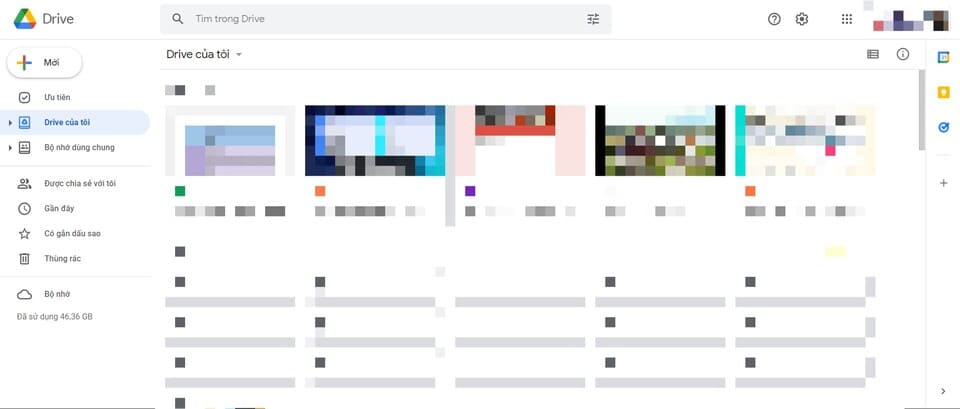
Go to your Drive

Step 2: Select new > upload file to upload photos

Tip: If you have a lot of photos, put them in another folder. Please do the following: Select new > New folder > Double click on the newly created folder > Right click > Select Upload file
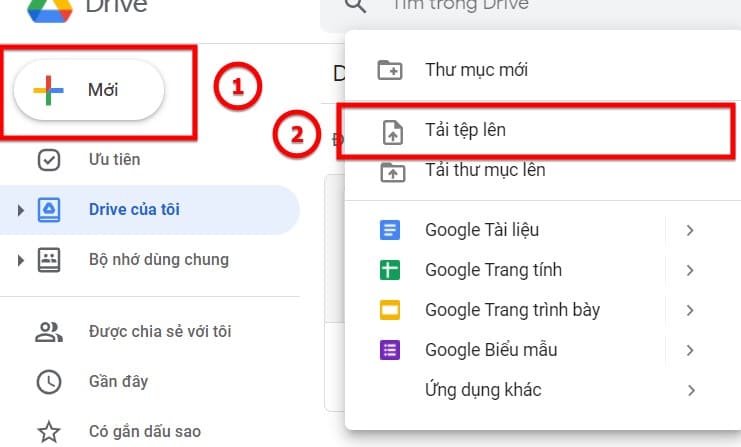
Upload your file

Step 3: Your computer will now display a dialog box for file selection. You select the image file to send and click Open.

Select the image you want to upload to the drive

Step 4: You right click on the uploaded image > select share

For those of you who have too many photos in step 2, right-click the newly created folder > select share
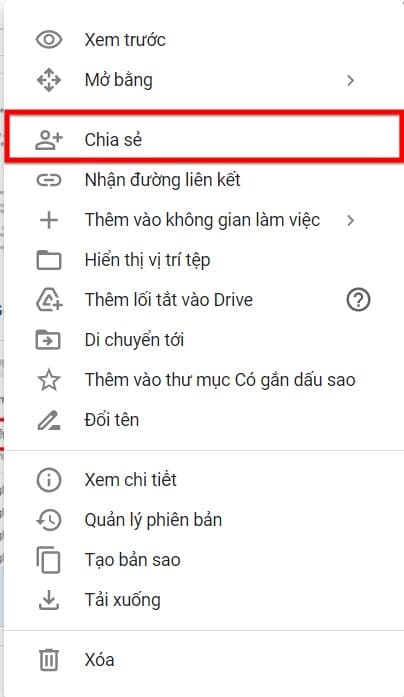
Share photo

Step 5: Here it will display the dialog box as shown below. You can share with others as follows:

Way 1: enter User Email in the textbox write “add people and groups” and press enter
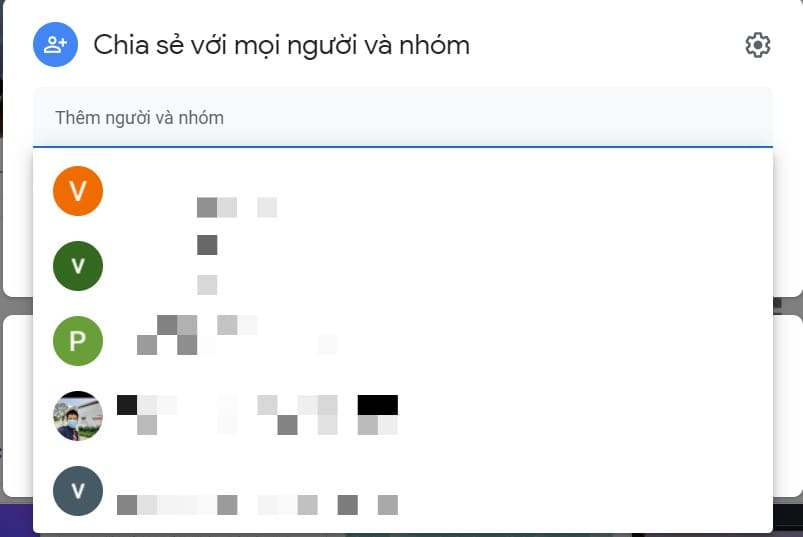
Enter the email you want to share to

Way 2: At the bottom of the link, change the “restricted” section to viewable by everyone > click “copy link” and send the copied spirit to the person you want
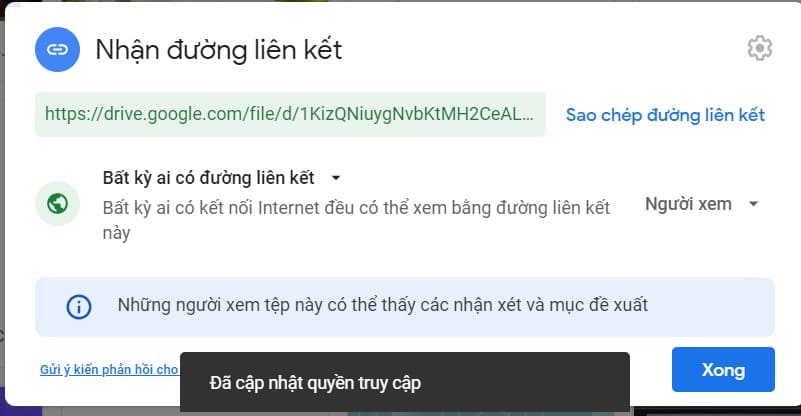
Share link

Use Google Photo to send multiple photos via Email

Step 1: You go to Google Photo here
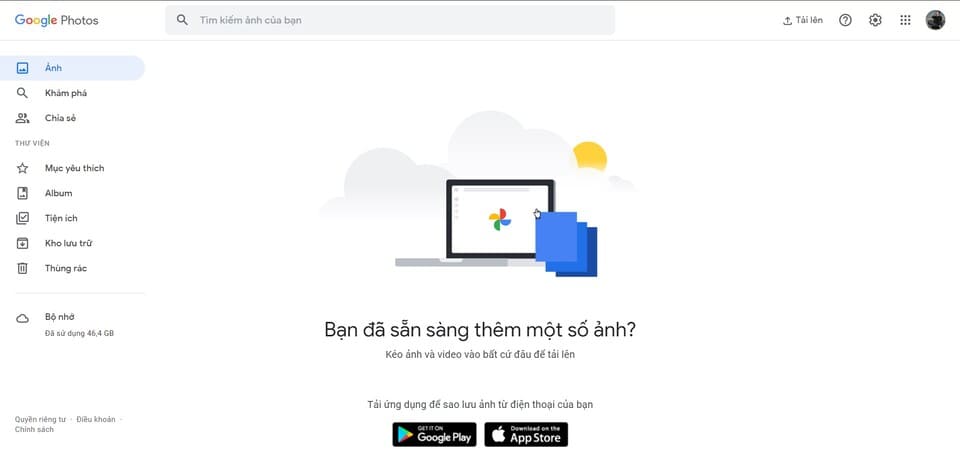
Google PhotosStep 2: Select upload > Computer to select your image file
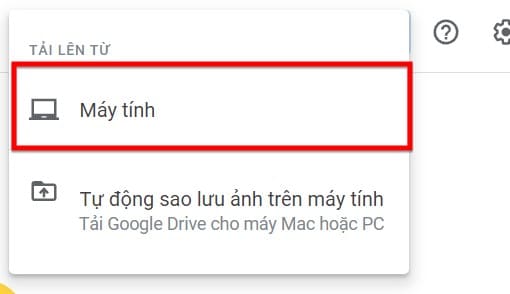
Upload from computer

Step 3: Your computer will now display a dialog box for file selection. You select the image file to send and click Open.

Select the photo you want to send

Step 4: They will ask whether to keep the image in the original quality or compress the image. Please choose the best option!

Step 5: Click on the uploaded photo

Step 6: Click on the share icon as shown below

Choose to share with others

Step 7: Share to everyone in 2 ways

Way 1: Enter the email of the person to send in the “To” field

Way 2: Copy the image link address and send them by mail
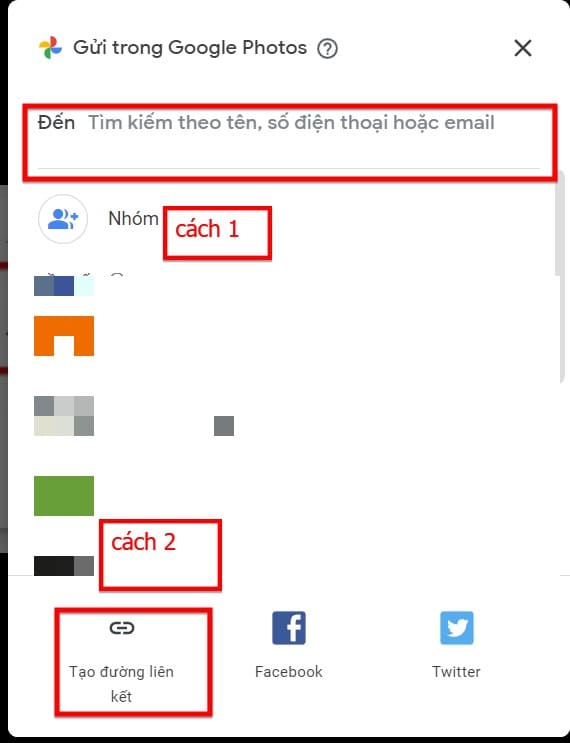
Choose how to send your pictures

So I showed you how to send large images in bulk via Email, so it will help you save more time and manage the images you have sent.


The article achieved: 5/5 – (100 votes)

Tags: easiestGmailMultiplephotossend
Previous Post

Deltarune Chapter 2 is out after 3 years

Next Post

How to use RAT without opening PORT with Ngrok

AnonyViet

AnonyViet

Related Posts

3 OCR Tools Extract Text from Images without Retyping
Tips

3 OCR Tools Extract Text from Images without Retyping

November 8, 2025
Ways hackers use to hack your Facebook and how to fix it
Tips

Ways hackers use to hack your Facebook and how to fix it

November 7, 2025
Create your own Font using your Handwriting
Tips

Create your own Font using your Handwriting

November 6, 2025
Share White Hat Hacker Course – The Complete Ethical Hacking Course
Tips

Share White Hat Hacker Course – The Complete Ethical Hacking Course

November 5, 2025
Instructions on how to get 1 year of ChatGPT Go for free
Tips

Instructions on how to get 1 year of ChatGPT Go for free

November 4, 2025
Instructions for creating your own Chrome Extension using Scratch
Tips

Instructions for creating your own Chrome Extension using Scratch

November 4, 2025
Next Post
How to use RAT without opening PORT with Ngrok

How to use RAT without opening PORT with Ngrok

0 0 votes
Article Rating
Subscribe
Login
Notify of
guest

guest

0 Comments
Oldest
Newest Most Voted
Inline Feedbacks
View all comments

Recent News

Download training materials on Applying AI in teaching and learning in 2025

Download training materials on Applying AI in teaching and learning in 2025

November 8, 2025
How to pay health insurance on Momo online right at home

How to pay health insurance on Momo online right at home

November 8, 2025
How to create Flycam videos from photos to sell real estate

How to create Flycam videos from photos to sell real estate

November 8, 2025
3 OCR Tools Extract Text from Images without Retyping

3 OCR Tools Extract Text from Images without Retyping

November 8, 2025
Download training materials on Applying AI in teaching and learning in 2025

Download training materials on Applying AI in teaching and learning in 2025

November 8, 2025
How to pay health insurance on Momo online right at home

How to pay health insurance on Momo online right at home

November 8, 2025
How to create Flycam videos from photos to sell real estate

How to create Flycam videos from photos to sell real estate

November 8, 2025
AnonyViet - English Version

AnonyViet

AnonyViet is a website share knowledge that you have never learned in school!

We are ready to welcome your comments, as well as your articles sent to AnonyViet.

Follow Us

Contact:

Email: anonyviet.com[@]gmail.com

Main Website: https://anonyviet.com

Recent News

Download training materials on Applying AI in teaching and learning in 2025

Download training materials on Applying AI in teaching and learning in 2025

November 8, 2025
How to pay health insurance on Momo online right at home

How to pay health insurance on Momo online right at home

November 8, 2025
  • Home
  • Home 2
  • Home 3
  • Home 4
  • Home 5
  • Home 6
  • Next Dest Page
  • Sample Page

new88 trang chủ shbet trang chủ f168 trang chủ qq88 nhà cái 78win

No Result
View All Result
  • Home
  • News
  • Software
  • Knowledge
  • MMO
  • Tips
  • Security
  • Network
  • Office

new88 trang chủ shbet trang chủ f168 trang chủ qq88 nhà cái 78win

wpDiscuz
0
0
Would love your thoughts, please comment.x
()
x
| Reply