• Home
  • News
  • Software
  • Knowledge
  • MMO
  • Tips
  • Security
  • Network
  • Office
AnonyViet - English Version
  • Home
  • News
  • Software
  • Knowledge
  • MMO
  • Tips
  • Security
  • Network
  • Office
No Result
View All Result
  • Home
  • News
  • Software
  • Knowledge
  • MMO
  • Tips
  • Security
  • Network
  • Office
No Result
View All Result
AnonyViet - English Version
No Result
View All Result

SwitchExplorer: Customize the interface between Windows 10 and Windows 11

AnonyViet by AnonyViet
August 26, 2024
in Software
0

SwitchExplorer – The perfect tool for those who want to combine the familiar interface of Windows 10 with the convenience of Windows 11. With SwitchExplorer, you can easily return to the File Explorer interface and right-click menu of Windows 10 without having to worry about complicated system settings.

Join the channel Telegram belong to AnonyViet 👉 Link 👈

Why do many people dislike Windows 11?

On Windows 10, right-clicking opens a series of utility functions quickly. However, on Windows 11, the context menu has been restructured to become more sophisticated, and to see the full features like on Windows 10, users need to select “Show more options” to access important commands such as Copy, Paste… Because of such time-consuming operations, many people feel hesitant to upgrade to Windows 11.

About File Explorer interface

File Explorer in Windows 11 brings a new interface design language: simple, modern, and optimized. This makes a clear difference from older versions of Windows with ribbons full of commands and complicated menus.

Windows 11's File Explorer now includes a lightweight toolbar. However, this change may be confusing for some users as they can't find the copy, cut, or create new folder buttons.
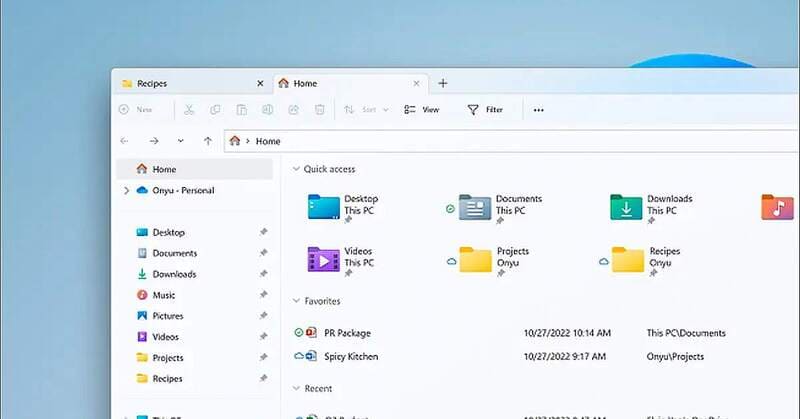
Windows 11's minimalist File Explorer interface leaves many people confused

See also: 2 ways to download and install Windows 11 24H2

Explore SwitchExplorer

Since the launch of Windows 11, many users have been confused by the changes that have taken place in File Explorer and the right-click menu. If you still miss the familiar interface of Windows 10, rest assured, SwitchExplorer is the simple and effective solution for you.
SwitchExplorer
SwitchExplorer

SwitchExplorer is a free open source software that helps you restore File Explorer with Windows 10 toolbar on Windows 11, and return to the classic Windows 10 right-click menu. No need to worry about complicated system settings, with just one click, SwitchExplorer gives you a much more convenient and faster solution.

How to use SwitchExplorer

To use SwitchExplorer, simply follow these steps:

Step 1: Visit the project's GitHub home page HERE and click on the download link. You will then get a ZIP file of SwitchExplorer.
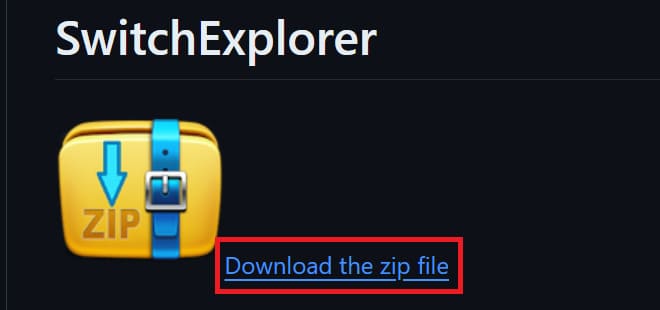
Download SwitchExplorer

Step 2: Unzip the download folder

Step 3: Double-click the “SwitchExplorer.exe” file to launch the software.

Step 4: A window will open with two main sections: Select Explorer Type and Select Context Menu Type. In each section, you can select Windows 10 or Windows 11 by checking the corresponding boxes and clicking OK.
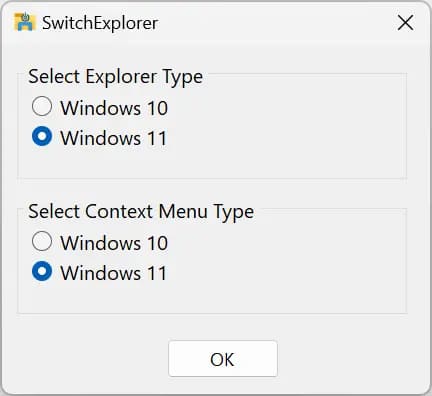
File Explorer interface and right-click menu options

The software will then automatically edit the Registry for you and automatically reboot, applying the changes immediately without having to restart your computer.
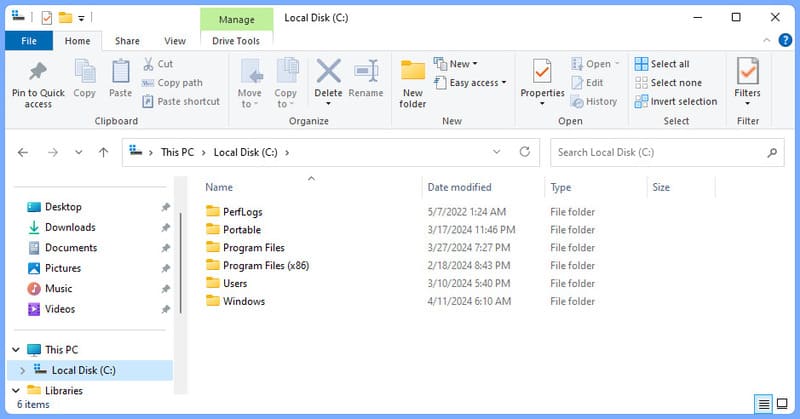
Windows 10 File Explorer on Windows 11 PC

Whether you like the traditional look of Windows 10 or want to take advantage of the new things in Windows 11. With SwitchExplorer, you can customize the right-click interface and File Explorer back and forth between the two operating systems easily.

See also: How to automatically change wallpaper in real time on Windows 11

Conclusion

With SwitchExplorer, Customizing the right-click interface and File Explorer between Windows 10 and Windows 11 operating systems has never been easier. This is a convenient and quick solution that you cannot ignore.


Tags: customizeinterfaceSwitchExplorerWindows
Previous Post

Instructions for downloading and installing the Black Myth: Wukong map

Next Post

Instructions for Fake MAC Address – Fake MAC address on computer

AnonyViet

AnonyViet

Related Posts

Christmas Advent Calendar Giveaway: Daily software hunt worth ,095
Software

Christmas Advent Calendar Giveaway: Daily software hunt worth $1,095

December 4, 2025
How to update residential address on VNeID, avoid fines from December 15
Software

How to update residential address on VNeID, avoid fines from December 15

December 3, 2025
AOMEI Christmas Carnival Giveaway 2025: Receive 21 free copyrighted software
Software

AOMEI Christmas Carnival Giveaway 2025: Receive 21 free copyrighted software

November 29, 2025
Instructions for editing photos on Google Photos by voice
Software

Instructions for editing photos on Google Photos by voice

November 23, 2025
Instructions for sending a help signal using Zalo when stuck in a flood area
Software

Instructions for sending a help signal using Zalo when stuck in a flood area

November 22, 2025
Quickly “unbox” iPhone 17 Pro Max
Software

Quickly “unbox” iPhone 17 Pro Max

November 21, 2025
Next Post
Instructions for Fake MAC Address – Fake MAC address on computer

Instructions for Fake MAC Address - Fake MAC address on computer

0 0 votes
Article Rating
Subscribe
Login
Notify of
guest

guest

0 Comments
Oldest
Newest Most Voted
Inline Feedbacks
View all comments

Recent News

How to create Mind Map and Flowchart using ChatGPT is super simple

How to create Mind Map and Flowchart using ChatGPT is super simple

December 7, 2025
Free Gemini Google certification exam guide and Answers

Free Gemini Google certification exam guide and Answers

December 6, 2025
How to write Shell Script in Linux/Unix

How to write Shell Script in Linux/Unix

December 6, 2025
How to completely uninstall WSL on Windows 11?

How to completely uninstall WSL on Windows 11?

December 6, 2025
How to create Mind Map and Flowchart using ChatGPT is super simple

How to create Mind Map and Flowchart using ChatGPT is super simple

December 7, 2025
Free Gemini Google certification exam guide and Answers

Free Gemini Google certification exam guide and Answers

December 6, 2025
How to write Shell Script in Linux/Unix

How to write Shell Script in Linux/Unix

December 6, 2025
AnonyViet - English Version

AnonyViet

AnonyViet is a website share knowledge that you have never learned in school!

We are ready to welcome your comments, as well as your articles sent to AnonyViet.

Follow Us

Contact:

Email: anonyviet.com[@]gmail.com

Main Website: https://anonyviet.com

Recent News

How to create Mind Map and Flowchart using ChatGPT is super simple

How to create Mind Map and Flowchart using ChatGPT is super simple

December 7, 2025
Free Gemini Google certification exam guide and Answers

Free Gemini Google certification exam guide and Answers

December 6, 2025
  • Home
  • Home 2
  • Home 3
  • Home 4
  • Home 5
  • Home 6
  • Next Dest Page
  • Sample Page

trang chủ f168 nhà cái 78win https://www.qq8827.com/

No Result
View All Result
  • Home
  • News
  • Software
  • Knowledge
  • MMO
  • Tips
  • Security
  • Network
  • Office

trang chủ f168 nhà cái 78win https://www.qq8827.com/

wpDiscuz
0
0
Would love your thoughts, please comment.x
()
x
| Reply