Information gathering is one of the most important steps to pentesting or attacking the victim, which is specifically the network scanner. You cannot access a system if you do not have enough information about it. Example for easy understanding: let’s say you are connected to a network and one of the devices connected to this network is your target. You need to know all the machines connected to the network then get their MAC and then try to gather information to be able to access your target.
| Join the channel Telegram of the AnonyViet 👉 Link 👈 |
In this article, I will show you how to build a network scanner (listen really, from now on I will use the word network scanner) using python.
Prepare Lab
The lab includes 2 virtual machines:
Note: Virtual machines all use NAT connection type. The subnet IP on Nat is 192.168.75. The Kali machine will scan Windwos XP to test the network_scanner software.
![[PyHack] Lesson 3: Network Scanner - Scan network information 42](https://anonyviet.com/wp-content/uploads/2020/05/34-1.png "[PyHack] Lesson 3: Network Scanner - Scan network information 46")
What is Scapy?
Scapy is a Python interpreter that allows you to create, spoof or decrypt packets on the network, or capture packets and parse them, etc. It also allows you to inject packets into the network. Scapy also supports a large number of network protocols and it can process and manipulate wireless communication packets.
Scapy can be used to replace network tools, such as nmap, hping, arpscan, tshark and wireshark.
Scapy’s principle of operation is to send and receive packets, it can also sniff other packets. Sent packets can be easily generated using the built-in options and analyzing captured packets. Capturing packets helps us understand what’s going on on the (home) network.
![[PyHack] Lesson 3: Network Scanner - Scan network information 43](https://anonyviet.com/wp-content/uploads/2020/05/35.png "[PyHack] Lesson 3: Network Scanner - Scan network information 47")
What is ARP?
Currently, there are many ways to discover other machines on the same network. The simplest is to emulate what a normal device would do to discover another device on the same network.
For example, let’s say I have a lab set up like the one below.![[PyHack] Lesson 3: Network Scanner - Scan network information 44](https://anonyviet.com/wp-content/uploads/2020/05/40.png "[PyHack] Lesson 3: Network Scanner - Scan network information 48")
We have devices ABC and D. They are all connected to the router. We can see that each device has its own IP and MAC. Now, for example, device A needs to communicate with device C. Machine A knows the IP of machine C. But as we know, for devices to communicate in the same network, machine A needs to know its MAC address. machine C because the machines use MAC to communicate rather than IP address.
In order for two machines to communicate with each other, they will use a protocol called APRP, which stands for address resolution protocol. And it’s a very simple protocol that allows us to associate IP addresses with MAC addresses.
To know the MAC address of machine C, machine A needs to use the ARPU protocol. Basically, host A sends a packet containing its own MAC address and the target’s IP address (machine C) to all machines on the network.
![[PyHack] Lesson 3: Network Scanner - Scan network information 45](https://anonyviet.com/wp-content/uploads/2020/05/41.png "[PyHack] Lesson 3: Network Scanner - Scan network information 49")
Now, all machines will not respond to this packet except the machine with IP 10.0.2.6, which is also machine C. ![[PyHack] Lesson 3: Network Scanner – Scan network information](https://anonyviet.com/wp-content/uploads/2020/05/42.png "[PyHack] Lesson 3: Network Scanner – Scan network information")
Device C will respond back to these packets, as, I am the machine with IP 10.0.2.6 and my MAC is 00:11:22:33:44:66. Done, it’s as simple as that.
Check how many devices are connected to the router
Because the IP subnet of NAT is 192.168.75.0, I will check how many devices are connected to the router in this network, NAT is now acting as the router. ![[PyHack] Lesson 3: Network Scanner - Scan network information 47](https://anonyviet.com/wp-content/uploads/2020/05/37.png "[PyHack] Lesson 3: Network Scanner - Scan network information 51")
Why do I have to add “/24” to the IP address? Because “/24” means that we will use 24 bits for the Network ID part, and the remaining 8 bits for the Host ID. To make it easy to understand, the program will scan from the ip range 192.168.75.0 to 192.168.75.255, which is also the subnet IP of NAT, readers. this lesson to understand more.
![[PyHack] Lesson 3: Network Scanner - Scan network information 48](https://anonyviet.com/wp-content/uploads/2020/05/39.png "[PyHack] Lesson 3: Network Scanner - Scan network information 52")
Using ARPU in Python
As mentioned above, what is ARP? We will use the ARPU protocol to send a packet of packets containing the target’s IP address, then the target will respond to this packet and will send it back to our MAC.![[PyHack] Lesson 3: Network Scanner - Scan network information 49](https://anonyviet.com/wp-content/uploads/2020/05/43.png "[PyHack] Lesson 3: Network Scanner - Scan network information 53")
![[PyHack] Lesson 3: Network Scanner - Scan network information 50](https://anonyviet.com/wp-content/uploads/2020/05/44.png "[PyHack] Lesson 3: Network Scanner - Scan network information 54")
Why does ARP ask who has an IP of 0.0.0.0? But why does ARP reply 0.0.0.0, probably no machine has IP 0.0.0.0 so it shows that. So how to let ARP ask another IP. First, we have to know why ARP asks for IP 0.0.0.0, then we use the function ls().This function will display the default fields in ARP.
![[PyHack] Lesson 3: Network Scanner - Scan network information 51](https://anonyviet.com/wp-content/uploads/2020/05/45.png "[PyHack] Lesson 3: Network Scanner - Scan network information 55")
![[PyHack] Lesson 3: Network Scanner - Scan network information 52](https://anonyviet.com/wp-content/uploads/2020/05/46.png "[PyHack] Lesson 3: Network Scanner - Scan network information 56")
Did you notice the part pdst because it is None so it will be 0.0.0.0. So how do we change it? It’s very simple, you just need to add parameters to be pdst and assign ip as arguments in function scapy.ARP(). And remember to remove /24, because now we don’t need to search for ip in the range from 0 to 255 anymore.
![[PyHack] Lesson 3: Network Scanner - Scan network information 53](https://anonyviet.com/wp-content/uploads/2020/05/47-1.png "[PyHack] Lesson 3: Network Scanner - Scan network information 57")
![[PyHack] Lesson 3: Network Scanner - Scan network information 54](https://anonyviet.com/wp-content/uploads/2020/05/48.png "[PyHack] Lesson 3: Network Scanner - Scan network information 58")
We have successfully created an ARP request packet. To see more information about the package we use the function show().![[PyHack] Lesson 3: Network Scanner - Scan network information 55](https://anonyviet.com/wp-content/uploads/2020/05/49.png "[PyHack] Lesson 3: Network Scanner - Scanning network information 59") If you notice, the MAC of the packets just created is also the MAC of the machine.
If you notice, the MAC of the packets just created is also the MAC of the machine.![[PyHack] Lesson 3: Network Scanner - Scan network information 56](https://anonyviet.com/wp-content/uploads/2020/05/50-1.png "[PyHack] Lesson 3: Network Scanner - Scan network information 60")
Please note this to avoid confusion, the reason it has the same MAC as Kali is because the target ip (the ip that this packet will send to) of this packet is 192.168.75.128, which is also Kali’s ip. In other words, it is sending packets to Kali by itself and then taking Kali’s MAC.
Note: hwdst and pdst are the MAC and IP of the machine sending packets (Kali), and hwsrc and psrc are the MAC and IP of the machine receiving (response) packets that we send.
So how do we change the ip to get another machine’s MAC? We must first know what the dst of the broadcast is, then set the MAC target to broadcast.![[PyHack] Lesson 3: Network Scanner - Scan network information 57](https://anonyviet.com/wp-content/uploads/2020/05/51.png "[PyHack] Lesson 3: Network Scanner - Scan network information 61")
![[PyHack] Lesson 3: Network Scanner - Scan network information 58](https://anonyviet.com/wp-content/uploads/2020/05/52.png "[PyHack] Lesson 3: Network Scanner - Scan network information 62")
Why change the MAC target to broadcast? As mentioned above, we need to send this ARP packet to all machines in the network. And to do that, we need to change the target MAC to broadcast so that it sends packets to all devices on the network.![[PyHack] Lesson 3: Network Scanner - Scanning network information 59](https://anonyviet.com/wp-content/uploads/2020/05/55.png "[PyHack] Lesson 3: Network Scanner - Scan network information 63")
![[PyHack] Lesson 3: Network Scanner - Scan network information 60](https://anonyviet.com/wp-content/uploads/2020/05/53.png "[PyHack] Lesson 3: Network Scanner - Scan network information 64")
![[PyHack] Lesson 3: Network Scanner - Scan network information 61](https://anonyviet.com/wp-content/uploads/2020/05/54.png "[PyHack] Lesson 3: Network Scanner - Scan network information 65")
What we need to do next is create a new packet that is a combination of the previous two packets (ARP and Broadcast) that we created. To do this, we just need to add a “/” because Scapy supports that.
Why do we have to combine those two? Packets ARP are just packets sent to a given destination ip and return MAC to us, so it cannot send the entire network. But broadcast can solve this problem for us, so we combine the two.![[PyHack] Lesson 3: Network Scanner - Scan network information 62](https://anonyviet.com/wp-content/uploads/2020/05/57.png "[PyHack] Lesson 3: Network Scanner - Scan network information 66")
You use the show() function to view information about the packets created.![[PyHack] Lesson 3: Network Scanner - Scan network information 63](https://anonyviet.com/wp-content/uploads/2020/05/66a.png "[PyHack] Lesson 3: Network Scanner - Scan network information 67")
![[PyHack] Lesson 3: Network Scanner - Scan network information 64](https://anonyviet.com/wp-content/uploads/2020/05/58.png "[PyHack] Lesson 3: Network Scanner - Scan network information 68")
Send and Receive Packets
After we have configured the packets, it’s time to send it out and receive packets including the MAC of the machines in the network. To do that we use the function srp(). Which this function will return 2 lists is the response list and the non-responsive list.![[PyHack] Lesson 3: Network Scanner - Scan network information 65](https://anonyviet.com/wp-content/uploads/2020/05/59.png "[PyHack] Lesson 3: Network Scanner - Scan network information 69")
![[PyHack] Lesson 3: Network Scanner - Scan network information 66](https://anonyviet.com/wp-content/uploads/2020/05/60-1.png "[PyHack] Lesson 3: Network Scanner - Scan network information 70")
![[PyHack] Lesson 3: Network Scanner - Scan network information 67](https://anonyviet.com/wp-content/uploads/2020/05/61.png "[PyHack] Lesson 3: Network Scanner - Scan network information 71")
So we have obtained the IP and MAC of the devices in the network already. But those are the packets that can respond, what about the ones that are not responding? Try it, you just need to replace the function print Fort print(unanswers.summary()) is to be. The result is too long so I’m lazy to take a picture for you guys, but in short, it’s the unresponsive ips from 192.168.75 to 192.168.75.255.
Printing the results is too difficult to see, so I will guide you how to design the interface like the image below.![[PyHack] Lesson 3: Network Scanner - Scan network information 68](https://anonyviet.com/wp-content/uploads/2020/05/62.png "[PyHack] Lesson 3: Network Scanner - Scan network information 72")
Design the theme
As I said above, the software will return 2 lists, answered (response) and unanswered (no response), we only need the response list, so we only use the answered list. Now, let’s go through the list and print the values to see how it stores.![[PyHack] Lesson 3: Network Scanner - Scan network information 69](https://anonyviet.com/wp-content/uploads/2020/05/63.png "[PyHack] Lesson 3: Network Scanner - Scan network information 73")
Why did I add “[0]” into function scapy.srp.Because this function returns 2 lists, when you assign the result of the function to a variable, it will not understand whether you want to get a response or no response list, so I have to add “[0]”.
![[PyHack] Lesson 3: Network Scanner - Scan network information 70](https://anonyviet.com/wp-content/uploads/2020/05/64.png "[PyHack] Lesson 3: Network Scanner - Scan network information 74")
Too much superfluous information. Now I will deal with them one by one. The first is this place, I want to hide this place.![[PyHack] Lesson 3: Network Scanner - Scan network information 71](https://anonyviet.com/wp-content/uploads/2020/05/65.png "[PyHack] Lesson 3: Network Scanner - Scan network information 75")
You just need to add parameters verbose=Falseinto the function scapy.srp.![[PyHack] Lesson 3: Network Scanner - Scan network information 72](https://anonyviet.com/wp-content/uploads/2020/05/66.png "[PyHack] Lesson 3: Network Scanner - Scan network information 76")
Next we will take only what is necessary. You print element 1 of elements, remember to include the function show().![[PyHack] Lesson 3: Network Scanner - Scan network information 73](https://anonyviet.com/wp-content/uploads/2020/05/67.png "[PyHack] Lesson 3: Network Scanner - Scan network information 77")
And it will print several results like this, depending on the number of packets in response.![[PyHack] Lesson 3: Network Scanner - Scan network information 74](https://anonyviet.com/wp-content/uploads/2020/05/68.png "[PyHack] Lesson 3: Network Scanner - Scan network information 78")
Now, you proceed to get the IP and MAC of the machine that responded to your packets.![[PyHack] Lesson 3: Network Scanner - Scan network information 75](https://anonyviet.com/wp-content/uploads/2020/05/69.png "[PyHack] Lesson 3: Network Scanner - Scan network information 79")
![[PyHack] Lesson 3: Network Scanner - Scan network information 76](https://anonyviet.com/wp-content/uploads/2020/05/70.png "[PyHack] Lesson 3: Network Scanner - Scan network information 80")
Next, you design the IP and MAC frames.![[PyHack] Lesson 3: Network Scanner - Scan network information 77](https://anonyviet.com/wp-content/uploads/2020/05/71.png "[PyHack] Lesson 3: Network Scanner - Scan network information 81")
![[PyHack] Lesson 3: Network Scanner - Scan network information 78](https://anonyviet.com/wp-content/uploads/2020/05/72.png "[PyHack] Lesson 3: Network Scanner - Scan network information 82")
Now we will improve it a bit, what if in the future you need to use this list? Maybe run from the beginning, so we will put this list in the dict (dictionary) for easy management, save the dict in the list.![[PyHack] Lesson 3: Network Scanner - Scan network information 79](https://anonyviet.com/wp-content/uploads/2020/05/73.png "[PyHack] Lesson 3: Network Scanner - Scan network information 83") We create one more function
We create one more function print_result() to print the results.![[PyHack] Lesson 3: Network Scanner - Scan network information 80](https://anonyviet.com/wp-content/uploads/2020/05/73-1.png "[PyHack] Lesson 3: Network Scanner - Scan network information 84")
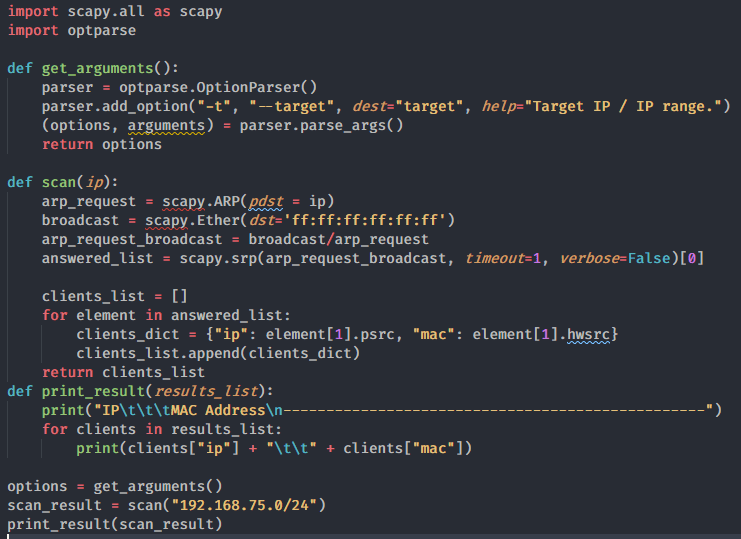
So the design part is done. Next, we apply the knowledge in the previous post to add optparse into the software.
More optparse
LIVE 2 previous posts, we already know how to add parse to the software. Now is the time to use it. I will not explain again.
![[PyHack] Lesson 3: Network Scanner - Scan network information 81](https://anonyviet.com/wp-content/uploads/2020/05/75.png "[PyHack] Lesson 3: Network Scanner - Scan network information 86")
That’s it, lesson 3 is over. If you have any problems, inbox to fanpage Anonyviet. Or join the group Anonyviet to learn and communicate more.