• Home
  • News
  • Software
  • Knowledge
  • MMO
  • Tips
  • Security
  • Network
  • Office
AnonyViet - English Version
  • Home
  • News
  • Software
  • Knowledge
  • MMO
  • Tips
  • Security
  • Network
  • Office
No Result
View All Result
  • Home
  • News
  • Software
  • Knowledge
  • MMO
  • Tips
  • Security
  • Network
  • Office
No Result
View All Result
AnonyViet - English Version
No Result
View All Result

Lesson 74: Function keys from F1 to F12 in Excel

AnonyViet by AnonyViet
January 26, 2023
in Office
0

Function keys let you do things with your keyboard instead of your mouse to speed up your work in Excel.

Join the channel Telegram of the AnonyViet 👉 Link 👈

Function keys in Excel

F1

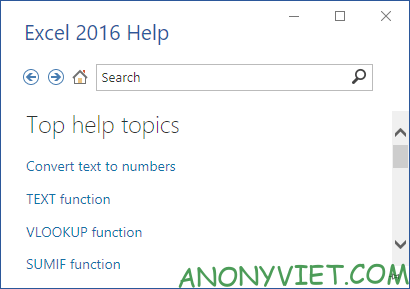
Open Excel Help.
Lesson 74: Function keys in Excel

F2

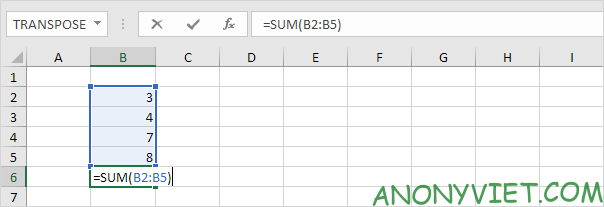
Move the cursor to the end of the cell’s content. For example, select cell B6 below and press F2.
Lesson 74: Function keys from F1 to F12 in Excel 17

Note: turning off “Allow editing directly in cells” (File -> Options -> Advanced -> Editing Options) and pressing F2 will move the cursor to the formula bar.

F3

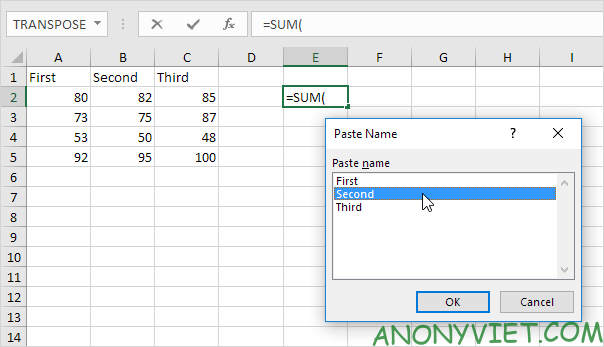
Displays the Paste Name dialog box. For example, select cell E2 below, type =SUM(, press F3 and select the range name.
Lesson 74: Function keys from F1 to F12 in Excel 18

F4

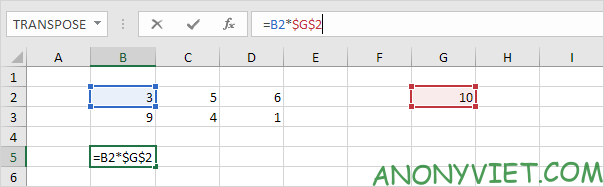
Select all 4 cell reference types (absolute, mixed(2x) and relative references). For example, select cell B5 below, click the formula bar, move the cursor to the right of G2, and press F4.
Lesson 74: Function keys from F1 to F12 in Excel 19

F5

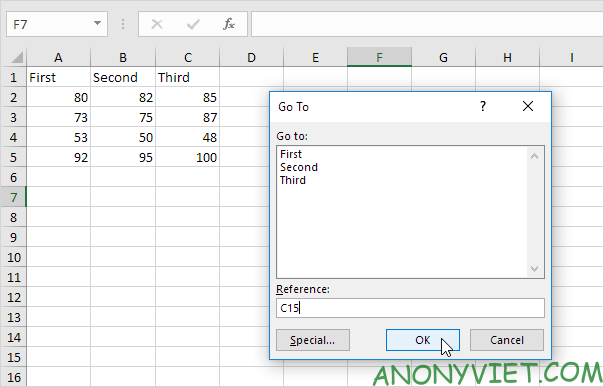
Displays the Go To dialog box. For example, to select cell C15, in the Reference box, type C15 and click OK.
Lesson 74: Function keys from F1 to F12 in Excel 20

F6

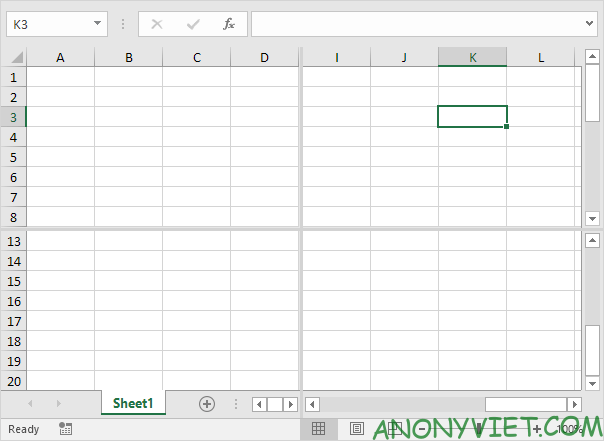
Go to the next pane in a split sheet.
Lesson 74: Function keys from F1 to F12 in Excel 21

F7

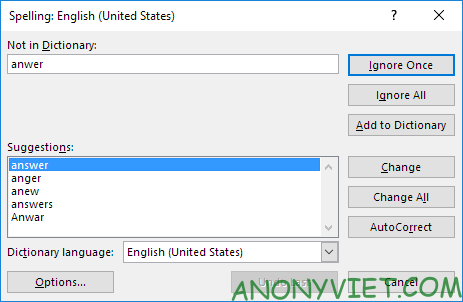
Displays the Spelling dialog box (same as when clicking Spelling on the Review tab).
Lesson 74: Function keys from F1 to F12 in Excel 22

F8

Enable/disable Extend mode. If Extend mode is on, select cell A1 and press → and ↓ a few times.
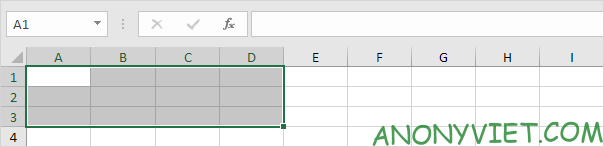
Lesson 74: Function keys from F1 to F12 in Excel 23

F9

By default, whenever you change a value, Excel automatically updates the workbook again. Turn on Manual (on the Formulas tab, in the Calculation group, click Calculations Options, Manual) and change the value in cell A1 from 5 to 6.

Lesson 74: Function keys from F1 to F12 in Excel 24

Press F9.

Lesson 74: Function keys from F1 to F12 in Excel 25

F10

Allows you to quickly perform any task available on the Ribbon without using the mouse.

Lesson 74: Function keys from F1 to F12 in Excel 26

F11

Create a chart page of a selected area.
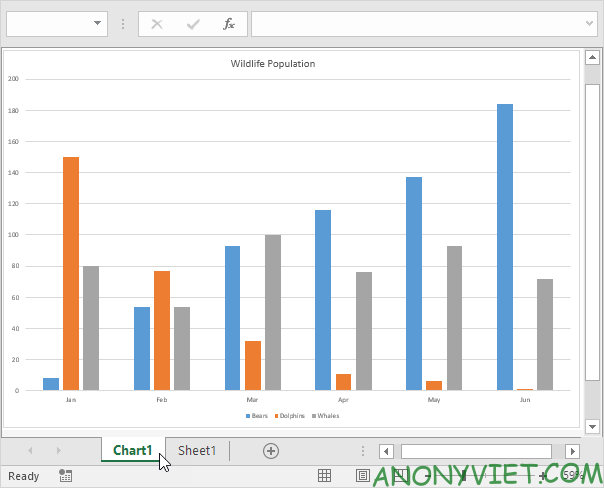
Lesson 74: Function keys from F1 to F12 in Excel 27

F12

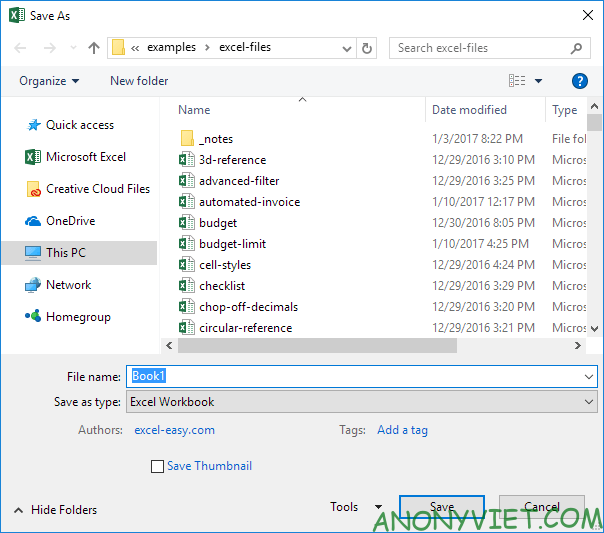
Open Save As.

Lesson 74: Function keys from F1 to F12 in Excel 28

In addition, you can also view many other excel articles here.

The article achieved: 5/5 – (100 votes)

Tags: ExcelF12functionKeysLesson
Previous Post

Lesson 75: How to insert rows in Excel

Next Post

What is Docker? And how to use Docker

AnonyViet

AnonyViet

Related Posts

How to add Watermark to Google Docs to protect copyright
Office

How to add Watermark to Google Docs to protect copyright

April 19, 2026
Instructions on how to hide formulas in Excel to secure data
Office

Instructions on how to hide formulas in Excel to secure data

February 6, 2026
Top who creates the most beautiful presentation slide today
Office

Top who creates the most beautiful presentation slide today

September 23, 2025
Automatically check and correct spelling errors on Google Docs
Office

Automatically check and correct spelling errors on Google Docs

February 23, 2025
Instructions for downloading Google Docs files easily on any device
Office

Instructions for downloading Google Docs files easily on any device

December 18, 2024
Launching AI image creation feature on Google Docs
Office

Launching AI image creation feature on Google Docs

November 20, 2024
Next Post
What is Docker?  And how to use Docker

What is Docker? And how to use Docker

0 0 votes
Article Rating
Subscribe
Login
Notify of
guest

guest

0 Comments
Oldest
Newest Most Voted
Inline Feedbacks
View all comments

Recent News

Instructions on how to prevent acquaintances from seeing your Tiktok

Instructions on how to prevent acquaintances from seeing your Tiktok

June 2, 2026
How to record reaction videos with Android phones, no app needed

How to record reaction videos with Android phones, no app needed

June 1, 2026
Instructions on how to get Google AI Pro 1 year for free for new accounts

Instructions on how to get Google AI Pro 1 year for free for new accounts

June 1, 2026
Top free AI tools to help write, test and optimize content

Top free AI tools to help write, test and optimize content

June 1, 2026
Instructions on how to prevent acquaintances from seeing your Tiktok

Instructions on how to prevent acquaintances from seeing your Tiktok

June 2, 2026
How to record reaction videos with Android phones, no app needed

How to record reaction videos with Android phones, no app needed

June 1, 2026
Instructions on how to get Google AI Pro 1 year for free for new accounts

Instructions on how to get Google AI Pro 1 year for free for new accounts

June 1, 2026
AnonyViet - English Version

AnonyViet

AnonyViet is a website share knowledge that you have never learned in school!

We are ready to welcome your comments, as well as your articles sent to AnonyViet.

Follow Us

Contact:

Email: anonyviet.com[@]gmail.com

Main Website: https://anonyviet.com

Recent News

Instructions on how to prevent acquaintances from seeing your Tiktok

Instructions on how to prevent acquaintances from seeing your Tiktok

June 2, 2026
How to record reaction videos with Android phones, no app needed

How to record reaction videos with Android phones, no app needed

June 1, 2026
No Result
View All Result
  • Home
  • News
  • Software
  • Knowledge
  • MMO
  • Tips
  • Security
  • Network
  • Office

wpDiscuz
0
0
Would love your thoughts, please comment.x
()
x
| Reply