• Home
  • News
  • Software
  • Knowledge
  • MMO
  • Tips
  • Security
  • Network
  • Office
AnonyViet - English Version
  • Home
  • News
  • Software
  • Knowledge
  • MMO
  • Tips
  • Security
  • Network
  • Office
No Result
View All Result
  • Home
  • News
  • Software
  • Knowledge
  • MMO
  • Tips
  • Security
  • Network
  • Office
No Result
View All Result
AnonyViet - English Version
No Result
View All Result

Lesson 62: How to create automatic invoices in Excel

AnonyViet by AnonyViet
January 26, 2023
in Office
0

In this article, I will show you how to create automatic invoices in Excel.

Join the channel Telegram of the AnonyViet 👉 Link 👈

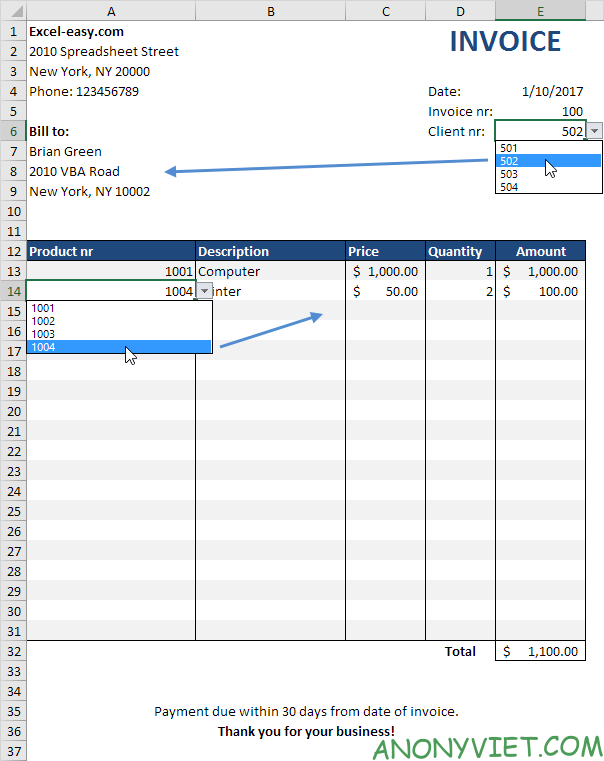
Below is a photo of the automatic invoice I will introduce to you. If you choose Client nr from the E6 cell list, Excel will automatically fill in the customer information. If you select a product from the list of cells A13 to A31, Excel will automatically fill in the product information.
Lesson 62: How to create automatic invoices in Excel

How to create invoices automatically in Excel

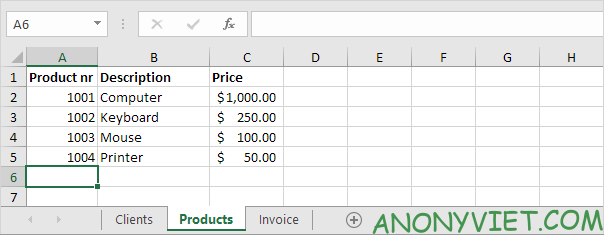
1. On the Products page, enter product information.
Lesson 62: How to create invoices automatically in Excel 11

2. On the Invoice page, select cells A13 through A31.

3. On the Data tab, in the Data Tools group, click Data Validation.

Lesson 62: How to create invoices automatically in Excel 12

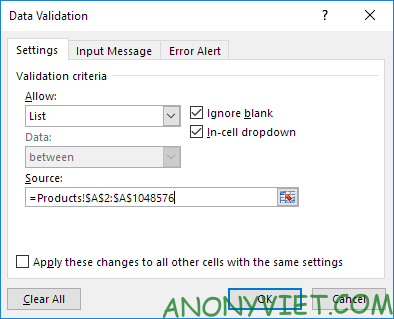
4. Under Allow, click List.

5. Click Source and select the area A2:A5 on the Products page.

6. Manually change 5 to 1048576 (or any other large number) to include more cells. Now you can add as many new products as you want.
Lesson 62: How to create invoices automatically in Excel 13

7. Click OK.

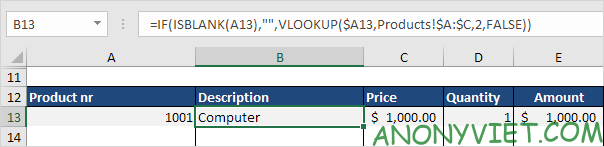
8. Select cell B13 and enter the following formula.
Lesson 62: How to create invoices automatically in Excel 14

Explanation: If cell A13 is empty, the formula returns an empty string. Otherwise, the VLOOKUP function will look for Product nr (1001) in the leftmost column of the range $A:$C (columns A to C) on the Products page and return the value in the same row from the second column (col_index_num is specified). set to 2).

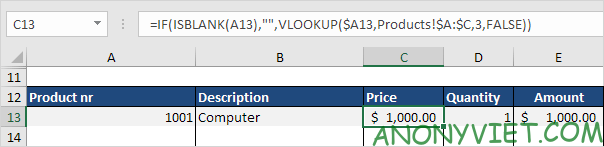
9. Select cell C13 and enter the following formula.
Lesson 62: How to create invoices automatically in Excel 15

Explanation: This formula is almost the same as the one above. This time it returns the value in the same row from the third column (col_index_num is set to 3).

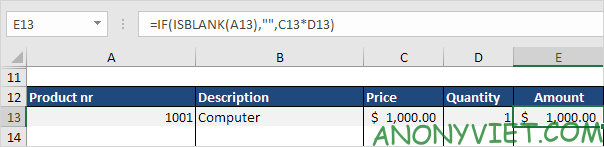
10. Select cell E13 and enter the following formula.
Lesson 62: How to create invoices automatically in Excel 16

Explanation: If cell A13 is empty, the formula returns an empty string. Otherwise, it will return Price and Quantity.

11. To copy the formula to other cells, select the range B13:E13 and drag it down to row 31. Use Format Painter to restore the formatting.

In addition, you can also view many other excel articles here.

The article achieved: 5/5 – (100 votes)

Tags: AutomaticcreateExcelinvoicesLesson
Previous Post

Avira Phantom VPN Pro 6 Months – Fast, Secure VPN Software

Next Post

How to know if a computer is infected with a virus?

AnonyViet

AnonyViet

Related Posts

Instructions on how to hide formulas in Excel to secure data
Office

Instructions on how to hide formulas in Excel to secure data

February 6, 2026
Top who creates the most beautiful presentation slide today
Office

Top who creates the most beautiful presentation slide today

September 23, 2025
Automatically check and correct spelling errors on Google Docs
Office

Automatically check and correct spelling errors on Google Docs

February 23, 2025
Instructions for downloading Google Docs files easily on any device
Office

Instructions for downloading Google Docs files easily on any device

December 18, 2024
Launching AI image creation feature on Google Docs
Office

Launching AI image creation feature on Google Docs

November 20, 2024
Instructions for using Google Docs without internet
Office

Instructions for using Google Docs without internet

November 2, 2024
Next Post
How to know if a computer is infected with a virus?

How to know if a computer is infected with a virus?

0 0 votes
Article Rating
Subscribe
Login
Notify of
guest

guest

0 Comments
Oldest
Newest Most Voted
Inline Feedbacks
View all comments

Recent News

How to avoid Adblock detection on Youtube with 4 good tips

How to avoid Adblock detection on Youtube with 4 good tips

April 17, 2026
How to transfer ChatGPT data to Claude is extremely simple

How to transfer ChatGPT data to Claude is extremely simple

April 16, 2026
How to authenticate the owner’s SIM on VNeID from April 15

How to authenticate the owner’s SIM on VNeID from April 15

April 15, 2026
Speak Cells: Excel tool to read spreadsheets by voice very well

Speak Cells: Excel tool to read spreadsheets by voice very well

April 15, 2026
How to avoid Adblock detection on Youtube with 4 good tips

How to avoid Adblock detection on Youtube with 4 good tips

April 17, 2026
How to transfer ChatGPT data to Claude is extremely simple

How to transfer ChatGPT data to Claude is extremely simple

April 16, 2026
How to authenticate the owner’s SIM on VNeID from April 15

How to authenticate the owner’s SIM on VNeID from April 15

April 15, 2026
AnonyViet - English Version

AnonyViet

AnonyViet is a website share knowledge that you have never learned in school!

We are ready to welcome your comments, as well as your articles sent to AnonyViet.

Follow Us

Contact:

Email: anonyviet.com[@]gmail.com

Main Website: https://anonyviet.com

Recent News

How to avoid Adblock detection on Youtube with 4 good tips

How to avoid Adblock detection on Youtube with 4 good tips

April 17, 2026
How to transfer ChatGPT data to Claude is extremely simple

How to transfer ChatGPT data to Claude is extremely simple

April 16, 2026
No Result
View All Result
  • Home
  • News
  • Software
  • Knowledge
  • MMO
  • Tips
  • Security
  • Network
  • Office

wpDiscuz
0
0
Would love your thoughts, please comment.x
()
x
| Reply