• Home
  • News
  • Software
  • Knowledge
  • MMO
  • Tips
  • Security
  • Network
  • Office
AnonyViet - English Version
  • Home
  • News
  • Software
  • Knowledge
  • MMO
  • Tips
  • Security
  • Network
  • Office
No Result
View All Result
  • Home
  • News
  • Software
  • Knowledge
  • MMO
  • Tips
  • Security
  • Network
  • Office
No Result
View All Result
AnonyViet - English Version
No Result
View All Result

Lesson 270: Histogram in Excel

AnonyViet by AnonyViet
January 25, 2023
in Office
0

In this article, I will show you how to create a chart in Excel.

Join the channel Telegram of the AnonyViet 👉 Link 👈

How to create a chart in Excel

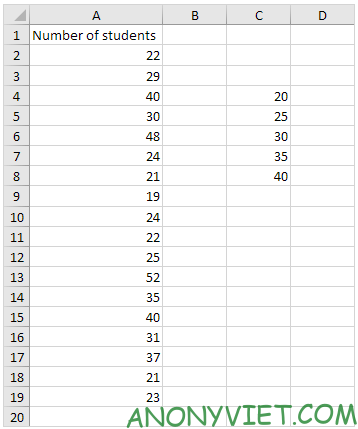
1. First, enter the number in the range C4:C8.
Lesson 270: Histogram in Excel

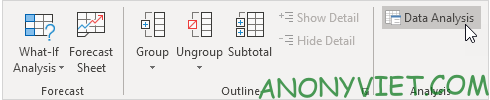
2. On the Data tab, select Data Analysis.
Lesson 270: Histogram in Excel 17

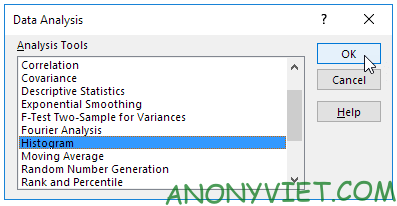
3. Select Histogram and click OK.

Lesson 270: Histogram in Excel 18

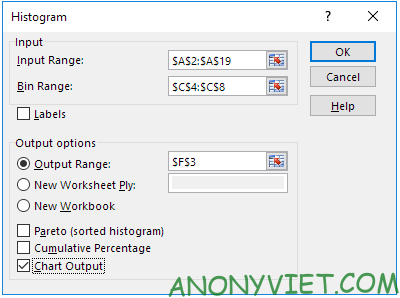
4. Select range A2:A19

5. Click the Bin Range box and select the range C4:C8.

6. Click the Output Range option button, click the Output Range box, and select cell F3.

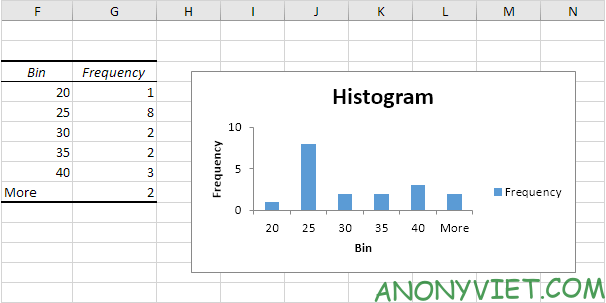
7. Check the Chart Output.
Lesson 270: Histogram in Excel 19

8. Press OK

Lesson 270: Histogram in Excel 20

9. Click the caption on the right side and press Delete.

10. Label your bins.

11. To remove the gap between the bars, right click on a bar, click Format Data Series and change the Gap Width to 0%.

12. To add a border, right-click a bar, click Format Data Series, click the Fill & Line icon, click Border, and choose a color.
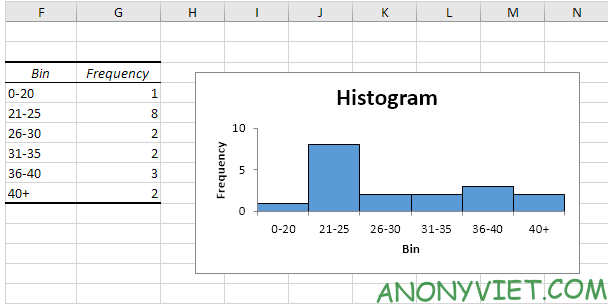
Lesson 270: Histogram in Excel 21

If you have Excel 2016 or later, just use the Histogram chart type.

13. select range A1:A19
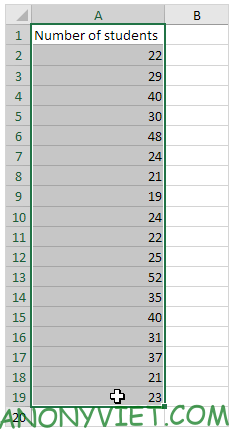
Lesson 270: Histogram in Excel 22

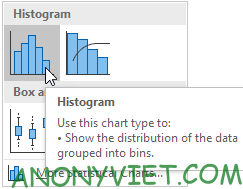
14. On the Insert panel, select the Histogram symbol.
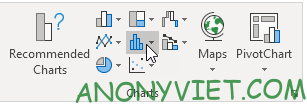
Lesson 270: Histogram in Excel 23

15. Click on Histogram.

Lesson 270: Frequency chart in Excel 24

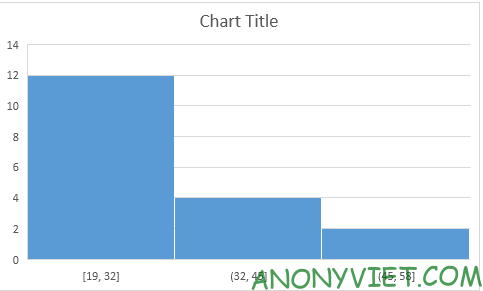
Result

Lesson 270: Frequency chart in Excel 25

16. Right-click the horizontal axis, and then click Format Axis.
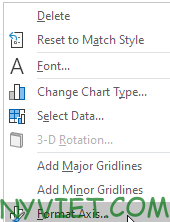
Lesson 270: Histogram in Excel 26

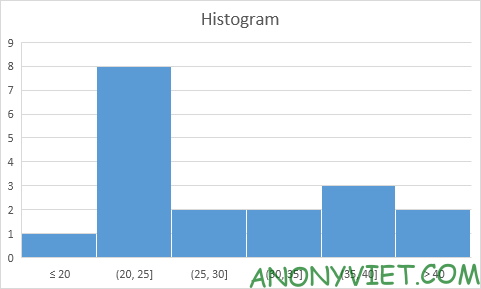
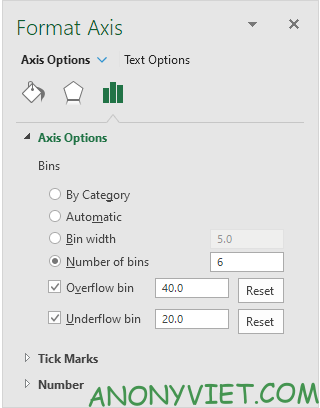
17. Determine the bins of the chart. I will use the same bins as before (see first image on this page). Bin width : 5. Number of bins : 6. Overflow : 40. Underflow : 20.
Lesson 270: Histogram in Excel 27

Result

Lesson 270: Frequency chart in Excel 28

In addition, you can also view many other excel articles here.

The article achieved: 5/5 – (100 votes)

Tags: ExcelHistogramLesson
Previous Post

Turn on the Share Facebook post button on your profile

Next Post

How to access the latest Deep Web 2023

AnonyViet

AnonyViet

Related Posts

Top who creates the most beautiful presentation slide today
Office

Top who creates the most beautiful presentation slide today

September 23, 2025
Automatically check and correct spelling errors on Google Docs
Office

Automatically check and correct spelling errors on Google Docs

February 23, 2025
Instructions for downloading Google Docs files easily on any device
Office

Instructions for downloading Google Docs files easily on any device

December 18, 2024
Launching AI image creation feature on Google Docs
Office

Launching AI image creation feature on Google Docs

November 20, 2024
Instructions for using Google Docs without internet
Office

Instructions for using Google Docs without internet

November 2, 2024
Share the link to the sample file to create QR codes in Google Sheets
Office

Share the link to the sample file to create QR codes in Google Sheets

September 30, 2024
Next Post
How to access the latest Deep Web 2023

How to access the latest Deep Web 2023

0 0 votes
Article Rating
Subscribe
Login
Notify of
guest

guest

0 Comments
Oldest
Newest Most Voted
Inline Feedbacks
View all comments

Recent News

How to install Anh Hai’s Pho Shop on MacBook is super easy

How to install Anh Hai’s Pho Shop on MacBook is super easy

November 11, 2025
How to turn off ads on Yoosee app in just 1 minute

How to turn off ads on Yoosee app in just 1 minute

November 11, 2025
Windows 11 and MS Office 2021 lifetime license, genuine from  during Keysoff’s 11.11 sale

Windows 11 and MS Office 2021 lifetime license, genuine from $14 during Keysoff’s 11.11 sale

November 11, 2025
How to see your email account creation date

How to see your email account creation date

November 11, 2025
How to install Anh Hai’s Pho Shop on MacBook is super easy

How to install Anh Hai’s Pho Shop on MacBook is super easy

November 11, 2025
How to turn off ads on Yoosee app in just 1 minute

How to turn off ads on Yoosee app in just 1 minute

November 11, 2025
Windows 11 and MS Office 2021 lifetime license, genuine from  during Keysoff’s 11.11 sale

Windows 11 and MS Office 2021 lifetime license, genuine from $14 during Keysoff’s 11.11 sale

November 11, 2025
AnonyViet - English Version

AnonyViet

AnonyViet is a website share knowledge that you have never learned in school!

We are ready to welcome your comments, as well as your articles sent to AnonyViet.

Follow Us

Contact:

Email: anonyviet.com[@]gmail.com

Main Website: https://anonyviet.com

Recent News

How to install Anh Hai’s Pho Shop on MacBook is super easy

How to install Anh Hai’s Pho Shop on MacBook is super easy

November 11, 2025
How to turn off ads on Yoosee app in just 1 minute

How to turn off ads on Yoosee app in just 1 minute

November 11, 2025
  • Home
  • Home 2
  • Home 3
  • Home 4
  • Home 5
  • Home 6
  • Next Dest Page
  • Sample Page

new88 trang chủ shbet trang chủ f168 trang chủ qq88 nhà cái 78win

No Result
View All Result
  • Home
  • News
  • Software
  • Knowledge
  • MMO
  • Tips
  • Security
  • Network
  • Office

new88 trang chủ shbet trang chủ f168 trang chủ qq88 nhà cái 78win

wpDiscuz
0
0
Would love your thoughts, please comment.x
()
x
| Reply