• Home
  • News
  • Software
  • Knowledge
  • MMO
  • Tips
  • Security
  • Network
  • Office
AnonyViet - English Version
  • Home
  • News
  • Software
  • Knowledge
  • MMO
  • Tips
  • Security
  • Network
  • Office
No Result
View All Result
  • Home
  • News
  • Software
  • Knowledge
  • MMO
  • Tips
  • Security
  • Network
  • Office
No Result
View All Result
AnonyViet - English Version
No Result
View All Result

Lesson 262: Goal Seek in Excel

AnonyViet by AnonyViet
January 25, 2023
in Office
0

Goal Seek in Excel

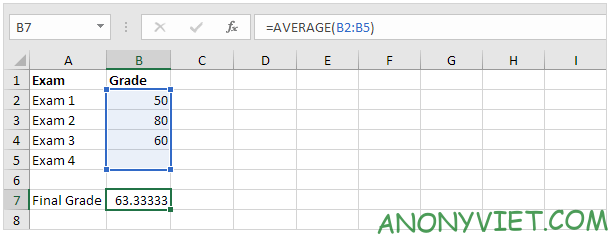
Use Goal Seek to find a score on a test that has a score of 70.

Join the channel Telegram of the AnonyViet 👉 Link 👈

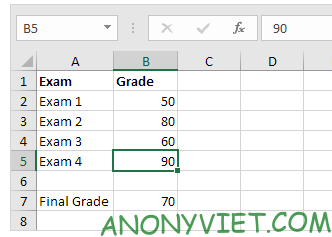
1. The formula in cell B7 calculates the final grade.
Lesson 262: Goal Seek in Excel

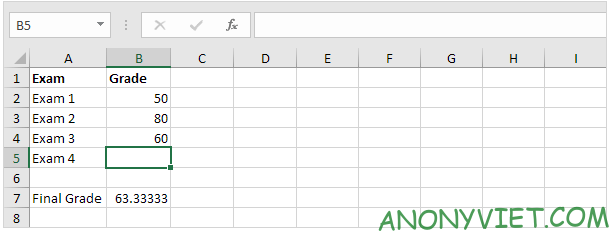
2. The score of exam 4 in cell B5 is the input box.
Lesson 262: Goal Seek in Excel 20

3. On the Data panel, click What-If Analysis.

Lesson 262: Goal Seek in Excel 21

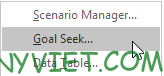
4. Click on Goal Seek.

Lesson 262: Goal Seek in Excel 22

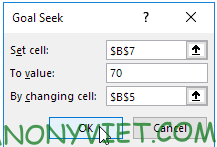
5. Select cell B7.

6. In the To value box enter 70.

7. In the box By changing cell and enter B5

8. Press OK
Lesson 262: Goal Seek in Excel 23

Result.

Lesson 262: Goal Seek in Excel 24

Change the precision of the function

1. The formula in cell B1 calculates the square of the value in cell A1.Lesson 262: Goal Seek in Excel 25

2. Using goal seek to find the input produces a formula result of 25.
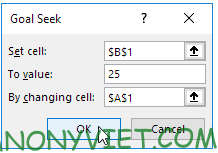
Lesson 262: Goal Seek in Excel 26

Result. It returns an approximate value
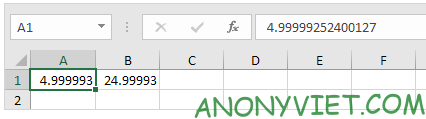
Lesson 262: Goal Seek in Excel 27

3. On the file tab, click Options, Formulas.

4. In Calculation reduce the Maximum Change value by inserting some zeros. The default value is 0.001.
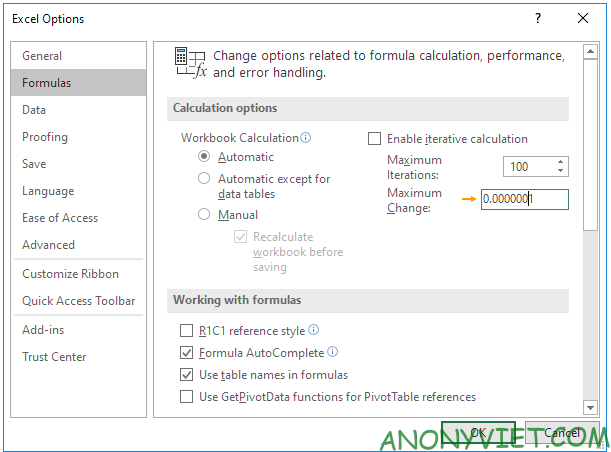
Lesson 262: Goal Seek in Excel 28

5. Press OK

6. Reuse Goal Seek. Excel returns a more correct value than before

Lesson 262: Goal Seek in Excel 29

Something about Goal Seek

There are many problems that Goal Seek cannot solve. Goal Seek requires one input cell and one output cell. Use Slover in Excel to solve problems with multiple input cells.

1. The formula in cell B1 below gives -0.25.
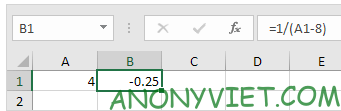
Lesson 262: Goal Seek in Excel 30

2. Use Goal Seek to find the input value that produces a formula result of +0.25.
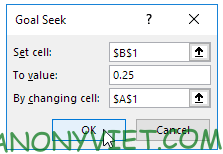
Lesson 262: Goal Seek in Excel 31

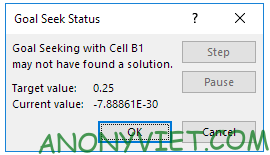
Result, Excel could not find

Lesson 262: Goal Seek in Excel 32

3. Click cancel

4. Start with Input greater than 8.
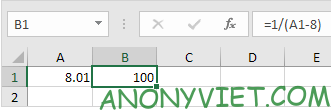
Lesson 262: Goal Seek in Excel 33

5. Use Goal Seek again, and Excel found it.
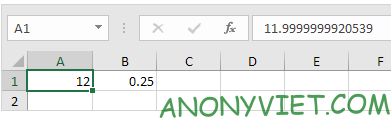
Lesson 262: Goal Seek in Excel 34

In addition, you can also view many other excel articles here.
Tags: ExcelgoalLessonSeek
Previous Post

How to package Python code

Next Post

Download Active IDM IAS 0.7 100% clean Vietnamese can be Update

AnonyViet

AnonyViet

Related Posts

How to add Watermark to Google Docs to protect copyright
Office

How to add Watermark to Google Docs to protect copyright

April 19, 2026
Instructions on how to hide formulas in Excel to secure data
Office

Instructions on how to hide formulas in Excel to secure data

February 6, 2026
Top who creates the most beautiful presentation slide today
Office

Top who creates the most beautiful presentation slide today

September 23, 2025
Automatically check and correct spelling errors on Google Docs
Office

Automatically check and correct spelling errors on Google Docs

February 23, 2025
Instructions for downloading Google Docs files easily on any device
Office

Instructions for downloading Google Docs files easily on any device

December 18, 2024
Launching AI image creation feature on Google Docs
Office

Launching AI image creation feature on Google Docs

November 20, 2024
Next Post
Download Active IDM IAS 0.7 100% clean Vietnamese can be Update

Download Active IDM IAS 0.7 100% clean Vietnamese can be Update

0 0 votes
Article Rating
Subscribe
Login
Notify of
guest

guest

0 Comments
Oldest
Newest Most Voted

Recent News

Windows 7/8.1/10 users will be upgraded to Windows 11 for free

Windows 7/8.1/10 users will be upgraded to Windows 11 for free

July 30, 2026
Instructions for receiving the free Certified LLM Security Expert certificate

Instructions for receiving the free Certified LLM Security Expert certificate

July 30, 2026
MSI laptops are not just for gamers: Which line is suitable for students, office workers and creative people?

MSI laptops are not just for gamers: Which line is suitable for students, office workers and creative people?

July 29, 2026
What is quantum resistant cryptography? Why must the Internet change?

What is quantum resistant cryptography? Why must the Internet change?

July 29, 2026
Windows 7/8.1/10 users will be upgraded to Windows 11 for free

Windows 7/8.1/10 users will be upgraded to Windows 11 for free

July 30, 2026
Instructions for receiving the free Certified LLM Security Expert certificate

Instructions for receiving the free Certified LLM Security Expert certificate

July 30, 2026
MSI laptops are not just for gamers: Which line is suitable for students, office workers and creative people?

MSI laptops are not just for gamers: Which line is suitable for students, office workers and creative people?

July 29, 2026
AnonyViet - English Version

AnonyViet

AnonyViet is a website share knowledge that you have never learned in school!

We are ready to welcome your comments, as well as your articles sent to AnonyViet.

Follow Us

Contact:

Email: anonyviet.com[@]gmail.com

Main Website: https://anonyviet.com

Recent News

Windows 7/8.1/10 users will be upgraded to Windows 11 for free

Windows 7/8.1/10 users will be upgraded to Windows 11 for free

July 30, 2026
Instructions for receiving the free Certified LLM Security Expert certificate

Instructions for receiving the free Certified LLM Security Expert certificate

July 30, 2026
  • Home
  • Home 2
  • Home 3
  • Home 4
  • Home 5
  • Home 6
  • Next Dest Page
  • Sample Page

say88 tỷ lệ kèo nhà cái kèo nhà cái 5 febet

No Result
View All Result
  • Home
  • News
  • Software
  • Knowledge
  • MMO
  • Tips
  • Security
  • Network
  • Office

say88 tỷ lệ kèo nhà cái kèo nhà cái 5 febet

wpDiscuz
0
0
Would love your thoughts, please comment.x
()
x
| Reply