• Home
  • News
  • Software
  • Knowledge
  • MMO
  • Tips
  • Security
  • Network
  • Office
AnonyViet - English Version
  • Home
  • News
  • Software
  • Knowledge
  • MMO
  • Tips
  • Security
  • Network
  • Office
No Result
View All Result
  • Home
  • News
  • Software
  • Knowledge
  • MMO
  • Tips
  • Security
  • Network
  • Office
No Result
View All Result
AnonyViet - English Version
No Result
View All Result

Lesson 259: Table Styles in Excel

AnonyViet by AnonyViet
January 25, 2023
in Office
0

This article will guide you to create Styles for the table in Excel.

Join the channel Telegram of the AnonyViet 👉 Link 👈

Table Styles

This article will show you how to use table styles and customize it.

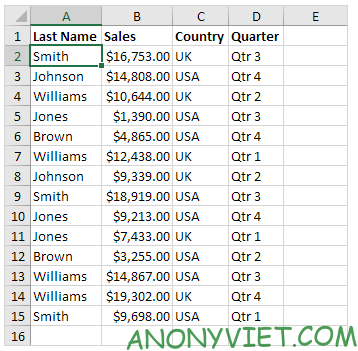
1. Click any cell in the table
Lesson 259: Table Styles in Excel

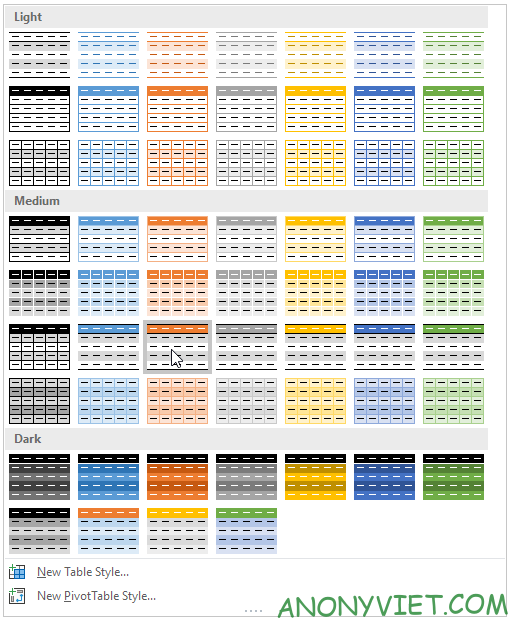
2. On the Home tab, click Format as Table.

Lesson 259: Table Styles in Excel 11

3. Choose a style for your table

Lesson 259: Table Styles in Excel 12

Note: click New Table Style to create your own style, or right-click the table style and click Duplicate to create a new style similar to the existing table style.

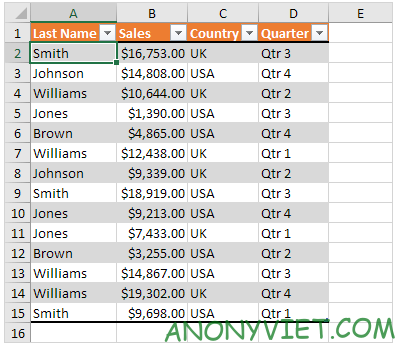
4. Excel automatically selects the data for you. Select ‘My table has headers’ and click OK.
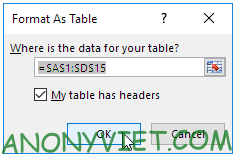
Lesson 259: Table Styles in Excel 13

Result

Lesson 259: Table Styles in Excel 14

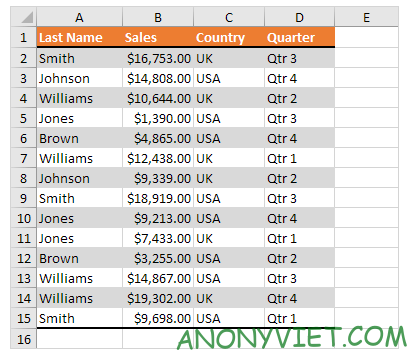
To convert this table back to a normal cell (and keep the format intact), perform the following steps.

5. First, select a cell inside the table. Next, on the Design tab, click Convert to Range.
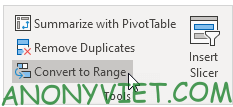
Lesson 259: Table Styles in Excel 15

Result

Lesson 259: Table Styles in Excel 16

In addition, you can also view many other excel articles here.

The article achieved: 5/5 – (100 votes)

Tags: ExcelLessonStylesTable
Previous Post

Quickly register for Email Proton.me (until April 30, it’s free)

Next Post

Writeup about Dumping Router Firmware room on Tryhackme

AnonyViet

AnonyViet

Related Posts

Top who creates the most beautiful presentation slide today
Office

Top who creates the most beautiful presentation slide today

September 23, 2025
Automatically check and correct spelling errors on Google Docs
Office

Automatically check and correct spelling errors on Google Docs

February 23, 2025
Instructions for downloading Google Docs files easily on any device
Office

Instructions for downloading Google Docs files easily on any device

December 18, 2024
Launching AI image creation feature on Google Docs
Office

Launching AI image creation feature on Google Docs

November 20, 2024
Instructions for using Google Docs without internet
Office

Instructions for using Google Docs without internet

November 2, 2024
Share the link to the sample file to create QR codes in Google Sheets
Office

Share the link to the sample file to create QR codes in Google Sheets

September 30, 2024
Next Post
Writeup about Dumping Router Firmware room on Tryhackme

Writeup about Dumping Router Firmware room on Tryhackme

0 0 votes
Article Rating
Subscribe
Login
Notify of
guest

guest

0 Comments
Oldest
Newest Most Voted
Inline Feedbacks
View all comments

Recent News

Instructions on how to edit Facebook scheduled posts

Instructions on how to edit Facebook scheduled posts

November 16, 2025
Suggested AI command to create a rustic and charming image of a Ban Lien girl

Suggested AI command to create a rustic and charming image of a Ban Lien girl

November 16, 2025
Windows 10 will have a new, simpler interface

Windows 10 will have a new, simpler interface

November 16, 2025
Share Key Active Visual Studio 2026

Share Key Active Visual Studio 2026

November 15, 2025
Instructions on how to edit Facebook scheduled posts

Instructions on how to edit Facebook scheduled posts

November 16, 2025
Suggested AI command to create a rustic and charming image of a Ban Lien girl

Suggested AI command to create a rustic and charming image of a Ban Lien girl

November 16, 2025
Windows 10 will have a new, simpler interface

Windows 10 will have a new, simpler interface

November 16, 2025
AnonyViet - English Version

AnonyViet

AnonyViet is a website share knowledge that you have never learned in school!

We are ready to welcome your comments, as well as your articles sent to AnonyViet.

Follow Us

Contact:

Email: anonyviet.com[@]gmail.com

Main Website: https://anonyviet.com

Recent News

Instructions on how to edit Facebook scheduled posts

Instructions on how to edit Facebook scheduled posts

November 16, 2025
Suggested AI command to create a rustic and charming image of a Ban Lien girl

Suggested AI command to create a rustic and charming image of a Ban Lien girl

November 16, 2025
  • Home
  • Home 2
  • Home 3
  • Home 4
  • Home 5
  • Home 6
  • Next Dest Page
  • Sample Page

new88 trang chủ shbet trang chủ f168 trang chủ qq88 nhà cái 78win

No Result
View All Result
  • Home
  • News
  • Software
  • Knowledge
  • MMO
  • Tips
  • Security
  • Network
  • Office

new88 trang chủ shbet trang chủ f168 trang chủ qq88 nhà cái 78win

wpDiscuz
0
0
Would love your thoughts, please comment.x
()
x
| Reply