• Home
  • News
  • Software
  • Knowledge
  • MMO
  • Tips
  • Security
  • Network
  • Office
AnonyViet - English Version
  • Home
  • News
  • Software
  • Knowledge
  • MMO
  • Tips
  • Security
  • Network
  • Office
No Result
View All Result
  • Home
  • News
  • Software
  • Knowledge
  • MMO
  • Tips
  • Security
  • Network
  • Office
No Result
View All Result
AnonyViet - English Version
No Result
View All Result

Lesson 225: Data Bars in Excel

AnonyViet by AnonyViet
January 25, 2023
in Office
0

This article will show you how to use data bars in Excel.

Join the channel Telegram of the AnonyViet 👉 Link 👈

Data bar

This article will guide you to create data bars in excel

1. Select range

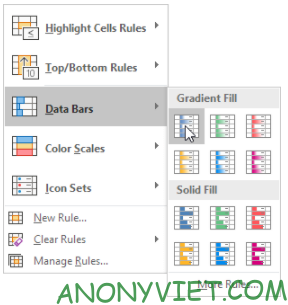
2. On the Data panel in the Styles section, select Conditional Formating

Lesson 225: Data Bars in Excel

3. Select Databars -> subtype

Lesson 225: Data Bars in Excel 11

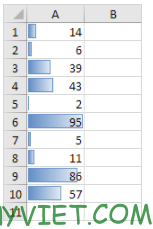
Result:

Lesson 225: Data Bars in Excel 12

4. Change value

Result:

Lesson 225: Data Bars in Excel 13

5. Select range A1:A10

6. On the Data panel in the Styles section, select Conditional Formating

7. Select edit rules

It will appear a table and you can edit your data bar there
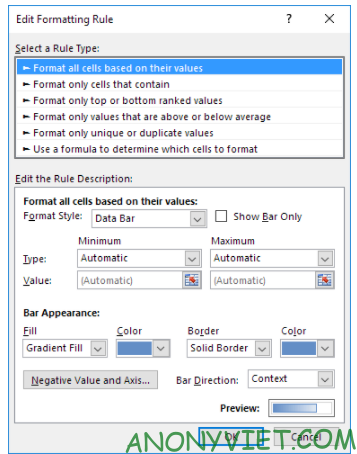
Lesson 225: Data Bars in Excel 14

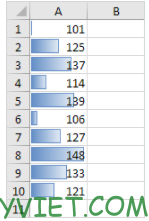
8. Select Number in the Minimum down-arrow list box and enter the value 100 and select Number in the Maximum drop-down arrow box and enter 150

9. Multiply OK 2 times
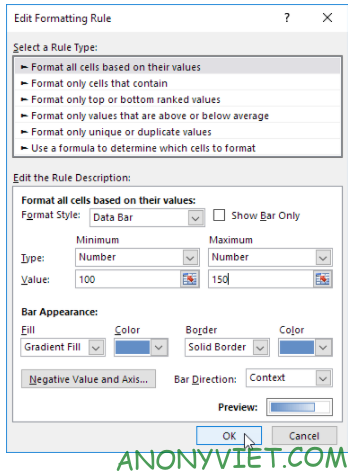
Lesson 225: Data Bars in Excel 15

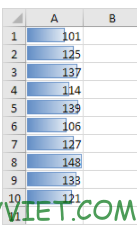
Result:

Lesson 225: Data Bars in Excel 16

In addition, you can also view many other excel articles here.

The article achieved: 5/5 – (100 votes)

Tags: BarsdataExcelLesson
Previous Post

Share Udemy’s $89 Online Singing – Vocal Training Course

Next Post

How to Hack WIFI Password Using Linux

AnonyViet

AnonyViet

Related Posts

How to add Watermark to Google Docs to protect copyright
Office

How to add Watermark to Google Docs to protect copyright

April 19, 2026
Instructions on how to hide formulas in Excel to secure data
Office

Instructions on how to hide formulas in Excel to secure data

February 6, 2026
Top who creates the most beautiful presentation slide today
Office

Top who creates the most beautiful presentation slide today

September 23, 2025
Automatically check and correct spelling errors on Google Docs
Office

Automatically check and correct spelling errors on Google Docs

February 23, 2025
Instructions for downloading Google Docs files easily on any device
Office

Instructions for downloading Google Docs files easily on any device

December 18, 2024
Launching AI image creation feature on Google Docs
Office

Launching AI image creation feature on Google Docs

November 20, 2024
Next Post
How to Hack WIFI Password Using Linux

How to Hack WIFI Password Using Linux

0 0 votes
Article Rating
Subscribe
Login
Notify of
guest

guest

0 Comments
Oldest
Newest Most Voted

Recent News

Instructions for Logo Design in just a few clicks with Logaster

Instructions for Logo Design in just a few clicks with Logaster

July 20, 2026
Clean Tam – Accompanying the green space of every Vietnamese family

Clean Tam – Accompanying the green space of every Vietnamese family

July 20, 2026
3 coolest ways to turn off your computer

3 coolest ways to turn off your computer

July 19, 2026
Instructions on how to get Norton 360 Deluxe for 1 year for free

Instructions on how to get Norton 360 Deluxe for 1 year for free

July 19, 2026
Instructions for Logo Design in just a few clicks with Logaster

Instructions for Logo Design in just a few clicks with Logaster

July 20, 2026
Clean Tam – Accompanying the green space of every Vietnamese family

Clean Tam – Accompanying the green space of every Vietnamese family

July 20, 2026
3 coolest ways to turn off your computer

3 coolest ways to turn off your computer

July 19, 2026
AnonyViet - English Version

AnonyViet

AnonyViet is a website share knowledge that you have never learned in school!

We are ready to welcome your comments, as well as your articles sent to AnonyViet.

Follow Us

Contact:

Email: anonyviet.com[@]gmail.com

Main Website: https://anonyviet.com

Recent News

Instructions for Logo Design in just a few clicks with Logaster

Instructions for Logo Design in just a few clicks with Logaster

July 20, 2026
Clean Tam – Accompanying the green space of every Vietnamese family

Clean Tam – Accompanying the green space of every Vietnamese family

July 20, 2026
  • Home
  • Home 2
  • Home 3
  • Home 4
  • Home 5
  • Home 6
  • Next Dest Page
  • Sample Page

say88 tỷ lệ kèo nhà cái kèo nhà cái 5 febet

No Result
View All Result
  • Home
  • News
  • Software
  • Knowledge
  • MMO
  • Tips
  • Security
  • Network
  • Office

say88 tỷ lệ kèo nhà cái kèo nhà cái 5 febet

wpDiscuz
0
0
Would love your thoughts, please comment.x
()
x
| Reply